Exact Online Integration
Last updated: November 17, 2026
Summary
With the Exact Online plugin, you can automate your bookkeeping: Invoice registration is automated and your entire accounting process is centralized.
Invoices created in Eduframe are instantly registered as sales entries in Exact Online, including automatic contact creation. Courses can be linked to the correct General Ledger Account, Cost Center and Cost Unit.
For questions on Exact terminology, please refer to the Exact Online documentation and support.
Which information will be synchronized from Eduframe to Exact Online?
When you use the Exact Online plugin, the following information is synchronized from Eduframe to Exact Online:
Account linked to the Invoice (personal/business):
name
email
address
Custom Field with the system name
vat_number
Invoice:
descriptionopened_atdateexpiration_datereference_idfeaturenumber
Invoice items (individual invoice lines):
descriptionunitsvat_code
Other:
The data you fill in for Exact Online on the Plugins tab, such as
cost_unitandcost_center.The whole Invoice as PDF, which is attached to the
sales_entryin Exact Online.
Note: Information, like the Invoice status, does not sync back from Exact Online to Eduframe.
When will the information be synchronized?
The information above gets synchronized on creation of an Invoice and on every change of the Invoice after that, so when it is opened, paid, expired, deleted or (re)saved.
Installation and configuration
How do I install the plugin and authenticate the plugin to connect to Exact Online?
Go to Settings > Plugins, search for the Exact Online plugin on the left, and click Click to install. You are then forwarded to Exact Online to authenticate and activate the link.
How do I configure the Exact Online plugin?
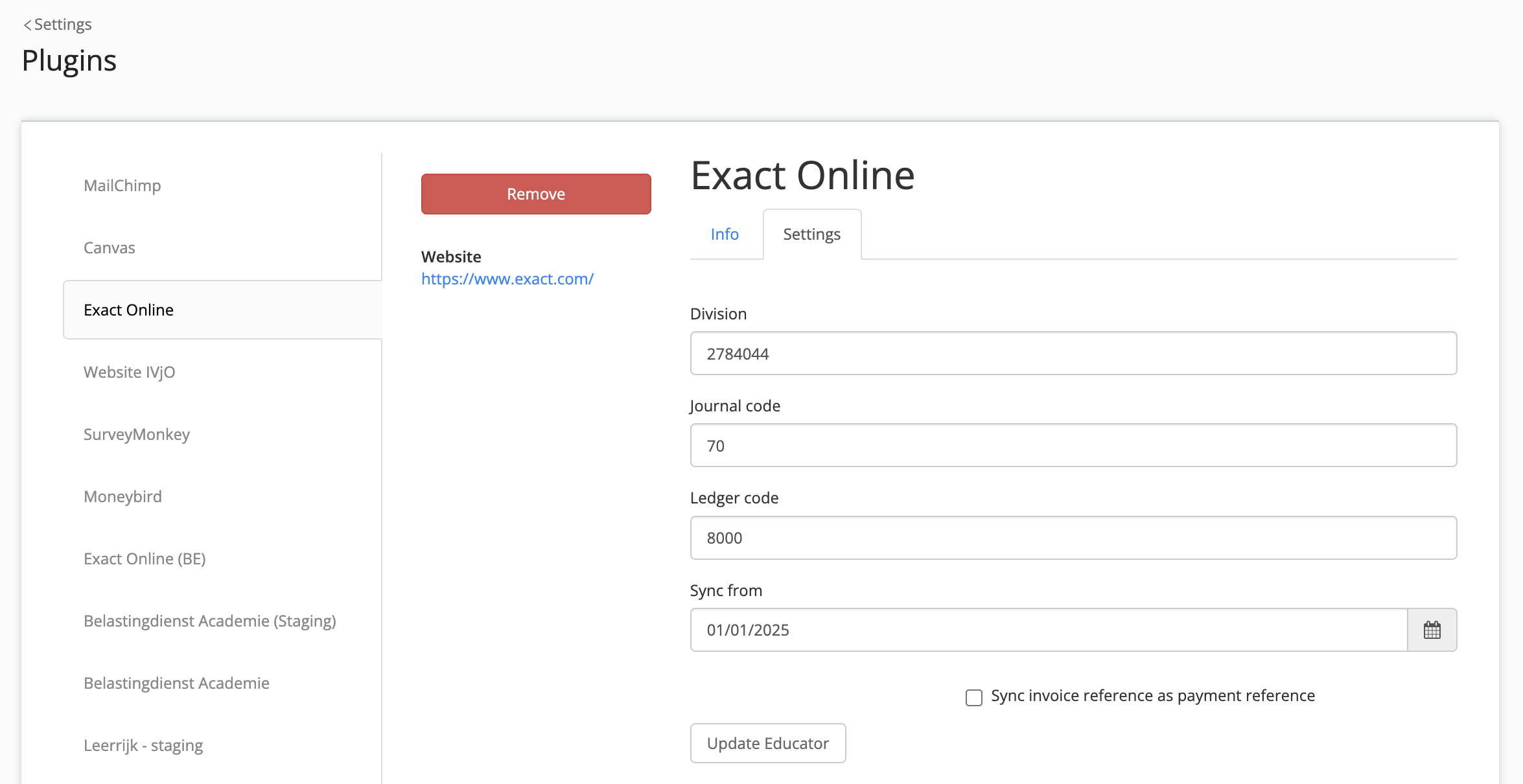
After authenticating, configure the plugin on the Settings tab of the plugin in Eduframe. Here you see the following fields:
Division
This is the code of the division to which the entries must be added. This is a global setting. You can find the division code in the Exact Online dashboard:Click the administration name (top left).
Click All options. A screen with an overview of administrations opens.
Hover over the number of the right administration in the Code column.
The number that you see in the URL that appears at the bottom of the page is the division code.
Journal code
The code of the journal to which the entries must be added. This is a global setting.Ledger code
The code of the ledger account to which the entries must be added. This can be overruled for each Course Template and Course Edition.Sync from
This is the date from which Invoices should be synchronized. We recommend first taking a short period of a few days to check if the connection is working properly. If the connection is working like it should, the Sync from date can be put further back in the past. This is a global setting.
Notes:
The Exact Online plugin only supports using one division. Make sure the Admin who authenticated the plugin has access to the chosen division in Exact Online.
Make sure the chosen journal code and ledger code are available within the chosen division.
How do I choose a ledger, cost center and/or cost unit for a Course Template and Course Edition?
You can choose the ledger account, cost center and cost unit that Invoices for one course should use. When an Invoice is created based on the relevant Course Template, the entry is directly linked to the chosen cost unit and cost center in Exact Online.
Set the Exact Online settings on the Course Template and Course Edition as follows:
Go to Course templates, open the Plugins tab at the top and the Exact Online tab on the left, and fill in the relevant fields:
Ledger code
The code of the ledger account to which the entries must be added.Cost center
The code of the cost center.Cost unit
The code of the cost unit.
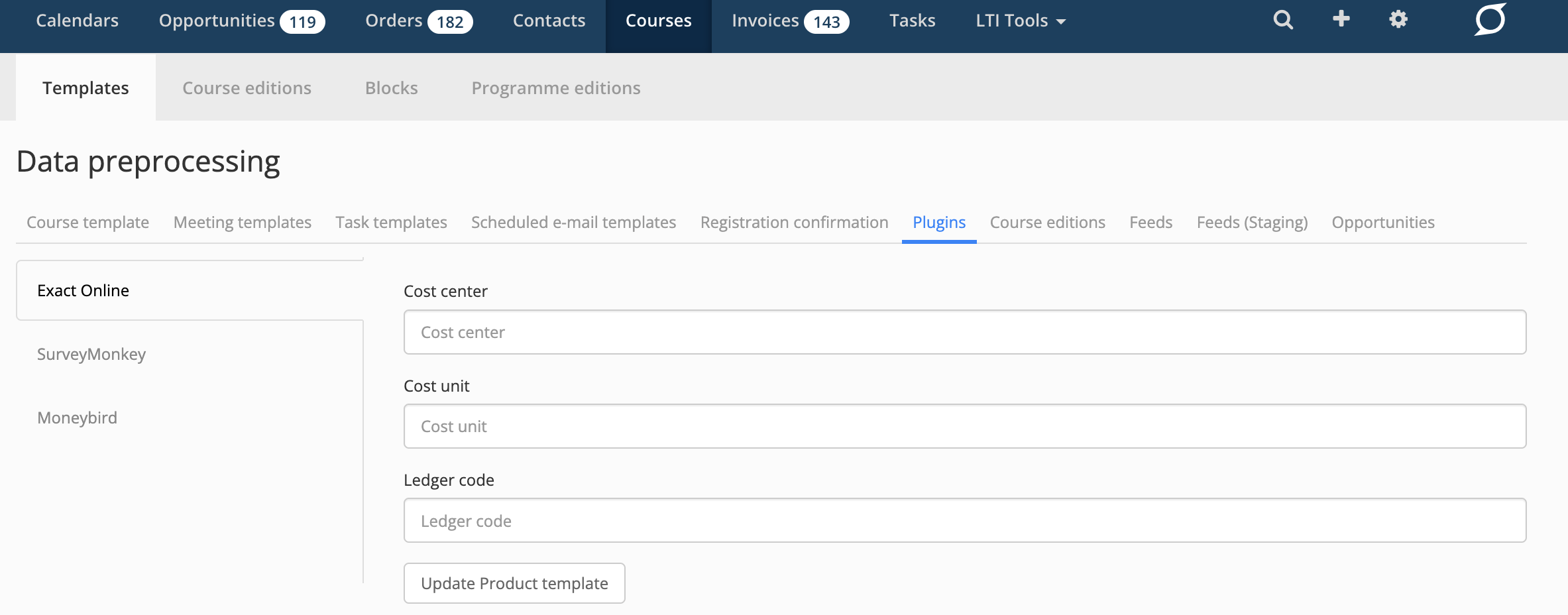
You can fill in these settings (ledger code, cost center, cost unit) on 3 levels: general settings, Course Template and Course Edition. If the information is not filled in, the information from a higher level is used. This means:
If the ledger code, cost center and cost unit are filled in for the Course Edition, these settings are used.
If this information is not filled in on the Course Edition, the information on the Course Template is used.
If this information is not filled in on the Course Template, the ledger code in the general settings is used. In this case, no cost center and cost unit are set.
How do I synchronize the VAT number of Organizations?
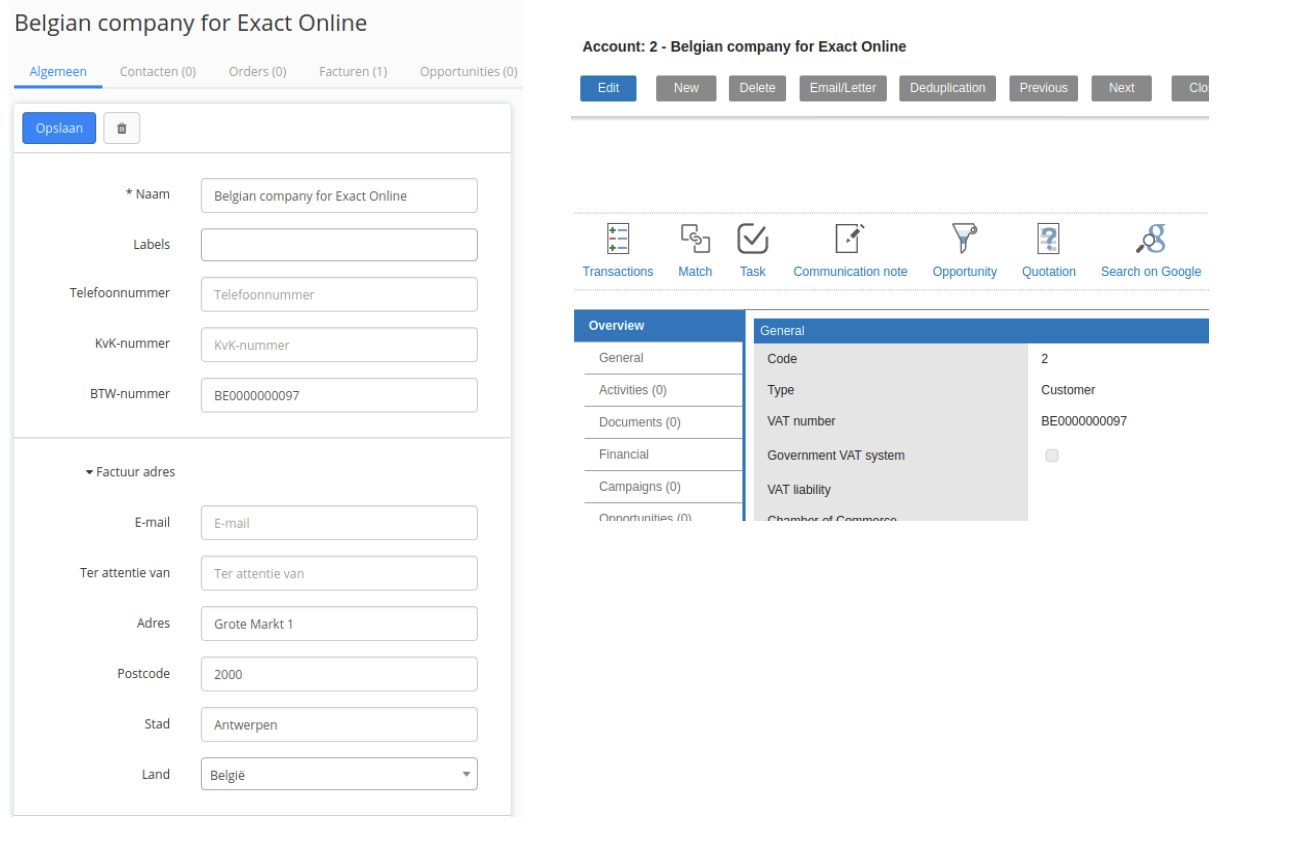
You can synchronize the VAT number of an Organization to Exact Online. To do this, create a Custom Field for Organizations and link this Custom Field to vat_number. For more information, see 📄 Custom Fields.
After this, you can enter this field for an Organization in the following format: NL0000000000B00. This format differs per country but always starts with the code of the country where the Organization is located.
It is also necessary to enter the billing address of the Organization with the correct country.
After the VAT number has been entered, it appears with the account in Exact Online after the next Invoice is synchronized for this Organization.
What if an Invoice does not appear in Exact Online?
If an Invoice is missing from Exact Online, first verify that it meets the synchronization criteria:
Status: The Invoice must be Open, Paid or Expired.
Date: The Invoice must have been opened after the Sync from date configured in your settings.
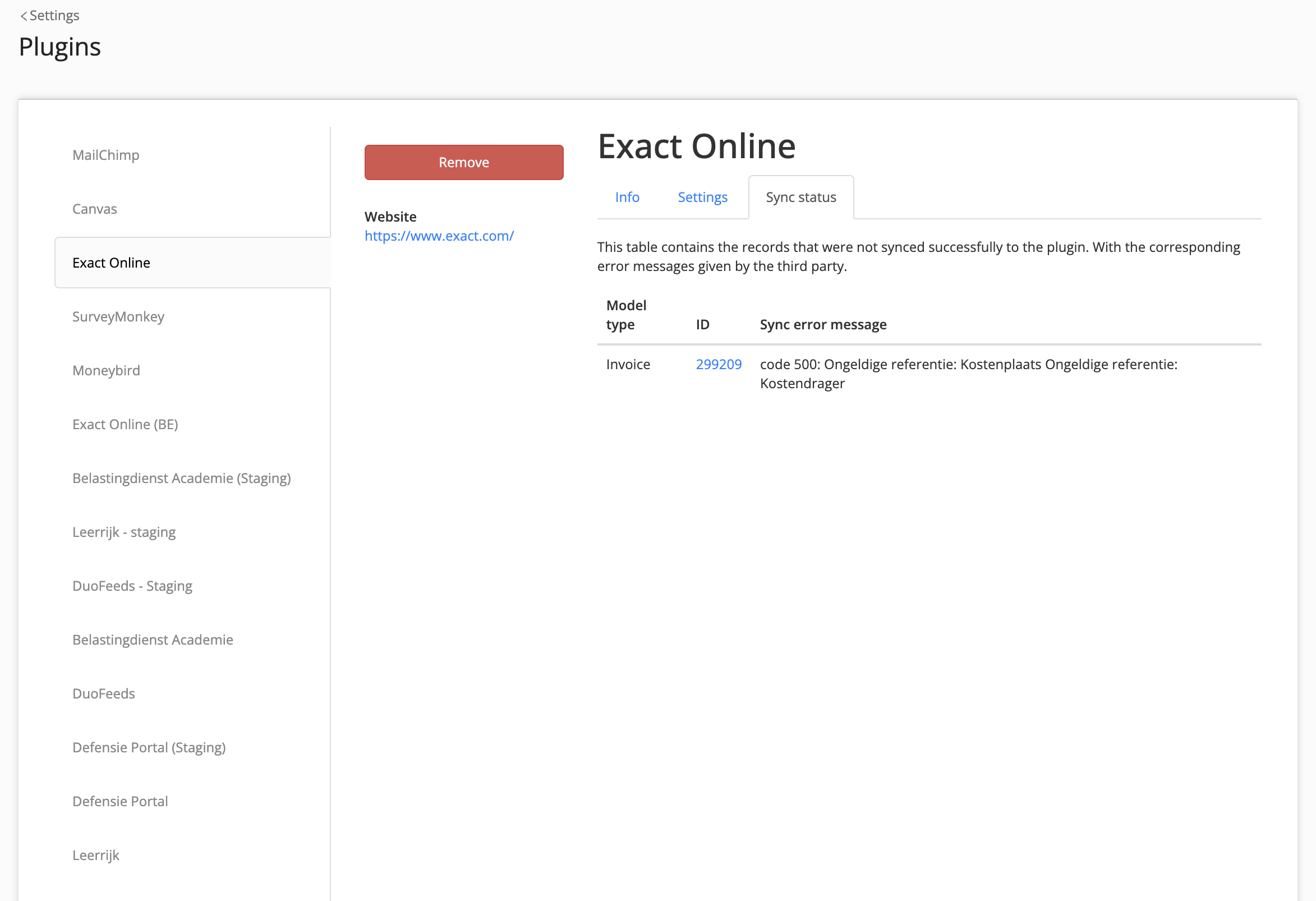
If these conditions are met and the Invoice is still missing, the synchronization to Exact Online likely encountered an error. You can find specific error messages in Eduframe under Settings > Plugins > Exact Online > Sync status.
Each row in this table represents a failed sync attempt. Most errors are caused by incorrect or incomplete data (such as a missing ledger code or invalid VAT number). To resolve this, correct the data in Eduframe and save the Invoice again. The system automatically retries the synchronization. Once successful, the entry is removed from the Sync status table.
Warning:
When merging Contacts in Eduframe, exactly the same merge (de-duplication) action needs to be done on the contacts in Exact Online. With this action, the same primary contact in Exact Online should be kept as primary Contact in Eduframe. If the wrong contacts are merged, or if the wrong primary contact is selected in Exact Online, Eduframe will create a new contact.
The other way around is similar: when you want to merge a contact in Exact Online, of which one of these contacts is created by Eduframe, you have to keep the contact created by Eduframe. Otherwise Eduframe will create this contact again in Exact Online, resulting in duplicates.
Note: The Exact Online plugin only synchronizes Invoices on creation or update of an Invoice. If a wrong division, ledger code or journal code is chosen, the Invoice needs to be manually resaved in Eduframe to synchronize it.
Note: When using Discount Codes in Eduframe, the discount is added as a separate line to the sales entry synced to Exact Online. No cost center or cost unit is assigned to this line.