Exemption from a Course in a Program
Last updated: July 29, 2026
Summary
In some cases, a participant may be eligible for an exemption from a specific course within a program. This typically occurs if the participant has already completed a similar course with another educator or through prior professional experience. This article explains how Exemptions work in Eduframe.
How to 'exempt' a participant from a course in a program?
Exemptions are managed at the Personal Program level for each individual participant. As an admin, you:
Navigate to the Enrollments tab of the Program Edition and click on the Participant's Name.
Go to the Programs tab within their profile.
Locate the course element you wish to exempt.
Click the dropdown menu next to the New enrollment button and select Mark as exempt.
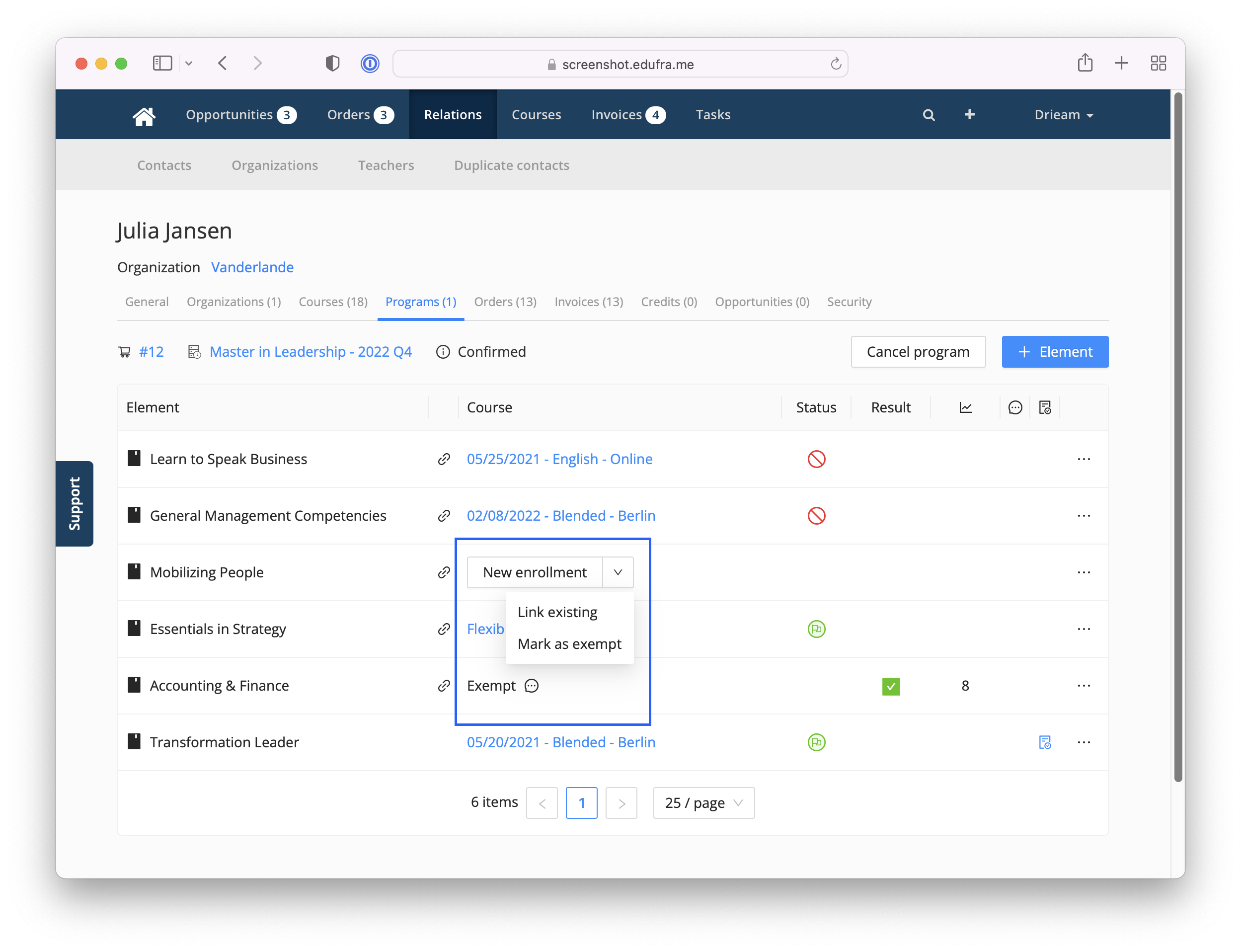
Note: If the participant is already enrolled in a specific course edition, you must first Unlink that enrollment from the personal program before the "Mark as exempt" option becomes available.Note: If the participant is already enrolled in a specific course edition, you must first Unlink that enrollment from the personal program before the "Mark as exempt" option becomes available.
What is the impact of an Exemption?
When a participant is marked as exempt:
No Enrollment: The participant is not enrolled in any specific edition of that course.
Access Restricted: Because there is no active enrollment, the participant will not see the course in their portal and cannot access corresponding materials in Canvas.
Result Set to 'Passed': The course result is automatically set to "Passed" due to the exemption.
Program Auto-Completion: This "Passed" status counts toward the program's requirements, allowing the overall program to "auto-complete" once all other elements are finished.
Recording Exemption Details
When applying an exemption, you can document the following details to maintain a complete academic record:
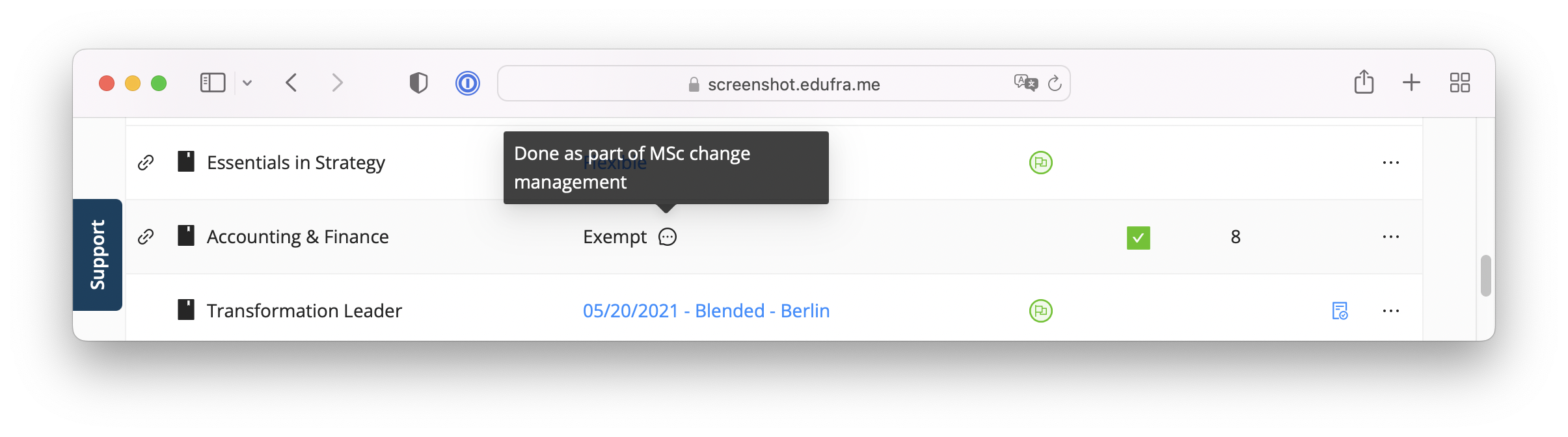
Reason for Exemption: You can provide a specific reason (e.g., "Prior learning at University X"). This appears as a speech bubble icon in the personal program; hovering over it reveals the tooltip with your note.
Historical Data: You can manually record an earlier Grade or Score associated with their previous completion of the subject.
Certificates: It is not possible to automatically award a certificate for a course where the participant is exempt.
Note: If the participants still needs access to the course in Canvas, or if you still want to award the certificate, the participant needs to be enrolled. In this case you cannot use 'exempt'.
Note: If the participants still needs access to the course in Canvas, or if you still want to award the certificate, the participant needs to be enrolled. In this case you cannot use 'exempt'.