Teachers
Last updated: September 21, 2026
Summary
A Teacher in Eduframe is a contact who has the teacher role and an associated teacher record. Find out more about Teachers in this article
Where can I find all Teachers?
Underneath Contacts in the global navigation of Eduframe, you will find four tabs: Contacts, Organizations, Teachers and Duplicate Users.

How can I create a new teacher?
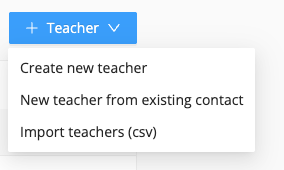
There are three ways to create a new teacher:
1. You can a teacher (contact) from scratch
2. You can make an existing contact a teacher
3. You can do a csv import of teachers
More about creating teachers: 📄 How to Create and Import Contacts, Teachers and Organizations.
How can I delete a Teacher?
You can delete an teacher in Eduframe:
Navigate to Teachers in the global navigation.
Click on the teacher.
Click on the Trash icon (next to save).
There will be a modal that explains what happens when you delete a teacher:
Permanently delete this teacher? This action will delete all data on this page and remove the teacher from all meetings and courses. The contact that is linked to this teacher will not be deleted. You can't undo this action.
Click Delete (or Cancel).
How to filter in Teachers?
There are multiple ways to filter on teachers.
Labels: If you created labels connected to teachers, you can filter on these in the teacher page. Here you can find more information about 📄 Labels.
Search: You can search specific teachers by typing part of their names (first and last name), or by typing the answer of a custom field on the Teacher page.
How can I see a Teacher's schedule?
As an Admin, you can see all of a Teacher's scheduled Meetings and Subevents on the Teachers calendar. Go to Calendars in the global navigation and open Teachers for a Grid view of bookings per Teacher, similar to the Locations and Materials calendars. Switch between Day, Week and Month view to check a Teacher's availability before scheduling a new Meeting.
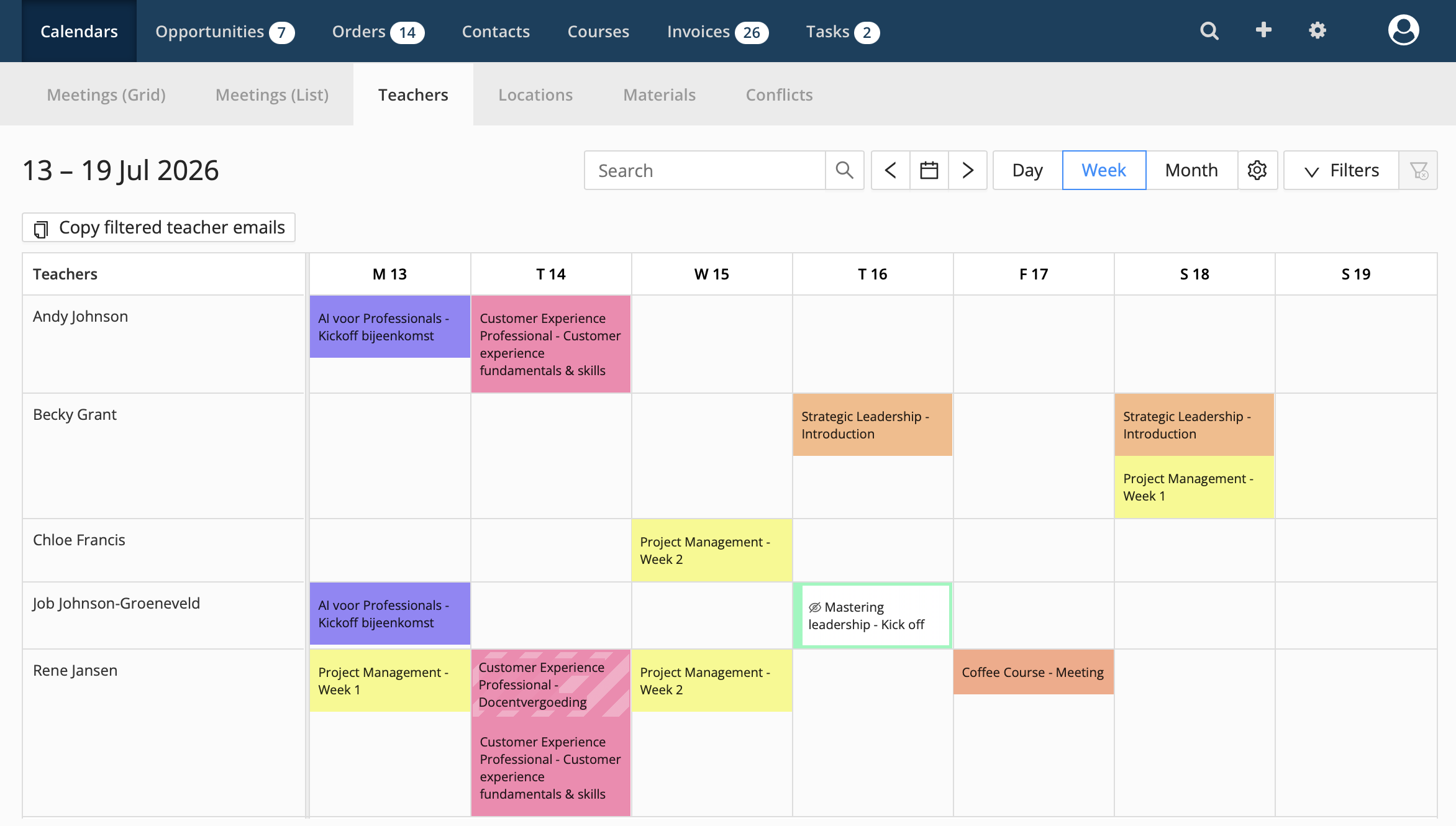
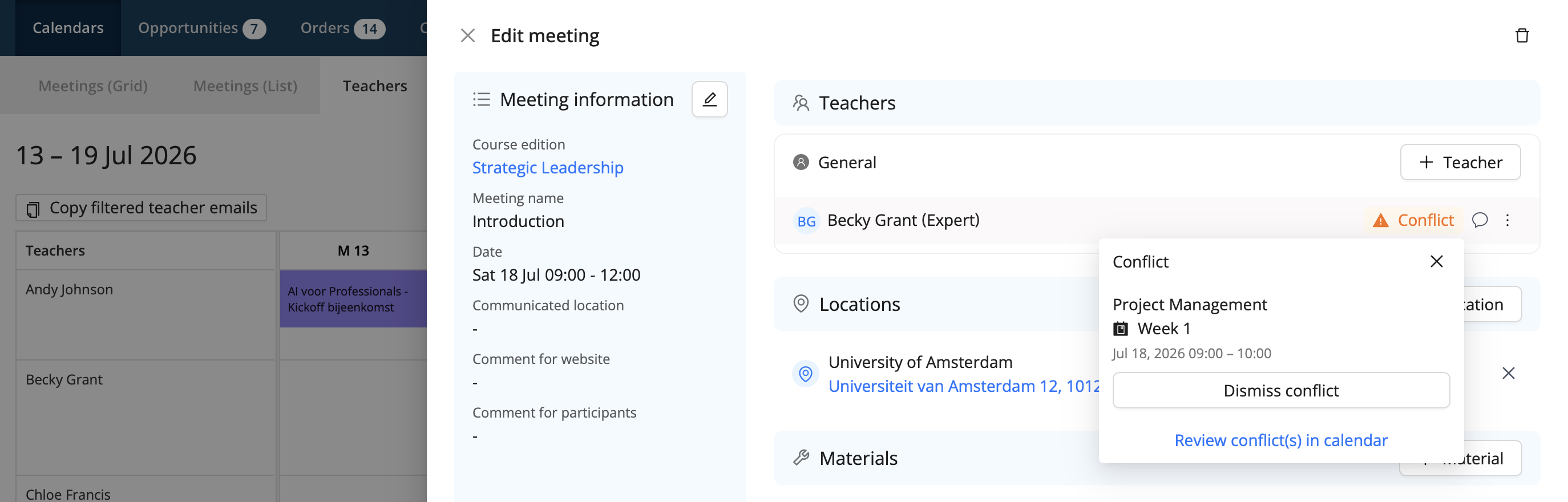
If a Teacher is assigned to two overlapping Meetings or Subevents, this is shown as overlapping bookings on the Teachers calendar. Eduframe's conflict detection actively flags it with the option to solve or dismiss the conflict in the Meeting drawer and in Conflicts.