Course completion in Eduframe
Last updated: July 31, 2026
Summary
In Eduframe, courses can be completed in two ways:
manually by an Eduframe administrator
automatically, when a participant completes all module requirements of a course in Canvas.
In this article you will find more details about these options.
How to complete a course manually in Eduframe?
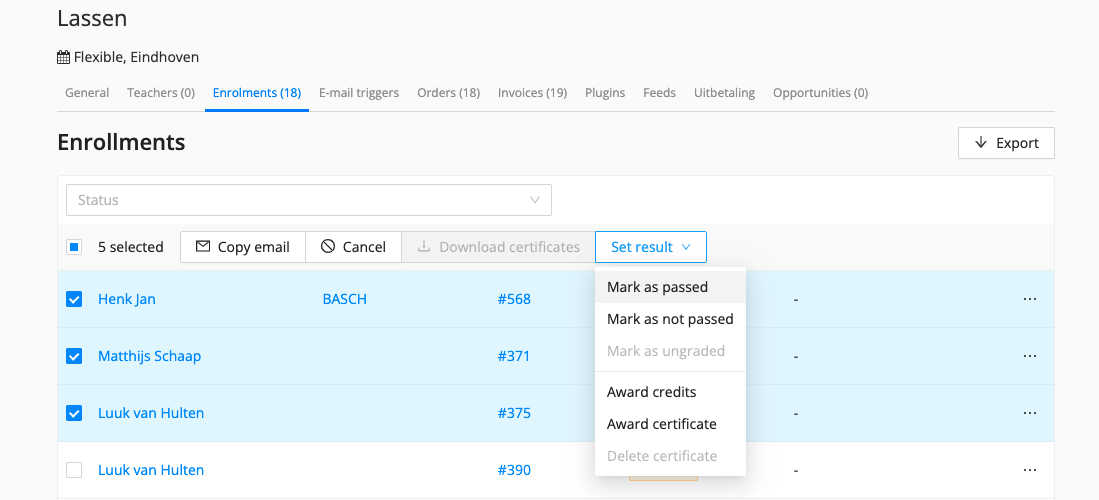
As an admin, you can mark a course enrolment as 'Passed' or 'Not passed'. Once a participant has met the requirements to pass a course, the admin can manually mark this participant as passed. This can be done in the courses tab of a particular participant or in the enrolments tab for a selected course, like in the below image:
Based on the result (Passed or Failed/Not passed), it is possible to award participant with a certificate and/or credits automatically, if this is setup in settings.
You can find for more information on how to configure 📄 Credits and Outcomesin Eduframe settings.
You can automatically email the certificate to participants once it's awarded by enabling the certificate email in 'Settings' -> 'Email templates & Triggers' -> tab 'System'.
How to complete a course automatically based on Canvas module progress
If you configure the necessary settings, completing all modules in a synced Canvas course will automatically mark the participant's Eduframe enrollment as 'Passed'.
Once the enrollment is marked as 'Passed', the participant can be awarded a certificate and/or credits, just as is the case for manually completing a course. Additionally, an email with the certificate can be sent automatically.
How to set up auto completion?
In order to start completing courses automatically, on the Eduframe side you do not need to do anything (besides executing the 📄 Canvas LMS integration). However, in Canvas a few steps need to be taken for this to work:
1. Set up the Data Stream in Canvas:
As a Canvas Admin, navigate to Admin and select the Canvas root account.
Then look for 'Data Services' in the sidemenu.
Click on the '+ Add' button to create a new data stream. See image below.
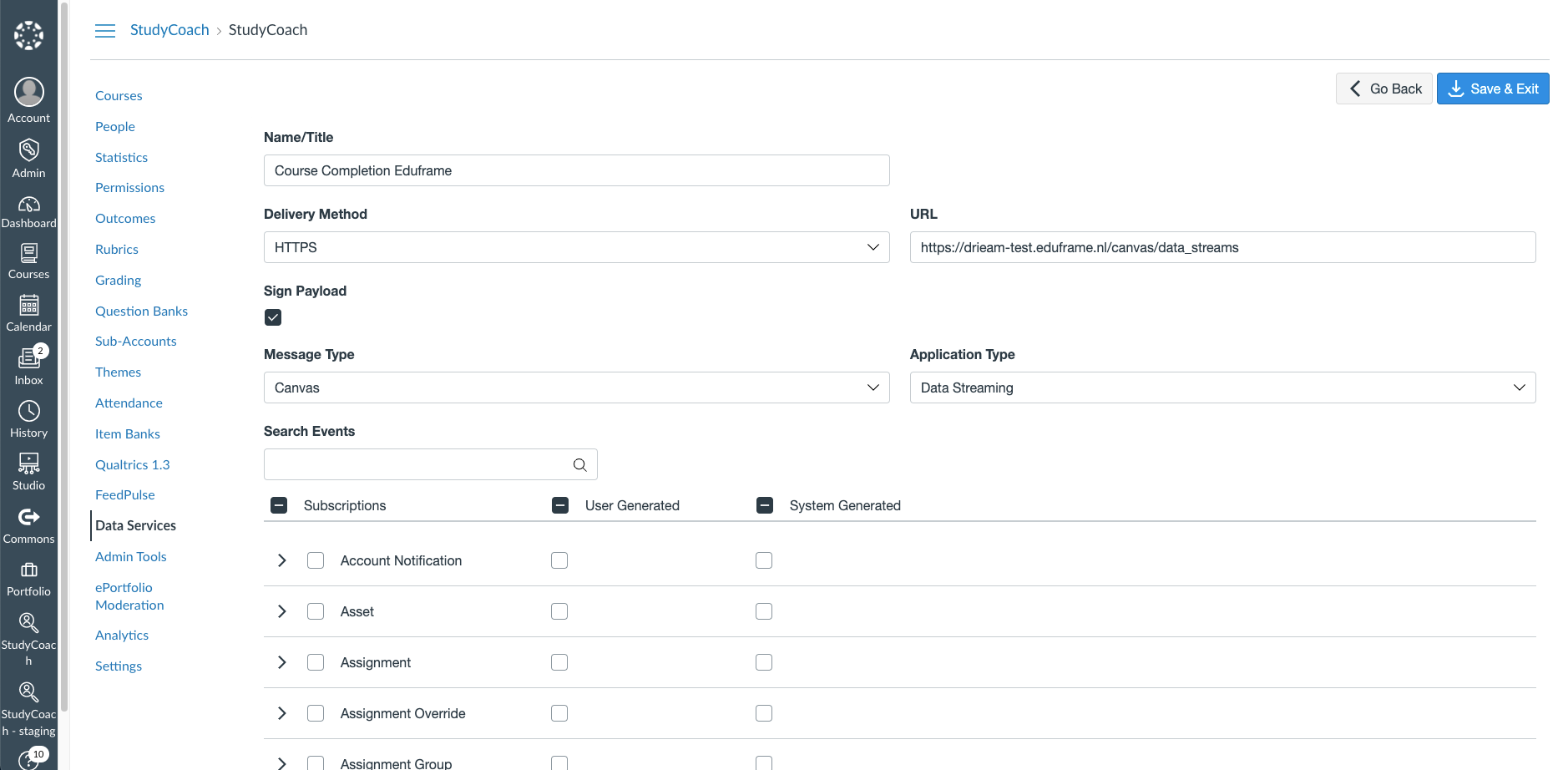
Fill in the fields as shown in the image below:
Name/Title: Course Completion Eduframe
Delivery Method: HTTPS
URL: Use your Eduframe URL here and add '/canvas/data_streams' at the end. For example: 'https://my-school.eduframe.nl/canvas/data_streams'.
Sign PayLoad: Should be checked
Message Type: Canvas
Application Type: Data Streaming
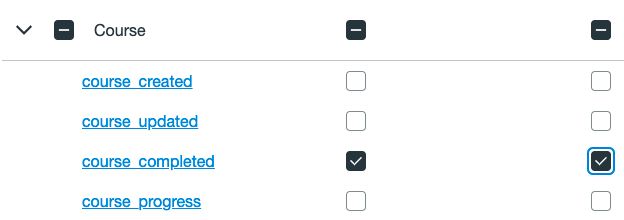
In the table, scroll down and look for 'Course'. Click on the arrow to open this.
Check the two checkboxes behind 'course_completed', as shown in the image below.
Click Save & Exit
2. Setting the module requirements for a course in Canvas
For each course in Canvas (that has been created via Eduframe) the result of a participant will be automatically synchronized to Eduframe when the participant completes all module requirements.
To set up module requirements for a course, go to the course and select 'Modules'.
Then edit the module by clicking on the three dots next to the module and clicking 'edit'
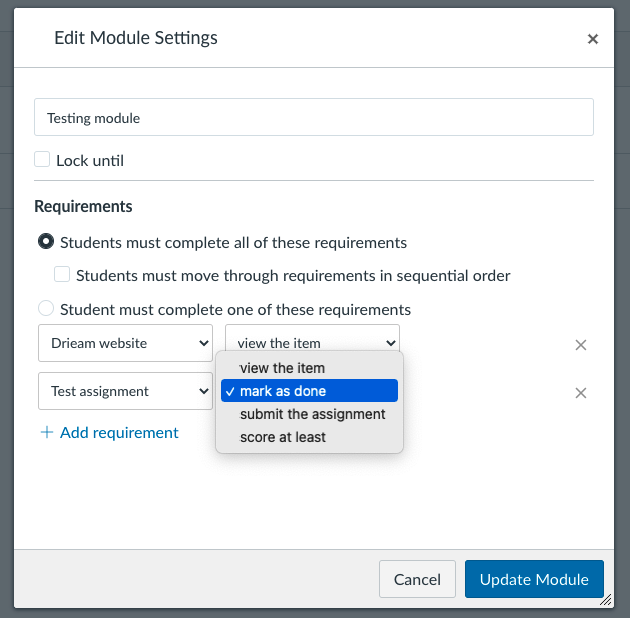
Click on 'Add requirement to add a requirement for this module.
Select the type of requirements as you like and confirm.
It is possible to add requirements for all or multiple modules within the course, by repeating steps 2-4.
Now, if a participant completes all module requirements within this course, a course completed event will be sent to Eduframe and the result of the participant in this course will be marked as 'Passed' (with a delay of a few minutes).
Note: Please do keep in mind that if an enrolment is marked as 'passed' or 'not passed' (manually) already, the completion of the course module requirements in Canvas by the participant will not overwrite the result that was already set previously.