Google Analytics 4 / Google Tag Manager - integration
Last updated: September 21, 2026
Summary
Eduframe supports the usage of Google Analytics 4 (Google Analytics) and Google Tag Manager (GTM) on the signup page. With Google Analytics 4 you can achieve basic analytics. With GTM it is additionally possible to:
Send enhanced e-commerce data (events) to Google Analytics, Adobe Analytics and/or other analytics tooling
Send conversion data to Facebook/Google/LinkedIn/etc.
Apply Hotjar/Google Optimize in check out
While Google Analytics is pretty straightforward, GTM needs configuration on both the Google Analytics side and the Analytics platform chosen by you.
How to set up Google Analytics and Google Tag Manager?
Google Analytics
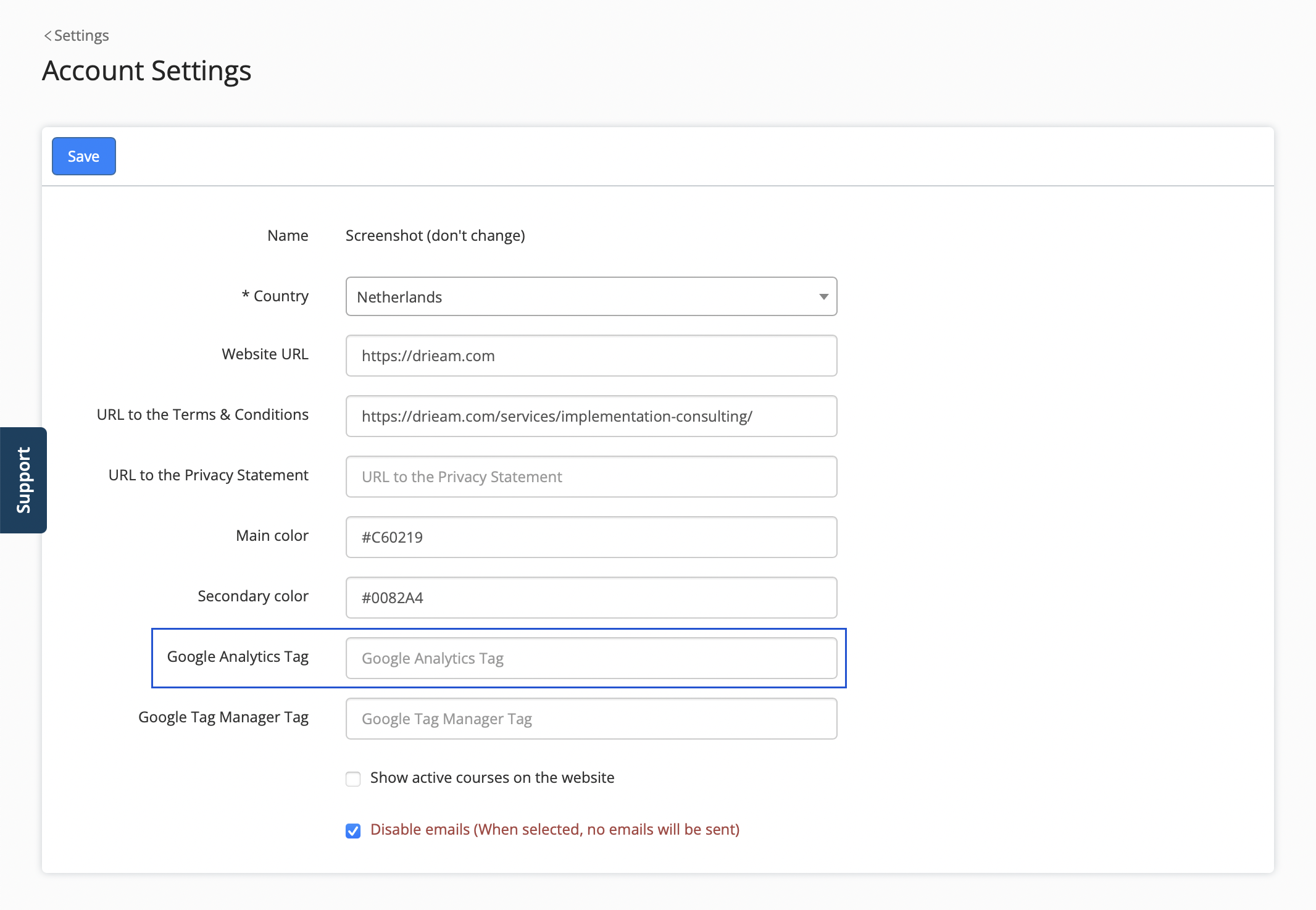
Go to 'Settings' -> 'Account Settings'.
Here you can enter your Google Analytics tag (make sure there are no spaces before, after or between the tag).
Click on 'Save'.
Google Analytics will be automatically activated. The data will appear in your analytics tool within 24 hours.
Google Tag Manager (GTM)
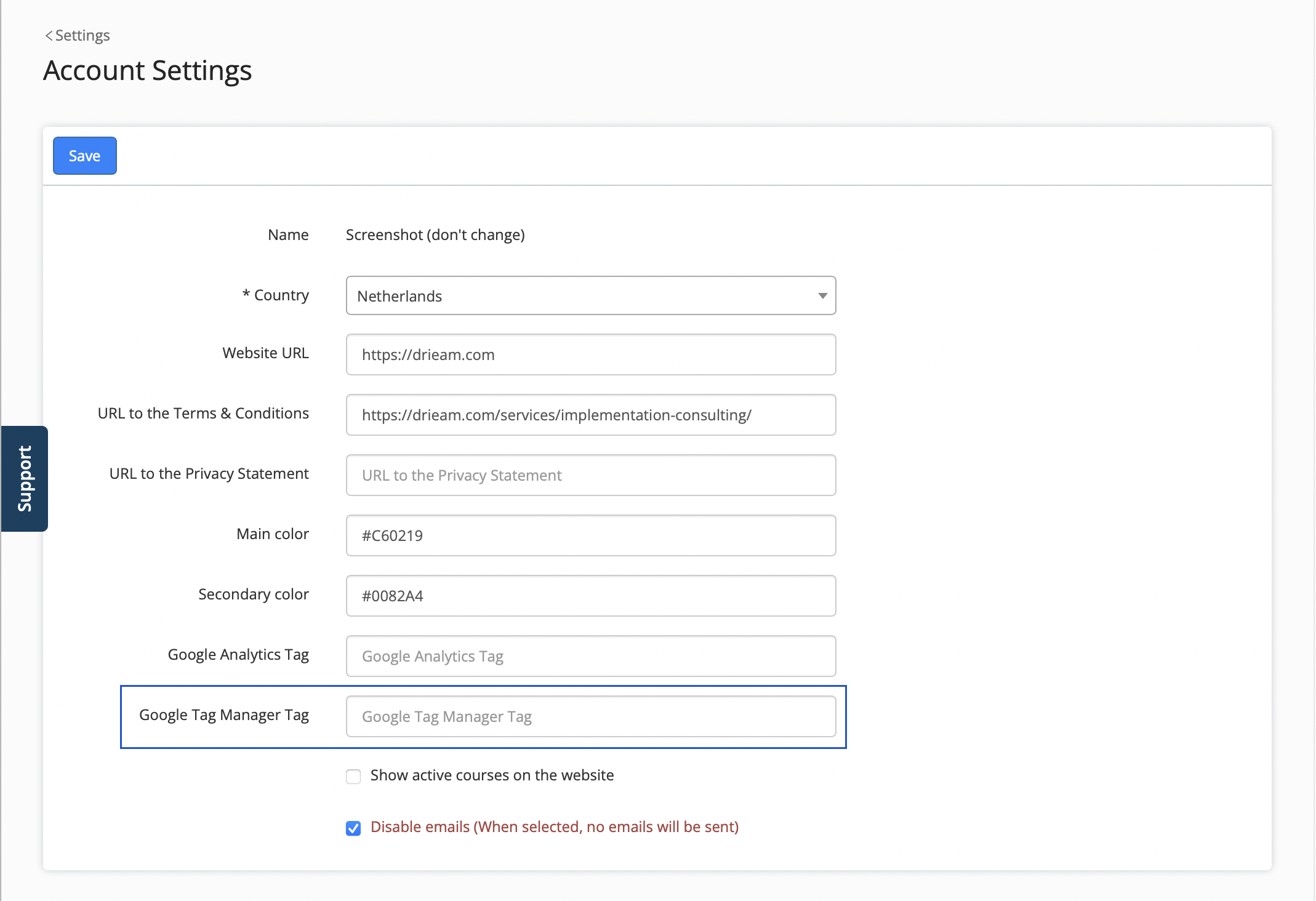
Go to 'Settings' -> 'Account Settings'.
Here you can enter your GTM tag (make sure there are no spaces before, after or between the tag).
Click on 'Save'.
Note: GTM will be automatically activated. Note: the events mentioned below will not automatically correctly show up in your analytics dashboard. This needs configuration first in your Google Tag Manager account. Read 'Tips & tricks' below for more info.
GTM events for Google Analytics 4 (GA4)
We respect the format of events from the Google Analytics documentation.
Select product
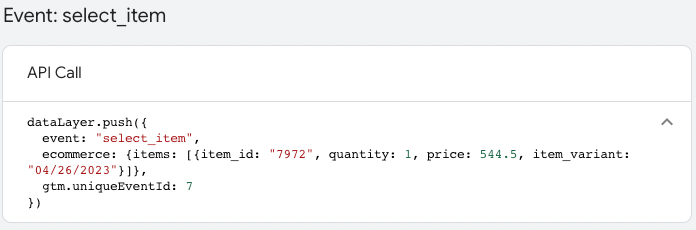
The first event occurs when a course edition is selected. The event is called “select_item”. This event can be triggered multiple times when the user selects another product on the signup.
Content
item_id: ID of the catalog product (template).
item_variant: Name of the catalog variant (edition) selected.
For a course this is: ‘date - variant - location’ similar to the name shown in Eduframe when you select a course edition.
For a program this is the name of the edition in Eduframe.’
quantity: 1 - always, because when you select a product, there are no participants added yet.
price: The price of the catalog variant (edition) selected.
location_id: The id of the location selected on a course edition if present.
Checkout
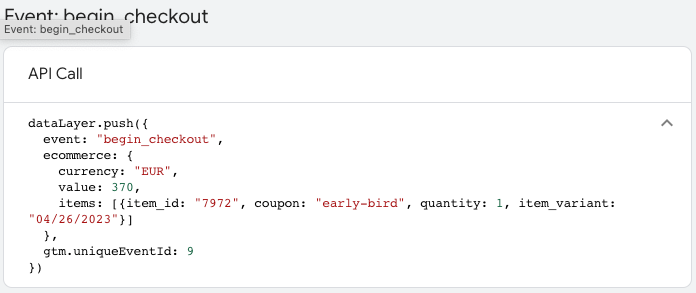
The second event is the “begin_checkout” event, that takes place when the user has completed all the steps of the signup and confirmed the order.
Content
currency: The currency selected for you Eduframe account.
value: The total cost excluding VAT.
items: List of:
item_id: ID of the catalog product (template).
item_variant: Name of the catalog variant (edition) selected.
For a course this is: ‘date - variant - location’ similar to the name shown in Eduframe when you select a course edition.
For a program this is the name of the edition in Eduframe.
quantity: Amount of participants filled in during the signup.
coupon: The discount code filled in.
Purchase
Notes:
In GA4 the items array in the screenshot below is empty if the users wants to pay using a payment provider.
The purchase event is not sent in case you make use of a 'custom thank you page', by configuring a 'Successful sign-up URL'.
Finally we have the “purchase” event that is triggered every time we have the invoice payment method.
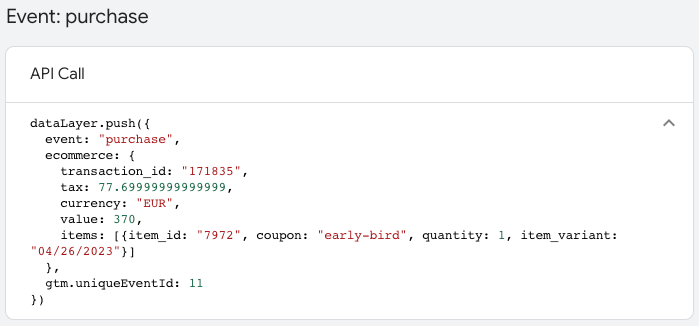
Content
transaction_id: ID of the order created.
tax: The amount of tax involved in this order.
currency: The currency selected for your Eduframe account.
value: The total cost excluding VAT.
items: List of:
item_id: ID of the catalog product (template).
item_variant: Name of the catalog variant (edition) selected.
For a course this is: ‘date - variant - location’ similar to the name shown in Eduframe when you select a course edition.
For a program this is the name of the edition in Eduframe.’
quantity: Amount of participants filled in during the signup.
coupon: The discount code filled in.
Notes:
We currently only include the discount coupon (if applicable) with GA4.
The info in the event on the product differs per product type (course or program) as these products do not have exactly the same properties. We advise you to use a browser plugin to check the exact information that is contained in the events. See tips & tricks below.
Cross domain tracking
Do you want to measure visitors going from your own website to the Eduframe signup page as one session, with one consent choice? This is supported by Eduframe out of the box: the signup page allows incoming Google Analytics linker parameters (_gl). You need three things on your side.
Note: The approach below is our recommended approach. However, you can configure this in many different ways to still achieve Cross-domain tracking.
1. One GTM container on both domains
Use the same GTM container on your website and in Eduframe ('Settings' → 'Account Settings' → 'Google Tag Manager Tag'). All logic below lives in that container, so you configure it once.
2. GA4: register both domains
In Google Analytics go to Admin → Data streams → your web stream → Configure tag settings → Configure your domains, and add both your website domain and your Eduframe domain (for example www.yoursite.com and signup.yoursite.com or yourschool.eduframe.nl). This makes GA4 pass the client ID across domains so the visit is not split into two sessions.
3. Consent: ask once, carry it over
Consent is stored in a cookie, and cookies are bound to one domain. So a consent given on your website is not visible on the Eduframe domain by itself. The recommended pattern:
Default all Consent Mode signals to
deniedin GTM (Consent Initialization trigger).Show a consent banner from GTM only when no consent is stored yet. Because the same container runs on both domains, the same banner shows on whichever domain the visitor lands on first.
When the visitor makes a choice, store it in a first-party cookie and append it to links pointing at the other domain as a URL parameter (for example
?consent=analytics,marketing).On the receiving domain, read that parameter, store it in a cookie there too, and call
gtag('consent', 'update', …). Later pages on that domain use the cookie, so the parameter is only needed on the first hop.
A reference implementation with three Custom HTML tags (consent init, banner, link decorator) that you can import into your GTM container is available on request from Eduframe support. Several consent management platforms (Cookiebot, Usercentrics, CookieYes) offer the same "cross-domain consent sharing" as a built-in feature; you can also use one of those and suppress its banner on the second domain.
Note: Visitors who land directly on the signup page (search result, bookmark, e-mail link) never saw your website. They will get the banner on the Eduframe page instead.
Conversion signals to advertising platforms
Use the purchase event above as the trigger for Google Ads, Meta and LinkedIn conversion tags in GTM. Two things are needed:
Attribution across the domain hop. Ad platforms attribute via a click ID that lands on your website (
gclid,fbclid,li_fat_id). For Google Ads, enable the Conversion Linker tag with cross-domain linking. For Meta and LinkedIn, forward the click ID parameters on links to Eduframe the same way as the consent parameter.Product-specific conversions. Use
items[].item_idfrom thepurchaseevent with a GTM Lookup Table to map a programme to a Google Ads conversion label / LinkedIn conversion ID, or send it ascontent_idsto Meta and build Custom Conversions there.
Privacy
Eduframe automatically anonymizes data collected Google Analytics 4. Because of this the cookies are regarded as 'analytical cookies' (not 'tracking cookies') and no cookie consent is needed when using Google Analytics 4.
Note: when configuring the optional Google Tag Manager tag, data is not anonymized by Eduframe. Data needs to be anonymized by yourself, in the analytics tooling of your choice.
Tips & tricks
Google Analytics data will show up directly on your Google Analytics dashboard. For the GTM event data to show up, you need to properly set up GTM in your Google Account to capture and forward the events to the analytics platform of your choice (e.g. Google Analytics, Adobe Analytics, etc).
We advice the use of a browser plugin. Like Google's own https://tagassistant.google.com/, to see if the events are correctly firing.
Read more here on how to capture GTM events in your analytics account: Google documentation.