Signup Forms
Last updated: August 20, 2026
Summary
You can create several Signup Forms in Eduframe. These Signup Forms can be connected to your product offerings on your website. Per Signup Form you can add different (custom) fields for participants to fill in while signing up for a product (course or program).
Location of Signup form Settings
As an admin, you can find the Signup Forms in the Eduframe settings under 'Signup form'. On this page you can find multiple settings that are related to forms:
Signup form
Contact signup forms
Participant numbers
In the following chapters, all three will be explained in more detail.
Signup form
On this tab, you can find the general settings for your signup form.
Preselected account type: You can choose the default setting for the signup form here. Customers can always change the type on the signup form themselves.
If you select 'Personal', the order and invoice related to the signup will be linked to the contact
If you select 'Organization', the order and invoice related to the signup will be linked to an organization
Sign up contact info: Here you can add extra information that you would like to share with the participant executing the signup, for instance an explanation of the registration process.
Payment details info: Here you can add extra information that you would like to show on the Payment and Confirmation-tab.
Successful signup URL: Here you enter the URL where you want the participant to go after a successful registration, for instance the homepage of your website.
Planning text: Here you can add extra information that you would like to show on the Select course-tab of the signup form
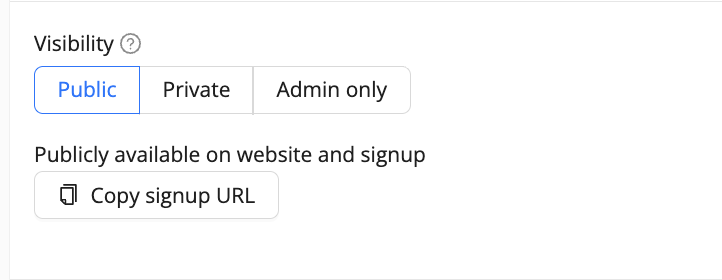
If you want to check how your signup form looks like, you can copy and open the URL of a course edition or program edition.
Notes:
- Make sure you place this URL in an incognito browser or when you are not logged in as an admin
- Make sure the course is published (switch "published on website" is on)
- Make sure the course is active or planned and not closed or cancelled.
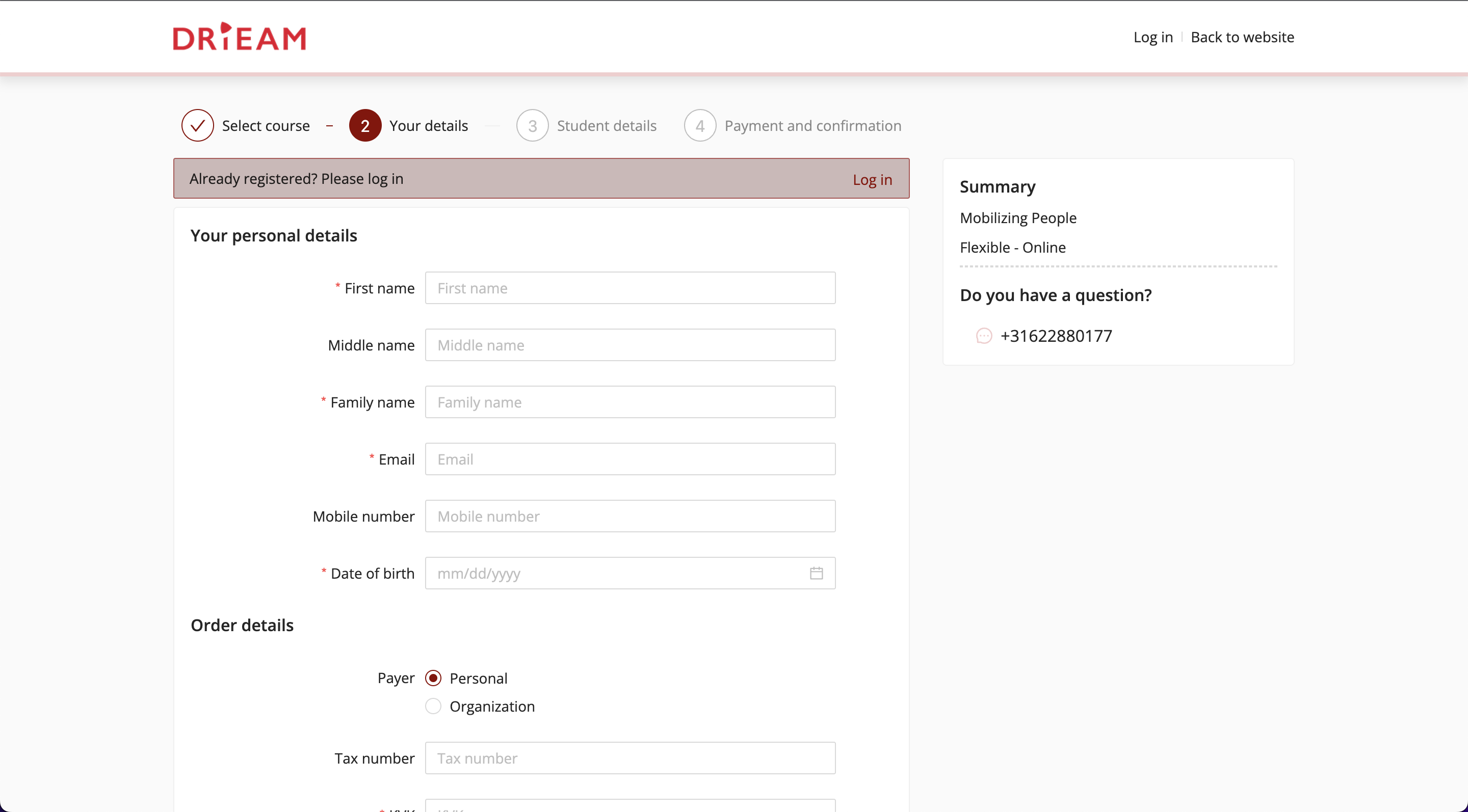
The below image is an example of how a signup form looks like based on the information you set up in Eduframe:
Referrals
This feature allows you to track how participants find your signup form.

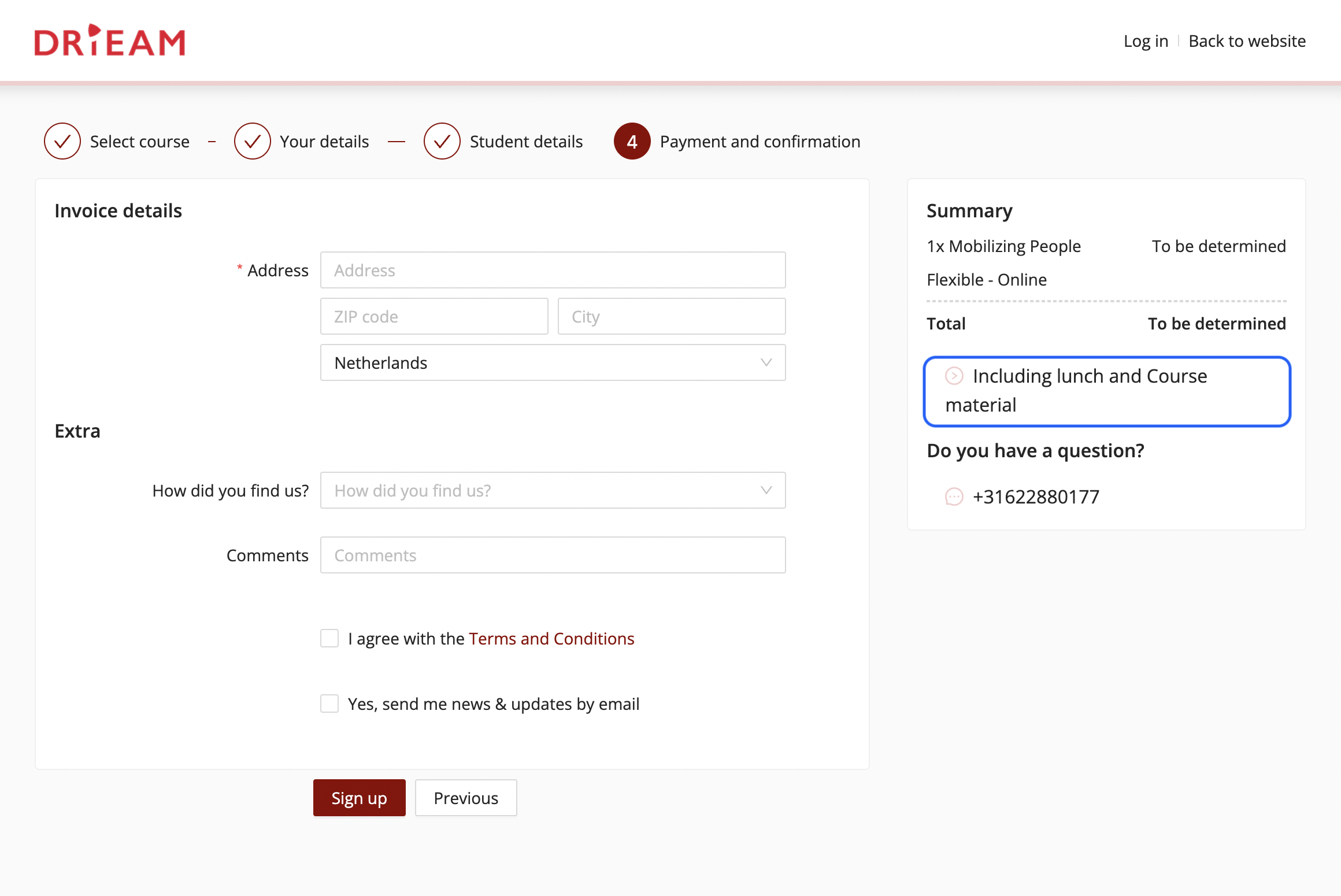
Price conditions
The text of the conditions will be shown as extra information on the signup form. This text is applicable for all products.
Contact signup forms
If you want to know how to setup and add fields to the signup form, follow the steps in 📄 Create Multiple and Different Signup Forms.
Participant numbers
In this tab of the setting Signup form, you can choose whether you want to enable participant or student numbers for each contact.
The participant or student number will be visible on the signup form.