Opportunities
Last updated: September 4, 2026
Summary
The Opportunities module in Eduframe functions as a lightweight CRM (Customer Relationship Management) system. It is designed to help you track potential sales, manage interest in upcoming courses, and maintain organized waiting lists for full editions.
It is possible to connect Opportunities to both templates and editions. You can add one or more product templates/editions to one opportunity.
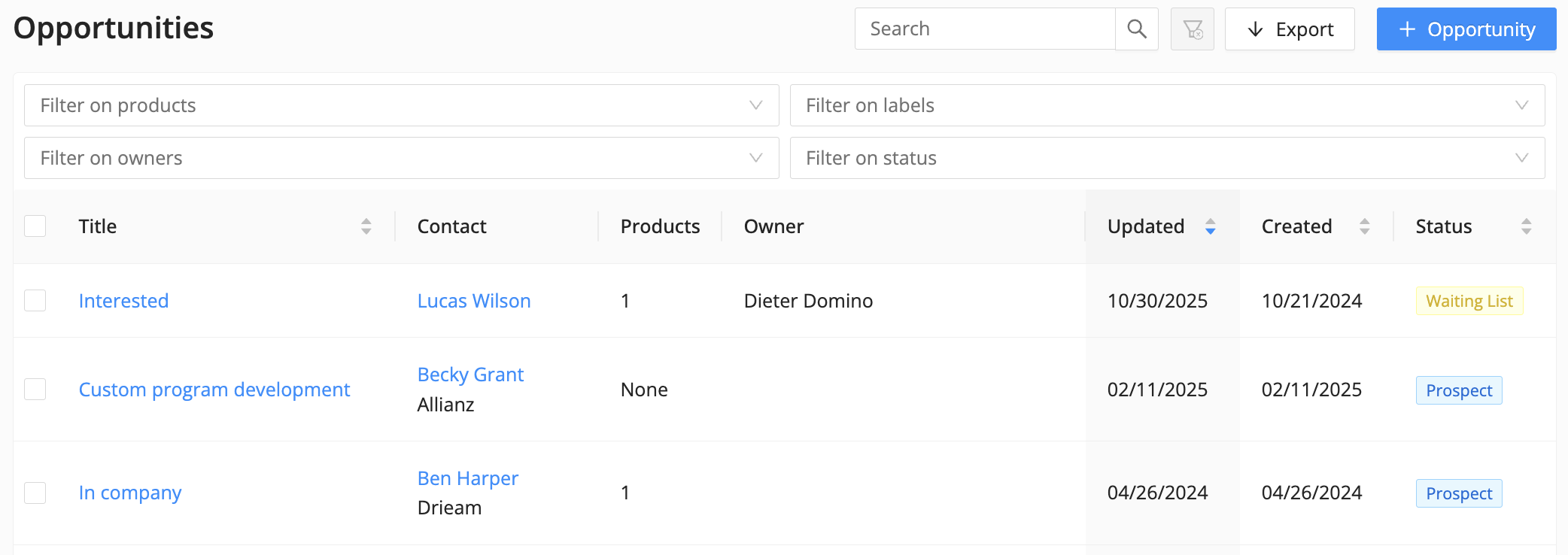
Information in the Opportunities tab can be exported in a .xlsx file (Excel spreadsheet) by clicking on the Export button.
How to use the Opportunities statuses?
Tracking the lifecycle of a lead is done through five specific statuses:
Prospect: Initial interest or a warm lead.
Waiting list: Interested in a course that is currently full or not yet scheduled.
Enrolled: Successfully converted into a participant.
Not interested: The lead decided not to proceed.
Archived: Old or irrelevant data kept for historical records.
How to add Opportunities?
There are 3 ways to use opportunities in Eduframe:
You can add opportunities as an admin in Eduframe
You can integrate opportunities in Eduframe with a website
You can integrate opportunities with other CRM systems
How to add opportunities as an admin (manually)?
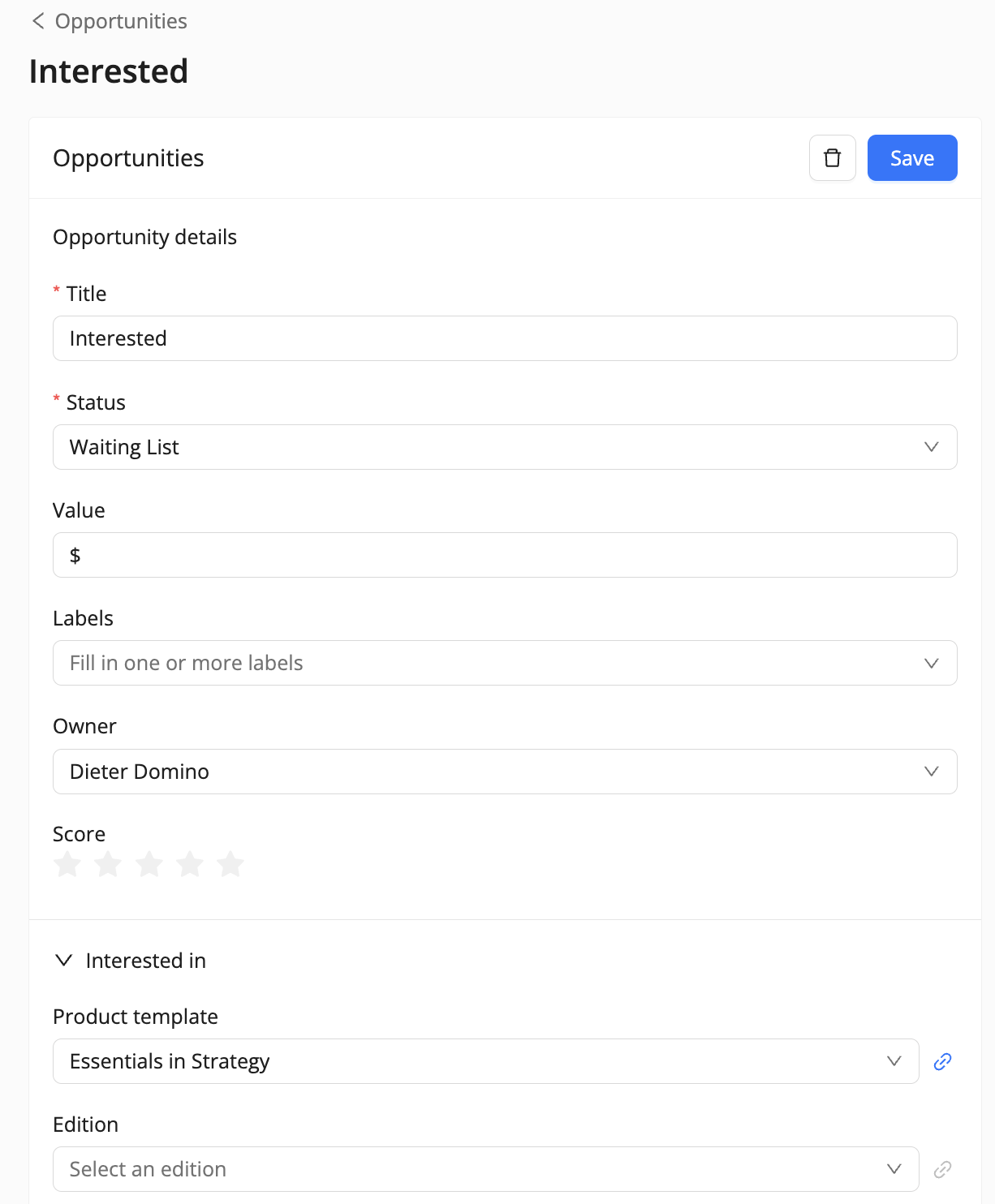
Admins can manually create a lead by clicking the + Opportunity button. The updated creation screen allows you to capture the following detailed information:
Opportunity details
Title & Status: Provide a name for the lead and set its initial stage (e.g., Prospect).
Value: Assign a projected financial value to the opportunity.
Labels: Use predefined labels to categorize and filter your leads.
See this 📄 Labels article for more information on how to set up these labels.
Owner: Assign a specific team member to manage the lead.
Score: Use the star rating system to prioritize leads based on their potential or quality.
Interested in
Product & Edition: Select the specific course or program template and, if applicable, a specific scheduled edition.
Multiple Products: Use the + Product button to link several different items to a single lead.
Contact & Organization
Existing Records: Link the opportunity to an existing Contact or Organization in your database.
Temporary Details: Record contact information for leads that do not yet have a permanent profile in Eduframe.
Attachments
File Uploads: You can now attach relevant documents, such as requirement PDFs or images, directly to the opportunity record for easy reference.
Note: Don't forget to set up labels in the settings first if you want to connect them directly when you are creating an opportunity.
How to add Opportunities from your website
Instead of manually entering data, you can capture leads directly from your website by connecting web forms and buttons to Eduframe. This automation ensures that potential participants are immediately recorded in your sales pipeline without administrative delay.
How the integration works
Eduframe API: Your website can communicate with Eduframe using our API.
Field Mapping: All data fields available in the manual opportunity creation screen can be automatically populated via the API.
Automated Labeling: You can set the API to automatically apply specific Labels to help your team organize them instantly.
The website integration is most commonly used for the following scenarios:
Waiting Lists for Full Courses: When a specific course edition is full, you can replace the "Sign up" button on your website with an "Interest" form. This form creates an opportunity with the Waiting list status.
Interest in Future Editions: If you have a course template with no currently scheduled editions, a "Keep me informed" link can capture leads as Prospects.
Integrate opportunities with other CRM systems
It is also possible to connect opportunities in Eduframe with other CRM systems. For example: Salesforce, AFAS or Zendesk.