Signup Forms
Last updated: November 17, 2026
Summary
You can create several Signup Forms in Eduframe. These Signup Forms can be connected to your product offerings on your website. Per Signup Form you can add different (custom) fields for participants to fill in while signing up for a product (course or program).
Where can I find the Signup Form settings?
As an Admin, you can find the Signup Forms in the Eduframe Settings under Signup form. On this page you can find multiple settings that are related to forms:
Signup Form.
Contact Signup Forms.
Participant numbers.
In the following sections, all three are explained in more detail.
Signup Form
On this tab, you can find the general settings for your Signup Form.
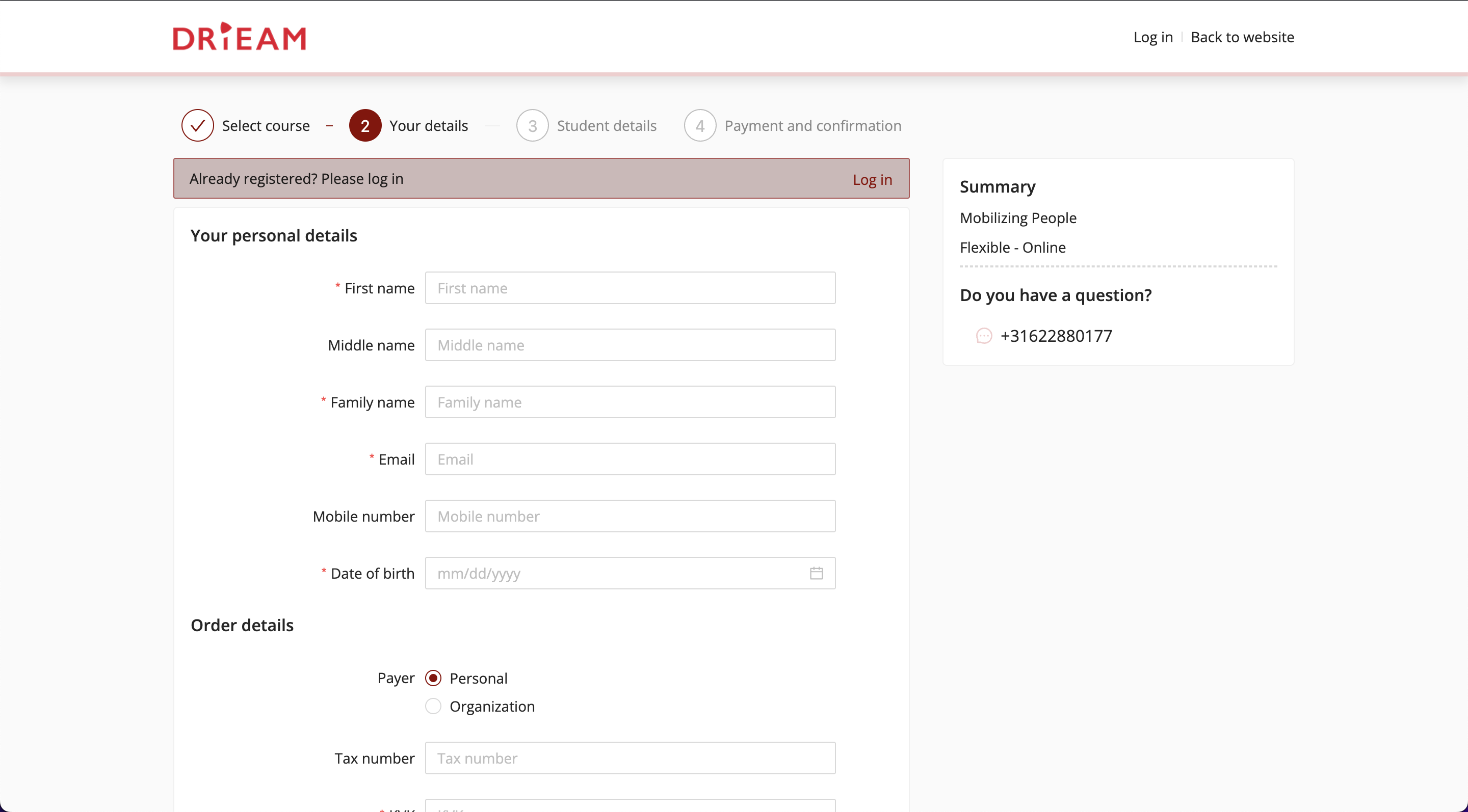
Preselected account type: You can choose the default setting for the Signup Form here. Customers can always change the type on the Signup Form themselves.
If you select Personal, the Order and Invoice related to the signup will be linked to the Contact.
If you select Organization, the Order and Invoice related to the signup will be linked to an Organization.
Sign up contact info: Here you can add extra information that you would like to share with the participant executing the signup, for instance an explanation of the registration process.
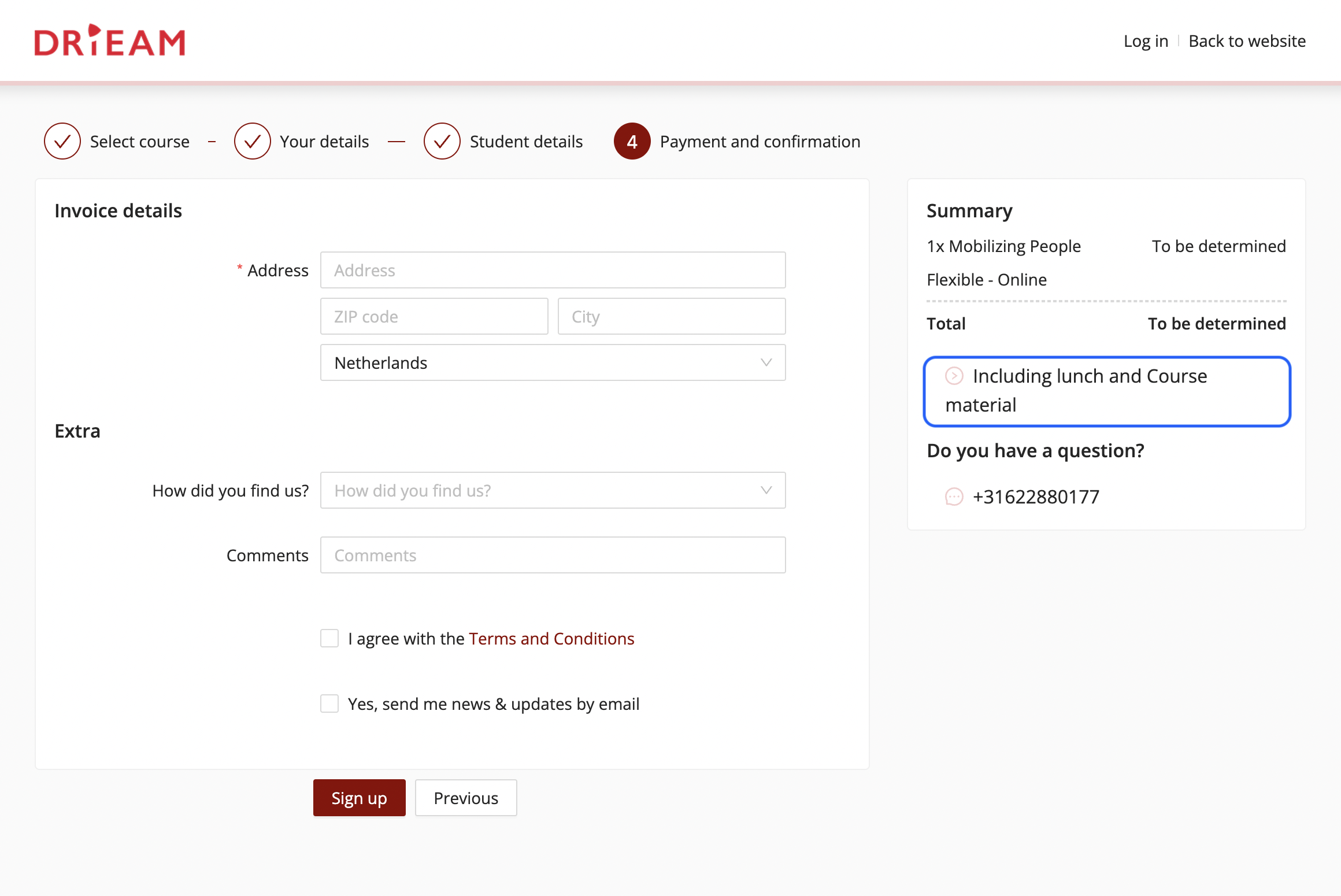
Payment details info: Here you can add extra information that you would like to show on the Payment and Confirmation tab.
Successful signup URL: Here you enter the URL where you want the participant to go after a successful registration, for instance the homepage of your website.
Planning text: Here you can add extra information that you would like to show on the Select course tab of the Signup Form.
If you want to check what your Signup Form looks like, you can copy and open the URL of a Course Edition or Program Edition.
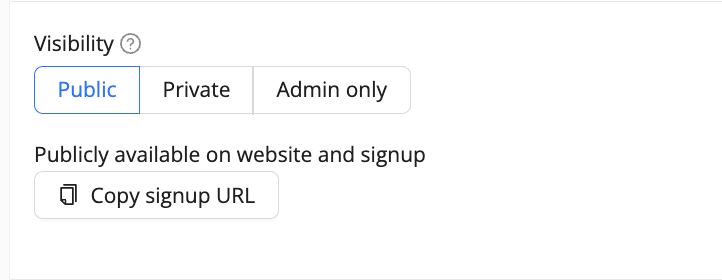
Notes:
- Make sure you open this URL in an incognito browser or when you are not logged in as an Admin.
- Make sure the course is published (the Published on website switch is on).
- Make sure the course is active or planned, and not closed or cancelled.
The image below is an example of what a Signup Form looks like, based on the information you set up in Eduframe:
Referrals
This feature allows you to track how participants found your Signup Form.

Price conditions
The text of the conditions will be shown as extra information on the Signup Form. This text applies to all products.
Contact Signup Forms
If you want to know how to set up and add fields to the Signup Form, follow the steps in 📄 Create Multiple and Different Signup Forms.
Participant numbers
In this tab of the Signup form setting, you can choose whether you want to enable participant numbers for each Contact.
The participant number will be visible on the Signup Form.