Email Templates & Triggers
Last updated: September 18, 2026
Summary
In Eduframe, it is possible to send different emails to different Eduframe users. These emails can be created, adjusted, switched on and off and personalized. You can also set triggers when you want to send an email, e.g. when a participant successfully enrolled for a course or 2 weeks before the start of a course. Find out more about the email possibilities in this article.
What are Email templates?
Email templates are automated messages triggered by specific actions within Eduframe. These templates ensure consistent communication with your contacts while saving time through automation.
Key Characteristics
Fixed Library: Eduframe provides a comprehensive set of pre-defined templates. Please note that it is not possible to create or add custom email templates beyond this selection.
Content Options: You can customize templates using standard text, images, and tags.
Using Tags for Personalization
Tags act as placeholders for dynamic data retrieved from your Eduframe environment. This allows a single template to be personalized for every recipient automatically. When an email is sent, Eduframe replaces the tag with the corresponding information from the contact's profile.
Example: The tag {{Participant: full name}} will be automatically replaced by the recipient's actual full name as stored in Eduframe.
How to get to Email Templates & Triggers
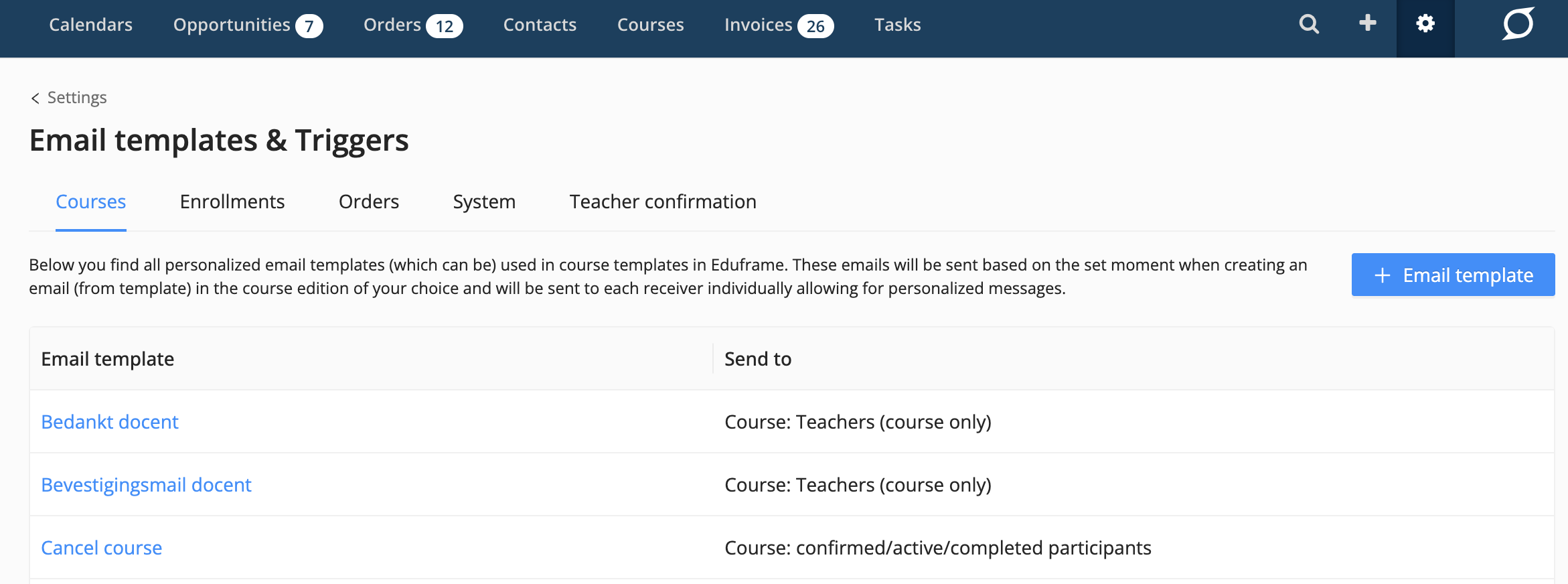
As an administrator, you click on Settings in the global navigation bar and then select 'Email Templates & Triggers'. This page displays a complete overview of all existing email templates available in your Eduframe environment.
How to configure Email templates & triggers
Under Email template & Triggers you can find the email templates and the connected triggers. There are four tabs:
Courses, Enrollment, Orders and System.
These four tabs will be explained in the below chapters.
Course Email Templates & Triggers
Underneath this tab, you can create email templates to use in a course template. The table shows an overview of all email templates your created in Eduframe. These emails will be sent based on the set moment when creating an email (from template) in the course of your choice. With one click on the name of the email template, you can edit the email template and see where the template is used (when applicable).
How to use the course email templates in a course?
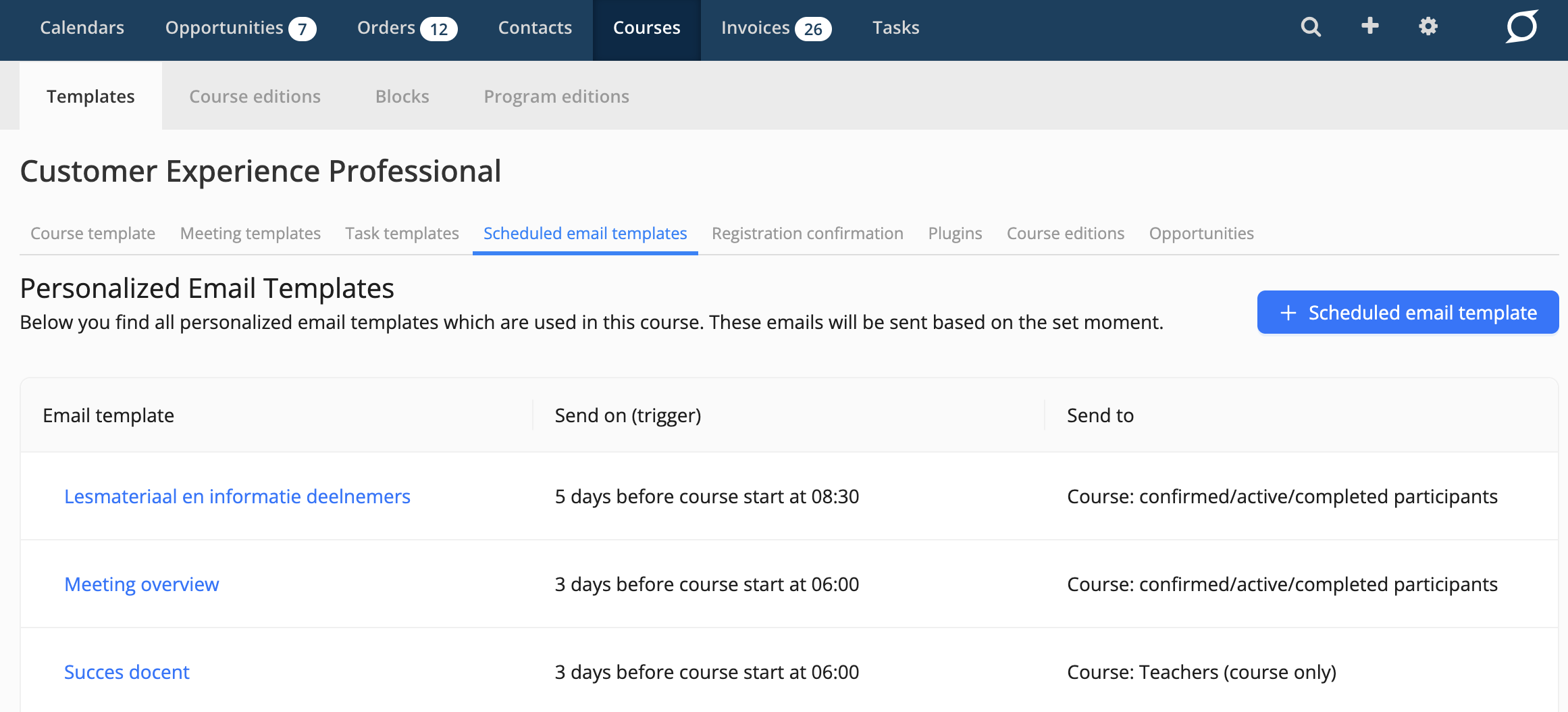
Course email templates that you created in the 'Email templates & triggers' > 'Courses' setting are called 'Scheduled Email Templates' in a course. These are emails that are triggered by the start or end date of a course. To activate those emails, they need to be added to the relevant course template.
After you added a course email template (or scheduled email template) to a course template, it will be automatically scheduled in every next course edition.
Note: If you add a new email template to a course template, this email action will not be applied to existing course editions. New email templates will only be added or planned to newly created course editions.
You can add course email templates in the 'scheduled email templates' tab of an existing course template:
How to create a scheduled email template
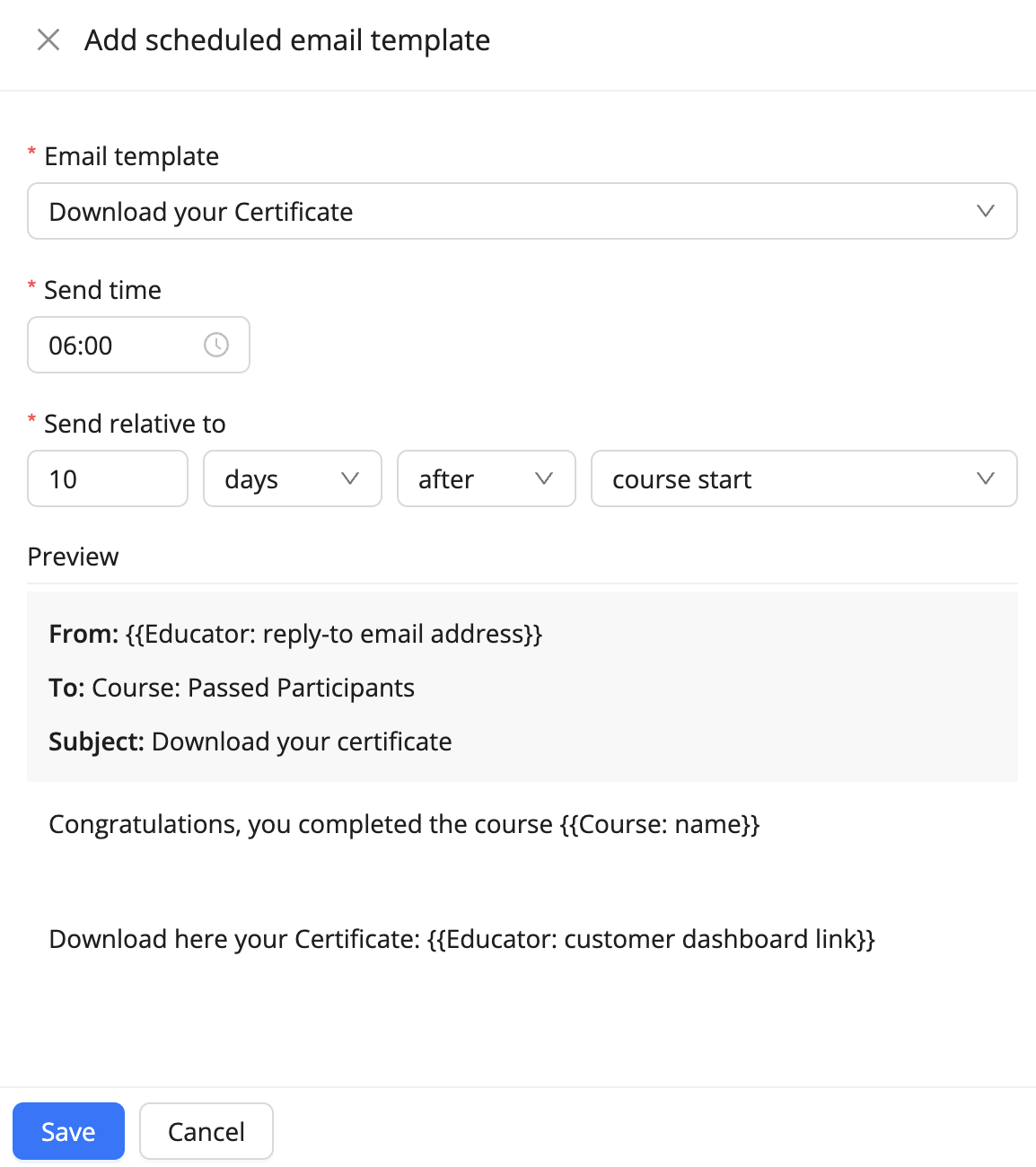
When being in the 'Scheduled email template' tab of a course template, you click on the "+ scheduled email template" button and you will see the following options:
Email Template: here you select the email template that you created in 'Email templates & triggers' > 'Courses'. If you did not create a template yet, you can do that in 'Settings' > 'Email templates & triggers' > 'Courses'.
Send time: Specify at what time the email should be sent
Send relative to: Specify when the email should be sent based on the start or end date of the course.
Save: Save your 'Scheduled email template'.
See below an example of the scheduled email template and the fields mentioned above:
Best Practices & Common Use Cases
To help you get started, here are the most effective ways to use these triggers:
Timing | Example Topic | Goal |
3 days before start | Introduce yourself | Encourage participants to log in to Canvas and start engaging. |
1 day before start | Reminder: See you tomorrow! | Reduce no-shows and provide final logistical details (location/link). |
2 days after start | Evaluation form | Capture feedback while the course experience is still fresh. |
1 week after end | Download your certificate | Reward successful participants once all grades are finalized. |
System Emails Templates & Triggers
Underneath this tab, you can edit and enable/disable the system mails. System mail are standard emails that have always the same specific trigger.
Example: created contact --> when enabled, this mail will always be sent to a contact that is created in Eduframe.
Choose which email templates you want to use by enabling or disabling the switches within the Active column.
Some are disabled, these email templates can't be turned off as it will always be triggered by a certain button in Eduframe. The 'Send on' column describes the action which has to be triggered in order to send the email.
The 'Send to' column is filled with tags from Eduframe that shows which email addresses will be used to send the email towards. By clicking on an email template name, the email template will open in order to change the title, subject, addressee or message.
Each email template can be adjusted. Just click on the email template name and the email will pop up. You can
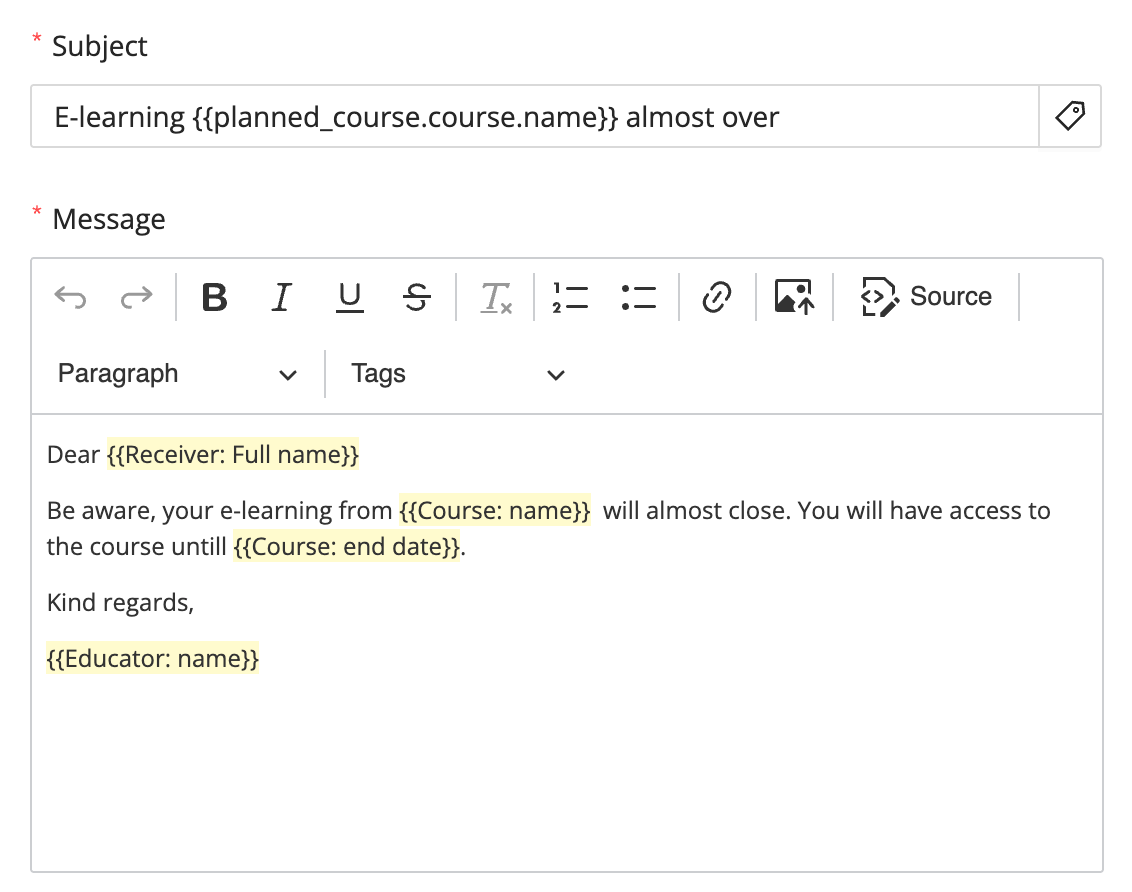
Change the subject: Within the subject it is also possible to use tags by click on the "tag" icon on the right
Change the message: Within the message you can import photos and use tags to get specific information from Eduframe.
Note: It is not possible to use all tags within every email template.
Triggers and Receivers per Email Template
If you open the 'System' tab in 'Email templates & triggers', the various emails clearly explain the topic, receivers and triggers of those emails. If you want to know more about the email details, you can also open the emails and adjust the content.
The same is the case for system emails under tabs 'Enrollments' and 'Orders'.
Enrollment Email Templates & Triggers
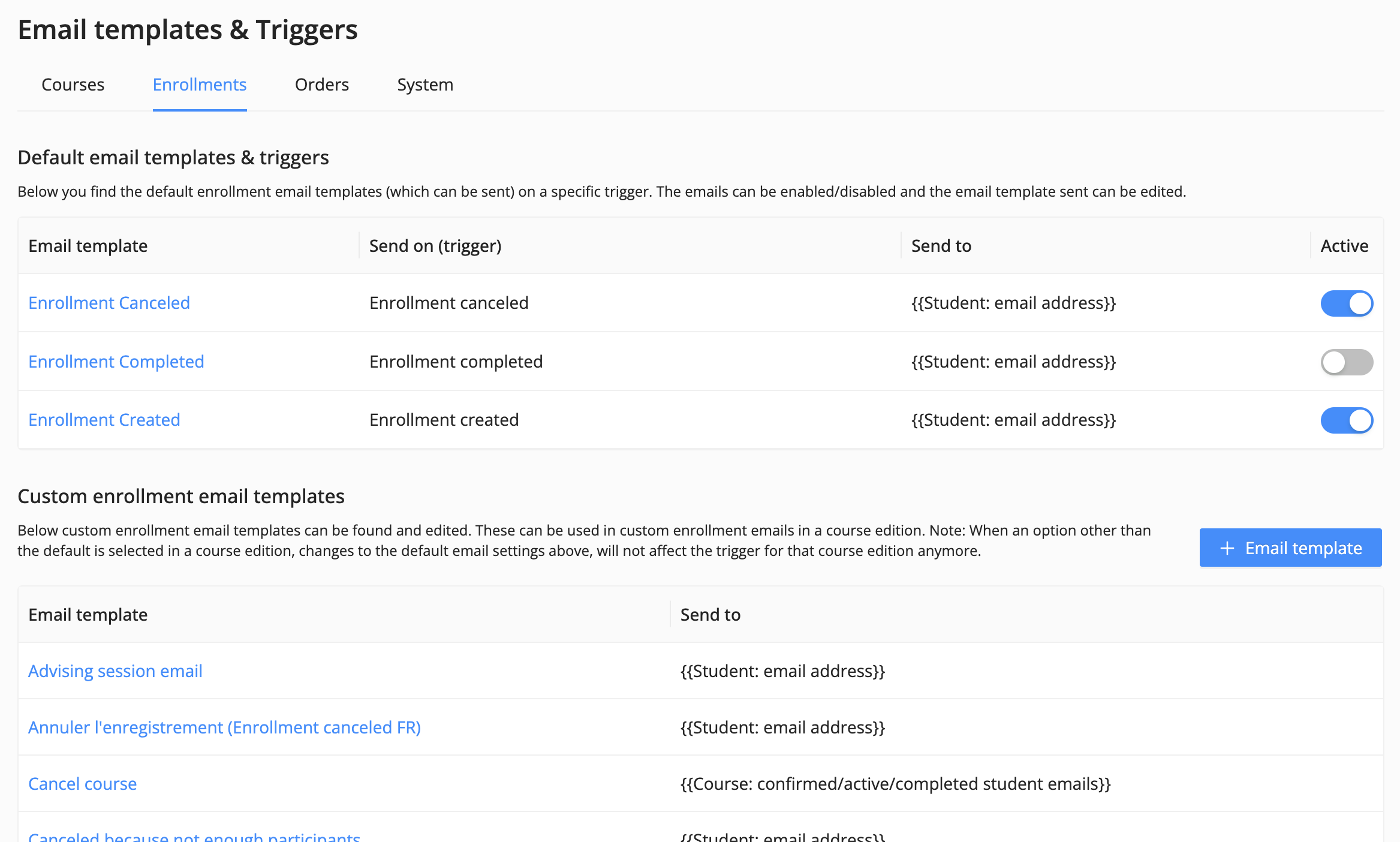
Underneath this tab you can create custom email templates for enrollments to use in a course, like emails in a different language or with more info in the confirmation email about the specific course.
The first table shows the default system emails for enrollments that have always the same specific trigger.
The second table shows an overview of all email templates (which can be) used for enrollment triggers in courses Eduframe.
Note: Read more about how to use Enrollment emails here.
Order Email Templates & Triggers
Underneath this tab, you can manage email templates associated with order triggers. The order created trigger has two templates, one is intended for the order contacts and the other for the administrators. The order confirmed and order denied triggers each have one template and are intended for the order contacts.
The templates can be enabled or disabled. You can also edit the templates.
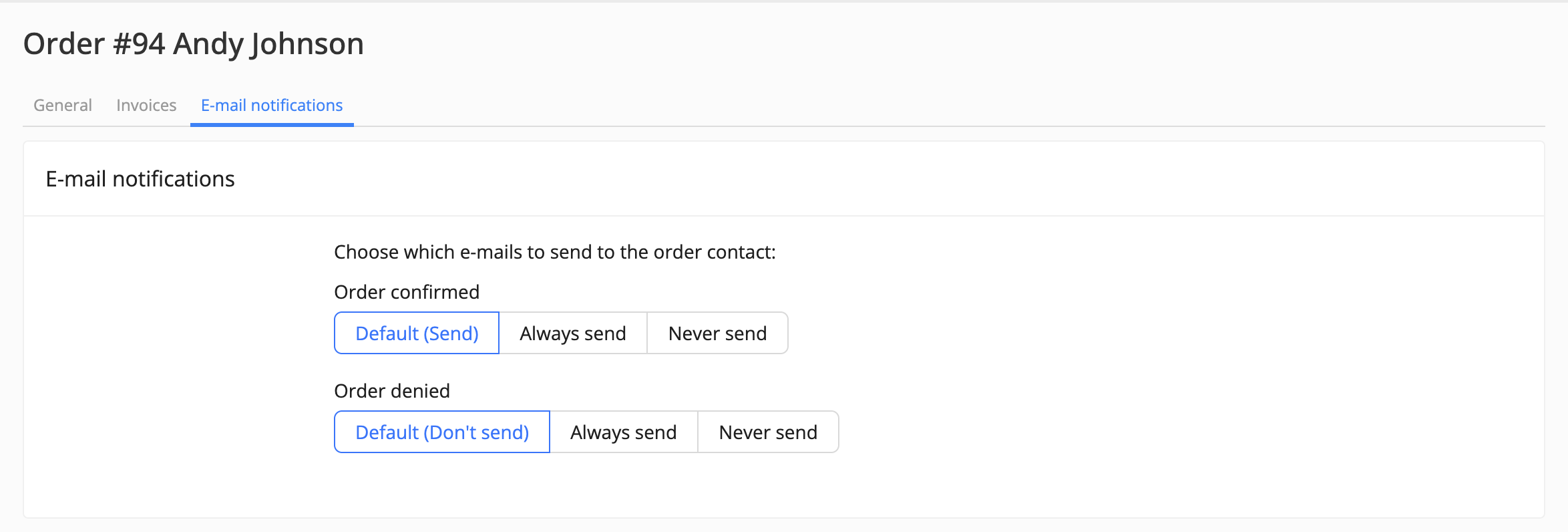
What separates these order templates from the system email templates is that their triggering can be overruled for specific orders in the e-mail notifications. So you can send out an email on order creation by default, but don’t do it for a specific order.
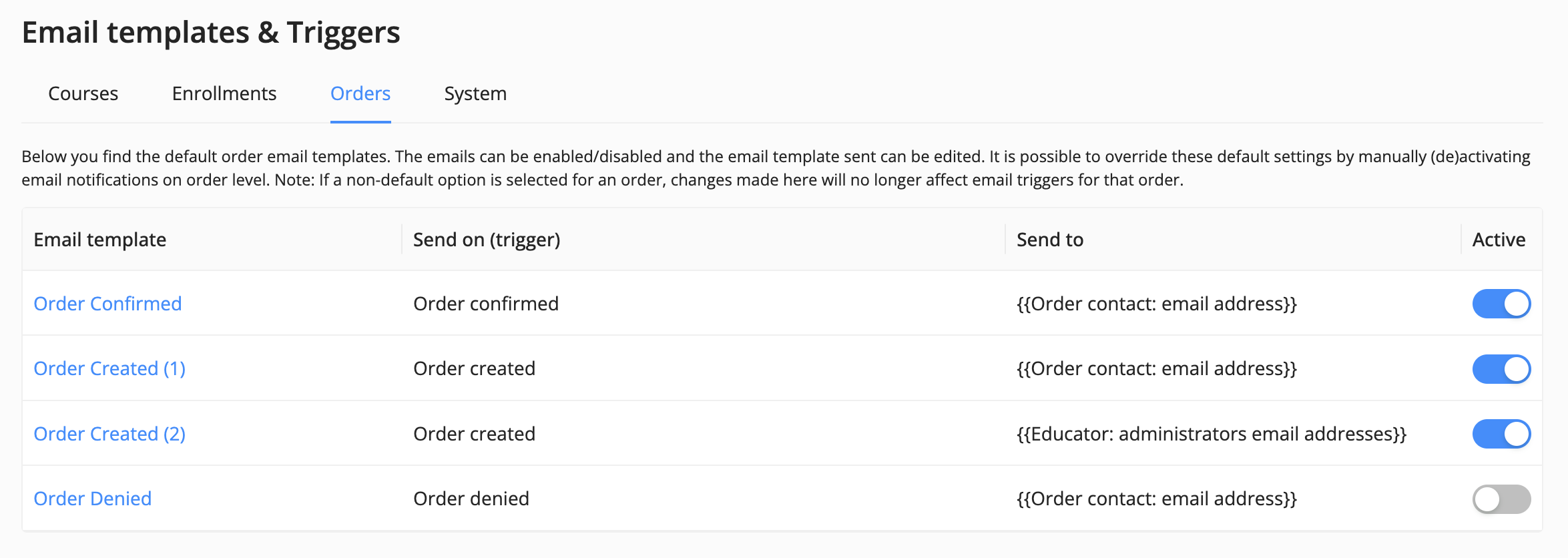
Note that of the two order created email templates, only the first one (the one intended for the order contacts) can be overruled for specific orders: