Schedule Email on Course Timeline
Last updated: July 30, 2026
Summary
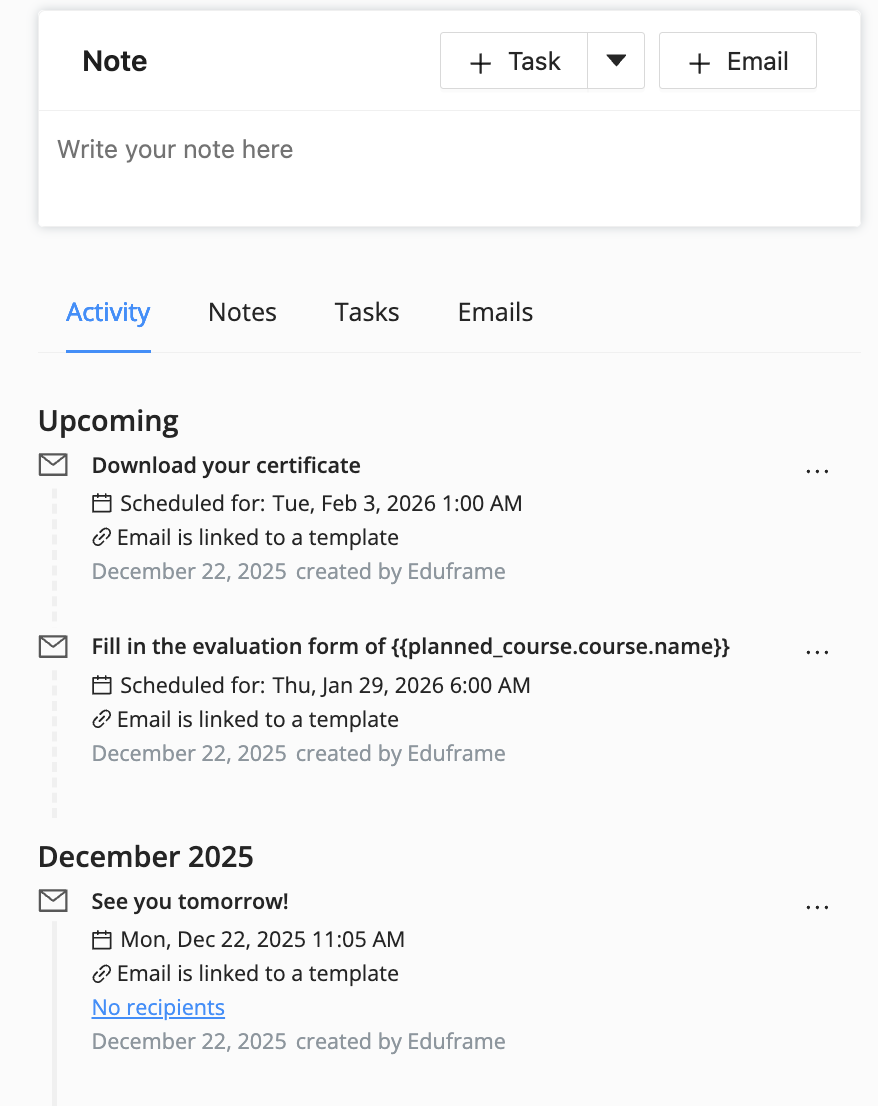
On the right side of each course edition there is the possibility to create notes, tasks or emails for this specific course edition.
In Eduframe, it is possible to send an email immediately or to schedule an email on the timeline for a moment in the future.
This article explains how it works.
How to schedule an email on the timeline
As an admin, you can follow the steps below to schedule emails on a timeline:
1. Click on the + Email button
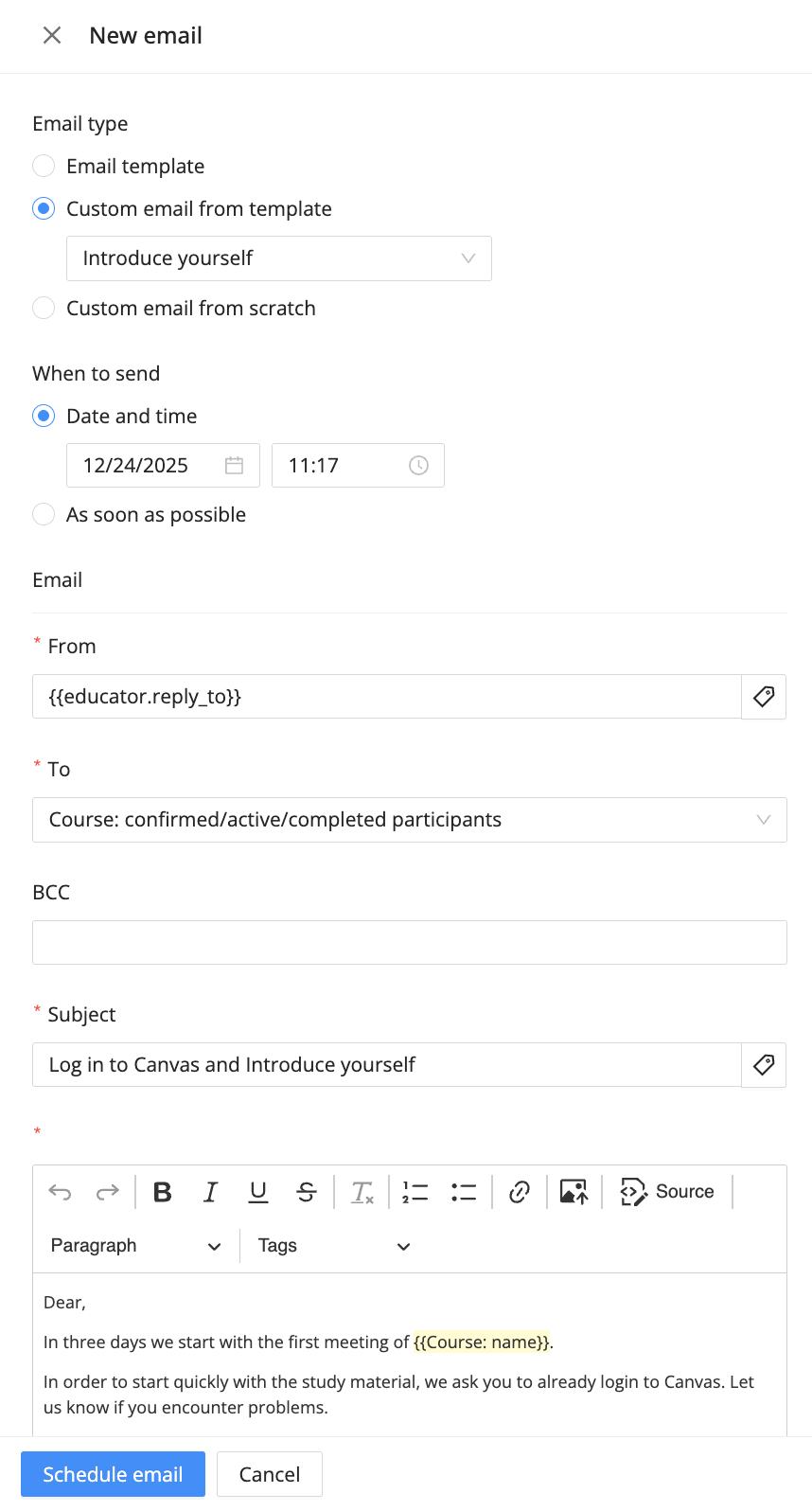
2. Choose Email type:
Email template: Choose this option if you want to schedule an already existing email template.
Custom email from template: Choose this option if you want to start from an already existing email template but want to make some changes before scheduling the email.
Custom email from scratch: Choose this option if you don't want to use an existing email template.
Note: If you want to create new or edit Email templates, go to Settings > Email templates & Triggers > Courses.
3. Choose when you want to send the email:
Date and time: Choose on which date and time you want to schedule the email
As soon as possible: Choose this option if you want to send the email immediately (sometimes you have to wait for max 5 minutes before the email is actually sent)
4. Click on Schedule email to plan the email on the timeline.
Note: When you change the start date of a course edition to a month later, these scheduled emails will also be rescheduled to a month later if you choose the option to reschedule emails as well.
How to edit a scheduled email
It is also possible to edit already scheduled emails (from a course template) from the timeline.
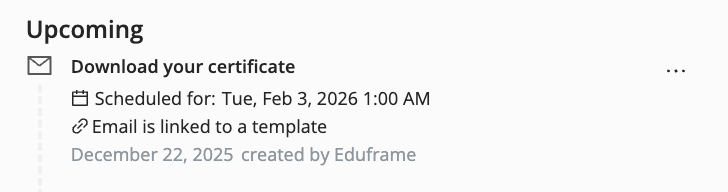
1. Go to an email on the timeline.
2. Click the three dots and click on view
3. Edit the email type or moment you want to send this email.
4. Click on Schedule email to save and plan this specific email.
How to resend a scheduled email (e.g. to late sign-ups)?
If a scheduled email has been sent already, it is still possible to (re)send it manually to one or several participants. This might be the case If a participant signs up for a course after the scheduled email has already been sent.
You can still send the email manually by following these steps:
Go to the course edition in Eduframe
Click '+ Email'
Choose 'Custom email from template'
Choose the email template you want to use
Select 'undisclosed' in the 'To' field
Add the participant's email address in the BCC field
Note: specific participant tags in the email template will not work, e.g. salutation.