Tags in Emails
Last updated: July 28, 2026
Summary
In Eduframe it is possible to have dynamic information in emails using Email Tags. This allows you to for example address the receiver of the email with his or her name, or refer to the course name the email applies to.
Find out more about Tags in this article.
Email Tags
Eduframe offers email tags for all kinds of dynamic information. As an admin, you can use an email tag in your email to add dynamic and personalised content.
Tags can be selected from the tag dropdowns in the emails and can be used in all email fields, including the from-to fields and subject and body text. When the email is sent, all tags used will be filled with the correct information.
How to use an Email Tag?
As an admin, you open the email editor. This can be done by drafting a new email or editing an email template. Select a sender and/or receiver by selecting an email tag in the from/to fields.
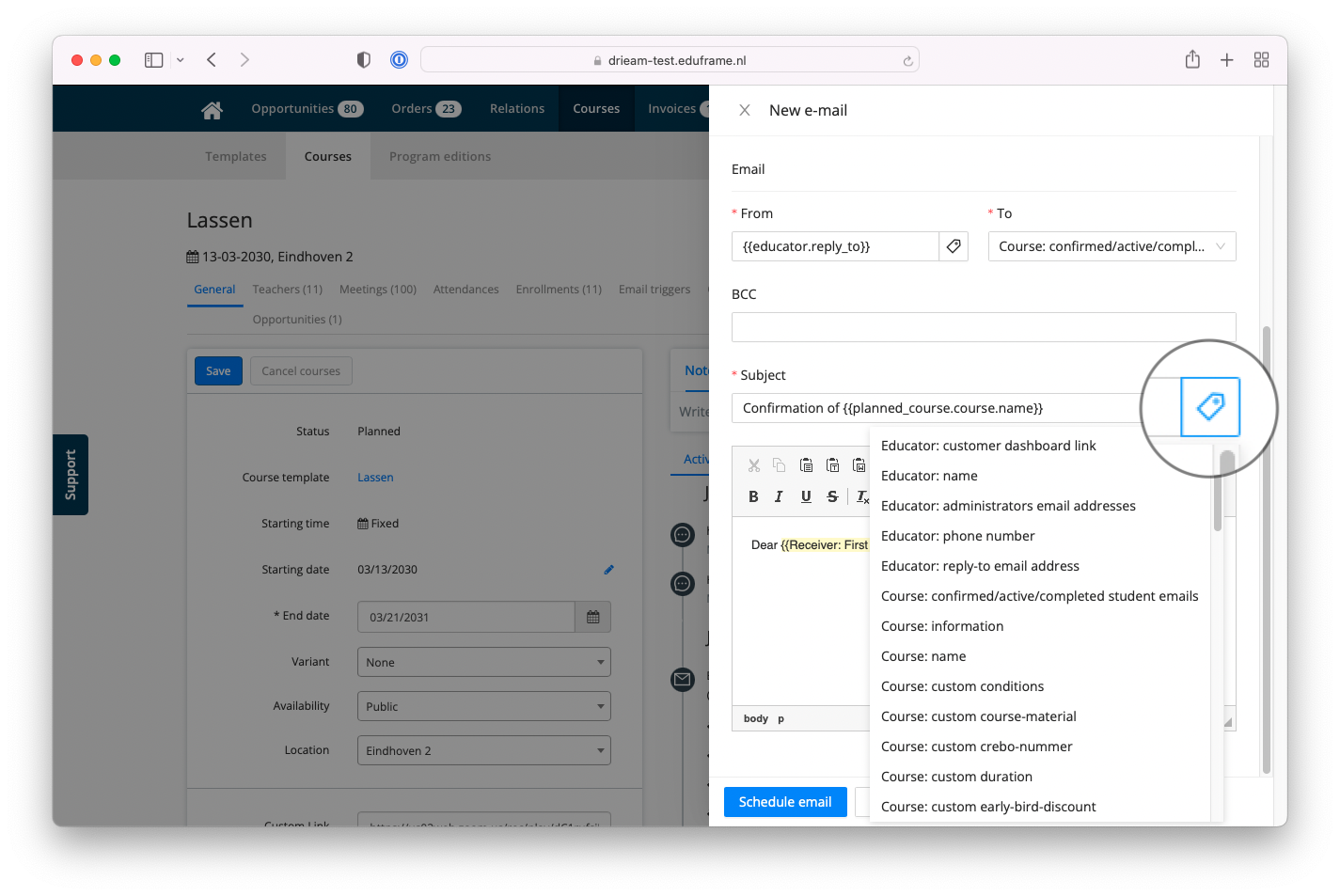
Optionally, place an Email Tag, like course name, in the Subject field. You can do this by selecting a subject email tag, using the tag dropdown on the subject field:
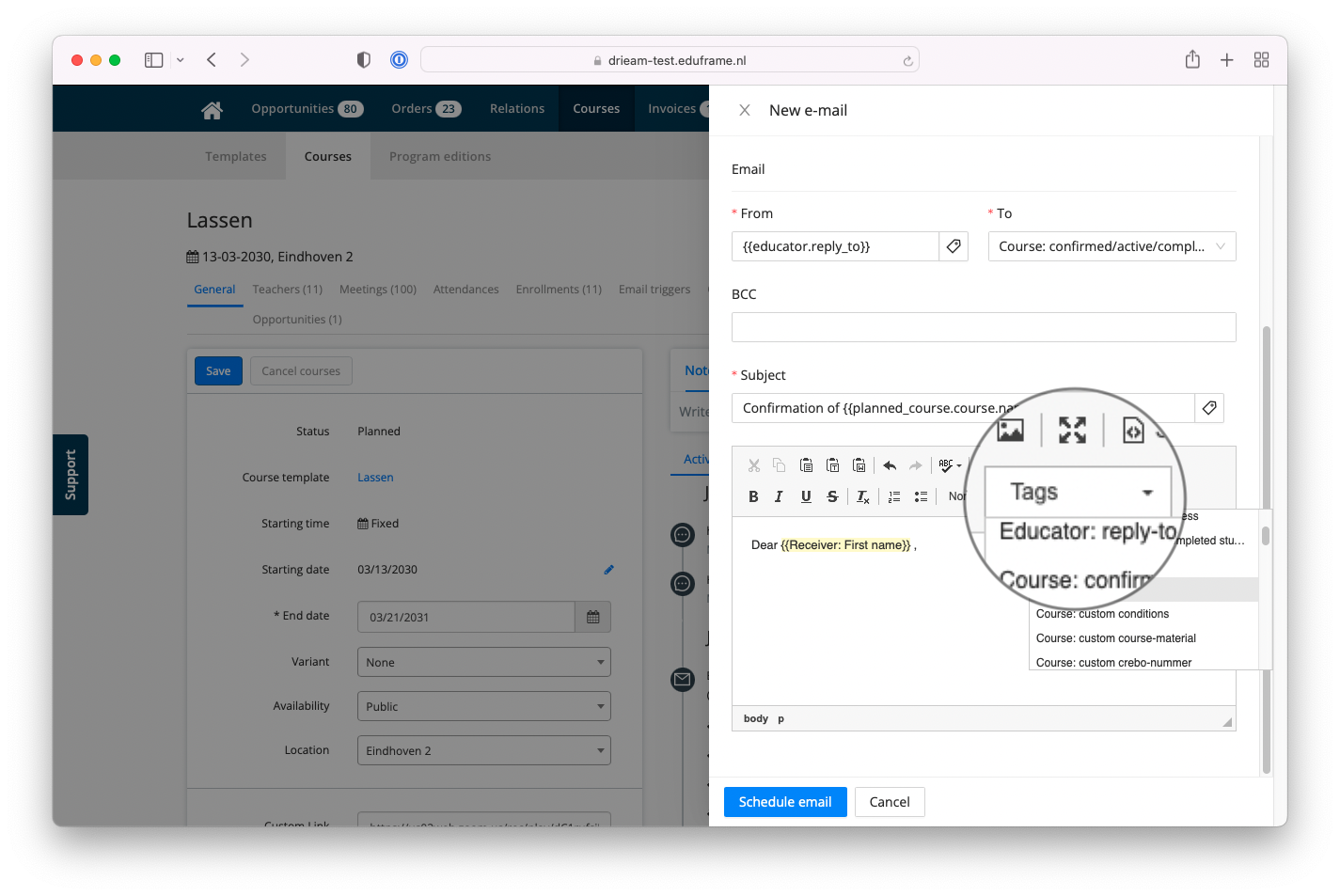
Now use an email tag, like receiver name, in the Email Body by clicking the 'tags' dropdown in the email body editor:
Then you can save, schedule or send the email. At the moment the email is send, all applied tags will be filled with the correct information.
How to send an email to multiple email addresses?
In the 'To' field you can select 'Undisclosed'. This allows you to send an email to multiple email addresses in the BCC field, without mentioning and sending an email to a 'To' email address. Addressees in the BCC field all receive the email once and do not see each others email addresses.
Note: Personalised tags like first- and last name cannot be used when using the 'Undisclosed' tag.