Brightspace - Integration
Last updated: October 16, 2026
Summary
This article describes how to connect Brightspace (the Learning Management System of D2L) with Eduframe and how the integration behaves. During the implementation of Eduframe and/or Brightspace, the Drieam consultant will support with setting up this integration. But there are also parts that you can set up yourself.
Set up connection Eduframe and Brightspace
If you want to set up the connection between Eduframe and Brightspace, you can find the information in 📄 Setting up Eduframe and Brightspace connection.
Note: Setting up the connection is not possible without Drieam involvement and is incorporated in the implementation process.
As part of the connection between Eduframe and Brightspace, you can set up a SSO (single sign on) by setting up CAS as the primary login method in Brightspace. This means that the credentials created for Eduframe will also be used for logging in to Brightspace. The set up will be done within the implementation together with a Drieam consultant. Read more about this in 📄 Setting up Eduframe and Brightspace connection.
Brightspace settings in Eduframe
After setting up the Eduframe/Brightspace connection, you manage the integration in the Brightspace plugin.
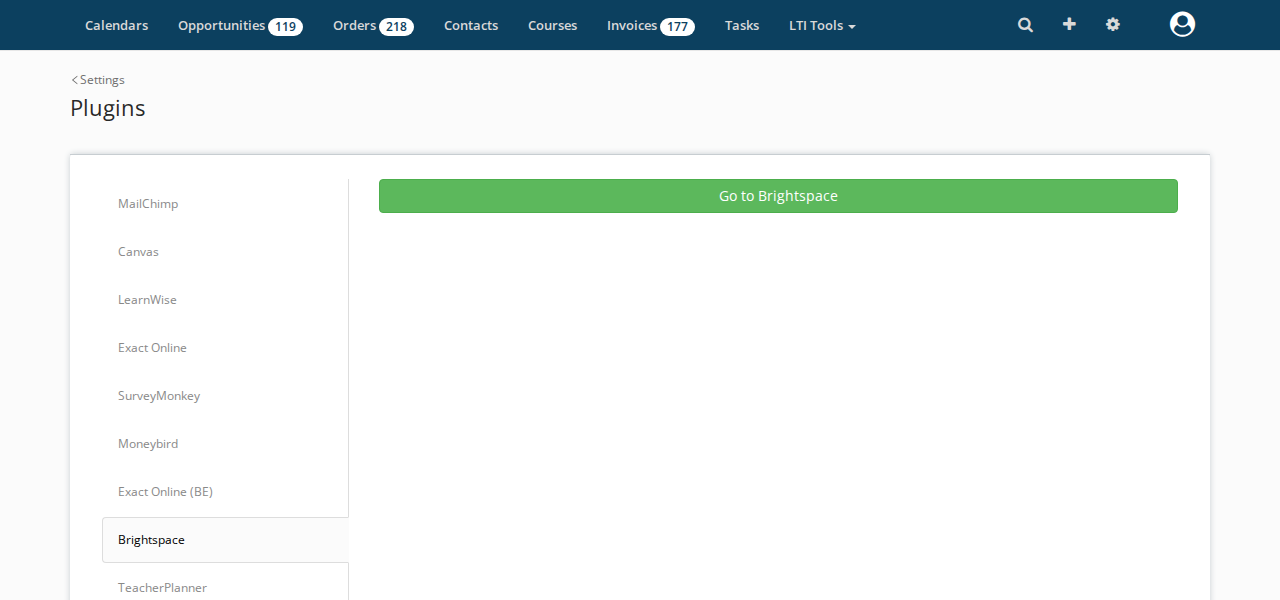
Login as admin in Eduframe.
Go to Settings.
Click on 'Plugins'.
Click on 'Brightspace'.
Click on 'Go to Brightspace' and then on 'Sign in with Eduframe'.
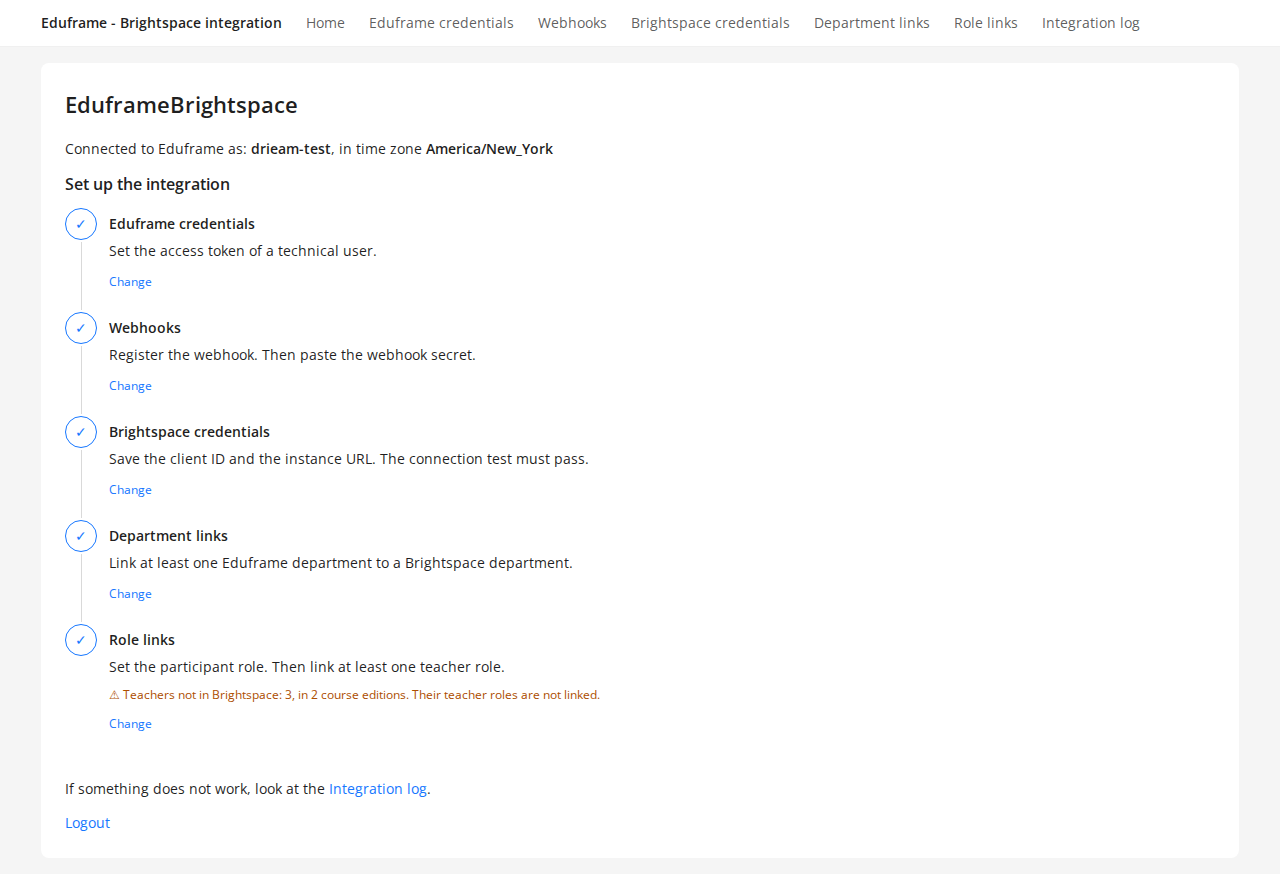
The home page shows the steps to set up the integration. A step with a checkmark is done. When something needs your attention, a warning shows under the step.
Department links
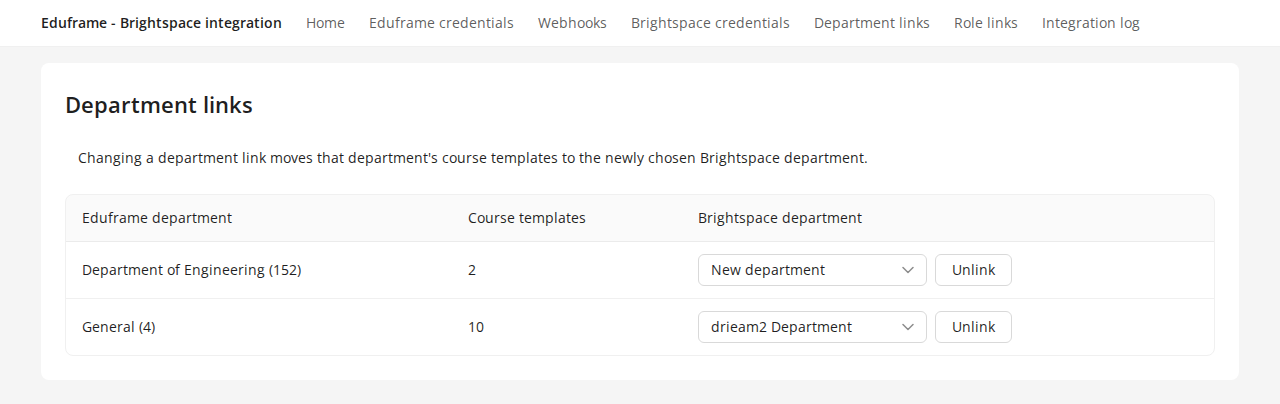
Brightspace organizes its courses in departments. In 'Department links' you link each Eduframe department to a Brightspace department. Eduframe places the course templates of an Eduframe department in the Brightspace department it is linked to.
Choose a Brightspace department next to the Eduframe department and click on 'Link'.
You can link several Eduframe departments to the same Brightspace department. An Eduframe department is linked to one Brightspace department.
Eduframe does not create departments in Brightspace. Create the department in Brightspace first.
The column 'Course templates' shows how many course templates of the department are already in Brightspace.
A course edition can only be published to Brightspace when the department of its course template is linked.
Change a department link
Choose another Brightspace department for a linked department and click on 'Save'. Eduframe moves all course templates of that department to the new Brightspace department. The course offerings move along with their course template.
Unlink a department
When you click on 'Unlink', Eduframe asks you to confirm:
Are you sure you want to unlink this department? When unlinking the department, existing course templates and course editions stay in Brightspace, but changes to them are no longer sent to Brightspace until the department is linked again. Course editions from new course templates cannot be published.
Read more about this in 'What happens when you unlink a department or move a course template?' below.
Roles
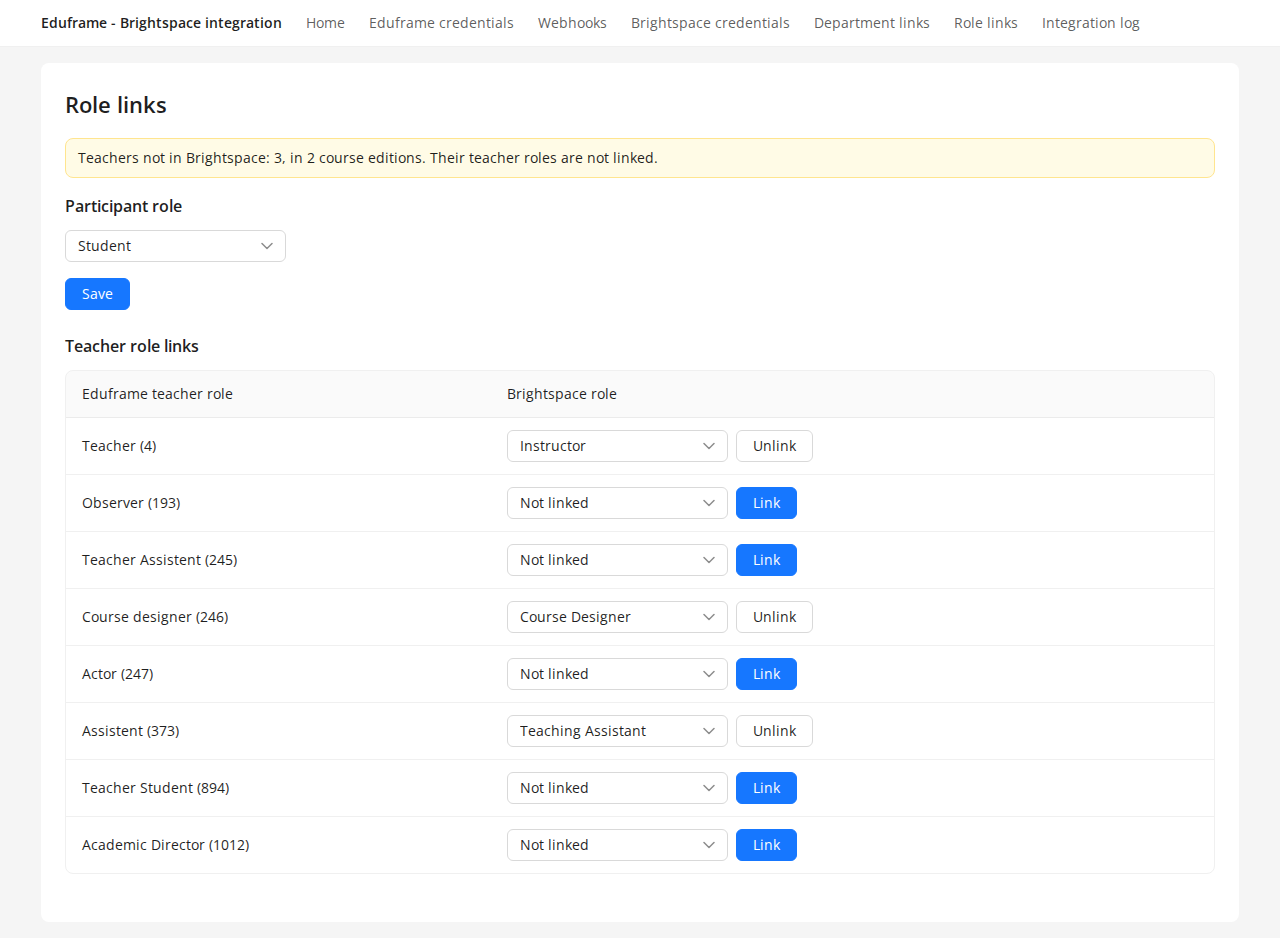
In 'Role links' you choose which Brightspace role participants get, and you link the Eduframe teacher roles to Brightspace roles. A warning at the top of the page shows when participants or teachers are not in Brightspace because a role is missing. The lists only show the Brightspace roles the Service User of the integration is allowed to manage.
Participant role
The participant role is the Brightspace role every participant gets in the course offering, for example 'Student' or 'Learner'. Choose the role and click on 'Save'.
Without a participant role, Eduframe does not enroll participants in Brightspace.
When you set the participant role for the first time, Eduframe enrolls the participants that were skipped before.
When you change the participant role, Eduframe moves all participants that are already in Brightspace to the new role.
When you set the participant role back to 'Not set', nobody is removed from Brightspace. New participants are no longer enrolled.
Teacher Roles
In Eduframe you can create teacher roles. You can find more about that in 📄 Teacher Roles. Each Eduframe teacher role can be linked to a Brightspace role. Choose the Brightspace role next to the Eduframe teacher role and click on 'Link'.
Eduframe only enrolls teachers whose teacher role is linked. This also applies to the default Eduframe role 'Teacher'.
When you link a teacher role, Eduframe enrolls the teachers with that role in all published course editions.
When you choose another Brightspace role for a linked teacher role and click on 'Save', Eduframe moves those teachers to the new role.
When you unlink a teacher role, Eduframe unenrolls those teachers, unless they have another linked role on the same course edition.
Note: A teacher can be planned on a course edition several times, for example in different roles. Eduframe then uses one role: a role on the course edition comes before a role on a meeting, and a role on a meeting comes before a role on a subevent.
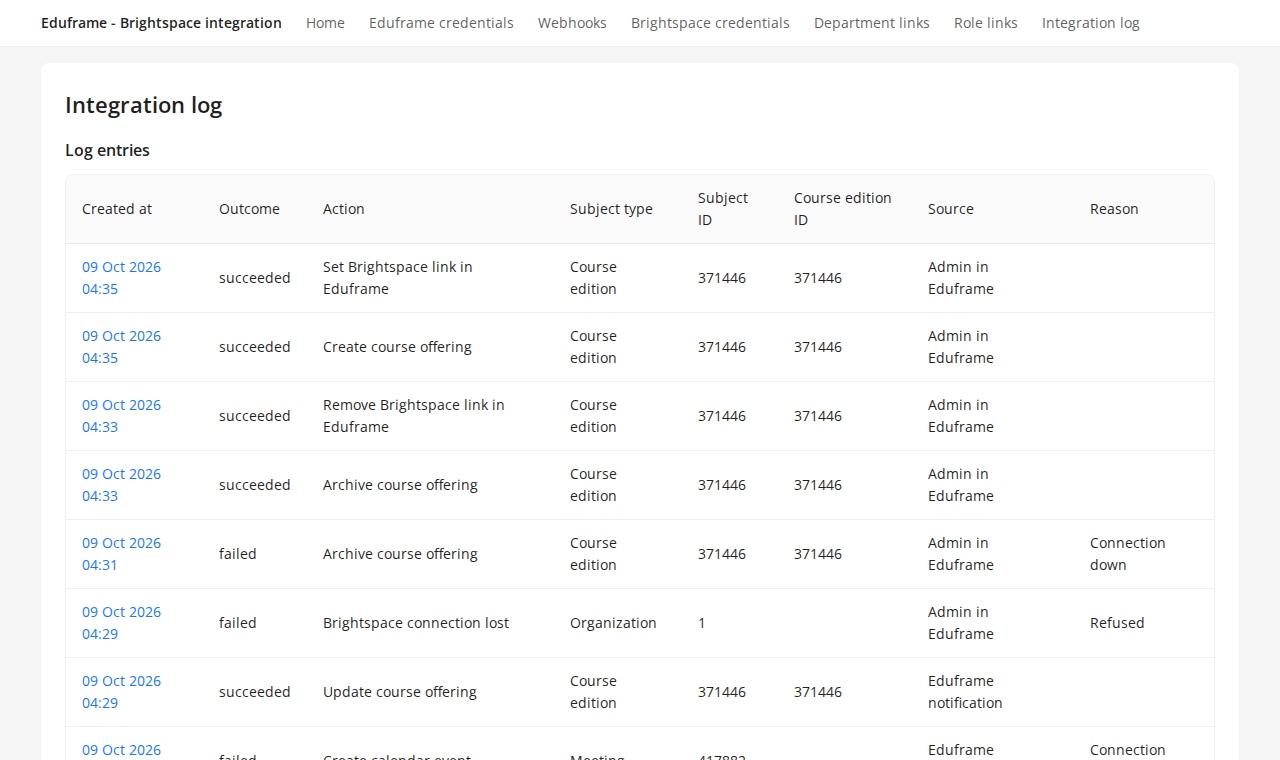
Integration log
In 'Integration log' you find everything the integration did, such as publishing course editions and enrolling participants. Every line shows whether it succeeded, failed or was skipped, and why. Click on the date of a line to see the details.
Publish a course edition to Brightspace
Eduframe does not send a course edition to Brightspace automatically. You publish each course edition yourself.
Go to Courses and click on 'Course editions'.
Open the course edition.
Click on the tab 'Brightspace'.
Optionally fill in the 'Dates in Brightspace'.
Click on 'Publish'.
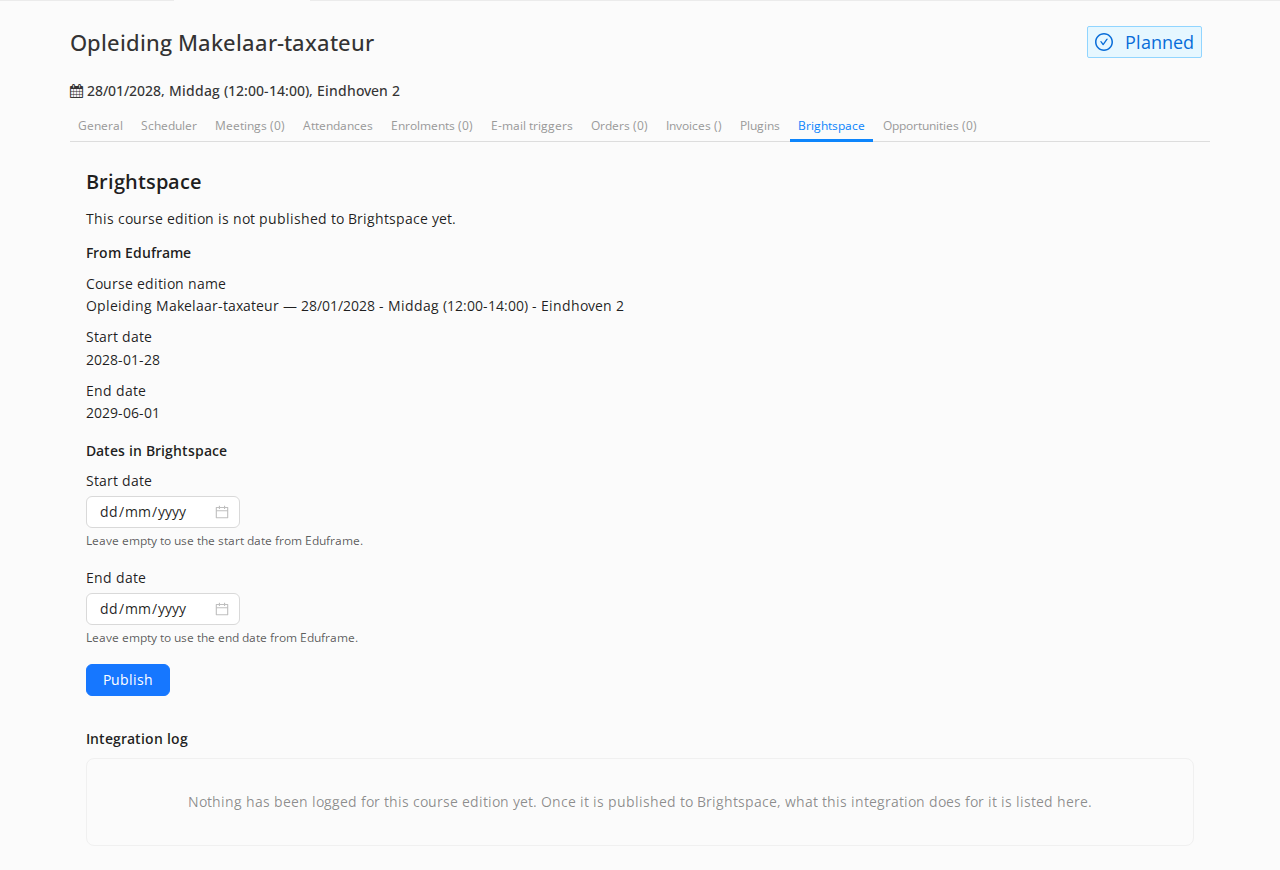
When you publish a course edition, Eduframe:
creates the course template in the linked Brightspace department, if it does not exist yet;
creates the course offering under the course template;
enrolls the participants and teachers of the course edition;
adds the meetings of the course edition to the calendar of the course offering;
stores the link to the course offering in the field 'External content URL' of the course edition.

Participants open the course offering with the 'Go to Course' button in the participant portal.
Note: Eduframe creates the course offering inactive, so participants do not see it yet. Make the course offering active in Brightspace when it is ready for the participants.
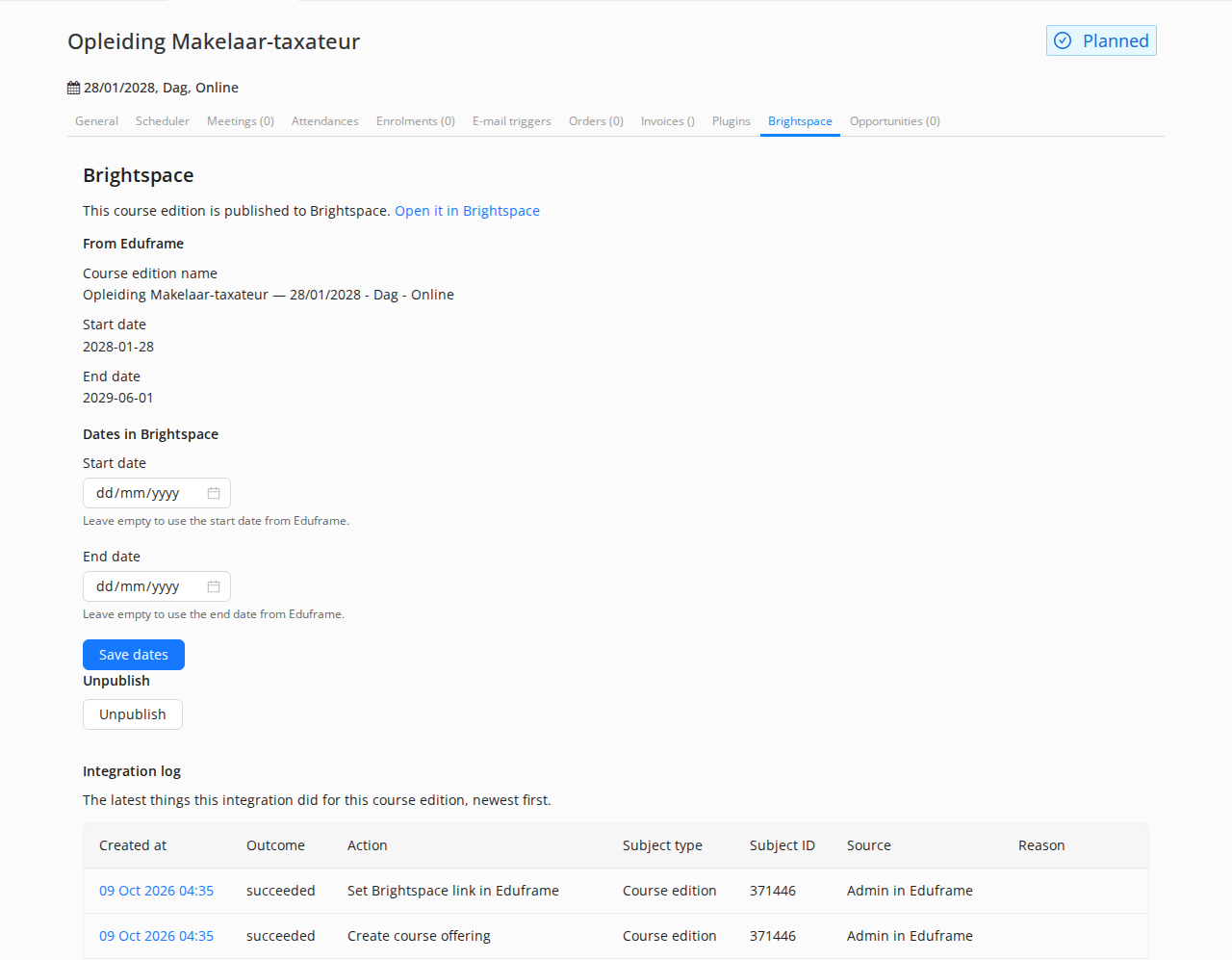
After publishing, the tab 'Brightspace' shows that the course edition is published, with a link to open it in Brightspace. Below that you find what the integration did for this course edition.
Note:
- You cannot publish a course edition when the department of its course template is not linked. The tab then shows: Department is not linked to a Brightspace department, so the course edition cannot be published. Link the department and click on 'Publish' again.
- When no participant role is set or no teacher role is linked, the course offering is still created. The participants or teachers are added as soon as you set the role.
Dates in Brightspace
By default the course offering gets the start and end date of the course edition. Fill in a date under 'Dates in Brightspace' to give the course offering another start or end date in Brightspace, for example to give participants access a week before the start. Click on 'Save dates'.
Leave a date empty to use the date from Eduframe.
When you filled in a date, a change of that date in Eduframe no longer changes it in Brightspace.
A flexible course edition has no start and end date in Brightspace. Fill in the dates here if you want the course offering to have dates.
Brightspace gets each date as 00:00 at the start of that day, in the time zone of your Eduframe environment. The course offering therefore ends at the start of its end date. Fill in an end date one day later if participants need access on the last day.
Unpublish a course edition
Click on 'Unpublish' and confirm. Eduframe then:
archives the course offering in Brightspace. A Brightspace administrator can restore it;
stops keeping the course offering in sync with the course edition;
removes the link to the course offering from the course edition;
removes the history of grade exports of the course offering.
When you publish the course edition again, Eduframe creates a new course offering.
Sync information from Eduframe to Brightspace
What information will sync from Eduframe to Brightspace?
Definitions in Eduframe differ from definitions in Brightspace. See details in the table below.
Eduframe | Brightspace |
|---|---|
Department | Department * Linked in 'Department links', not created by Eduframe |
Course template | Course template * Created in the linked department * Name is the name of the course template * Code is ef-course- followed by the Eduframe ID |
Course edition | Course offering * Created when you publish the course edition * Name is the course template name followed by the course edition name (start date - variant - location) * Code is ef-planned-course- followed by the Eduframe ID * Start and end date (none for a flexible course edition) * Created inactive |
Meetings | Calendar events in the course offering |
Contacts (participants and teachers) | Users * Username and Org Defined ID are the Principal ID * First, middle and last name * No e-mail address and no password |
Enrollments (participants) | Enrollments with the participant role |
Teachers on course edition, meetings and subevents | Enrollments with the linked Brightspace role |
Not everything is synchronized from Eduframe to Brightspace. Programs, blocks, categories, subevents, course descriptions and e-mail addresses are not synchronized. Eduframe does not use semesters and sections in Brightspace.
What happens after changes in Eduframe to Brightspace?
Eduframe | Brightspace | Condition | DIRECT | OVER-NIGHT |
|---|---|---|---|---|
Course | ||||
Create new course edition | Nothing happens in Brightspace until you publish the course edition. | |||
Publish course edition | New course offering in Brightspace, created inactive. * Name is the course template name followed by the course edition name, for example 'Opleiding Makelaar-taxateur — 28/01/2028 - Dag - Online'. * New course template in the linked Brightspace department, if this is the first published course edition of the course template. * Participants, teachers and meetings of the course edition are added. | The department of the course template is linked to a Brightspace department | ✅ | |
Change name of the course template | In Brightspace the name of the course template and of all its course offerings will change. | Course edition is published | ✅ | |
Change code of the course template | Nothing changes. The Brightspace code is always ef-course- followed by the Eduframe ID. | |||
Change start date, end date, location or variant | In Brightspace the course offering name and its start and end date will change. | After saving the course edition A date filled in under 'Dates in Brightspace' is not changed | ✅ | |
Move course template to another department | The course template and its course offerings move to the Brightspace department linked to the new department. | New department is linked. If it is not linked, see 'What happens when you unlink a department or move a course template?' | ✅ | |
Cancel or delete course edition | The course offering stays in Brightspace. Unpublish the course edition first to archive the course offering. | |||
Unpublish course edition | The course offering is archived in Brightspace and no longer kept in sync. | ✅ | ||
Create new meeting | New calendar event in the course offering. * Title is name meeting (or start date - variant - location of the course edition when the meeting has no name) * Description is the comment for participants of the meeting * Date and time is date and time meeting * Location is name meeting location | After saving a meeting Draft meetings are not synchronized | ✅ | |
Change meeting | Change calendar event in the course offering. | After saving a meeting | ✅ | |
Delete meeting or change it back to draft | Calendar event is removed from the course offering. | ✅ | ||
Change name of a meeting location | Location of all calendar events with this location will change. | ✅ | ||
Participants (students) | ||||
Participant has a confirmed enrollment | Participant is enrolled in the course offering with the participant role. * A Brightspace user is created when the participant does not have one yet. | Course edition is published Participant role is set (See Role links) | ✅ | |
Access to the course offering | Enrollment confirmed, active or ended Course offering is active in Brightspace Brightspace start and end date of the course offering | ✅ | ||
Enrollment of participant is canceled | Participant is unenrolled from the course offering and no longer sees it in Brightspace. | Enrollment gets status 'canceled' in Eduframe | ✅ | |
Enrollment of participant is removed | Participant is unenrolled from the course offering and no longer sees it in Brightspace. | Enrollment gets removed from Eduframe | ✅ | |
Enrollment in a flexible course edition starts or ends | Participant is enrolled in the course offering while today is between the start and end date of the enrollment, and unenrolled outside of it. | Flexible course edition | ✅ | |
Changes to participant data: name or Principal ID | First name, middle name, last name, username and Org Defined ID of the Brightspace user will change. * The e-mail address of the Brightspace user is cleared. | Contact is not managed externally | ✅ | |
Delete participant | The Brightspace user is deleted about one hour later, with all its enrollments, also in courses that were not published from Eduframe. | Contact managed externally: the Brightspace user stays, only the enrollments in course offerings published from Eduframe are removed. | ✅ | |
Merge contacts | The Brightspace user of the merged contact is merged into the Brightspace user of the remaining contact. | Both contacts have a Brightspace user | ✅ | |
Teachers | ||||
Add teacher at course edition level in role | Access to the course offering in the linked Brightspace role. | Eduframe teacher role must be linked to a Brightspace role (See Role links) | ✅ | |
Plan teacher at meeting / subevent level | Access to the course offering in the linked Brightspace role. | Eduframe teacher role must be linked to a Brightspace role (See Role links) | ✅ | |
Delete teacher at course edition, meeting or subevent level | No access to the course offering. | Teacher is not planned on the course edition in another way | ✅ | |
Change role of teacher | Role in the course offering will change. | New role is linked | ✅ | |
Change teacher to inactive | Nothing changes in Brightspace. Remove the teacher from the course edition to remove their access. |
Note:
- Changes are sent to Brightspace in the background, usually within a few minutes. You can follow them in the Integration log.
- When you change the name, code or dates of a course offering in Brightspace, Eduframe overwrites them after the next change in Eduframe. Other settings of the course offering, such as active and description, are not changed by Eduframe.
- When you change a Brightspace user, Eduframe overwrites the name, username and Org Defined ID after the next change of the name or Principal ID in Eduframe. It also clears the e-mail address and makes a deactivated user active again. This does not happen for contacts managed externally.
- Subevents do not synchronize to Brightspace, only meetings do.
What happens when you unlink a department or move a course template?
When the department of a course template is not linked to a Brightspace department, Eduframe no longer sends changes of that course template and its course editions to Brightspace. This happens when you:
unlink the department in 'Department links';
move the course template to a department that is not linked.
What stays the same:
The course template and course offerings stay in Brightspace, in the Brightspace department they were in.
Participants and teachers keep their access to the course offerings.
Changes to the name or Principal ID of contacts and deleted contacts are still sent to Brightspace.
Grades can still be exported from Brightspace to Eduframe.
You can still unpublish the course editions.
What is no longer sent to Brightspace:
changes to the names and dates of the course template and course offerings;
new, changed and deleted meetings;
new, canceled and removed enrollments;
teachers that are added, removed or get another role;
a change of the participant role;
'Dates in Brightspace' you save in the meantime. They are stored and sent when the department is linked again.
A course edition of such a course template that is not published yet cannot be published. The tab 'Brightspace' of a published course edition shows: Department is not linked to a Brightspace department, so changes to this course edition are not sent to Brightspace.
Link the department again
When you link the department again, or move the course template back to a linked department, Eduframe moves the course template to the linked Brightspace department and brings every published course edition up to date: names, dates, meetings, enrollments and teachers are sent as they are in Eduframe at that moment.
Note: Course editions that could not be published while the department was not linked are not published automatically. Open the tab 'Brightspace' of the course edition and click on 'Publish'.
Export grades from Brightspace to Eduframe
The final grades of participants can be exported from a Brightspace course offering to Eduframe. An instructor or administrator does this in Brightspace:
Open the course offering in Brightspace.
Open the Eduframe tool in the navigation bar of the course offering.
Click on 'Export grades'.
Eduframe then copies the final grade of every participant to their enrollment in Eduframe: the grade as the participant sees it in Brightspace, and a score from 0 to 100. The table below the button shows every export, with how many grades were exported, unchanged, skipped or failed.
Note:
- Only released final grades are exported. A participant without a released final grade is skipped, so an export never removes a grade in Eduframe.
- An existing grade in Eduframe is overwritten when it differs from the grade in Brightspace.
- Only participants that Eduframe enrolled in the course offering are exported.
- Comments and the graduation state in Eduframe are not changed.
- The Eduframe tool has to be added to Brightspace first. See 📄 Setting up Eduframe and Brightspace connection.
How can you merge duplicate users in Brightspace?
Before the Eduframe (and Brightspace) implementation you might already have users in Brightspace. When Eduframe enrolls a contact for the first time, it first looks for a Brightspace user whose Org Defined ID is the Principal ID of the contact. When that user exists, Eduframe uses it instead of creating a new user.
Note: Turn on Manage externally for contacts whose Brightspace user is managed by another system, such as your SIS. Otherwise Eduframe overwrites their username, clears their e-mail address and, when the contact is deleted in Eduframe, deletes the Brightspace user with all its enrollments, also in courses that were not published from Eduframe.
Note: When you merge contacts in Eduframe, Eduframe also merges their Brightspace users. Brightspace moves the enrollments and awards to the remaining user. Grades, quiz attempts and other progress of the removed user are lost.
Which identifier does Eduframe use for users in Brightspace?
Eduframe identifies every Contact in Brightspace by its Principal ID: the Principal ID is the Username and the Org Defined ID of the Brightspace user. Find out more in 📄 Principal ID.
What happens in Brightspace when I change a Principal ID?
Eduframe changes the Username and the Org Defined ID of the Brightspace user, usually within a few minutes. It stays the same Brightspace user, so its enrollments and progress stay.
When Manage externally is enabled for a Contact, Eduframe creates the Brightspace user when the contact is enrolled for the first time, but no longer updates it. When such a contact is deleted, Eduframe keeps the Brightspace user and only removes its enrollments in the course offerings published from Eduframe.
Frequently Asked Questions
Why do participants not see the course in Brightspace?
Eduframe creates the course offering inactive. Make the course offering active in Brightspace when it is ready for the participants.
Can Eduframe create sections or semesters in Brightspace?
No. Eduframe does not use sections and semesters in Brightspace. You can add them in Brightspace yourself.
How can I export grades from Brightspace to Eduframe?
See 'Export grades from Brightspace to Eduframe' above.
More questions and answers can be found in 📄 FAQs Brightspace-Eduframe integration.