Meetings and Meeting Templates
Last updated: September 18, 2026
Summary
In this article where going to take a look into meetings and meeting templates. A meeting is a synchronous moment to plan during a course. This could be a day, an hour etc. You can also connect teachers, locations and materials to a meeting. If you have standard planned meetings in all the courses connected to one course template, you can also use a meeting template. For example: if there is always a kick-off meeting 3 days after the courses start, you can set this up in your meeting template.
Meetings are only possible in fixed courses (with a start and end date), not in flexible courses.
How to create a Meeting Templates?
On a course template level, you can create meeting templates. This means that you can preset multiple meetings in multiple course editions. You don't have to set up every meeting in every course again and again.
As an admin, you go to:
a course template
click on tab 'meeting templates'
click on '+meeting template'
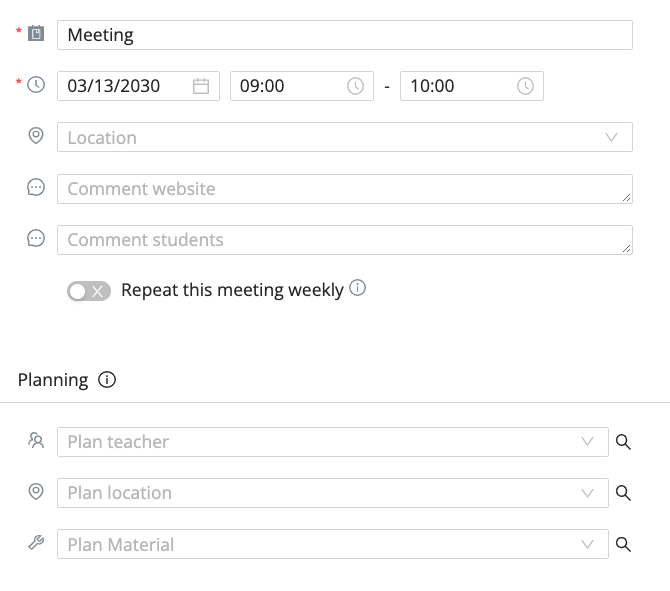
fill in the meeting
Note: Make sure you fill all relevant information for future course editions, e.g. location or teacher, in the meeting templates. If you add some information, e.g. teacher, after you already created a course edition, it will not be filled retrospectively.
Two options to schedule meetings from meeting templates
If you create meeting templates on a course template, you can choose whether you want to create the meeting templates in the course edition immediately after creating a course edition or not. By default, meeting templates will be created on course edition creation.
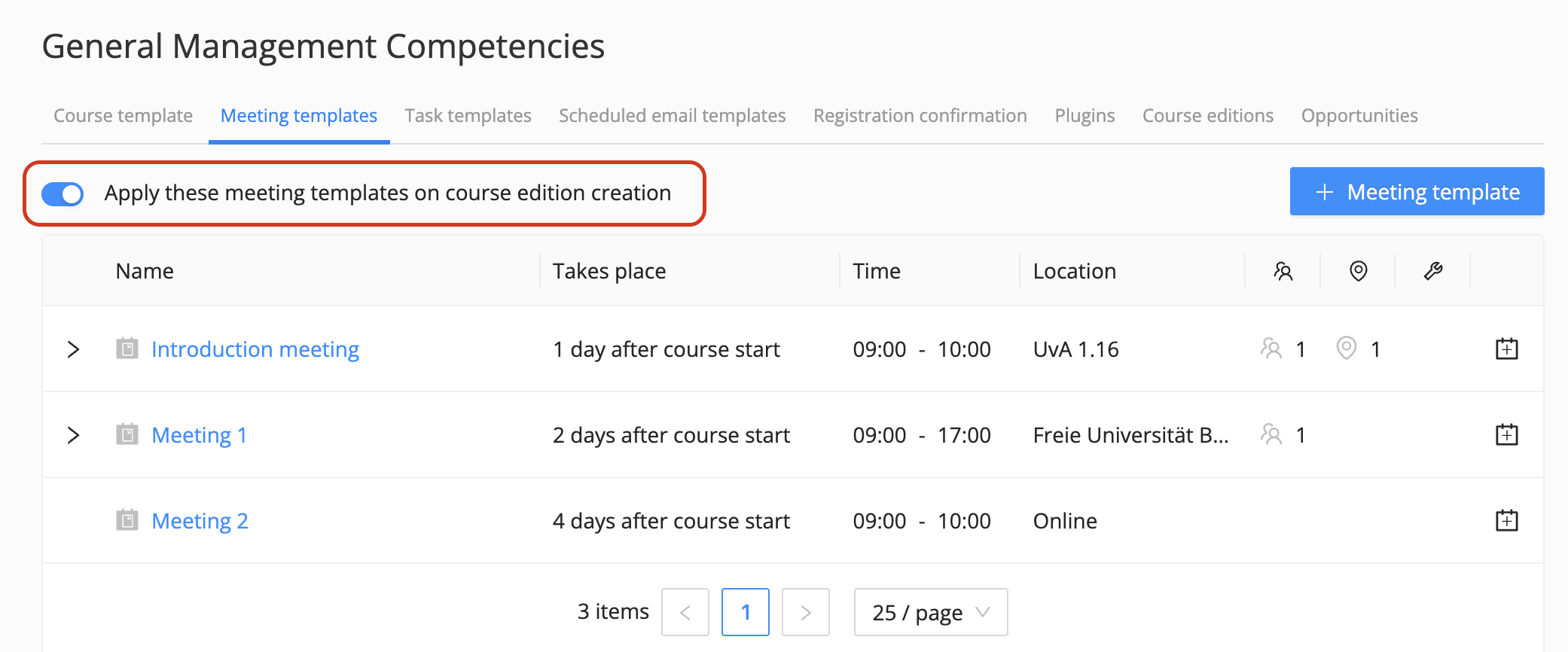
However, you can also switch off this option and plan the meetings on course editions later, when more information - e.g. location - is known.
If you then want to add the meetings later on, you:
Go to the relevant course edition
Click on the meetings tab in the course edition
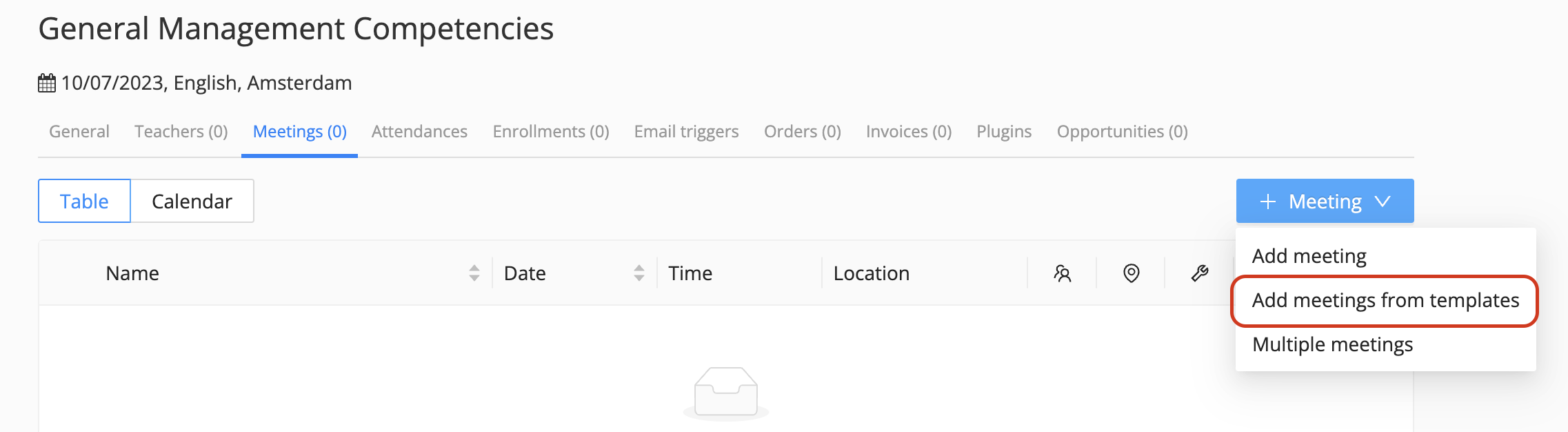
Click on the blue '+ meeting' button
Click on 'add meetings from templates'
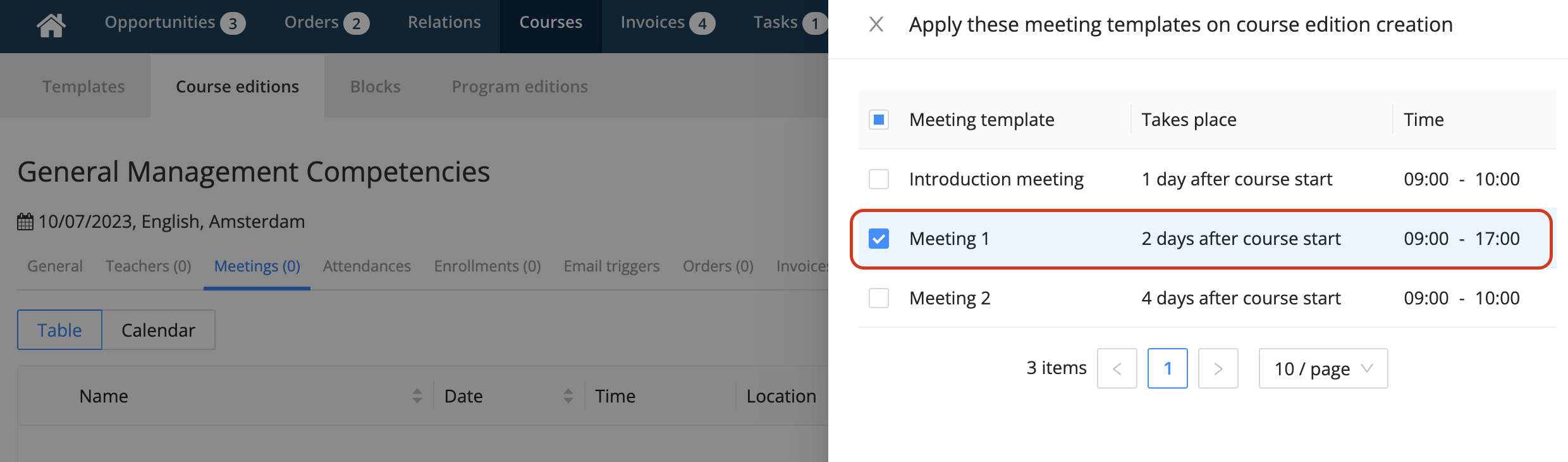
Select the meeting templates you would like to plan
Click 'create meetings'
The selected meetings will now be planned as regular meetings in the course edition. The resulting meetings can still be adjusted.
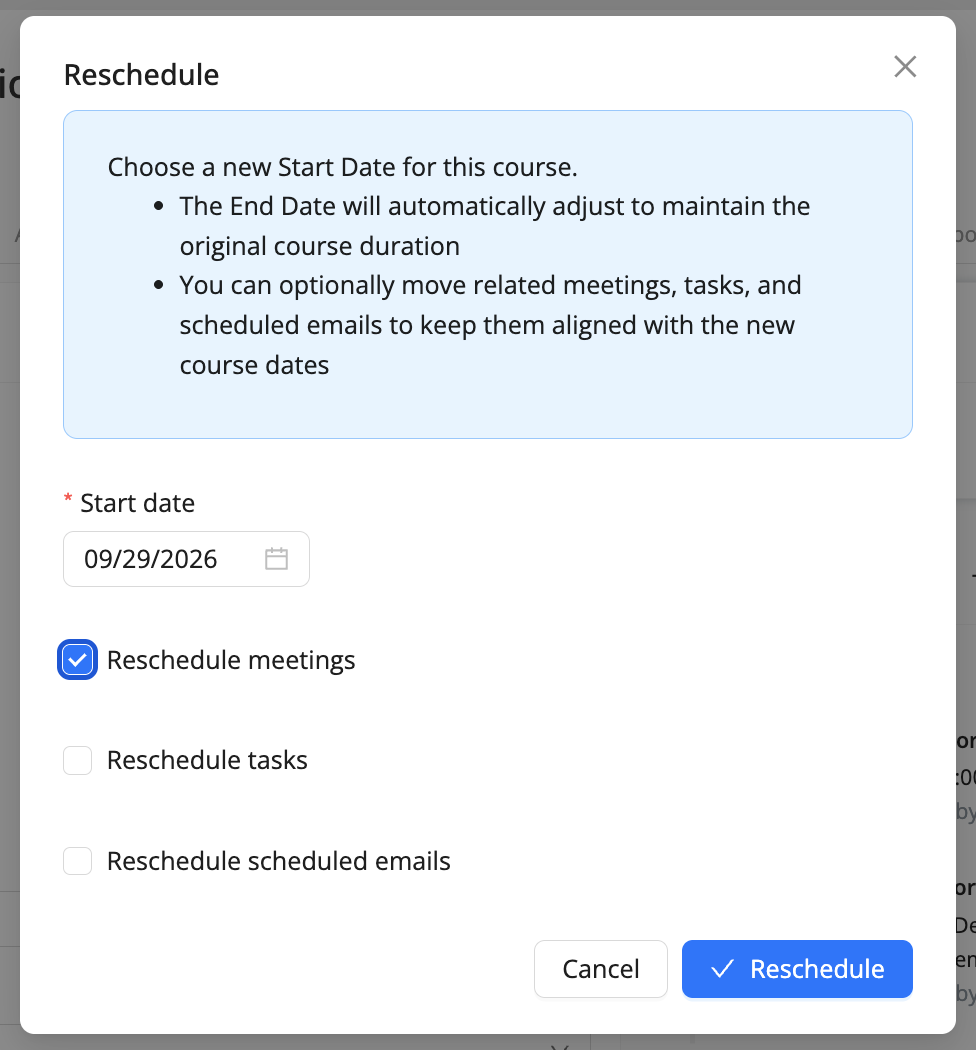
What happens with scheduled meetings when you adjust the start date of a course?
Sometimes you need to adjust the start date of a course. If that is the case, you have the option to move related meetings, tasks and scheduled emails to keep them aligned with the new course dates. This ensures that meeting dates will be recalculated and updated when you adjust the start date of a course edition.
How to create individual meetings?
On each (fixed) course edition you can add additional meetings.
As an admin, you:
Go to a Course Edition
Click on 'meetings'
Click on '+ meeting'
Fill in the meeting
Note: With premium scheduling you can record the amount and types of teachers you need for each meeting or subevent, without specifying the specific teachers themselves using the Meeting requirements functionality.
How to create multiple meetings?
You can create multiple meetings to a course edition at once.
As an admin, you:
Go to a Course Ediiton
Click on meetings
Click on + multiple meetings
Filling in the days, times, teachers and locations for multiple meetings.
Click on Continue
Select the days you want to come back weekly.
Note: You have to select one date here. There is a maximum 200 meetings to create at once.
Subevents
If you are on the meeting tab, you will see an overview of all the meetings for the course edition. There is a possibility to add a subevent to a meeting template or to a meeting by clicking the subevent icon:

The subevent is only used for internal planning. It is visible in the teacher portal and admin portal. It is not visible in the participant, the business portal and the LMS.
The subevent will have the same trigger, but can have a shorter period of time of the main meeting. The subevent can also take place before or after the actual meeting, e.g. if the classroom needs to be prepared 30 minutes before the meeting starts. With a subevent, you can easily make sure that the classroom is available 30 minutes earlier.
Attendance Form
As a teacher, you can enter the attendance status of participants in Eduframe. Per meeting, you can fill in the attendance per participant. You can also download an attendance form if that is what you prefer.
Meeting view: Calender or List view
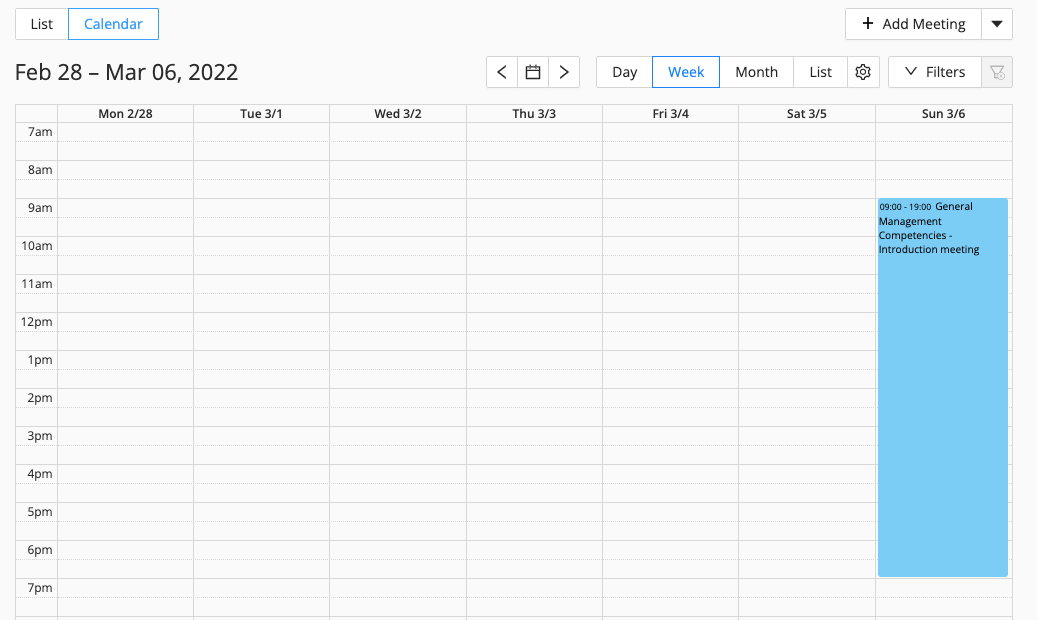
The meetings are visible in 2 different views: Calendar view or List view.
In the Calendar view there are multiple possibilities to filter.