Locations and Materials
Last updated: September 21, 2026
Summary
When organising courses, you might have to manage and book resources like Locations and Materials. Locations could be course locations, meeting rooms or other facilities. Materials could be things like flip-overs, beamers, post-its or catering.
Using Eduframe, you can configure the assets available for your organisation and can book these for meetings, including double booking prevention.
Locations
In Eduframe's Settings > Locations you can create and find all your course and meeting locations.
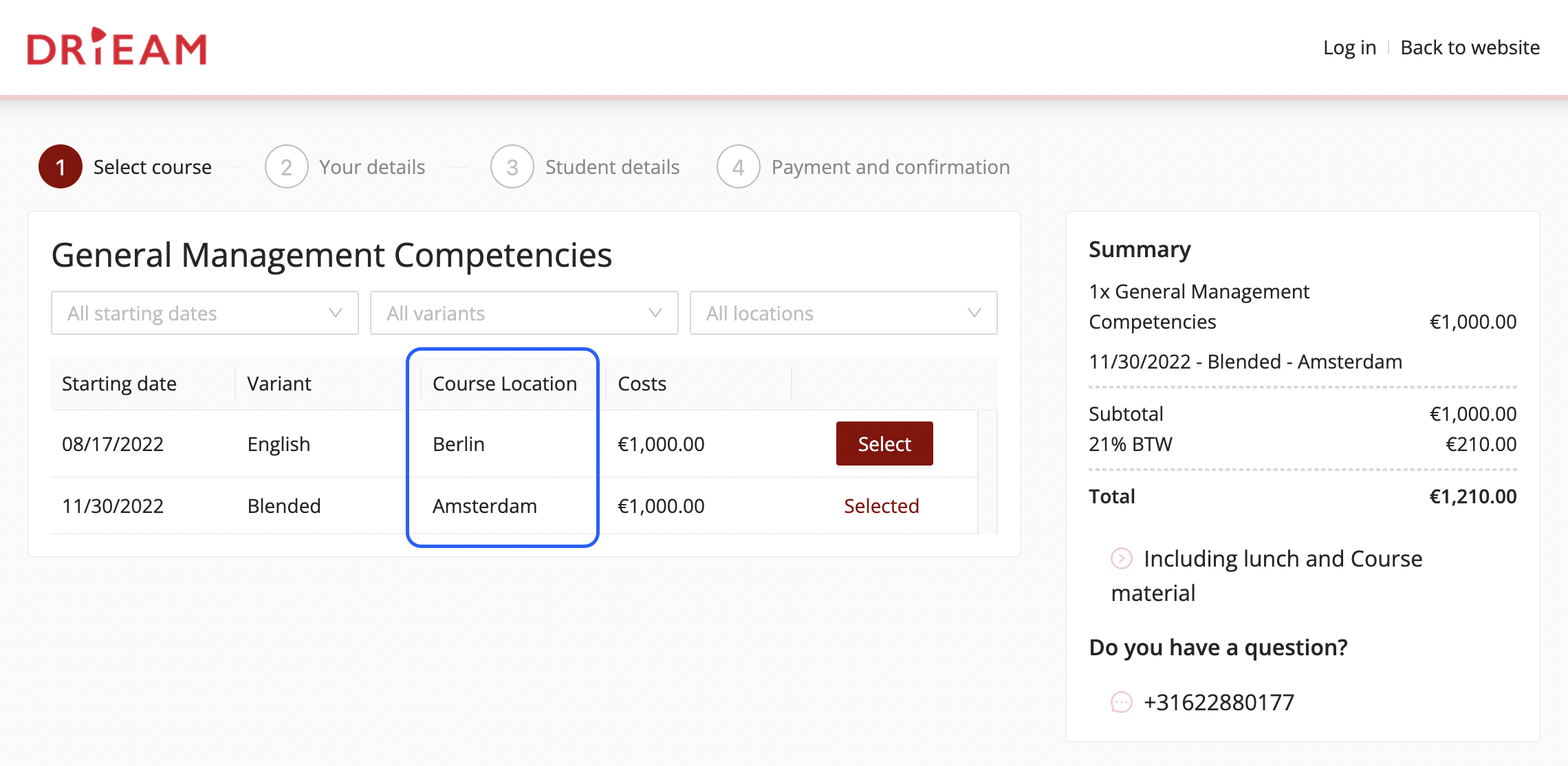
Course location
A Course Location is the location that is displayed in the Course name in a course edition. This name is therefore also displayed on the website, in Canvas or on the signup form.
Location
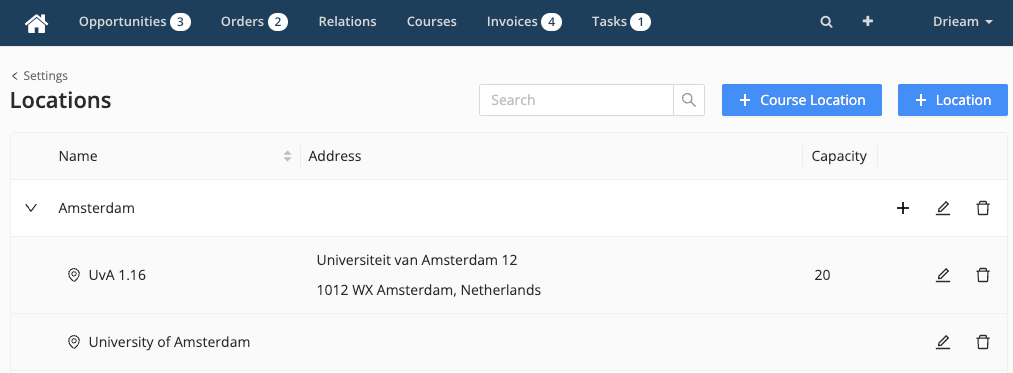
All locations are grouped below Course Locations. A location is used within meetings. This location can be used to communicate to the participants and teachers where they are expected to be when the meetings start. Or it can be used for internal planning purposes to book a certain location within the facility.
For each location you have the option to configure a maximum capacity. When searching for available locations for a meeting you can search for locations with a minimum capacity.
Example course location and location
Course location: Amsterdam (general location)
Location: UvA 1.16 (a specific meeting room, with an address)
Using course locations and locations
Here is an example how to use the Course location Amsterdam and the Locations University of Amsterdam and UvA 1.16.
If you create a course edition, you can select the available course locations as a location. In the example, this is Amsterdam.
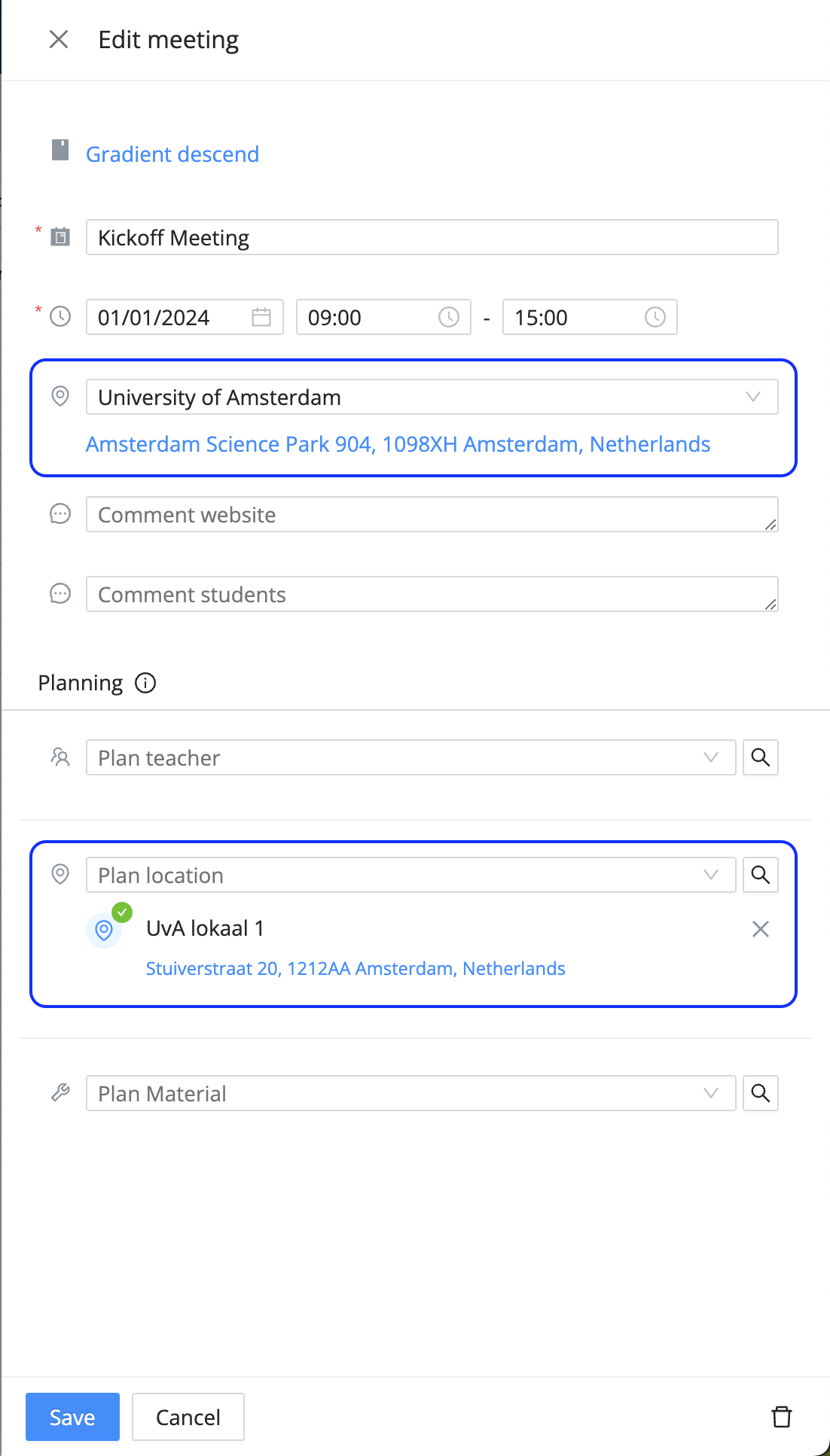
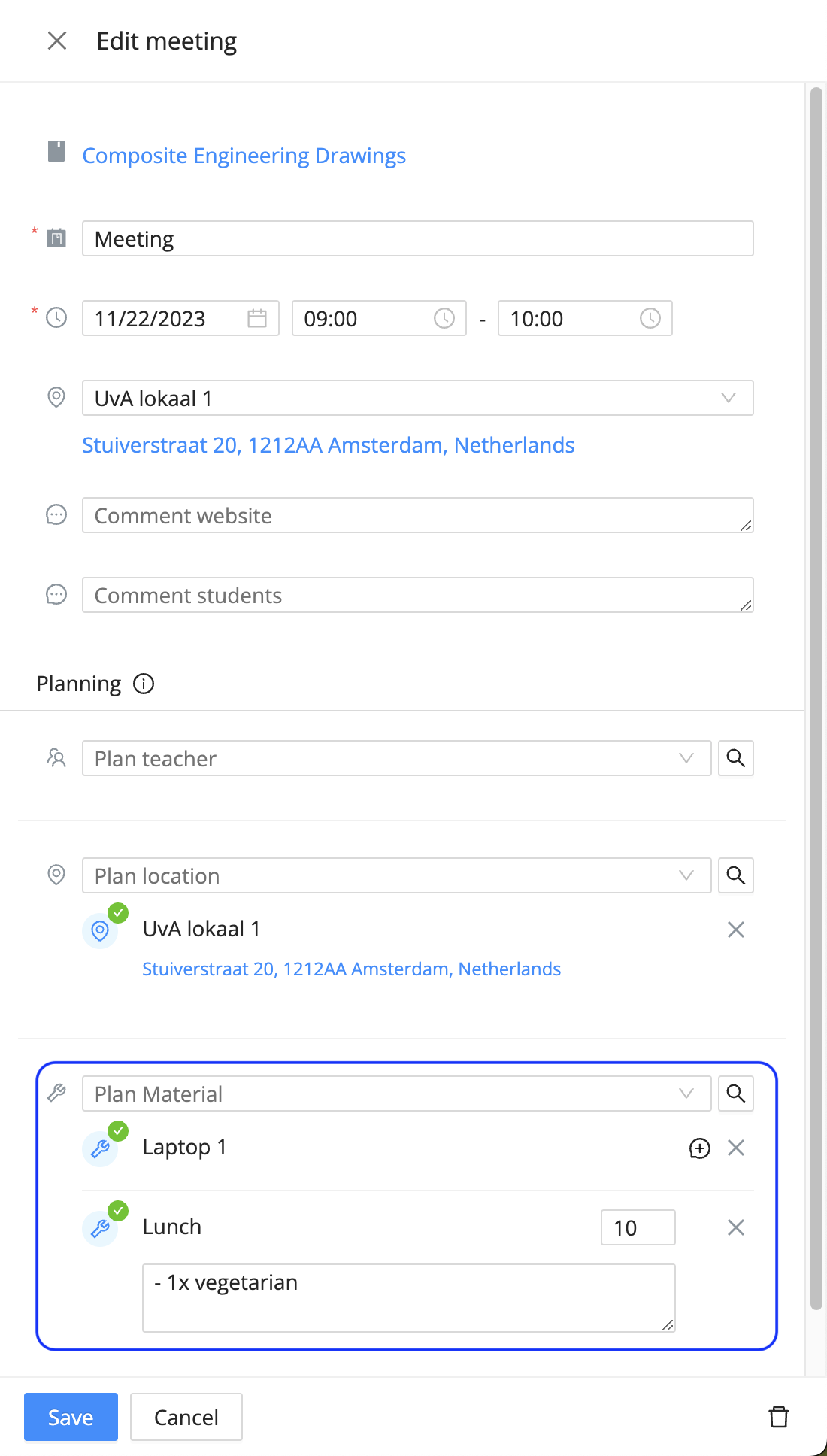
If you create a meeting within the course edition, you see 2 fields showing 'location'. See the screenshot below. In both fields you can fill in both locations (University of Amsterdam or UvA 1.16). The difference between the fields is that:
the upper field is what participants of the meeting will see in their agenda.
the location under 'planning' is only visible for admins and teachers and will be used to book the location.
For any locations booked under the 'planning' heading, Eduframe checks on double bookings, to prevent booking conflicts. If a location is already booked (partly) at the same time, this will be highlighted. The same double booking prevention feature exists for teachers and reservable materials.
Notes:
The communicated location and booked (planning) location don't have to be similar. You can also book multiple (planning) locations at the same time, for example if you need multiple rooms to facilitate all participants, while you only communicate one location because that's the location where participants collect at the beginning of a meeting.
Similar to the participant portal, only the communicated locations become visible in 📄 Canvas LMS integration.
Materials
Similar to locations, you can manage and book materials. In Eduframe's 'Settings' > 'Materials' you can create and find all your configured materials.
Reservable
Reservable materials are materials like a laptop, beamer or car. These materials cannot be booked twice. When booking a reservable, Eduframe will check for planning conflicts using the double booking prevention feature.
Consumable
Consumable materials are materials like post-its, coffee, tee, arranged lunch. An amount can be added to these materials. Eduframe will not check for planning conflicts for these materials.
Material groups
For organising materials, you can create material groups. Organising materials in groups (e.g. 'Catering' or 'Video equipment') makes it easier to find the right material.
Note: After creating a material, you cannot change the material type (reservable vs consumable) anymore.
Using materials
After configuring materials you can book these materials on meetings. This works similarly to booking locations.
There is one key difference: for consumable materials you can book an amount of materials. And for both types of materials you can also include a planning comment. For example to capture dietary wishes for the catering.
At the materials planning overview, which you can find at 'Home'-> 'Materials', you can make an export of all booked materials.
Duplicate Bookings and Conflicts
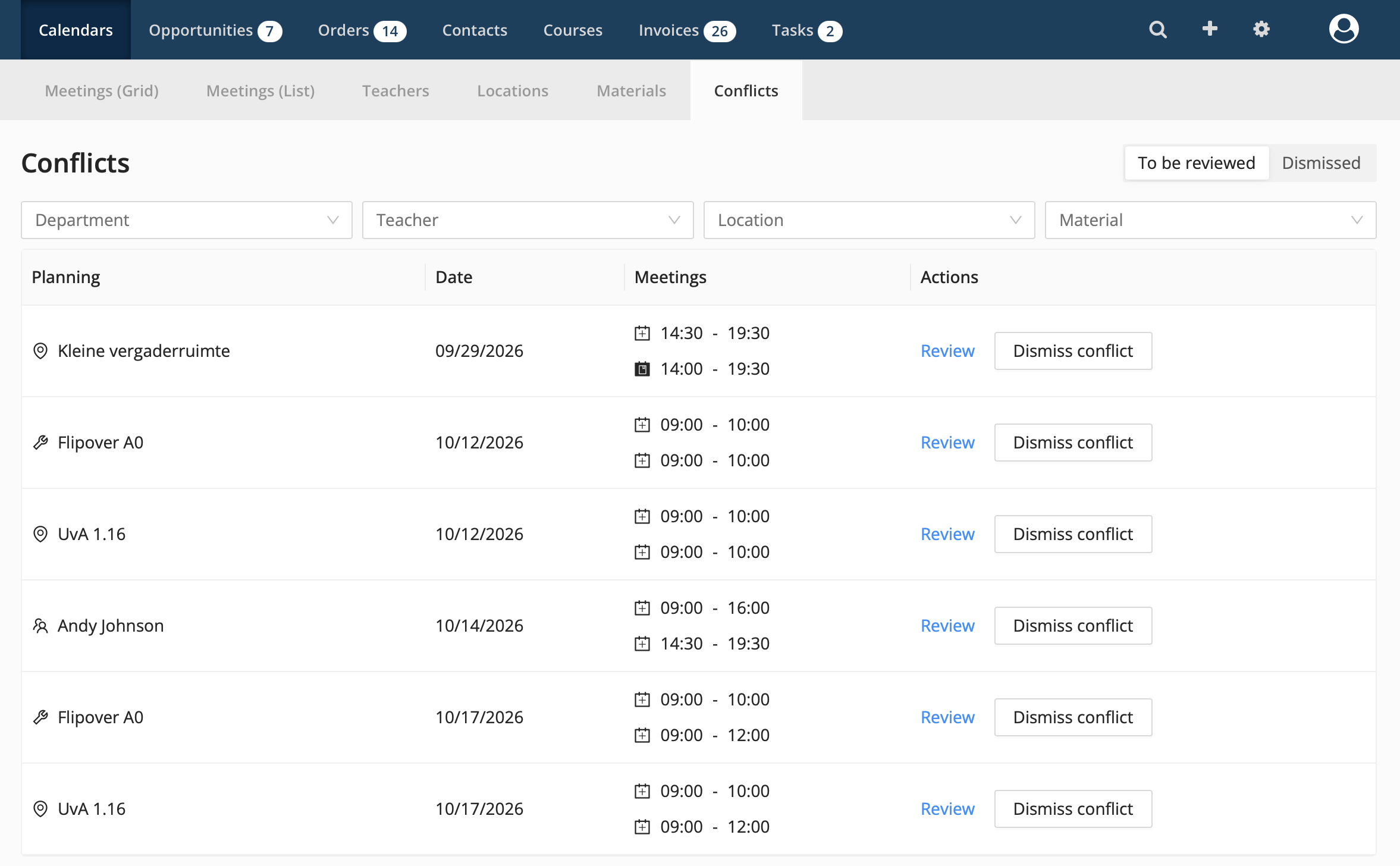
Eduframe's conflict detection (also known as double booking prevention) flags it whenever the same Teacher, Location or reservable Material is booked on two overlapping (draft) Meetings or Subevents. The Conflicts overview only lists conflicts for meetings that haven't ended yet. Conflicts entirely in the past, or on cancelled courses, are filtered out there, though the underlying bookings remain visible on the calendars and in the Meeting drawer.
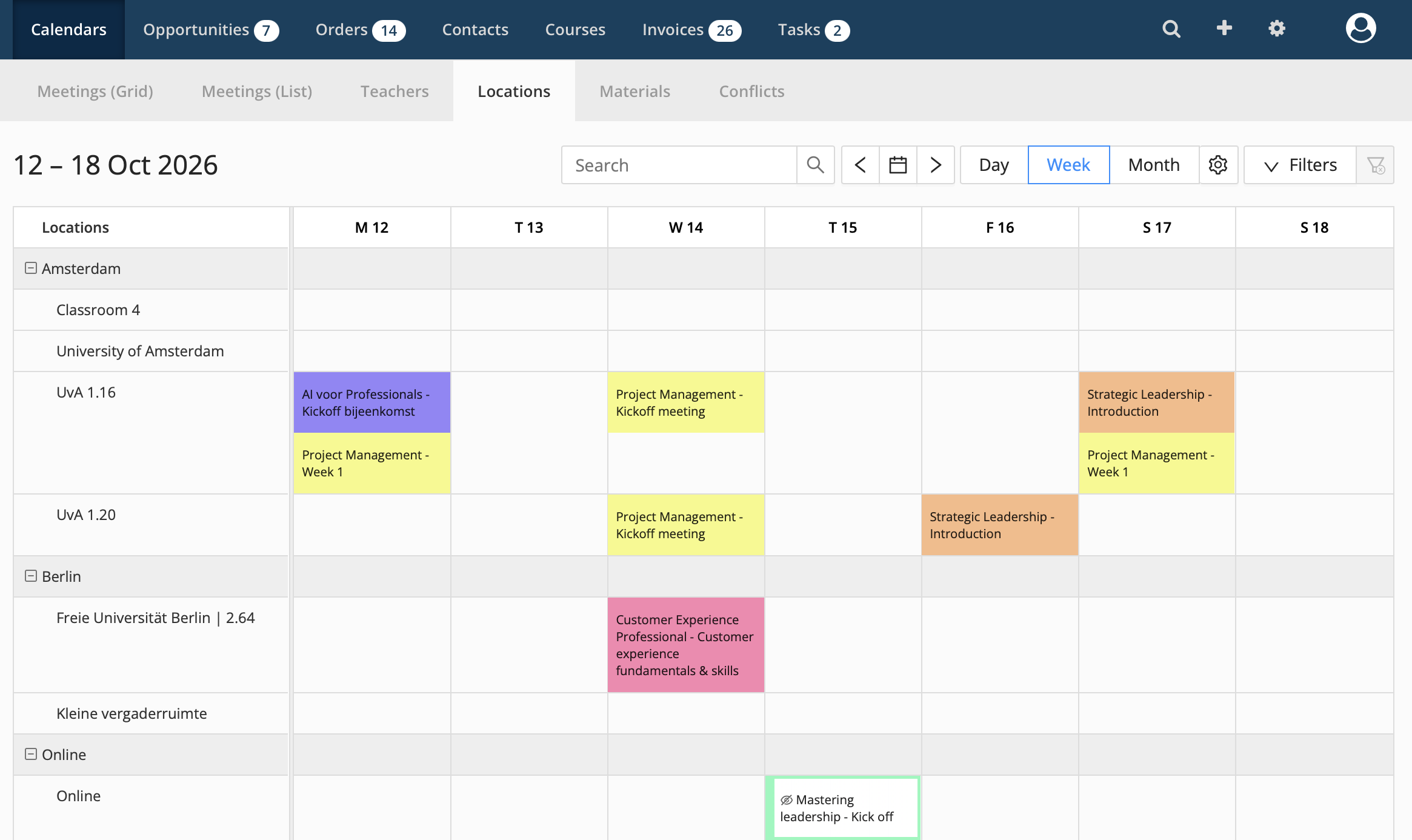
In the conflict overview and at the conflict indicator on the Meeting, you can see whether a resource (Teacher, Location or Material) is already booked on (partly) the same time and date. On the Locations, Materials and Teachers calendars, conflicting bookings simply appear as overlapping entries. Open one to see the full conflict details.
How can I solve or dismiss a conflict?
A conflict can be reviewed, solved or dismissed. Resources can sometimes be shared between several meetings. By accepting, the conflict will be dismissed.
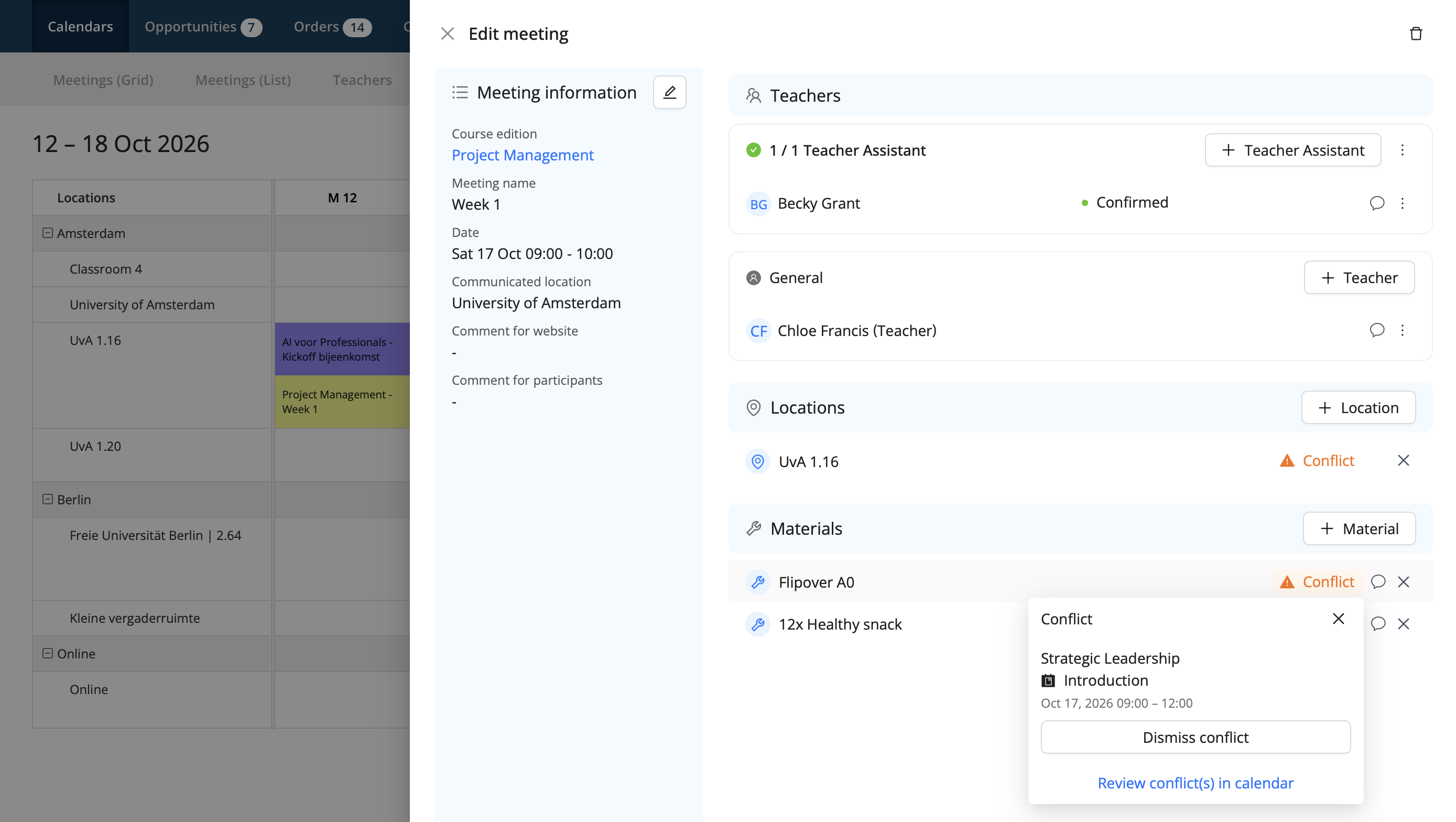
Note: Dismissing applies only to that specific pair of overlapping meetings. If either one is later rescheduled and creates a new overlap, Eduframe flags that as a new conflict.
To view dismissed conflicts, open the Conflicts tab and click Dismissed. Here you can see all previously dismissed conflicts, and can still solve or de-dismiss them if needed. Use the Department, Teacher, Location and Material filters to narrow the list down to a specific resource.