Meeting and Teacher Requirements
Last updated: October 21, 2026
Summary
Scheduling meetings and subevents often relies on a planner's personal knowledge of which teachers are required for specific subjects/sessions. To reduce the risk of scheduling teachers with insufficient competencies or missing a requirement entirely, Eduframe allows you to define Meeting Requirements.
This feature lets you set up a "Teacher Requirement" (specifying role, amount, and labels needed) in your templates or specific meetings or subevents. You can then track exactly which requirements are satisfied and which are still open.
Note that this is a Premium Feature. If you are interested, contact Support.
How to set up Requirements on Templates?
The most efficient way to use requirements is to define them at the course template level. Every meeting or subevent created from that template will automatically inherit the correct teacher requirements.
As an admin, you:
Navigate to Course templates > Meeting templates
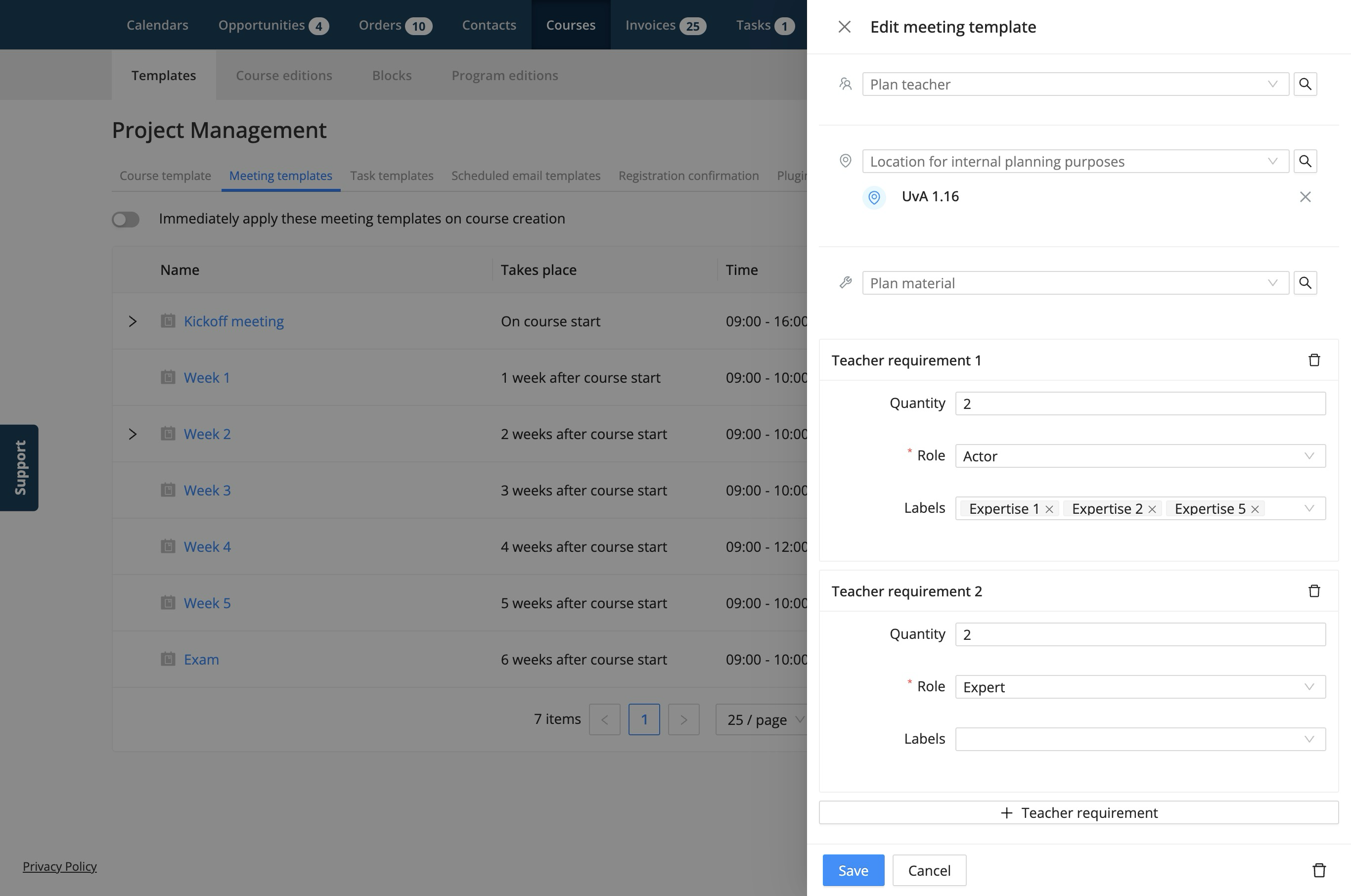
Open an existing meeting/subevent template or create a new one
Scroll to the Planning section
Click + Teacher requirement
Define the following criteria:
Teacher role: The specific role needed (e.g., "Lead Instructor," "Assistant")
Amount: How many teachers of this type are needed (e.g., 2)
Labels: Specific labels the teacher must possess (e.g., "First Aid," "Biology qualified")
Click Save
How to manage Requirements in the Scheduler
Once requirements are defined in templates, you can create a 📄 Course Editions. Depending on whether meeting templates are applied immediately, meetings may be created automatically, or you can apply them later from within the course edition. If you are not using templates, you can also add requirements directly when creating a meeting or subevent.
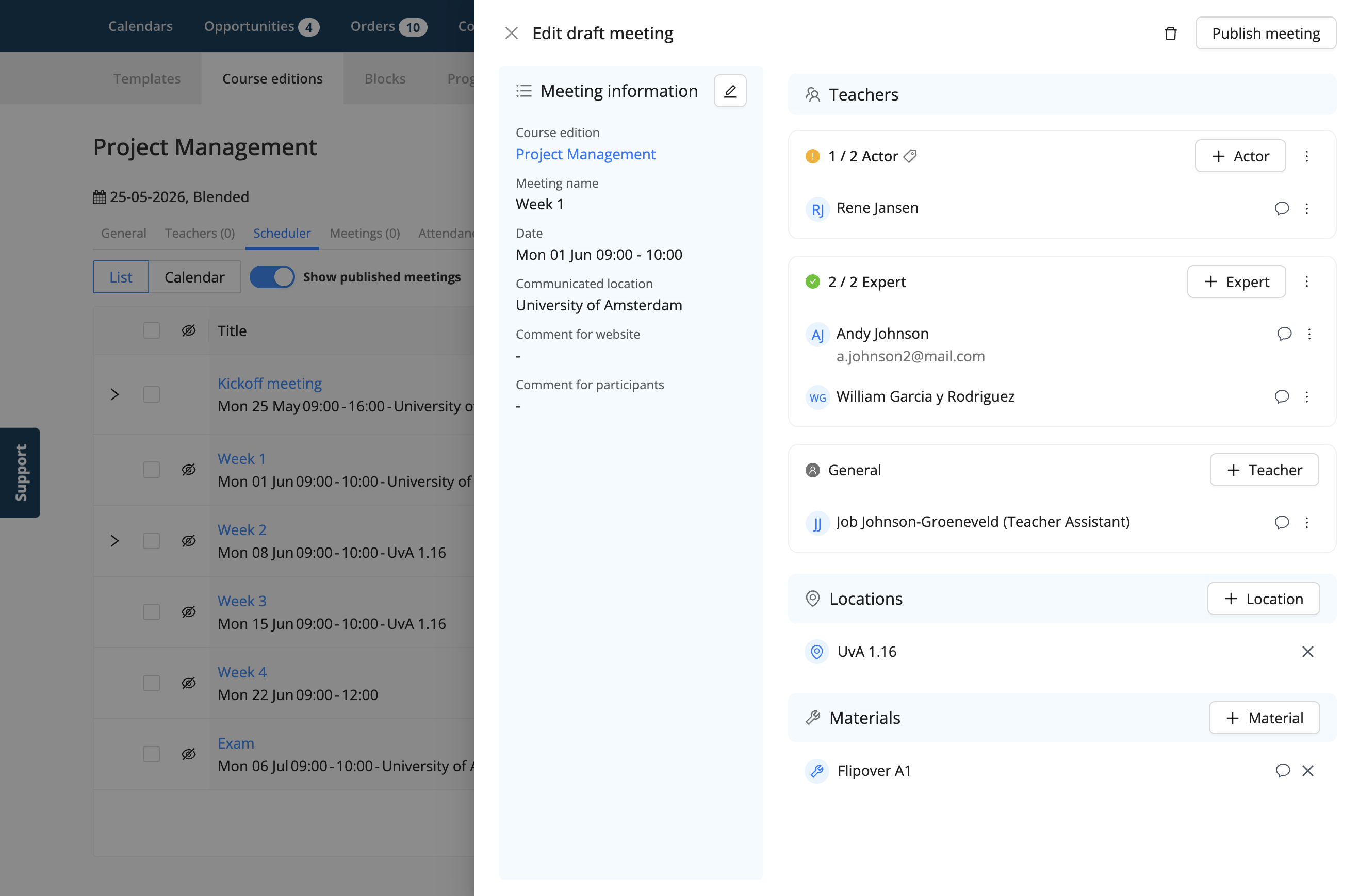
When you open a meeting or subevent details panel (the 'drawer'), you will see a clear distinction between the Required teachers and General teachers.
Viewing Requirements
In the planning section of the meeting drawer, you will see containers for each requirement group you set up.
Progress indicator: Shows how many spots are filled (e.g., "1/2")
Details: Displays the required Role and any specific Labels (hover over the icon to see the exact labels)
Assignment button: Select and plan teachers who match these conditions
Editing Requirements
If a specific meeting needs an exception, you can remove the requirement or adjust the required amount:
Open the meeting or subevent
In the requirement container, click Remove or Edit teacher requirement from the ⋮ menu
Save your changes
The progress indicator updates accordingly.
Fulfilling Requirements (Assigning Teachers)
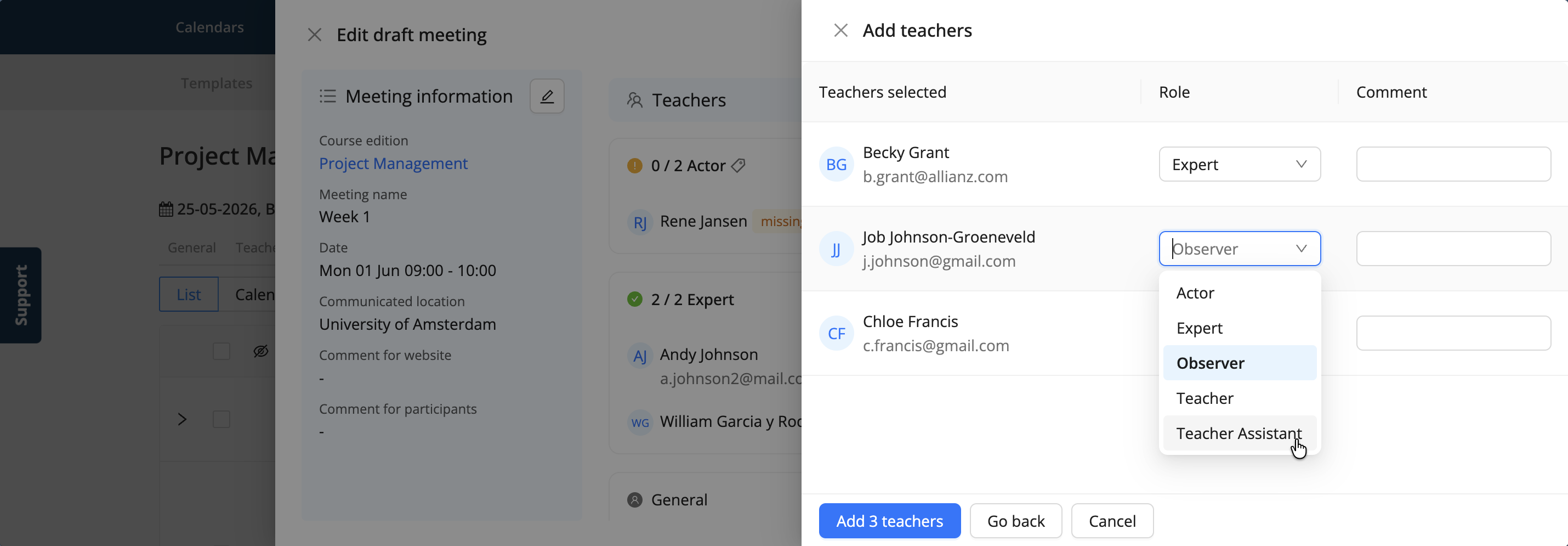
When assigning teachers, the interface helps you ensure you are picking the right person for the right "slot."
To fulfil a requirement: Locate the specific requirement container (e.g., "Lead Instructor")
Use the + [Role] button inside that container
Eduframe will only show teachers who are available and match the required labels
Select a teacher from the filtered list
The teacher is added to the requirement and assigned the correct role automatically
Note: If a planned teacher later loses the required label(s), they no longer count toward the requirement, and an alert indicates "missing labels".
Note: with 📄 Teacher Availabilityteachers can indicate in advance whether they are available for meetings with open requirements. When you assign teachers, you see each teacher's availability and can filter on it.
Scheduling teachers without requirements: If you need to add teachers who do not fit into a specific requirement group (or are an extra addition), use the General section. Teachers added here are considered "extra" and do not count toward the "Required" counters. When using teacher roles you have to select which role you want to schedule the teacher.
How to review Unsatisfied Requirements?
To help you keep track of your scheduling progress without opening every single course edition or meeting, Eduframe provides an overview of requirements that have not yet been met. This allows you to easily track which meetings still need attention, either across all courses (Global) or within a specific course (Course Edition).
Both views provide a consolidated list of all upcoming meetings that have unsatisfied requirements.
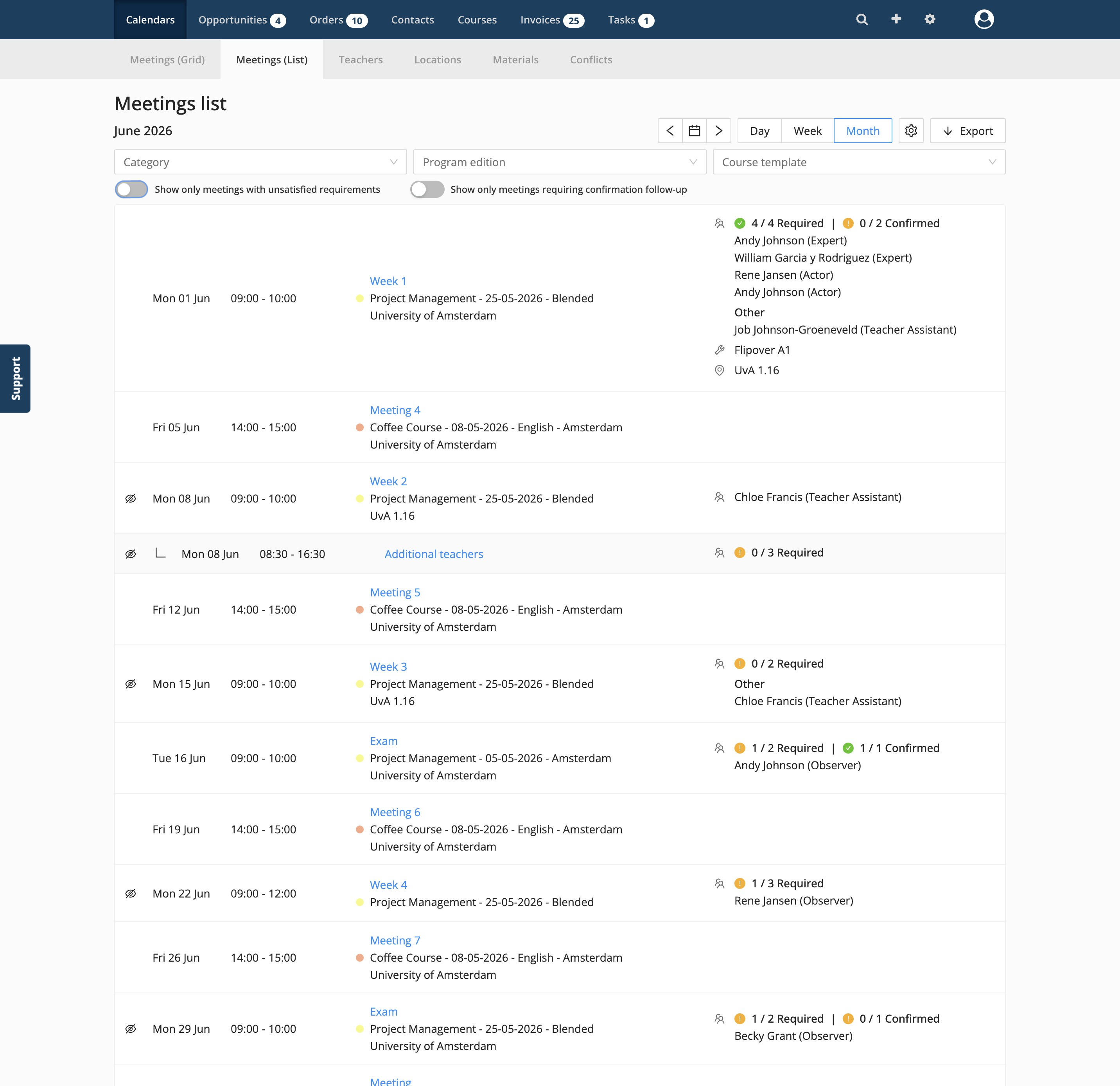
Status Indicators: Quickly see which meetings are incomplete (e.g., 1/2 teachers planned with an orange exclamation mark)
Direct Access: Click on the meeting or subevent to immediately open the detail panel and assign the missing teachers
Global Overview (Meeting List)
To see a "To-Do" list of all upcoming meetings that still require teachers:
Navigate to Calendar > Meetings (List)
Click the Settings (cogwheel) icon and enable Show meeting requirements. This adds requirement details to your list view
Toggle the Show only meetings with open requirements
The list will now filter to show only the meetings where the required teacher amount or requirements have not yet been satisfied, allowing you to work through your open scheduling tasks efficiently.
Course edition scheduler
If you are working within a specific course edition, you can quickly check the status of all its meetings as well:
Navigate to the Course edition
Go to the Scheduler tab
Review the status icon on the right side of each meeting or subevent row:
Green checkmark: All requirements for this meeting are satisfied
Orange exclamation mark: There are unsatisfied requirements (e.g., missing teachers or label mismatches)
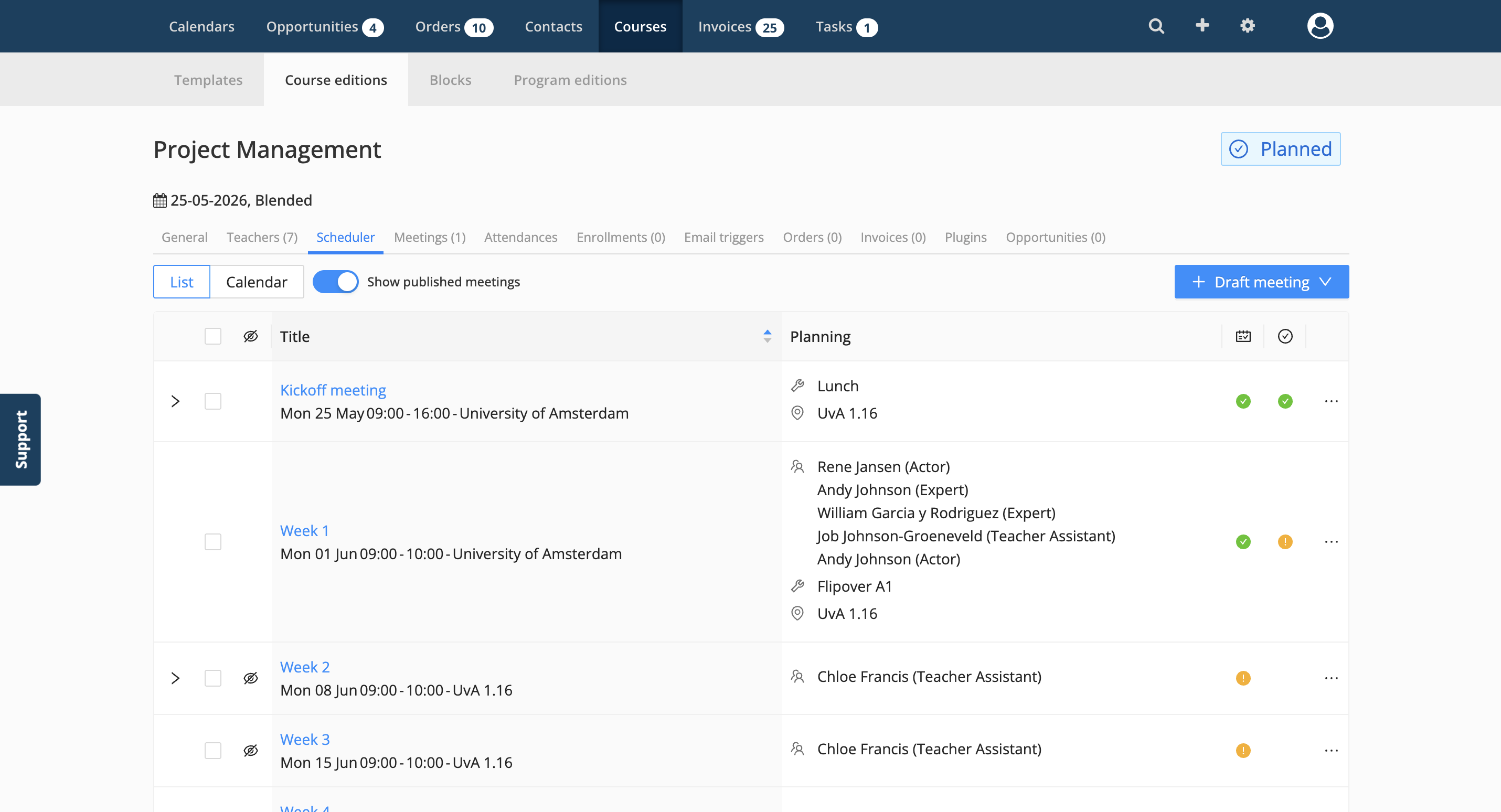
Note: Alongside meeting requirements, 📄 Teacher Confirmationmay also be visible in the same views. These do not affect each other: meeting requirements and teacher confirmations are tracked separately.
Key Benefits
Compliance: Ensure that the right number of teachers with the correct labels (e.g. certifications or expertise) are scheduled
Clarity: Gives planners a clear "to-do list" of unsatisfied requirements
Efficiency: Pre-setup requirements in templates avoid manual data entry and checking for every course edition and individual meeting