Visibility of Products and Categories on the Website and Signup Form
Last updated: September 4, 2026
Summary
In Eduframe there is a hierarchy between categories, templates (program and course templates) and editions (📄 Program Editionsand 📄 Course Editions). Each edition belongs to a template, and each template belongs to a category. All categories, templates and editions are able to be published and be visible on the website and 📄 Signup Forms.
We will call categories, templates and editions 'entities' in this article. An entity can be published on website or publicly available but still not be visible at the website or signup form if:
The edition is not set to “Public”.
One of its parent levels is disabled.
Find out how this works in the next sections.
How does visibility work?
Visibility is controlled by:
The toggles in the template overview. This is the 'published on website' checkbox in the form.
The ‘published on website’ / ‘publicly available on signup form’ checkboxes in the template forms.
The visibility setting on edition level (e.g. 'Public').
An entity is only visible if:
Its own setting allows visibility.
All parent levels are enabled.
In short, the entire hierarchy must be enabled.
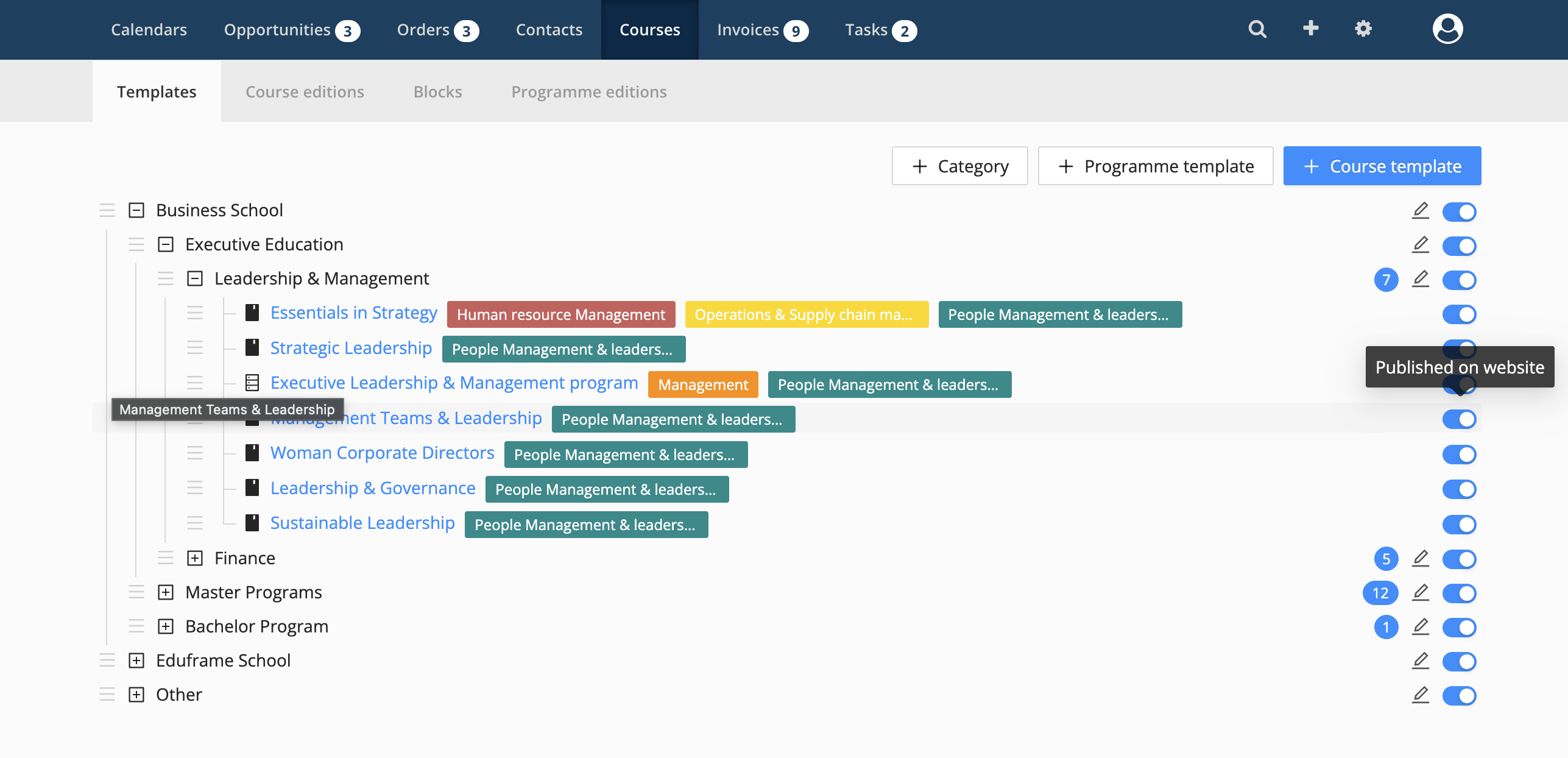
How to publish entities to a website
When creating or updating an entity you can specify whether you want it to be published on the website and visible on the signup through the toggle 'published on website' or 'publicly available on signup form' in the form. This is a necessary but not always sufficient step for it to be visible on the website and publicly available on signup form.
When creating or editing an entity, you can control visibility using:
Published on website.
Publicly available on signup form.
This is required, but not sufficient on its own.
Visibility rules per level
Category
For a category, publishing on website (checkbox/toggle ''published on website'' enabled) is enough for it to be visible on the website.
Note: all parent categories have to be published as well.
Template
For either a course or program template, it will be visible on the website if:
Its associated category is visible on the website (checkbox/toggle published on website enabled).
If the setting 'published on website' is enabled at course template level.
Edition
Program editions
For a program edition, it is visible on the website if:
All conditions mentioned above hold for the associated template.
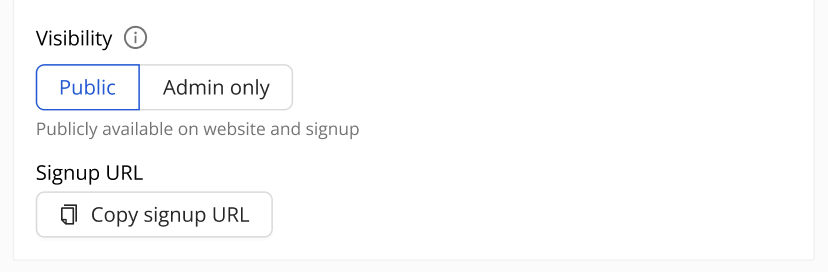
'Public' is selected under Visibility on program edition level.
Course editions
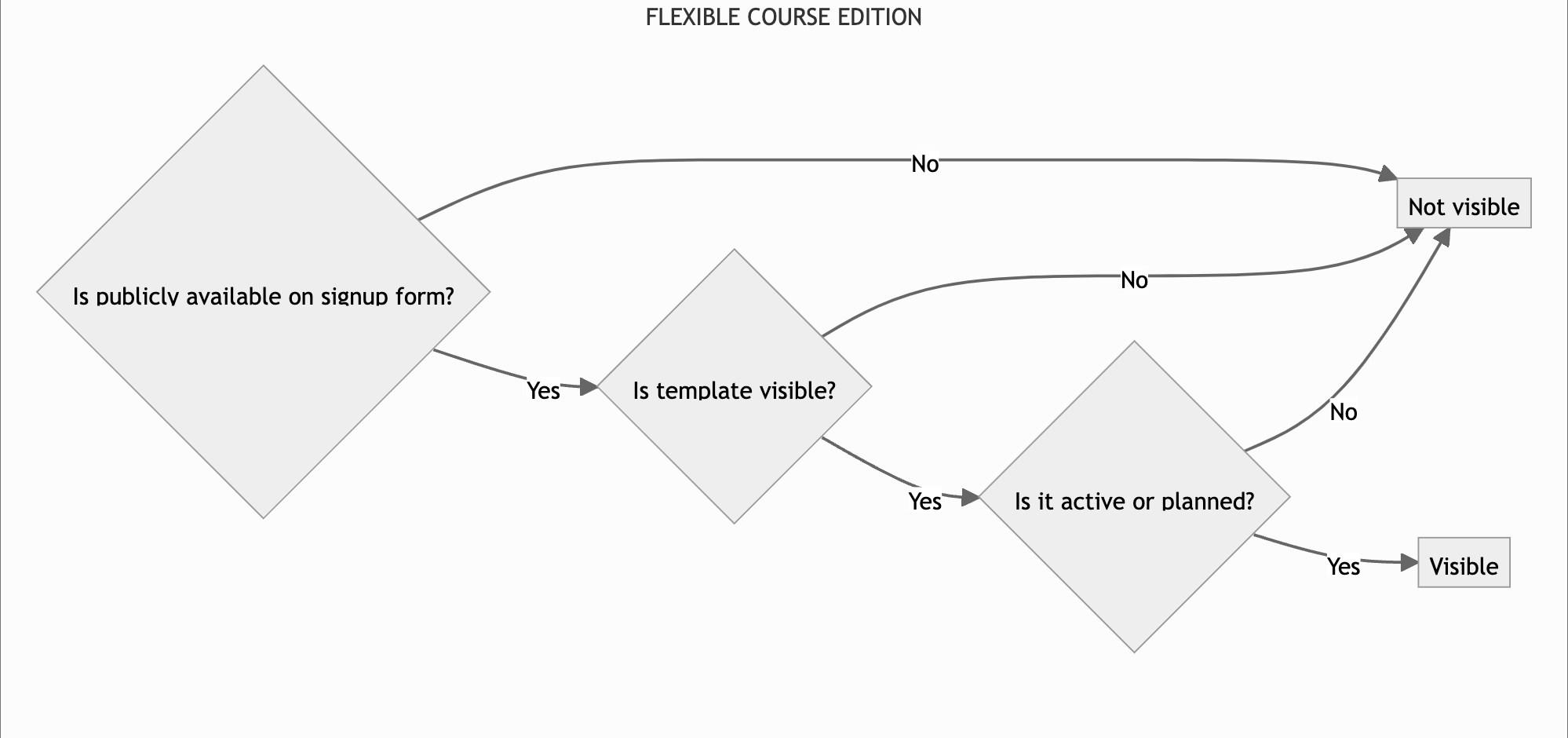
If it is a flexible course, it is visible on the website if:
All conditions mentioned above hold for the associated template.
'Public' is selected under Visibility on course edition level.
It is either a planned or an active course edition.
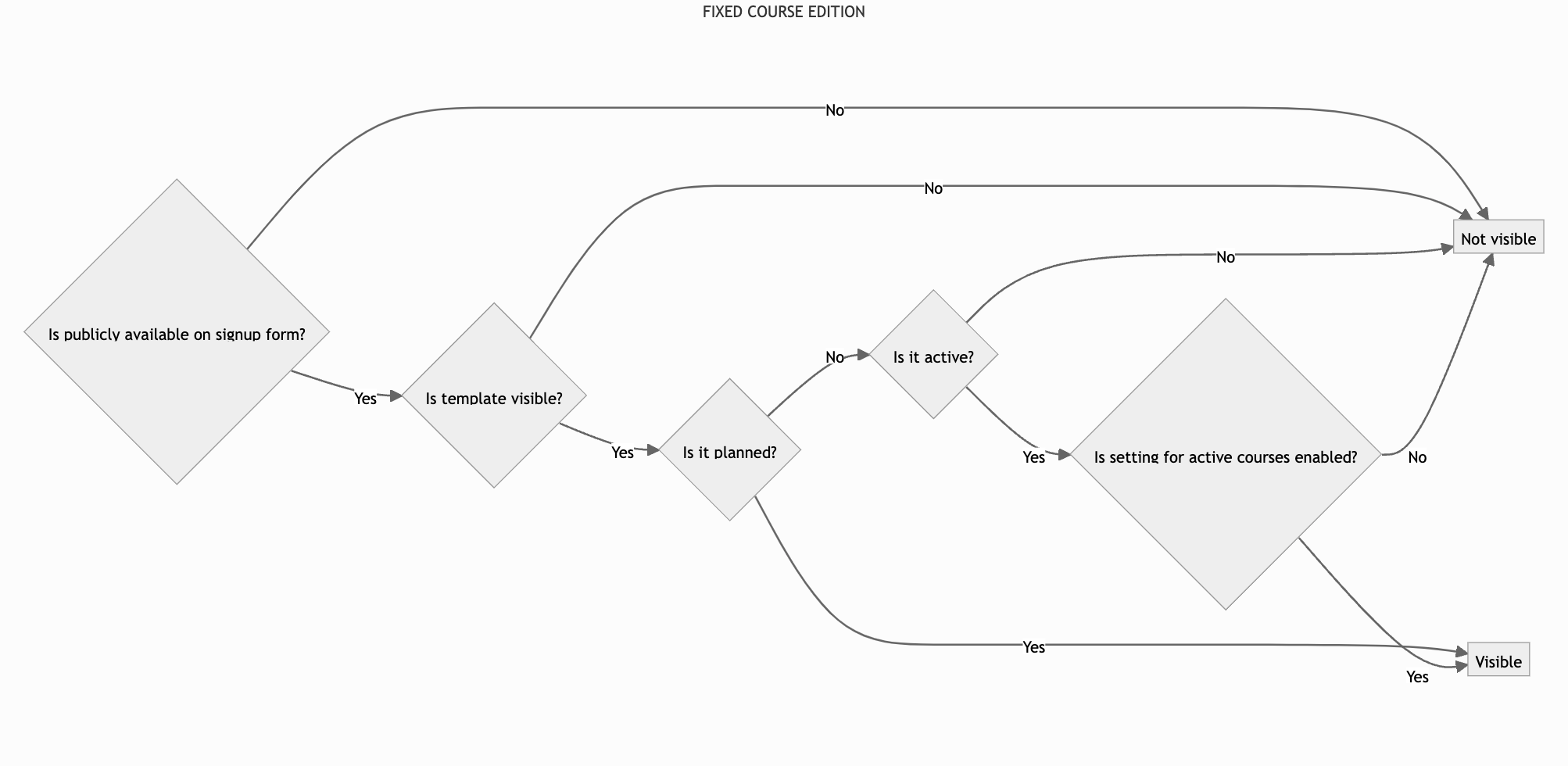
If it is a fixed course, it is visible on the website if:
All conditions mentioned above hold for the associated template.
'Public' is selected under Visibility on course edition level.
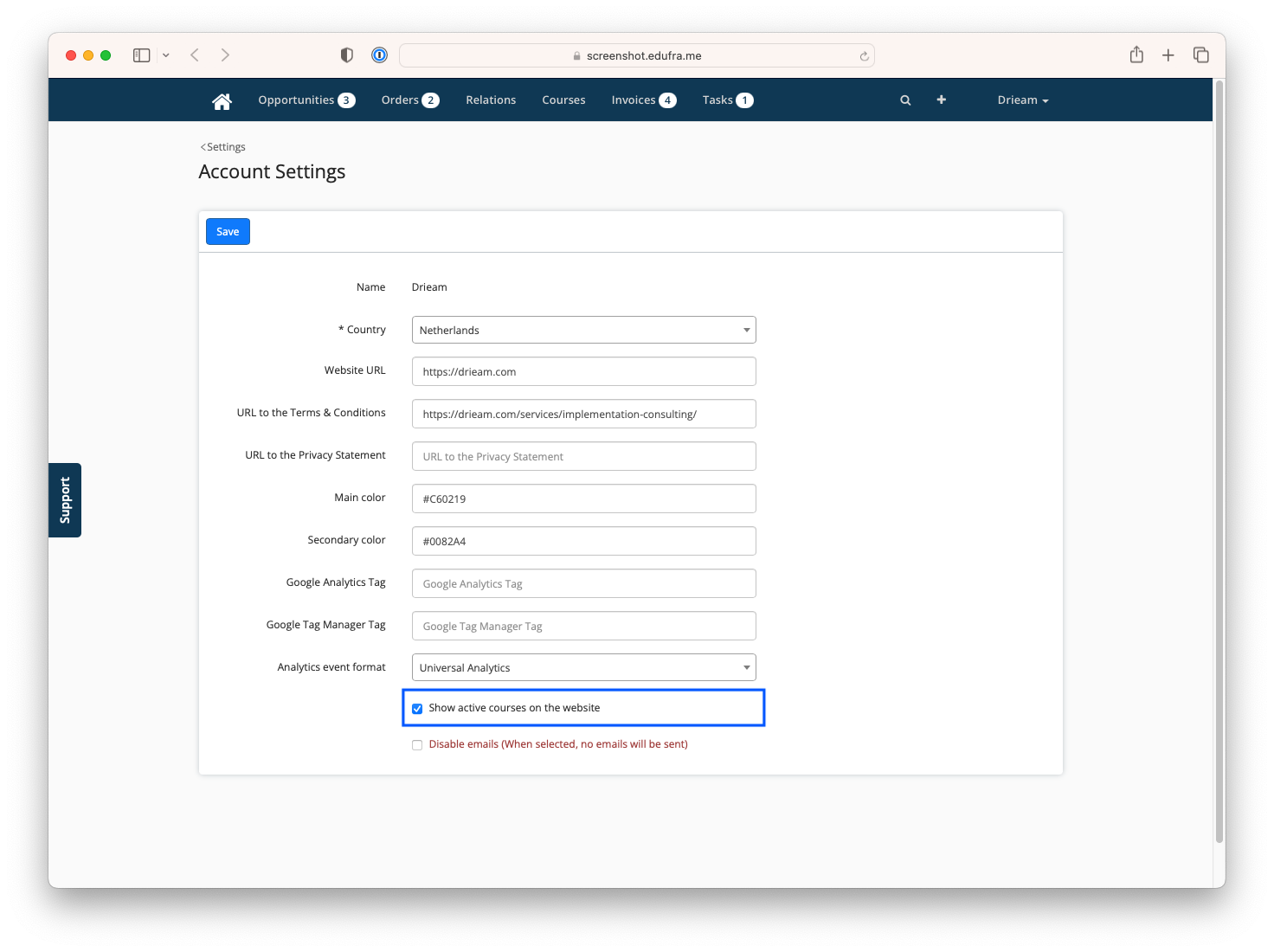
It is always visible if the fixed course has status 'planned'. This means the course has not started yet. If it has status ‘active’ - so the course has started but not yet ended - it can also be visible on the website, if the account setting 'Show active fixed courses on the website' is enabled. To do so, go to 'Settings' -> 'Account Settings', tick the box 'Show active fixed courses on the website' and save the settings.
Here you can find the box where you can set whether you want to show an active fixed course on the website or not:
Visibility on the signup form
On the signup you can enroll to any of the courses that are visible on the website. If you are a key contact of an organization, you can also see courses that are private to your organization and enroll anybody linked to your organization.
A private course is a course that is only available for the selected organizations.
To make a course private you can go to a course edition form and change the availability to private. A new field appears where you can select the organizations that you want this course to be available to. Then, save the form.
API
Using the API property 'is_published' on the 'planned_courses' or 'program/editions' endpoint, you can check if the product should be visible. For more information, see our developer documentation.