Locations and Materials
Last updated: November 19, 2026
Summary
When organizing courses, you might have to manage and book resources like Locations and Materials. Locations can be Course Locations, meeting rooms or other facilities. Materials can be things like flip charts, beamers, post-its or catering.
In Eduframe, you can configure the assets available for your organization and book these for meetings, including double booking prevention.
Locations
In Eduframe's Settings > Locations you can create and find all your Course Locations and meeting Locations.
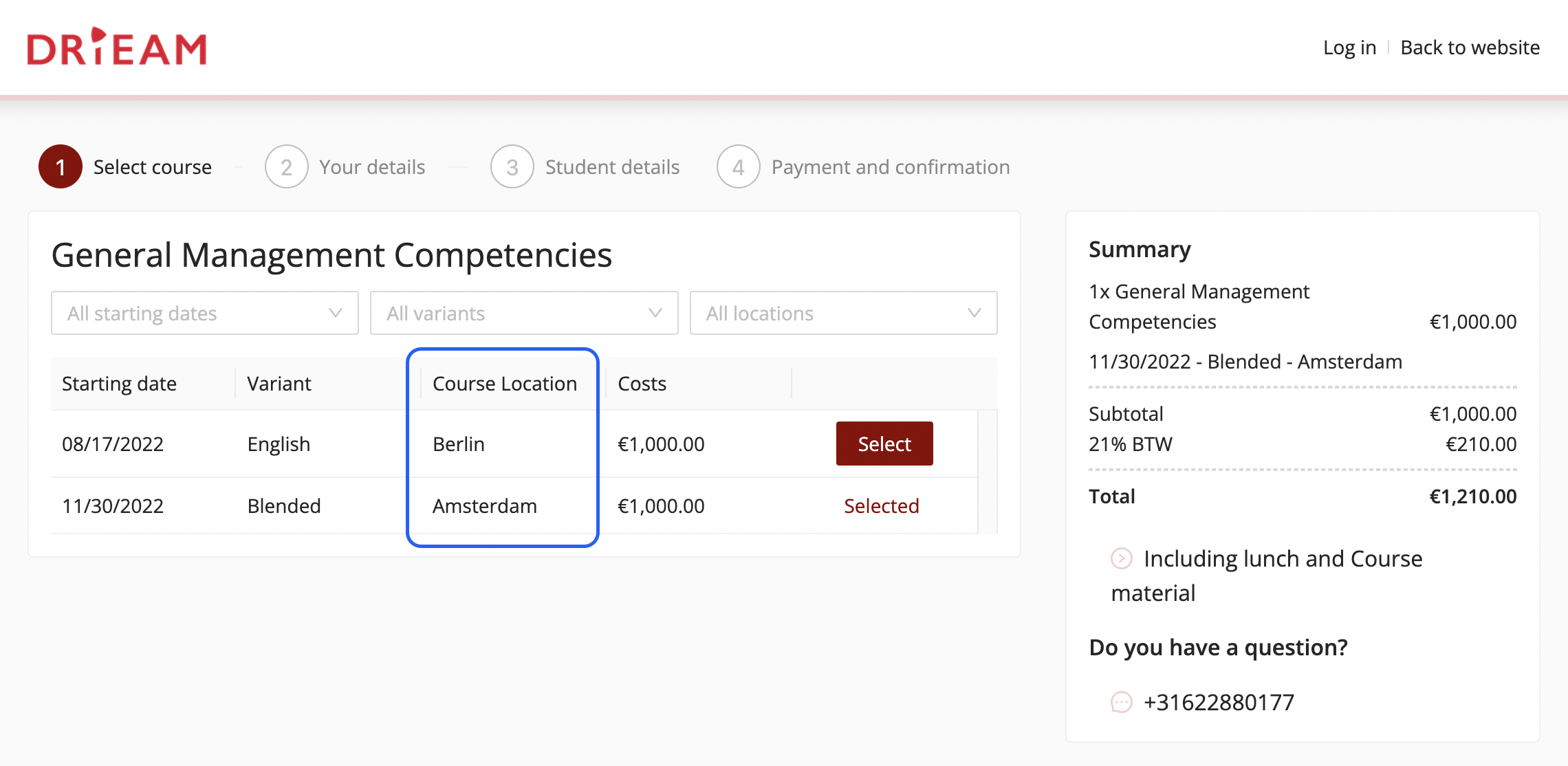
Course Location
A Course Location is the Location that is displayed in the Course name of a Course Edition. This name is therefore also displayed on the website, in Canvas and on the Signup Form.
Location (meeting Location)
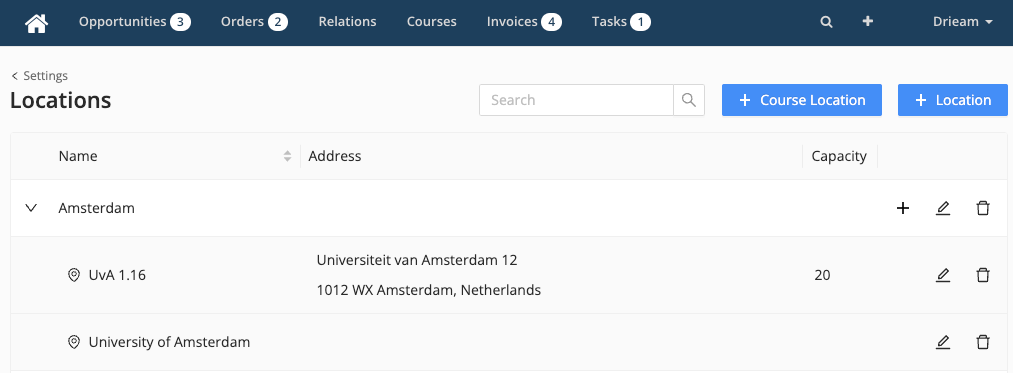
All Locations are grouped below Course Locations. A Location is used within meetings. It can be used to communicate to participants and Teachers where they are expected to be when the meeting starts (the communicated Location), or for internal planning purposes to book a certain room within the facility (the planning Location).
For each Location you can configure a maximum capacity. When searching for available Locations for a meeting, you can search for Locations with a minimum capacity.
Example of a Course Location and a Location
Course Location: Amsterdam (general location).
Location: UvA 1.16 (a specific meeting room, with an address).
How to use Course Locations and Locations?
Here is an example of how to use the Course Location Amsterdam and the Locations University of Amsterdam and UvA 1.16.
If you create a Course Edition, you can select one of the available Course Locations as its location. In the example, this is Amsterdam.
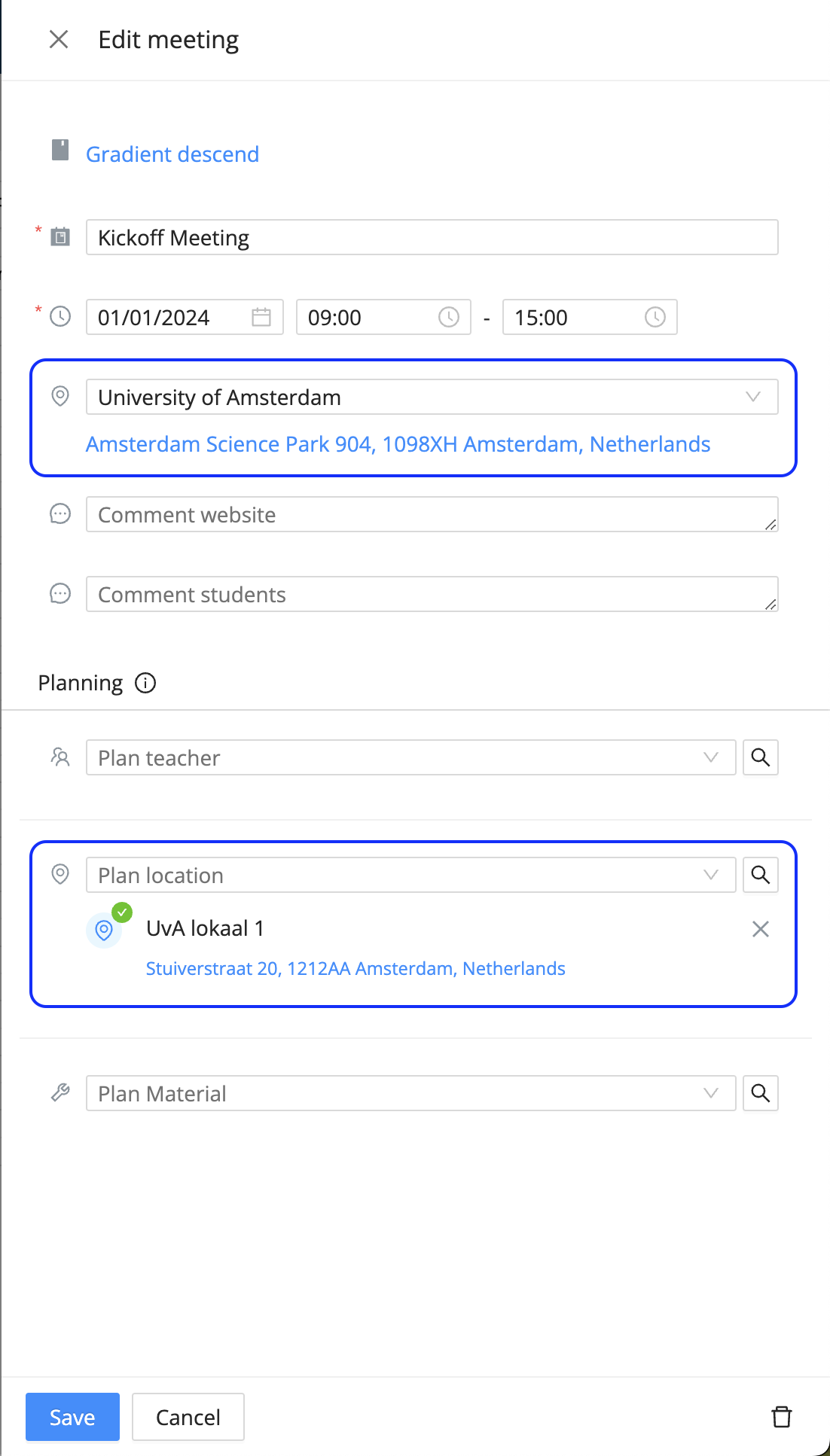
If you create a meeting within the Course Edition, you see 2 Location fields (see the screenshot below). In both fields you can fill in either Location (University of Amsterdam or UvA 1.16). The difference between the fields is that:
The upper field (the communicated Location) is what participants of the meeting see in their agenda.
The Location under Planning (the planning Location) is only visible to Admins and Teachers and is used to book the Location.
For any Locations booked under the Planning heading, Eduframe checks for double bookings, to prevent booking conflicts. If a Location is already (partly) booked at the same time, this is highlighted. The same double booking prevention feature exists for Teachers and reservable Materials.
Notes:
The communicated Location and the booked (planning) Location don't have to be the same. You can also book multiple (planning) Locations at the same time, for example if you need multiple rooms for all participants, while you only communicate one Location because that's where participants gather at the beginning of a meeting.
Similar to the Participant Portal, only the communicated Locations become visible in 📄 Canvas LMS integration.
Materials
Similar to Locations, you can manage and book Materials. In Eduframe's Settings > Materials you can create and find all your configured Materials.
Reservable
Reservable Materials are Materials like a laptop, beamer or car. These Materials cannot be booked twice. When booking a reservable Material, Eduframe checks for planning conflicts using the double booking prevention feature.
Consumable
Consumable Materials are Materials like post-its, coffee, tea or an arranged lunch. You can add an amount to these Materials. Eduframe does not check for planning conflicts for these Materials.
Material groups
To organize Materials, you can create Material groups. Organizing Materials in groups (e.g. "Catering" or "Video equipment") makes it easier to find the right Material.
Note: After creating a Material, you cannot change the Material type (reservable vs consumable) anymore.
Using Materials
After configuring Materials, you can book them on meetings. This works similarly to booking Locations.
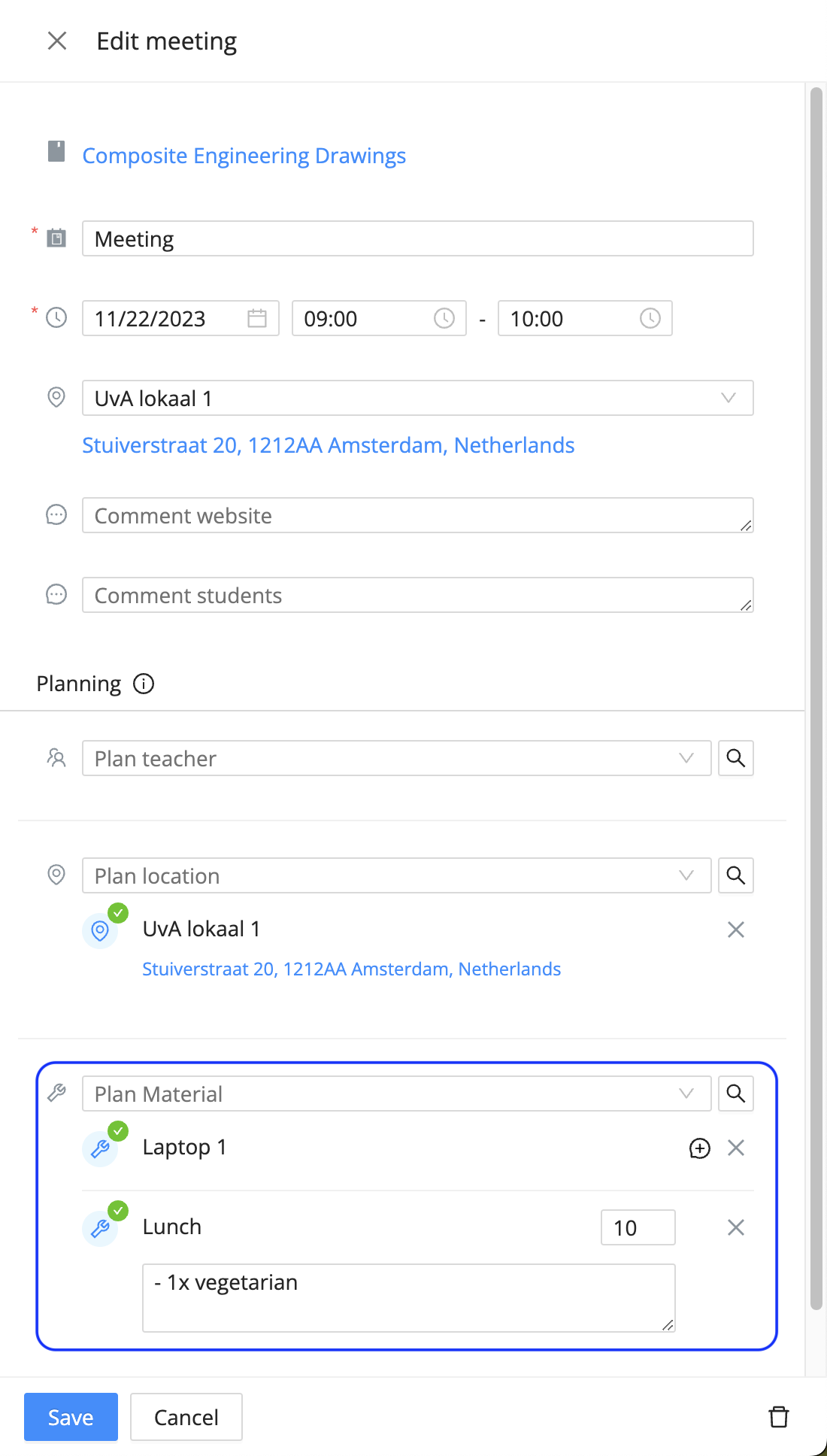
There is one key difference: for consumable Materials you can book an amount. For both types of Materials you can also include a planning comment, for example to capture dietary wishes for the catering.
In the Materials planning overview, which you can find under Home > Materials, you can export all booked Materials.
Duplicate Bookings and Conflicts
Eduframe's conflict detection (also known as double booking prevention) flags whenever the same Teacher, Location or reservable Material is booked on two overlapping (draft) meetings or subevents. The Conflicts overview only lists conflicts for meetings that haven't ended yet. Conflicts entirely in the past, or on cancelled courses, are filtered out there, though the underlying bookings remain visible on the calendars and in the meeting drawer.
In the conflict overview and in the conflict indicator on the meeting, you can see whether a resource (Teacher, Location or Material) is already booked at (partly) the same time and date. On the Locations, Materials and Teachers calendars, conflicting bookings simply appear as overlapping entries. Open one to see the full conflict details.
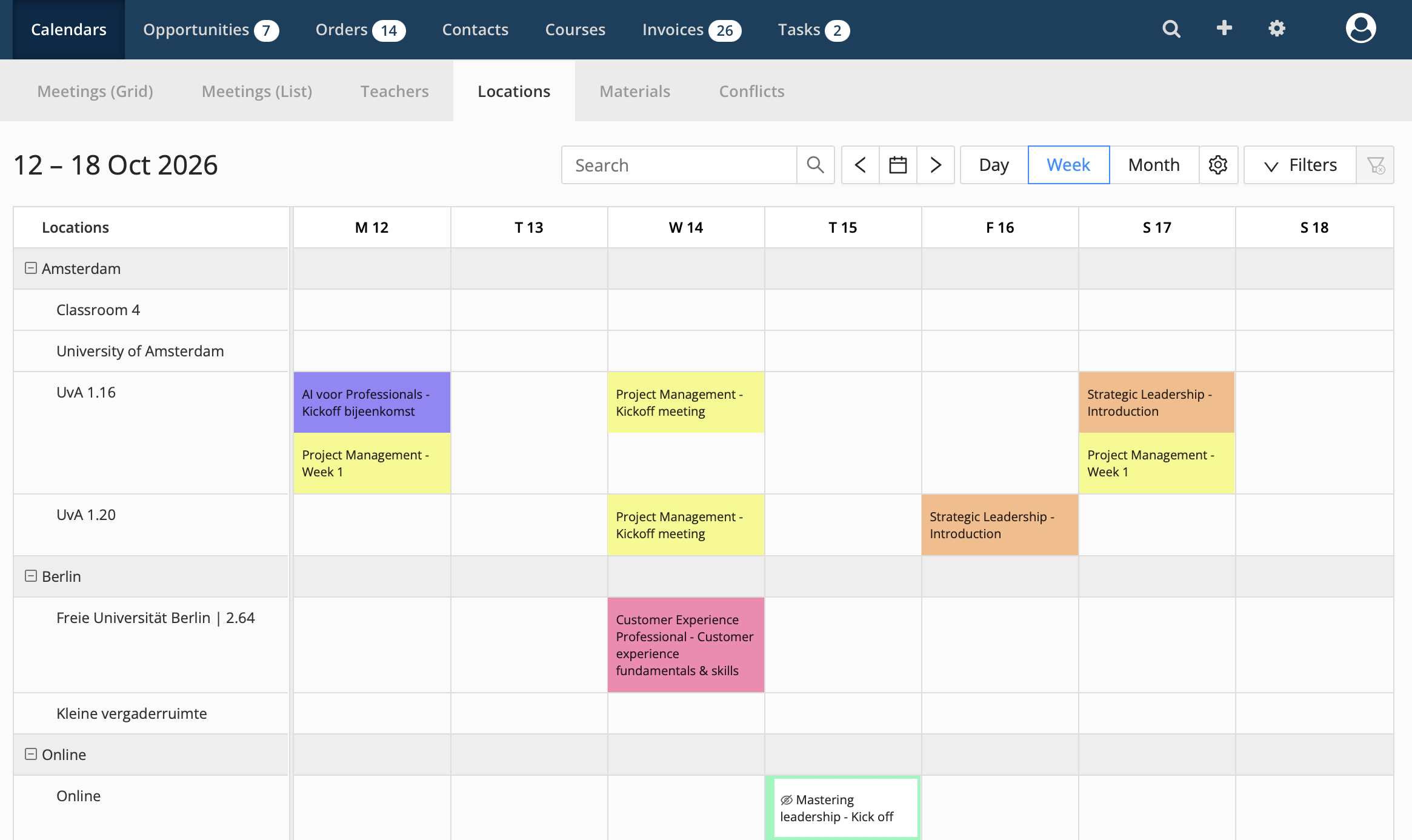
In the meeting lists, such as Meetings List under Calendars and the Scheduler tab of a Course Edition, meetings and subevents with an undismissed conflict show an orange Conflict badge. The badge stays visible in the resources column, even when teachers, locations, and materials are hidden. Editing a Meeting or Subevent from the list updates the badge right away.
How can I solve or dismiss a conflict?
As an Admin, you can review, solve, or dismiss a conflict. Dismiss a conflict when a resource is meant to be shared between multiple Meetings, for example a teacher who teaches two groups at once. A dismissed conflict is accepted and no longer shown as a conflict.
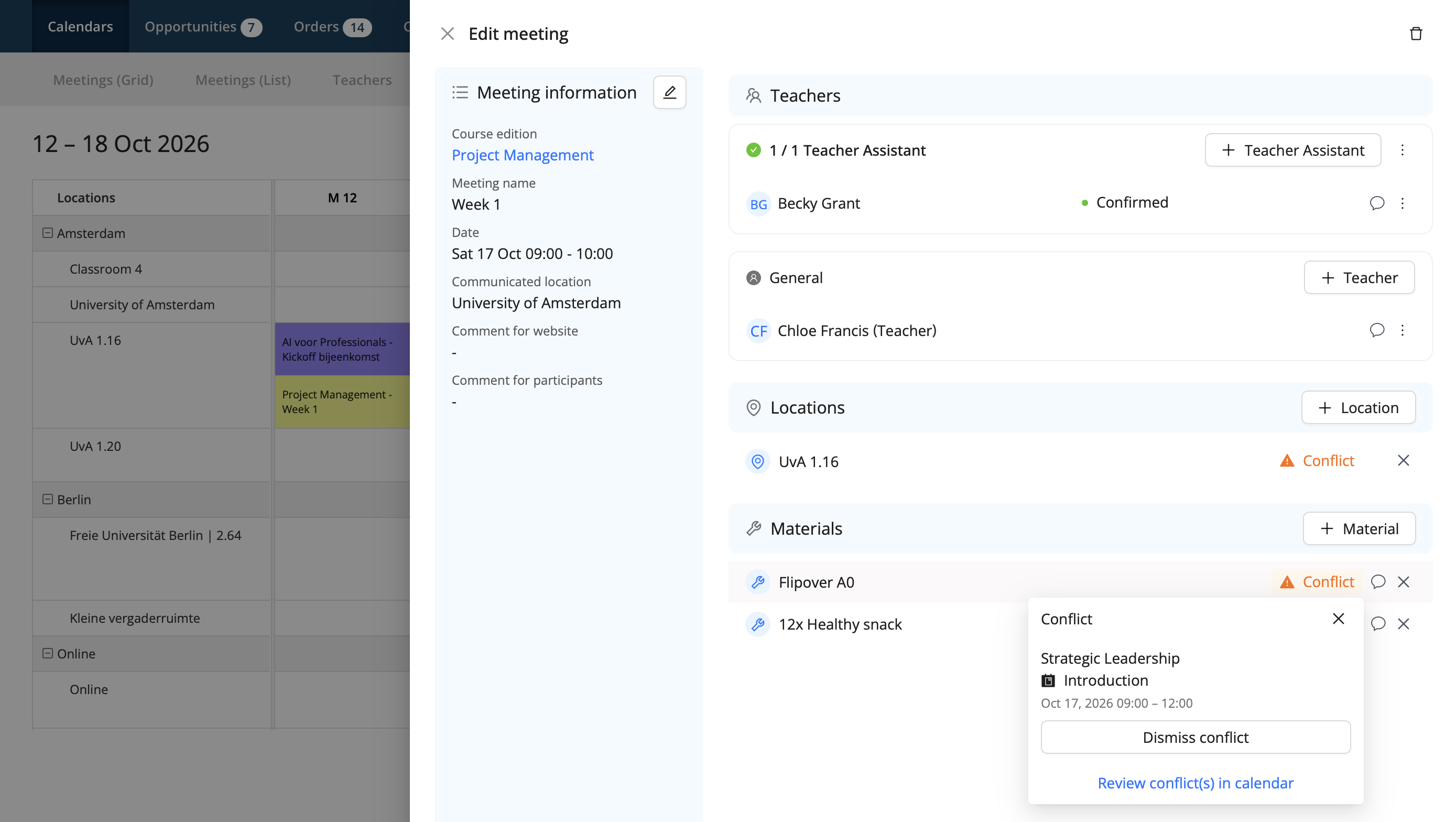
Note: Dismissing applies only to that specific pair of overlapping meetings. If either one is later rescheduled and creates a new overlap, Eduframe flags that as a new conflict.
To view dismissed conflicts, open the Conflicts tab and click Dismissed. Here you can see all previously dismissed conflicts, and can still solve or undismiss them if needed. Use the Department, Teacher, Location and Material filters to narrow the list down to a specific resource.