Discount Codes
Last updated: September 22, 2026
Summary
It is possible with Eduframe to promote your product using Discount Codes. We support the discount options below for discount codes.
Supported Discount Code Options
Eduframe supports the following types of discount codes:
Fixed amount discount
Relative amount (%) discount
Limit the period a discount code can be used (setting a start and expiration date)
Limit the number of times a discount code can be used (optional)
Track the number of times a discount code is used
Limit discount codes to specific products
Reporting on discounts, using Power BI
Tip: Do you want to offer a personal discount after an order has been created? This can be done by changing the order and invoice after the customer has placed the order.
Discount Code Rules / Limitations
It is important to take the following rules and limitations into account when using Discount Codes:
Per order, only one discount code can be used
A discount code can only be used once. No 'rest value' is remembered.
Discount codes are case-sensitive
If the fixed amount discount is higher than the cost, the cost becomes 0
Discount codes can only be applied to orders that have an enrollment fee
When multiple enrollments are created by one order, the discount is added for each enrollment. This still results in one use
Discounts are applied before tax is applied
Discount codes are regarded as used when an order is submitted, irrespective of if payment succeeds afterwards
The discount code field is always shown on the signup - also when there are no codes available
Discounts cannot be used in combination with manually sending payment service provider payment requests
When enabling installments (payment in terms), discount codes will be totally deactivated
When using down payment (in 📄 Payment Options, discount codes only work with the setting 'single invoice'
When using down payment (in 📄 Payment Options), the discount is subtracted from the total order cost, before it is divided in deposit (the down payment) and remaining payment
When using our 📄 Exact Online - Integration, discounts are added as a separate line in the synchronised sales entry. There is no cost center or cost unit assigned to this line.
When the discount brings the order total to or below '0', the Order follows the same checkout flow as any other free Order:
Once the Order is confirmed, the Invoice is sent and marked as paid. This happens automatically when Automatic Confirmation (Admin Settings > Payment Options) is enabled; otherwise, an Admin must confirm the Order manually.
The Participant still needs to select a Payment Method during checkout. However, they are not redirected to the selected Payment Method after submitting the Order, since no payment is required.
When limiting the usage of a discount code to all of the products of one product category, new products created in this category need to be 'added' to the discount code manually.
We do not enforce complexity requirements for discount codes, allowing you to use marketing codes like
SUMMER2026. To prevent unauthorized use of easier-to-guess codes, we recommend restricting them to specific products or applying a maximum usage limit.
Discount codes for the admin
As an admin, you can set up your discount codes in Settings. After logging in, click your Name top right > Settings > Discount codes.
On this page you can see all your existing discount codes. You can use the copy icon next to the code to easily copy it for sharing. The status of the discount codes can be 'upcoming, active or expired' and are based on the discount code's:
Startdate
Expiration date
Usage count vs maximum usages
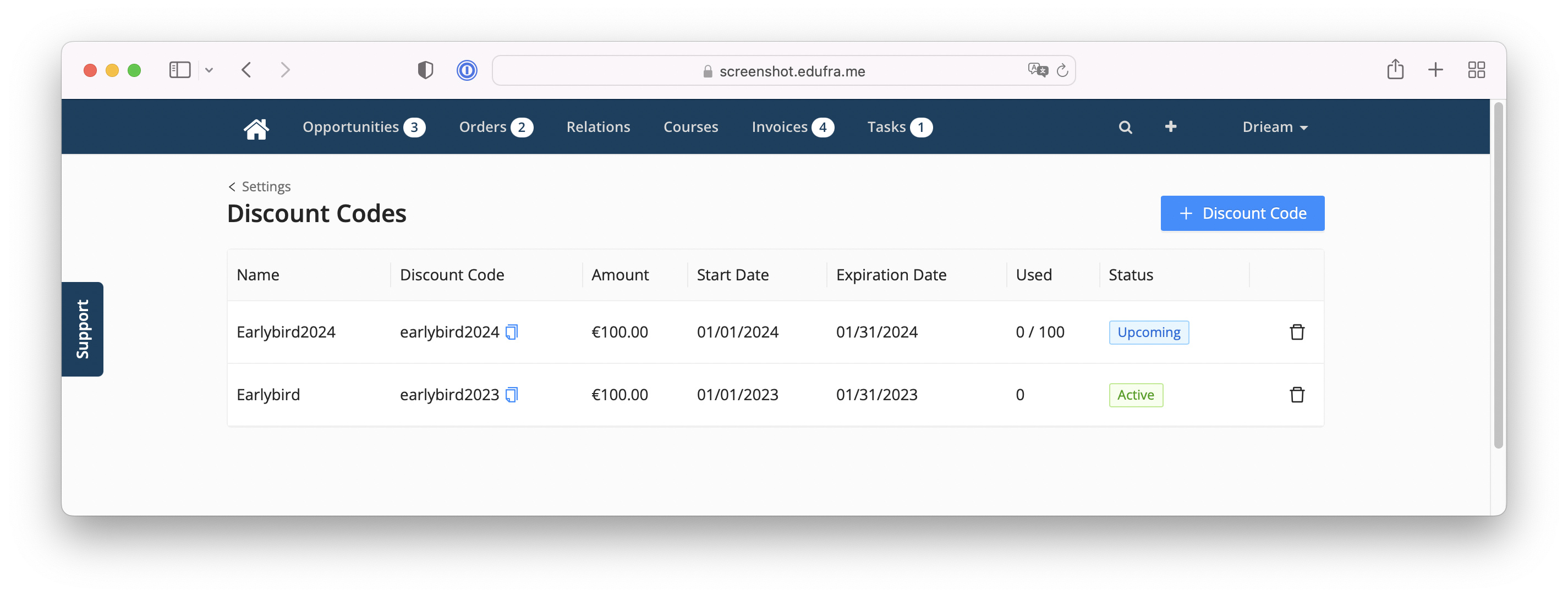
By clicking '+ Discount code' a new discount code can be added.
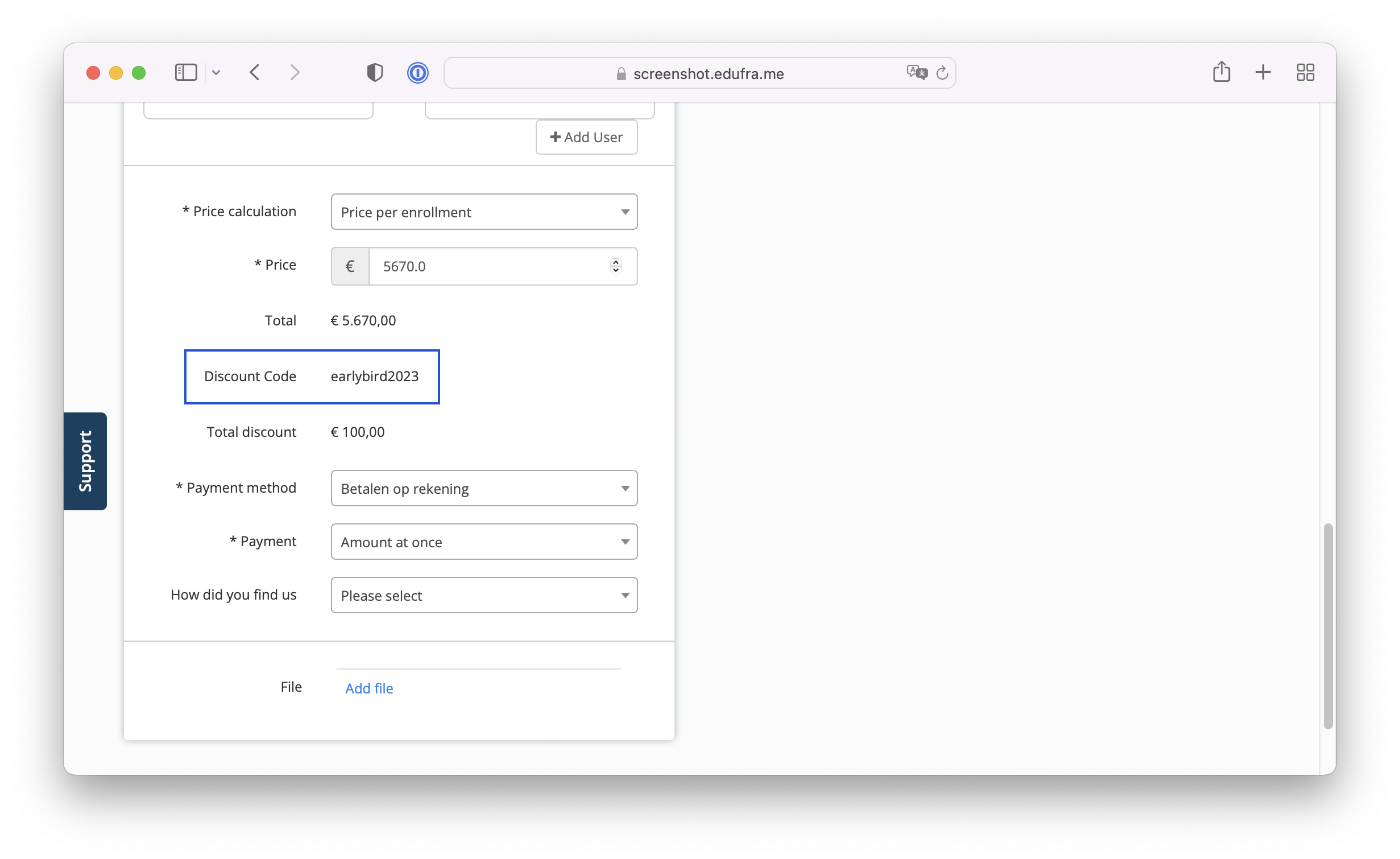
When a discount is used by a customer, the total order price is adjusted and mentioned on the invoice. On the order you can see if a discount code is used.
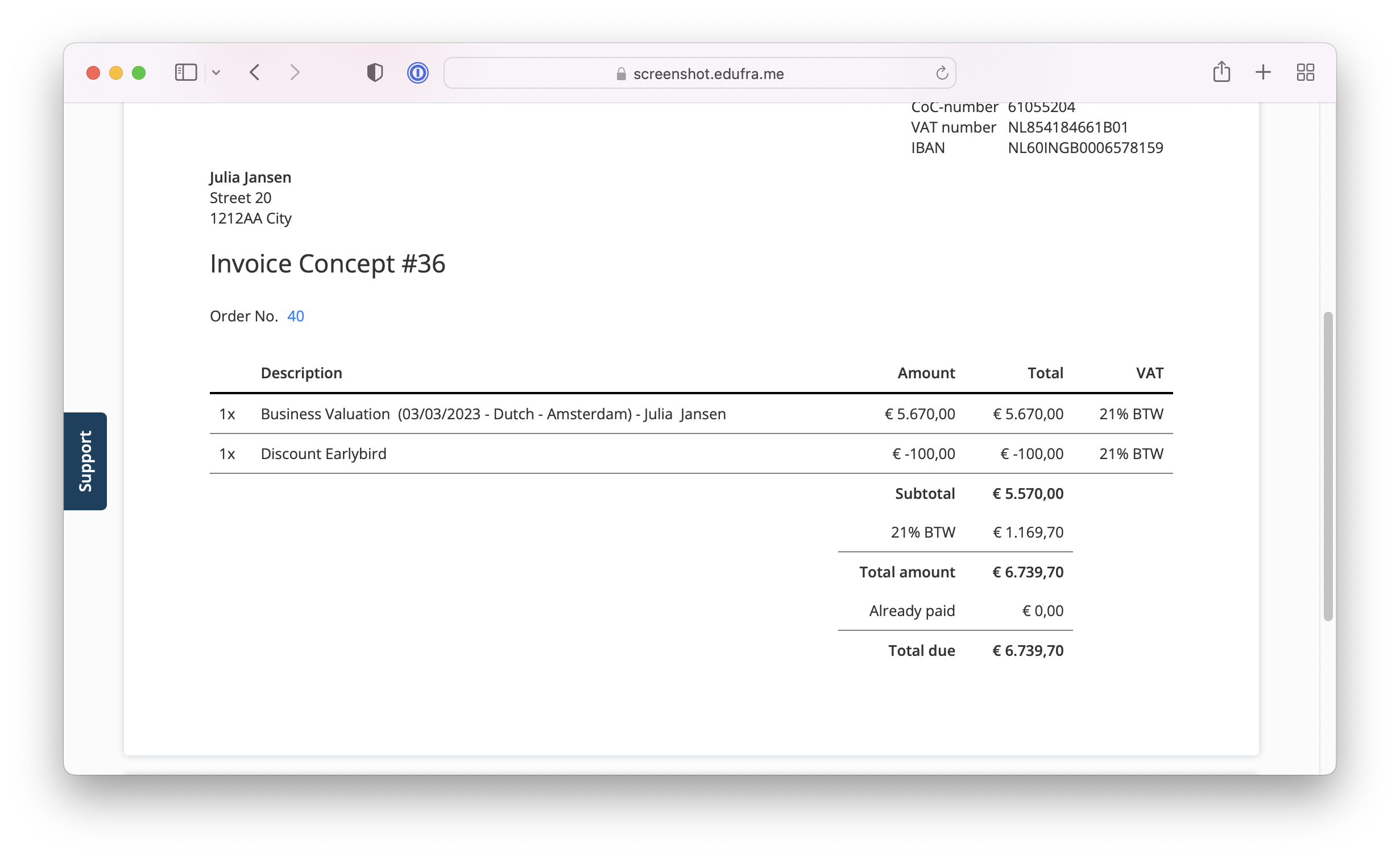
An applied discount code will also be added as a separate line on the invoice:
Can an Admin Apply a Discount Code to an Order?
As an Admin, you can also apply a Discount Code to an Order yourself, either while creating the Order or afterwards. To apply a Discount Code while creating an Order, select it from the Discount Code field. Only codes valid for the selected product are listed, and the price recalculates immediately.
To apply a Discount Code to an existing Order, open the Order and use + Discount Code to select a code, then choose whether to regenerate the concept Invoices so they reflect the new total. An Order can only get a Discount Code this way if it doesn't already have one.
Unlike on the Registration Form where an inactive code can't be used at all, an admin can deliberately apply a Discount Code even if it's expired, not yet started, or has reached its maximum usage. Eduframe still checks that the code exists and applies to the selected product, and codes remain unavailable on Orders using installment payments.