Communicating VAT Rates and Costs
Last updated: July 29, 2026
Summary
In Eduframe it is possible to communicate the costs of a product including, excluding or with an exemption of VAT. Read on for more information.
Where will the VAT be communicated to participants?
VAT rates can be communicated in different ways via Eduframe.
1. Emails
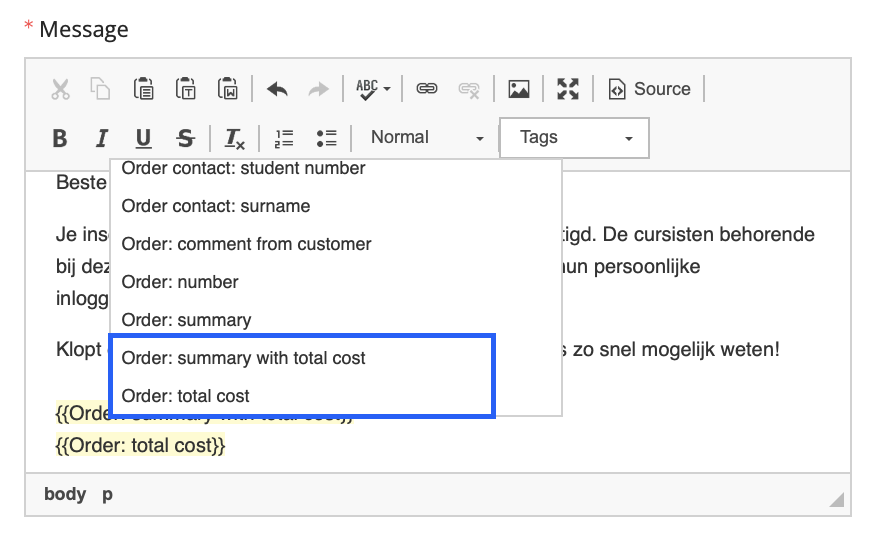
Through emails the VAT can be communicated to participants by using the following tags in an Order email:
{{Order: total cost}}
{{Order: summary with total cost}}
To add these tags to an order email:
Go to an order email (Order confirmed, Order Created, Order denied, or create an email from the timeline of an Order)
Go to the Message of the email and click on Tags
Click on one of the two tags
Now the tag is added to the email.
2. Registration form
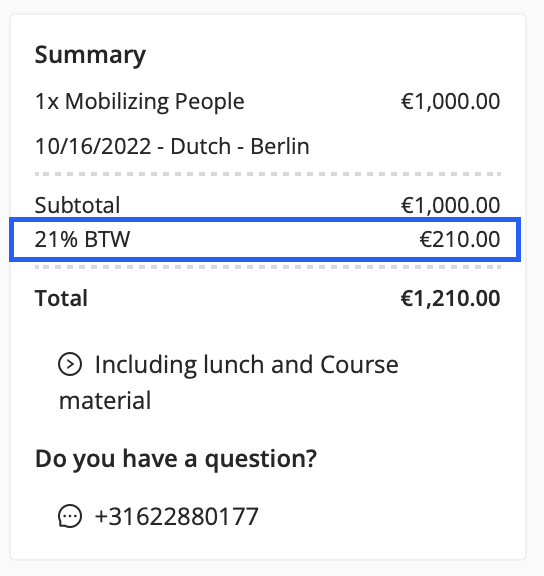
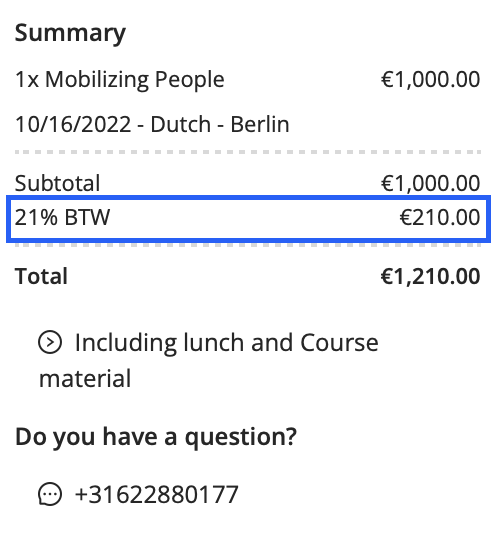
Through the registration form, the standard VAT will be communicated in the summary of an order.
How to communicate the costs with VAT?
Follow the below steps if you want to communicate the costs of your products with VAT?
As an admin, go to Settings > Invoice settings
Make sure you have added a Tax rate with a percentage and that the checkbox 'Show vat' is ticked.

Choose that tax rate as the 'Standard tax rate courses'

Go to Forms > Registration form (general)
Make sure the 'Show price including VAT' is ticked

Now, when using the email tags (with total costs) it will show the price of the course with VAT
Example
The course 'Mobilizing People' costs €1000,-
Emails:
Price
€ 1.210,00 (incl. VAT)
Registration form:
How to communicate the costs without VAT?
If you want to communicate the costs of your products without VAT, follow these steps:
As an admin, go to Settings > Invoice settings
Make sure you have added a Tax rate with a percentage and that the checkbox 'Show vat' is ticked.

Choose that tax rate as the 'Standard tax rate courses'

Go to Forms > Registration form (general)
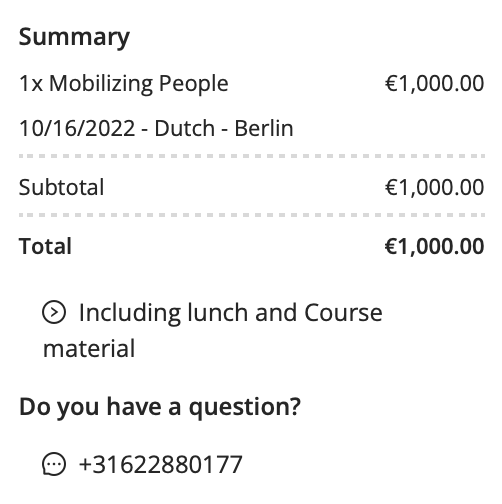
Make sure the 'Show price including VAT' is not checked

Now when using the email tags (with total costs) it will show the price of the course with VAT
Example
The course 'Mobilizing People' costs €1000,-
Emails:
Price
€ 1.000,00 (excl. VAT)
Registration form:
How to communicate the costs with exemption of VAT?
If you want to communicate the costs of your products with an exemption of VAT, follow these steps:
As an admin, go to Settings > Invoice settings
Make sure you have added a Tax rate with a percentage and that the checkbox 'Show vat' is not ticked.

Choose that tax rate as the 'Standard tax rate courses'

Go to Forms > Registration form (general)
Doesn't matter what you select at the 'Show price including VAT', either way the VAT as it is 0% will not be shown on the registration form.
Now when using the email tags (with total costs) it will show the price of the course with VAT
Example
The course 'Mobilizing People' costs €1000,-
Emails:
Price
€ 1.000,00 (exempt of VAT)
Registration form:
How to apply different VAT rates?
Educational courses, live events, and international editions may require different tax treatments depending on the specific content or the location.
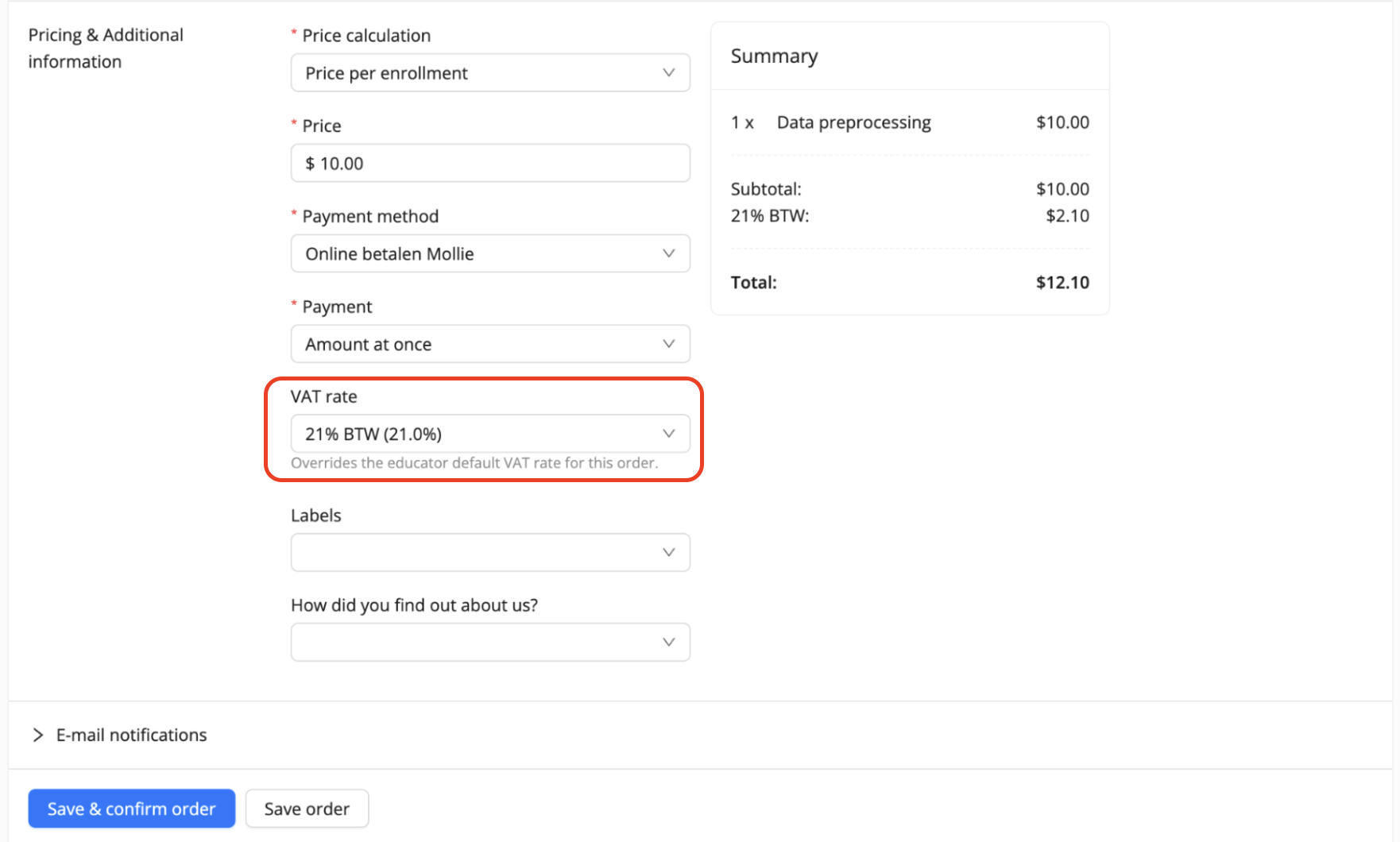
As an admin, you can set and adjust VAT rates only on order level in Eduframe. If you want to adjust the VAT rate for a specific order, you can do that before the order has been confirmed:
As an admin, you open the order
You scroll down to the field 'VAT rate' under 'Pricing & Additional information'
Here you see the default VAT rate that you set in Eduframe; you can adjust this default VAT rate to another VAT rate. It is important that this other VAT rate has been created in Eduframe already (in 'Invoice Settings')