Invoicing
Last updated: July 30, 2026
Summary
To help you get paid for the courses you organize and reduce administrative overhead, Eduframe offers built-in Invoicing functionality.
More information about Invoicing can be found in this article.
Where to find Invoicing in Eduframe?
You can find invoices in several places, such as under Contacts, Organizations, or Courses. This shows you invoices for that specific person or course.
For a full list of every invoice in the system, go to the Invoices tab. Here you can:
See all invoices in one overview.
Search and filter by status to find a specific invoice.
The number displayed next to the "Invoices" tab indicates the total of open and expired invoices
What are the different invoicing statuses?
Each invoice has a status so you can track its progress:
Concept – The invoice has been created but not yet sent.
Open – The invoice has been sent but not paid.
Paid – The invoice has been sent and paid.
Expired – The invoice was sent but not paid within the payment term (as defined in the invoice settings).
Creating invoices
Automatically
Eduframe automatically creates a concept invoice when you save an order that has a price (i.e. not marked as free or to be determined). Unless the invoice is paid during signup, it is not sent out automatically.
Before sending the invoice, you can review and edit its details.
Manually
You can also create an invoice manually by clicking the + Invoice button. This button is found on the main Invoices tab or within the Invoice tab in an Order, Organization or a Contact.
When creating an invoice manually, you’ll need to:
Select who the invoice is for (depending on the context)
Optionally select a product to link the invoice to
Once you’re done, you can proceed to send the invoice.
Sending the invoice
Once your invoice is ready, you can send it using one of the following options.
E-mail – Sends the invoice via email.
Mark invoice as sent – Used for invoices sent physically.
📄 Peppol E-invoicing – Opens and sends the invoice via the Peppol network.
Choosing any of these options will:
Generate the invoice number
Create the PDF and UBL versions
Change the invoice status to Open
Adjusting a sent invoice
Sent invoices don't automatically adjust after changes made to the order. They stay linked to the original details from when they were created, keeping your administration accurate and consistent. If you need to change an open invoice, we recommend creating a new invoice with the correct information and a credit note (a negative invoice).
Want to learn more about e-invoicing using Peppol? Check out 📄 Peppol E-invoicing.
Payments & invoice activity
Under the Payments tab on the invoice, you can see any payments linked to the invoice.
The Timeline & Activity tabs shows all actions and events related to the invoice.
Invoice due dates and instalments
Invoices have due dates based on the configured payment period in your settings.
If partial payments are enabled (under 📄 Payment Options), and an order uses a partial payment plan, Eduframe will automatically generate multiple concept invoices according to that plan. Each invoice has its own payment status, even if they belong to the same order.
Note: Do you need to use invoice data in an external system, such as for bookkeeping?
Eduframe supports several ways to export or sync your invoice data:
• Excel export via the 'Export' buttons in Eduframe
📄 Exact Online - Integration: Use our built-in integration to sync invoices with Exact Online.
Power BI integration – Connect Eduframe to Power BI for reporting and analysis.
Custom API integration – Build your own integration using Eduframe’s API.
Invoice settings?
How to configure invoice settings?
When generating invoices using Eduframe you will want to make sure:
The content is correct
The invoice matches with your corporate identity
In the invoice settings you can:
Select the template (using tags) for automatically generating the invoice number
Set a starting number (in case you want to follow up an already existing invoice number set)
Set the default tax rate. This rate will be applied by default to all automatically generated invoice lines
Add other tax rates, to be able to use on the invoice
Set an expiry date. After this date the state of the invoice automatically changes to 'expired', when payment is not recorded as fully completed.
Add a default footnote, like a link to your general conditions
Furthermore there are three specific settings
Show the OGM code: this code is required for Belgian Educators and is shown in case the reference field is empty.
Prefix the educator phone number with country code: this setting enables/disables prefixing the phone number configured below 'settings' -> 'company information' with a country code.
Show and use company paper (like a watermark) as background image of the invoice
The file for the company paper should be less than 5 megabytes, with a maximum width of 4096px and maximum height is 2160 px. The supported formats are .gif, .jpg, .jpeg, .png and .tiff.
To maintain aspect ratio the uploaded image should have a ratio of exactly 2480 wide and 3508 high
Tip: Do you want to record a reference number for business orders? You can save these on the order and request these on the signup, by adding the 📄 Custom Fields'Reference' on 'Order'. Data collected in this field on the order & signup will be shown on the invoice and order as 'Reference'.
Note: The invoice shows the 'company logo' by default. The company logo can be set via 📄 Company Information.
Look and feel
Do you have any specific requests on the styling of your invoice? Or do you want to hide certain elements on the invoice? Contact us.
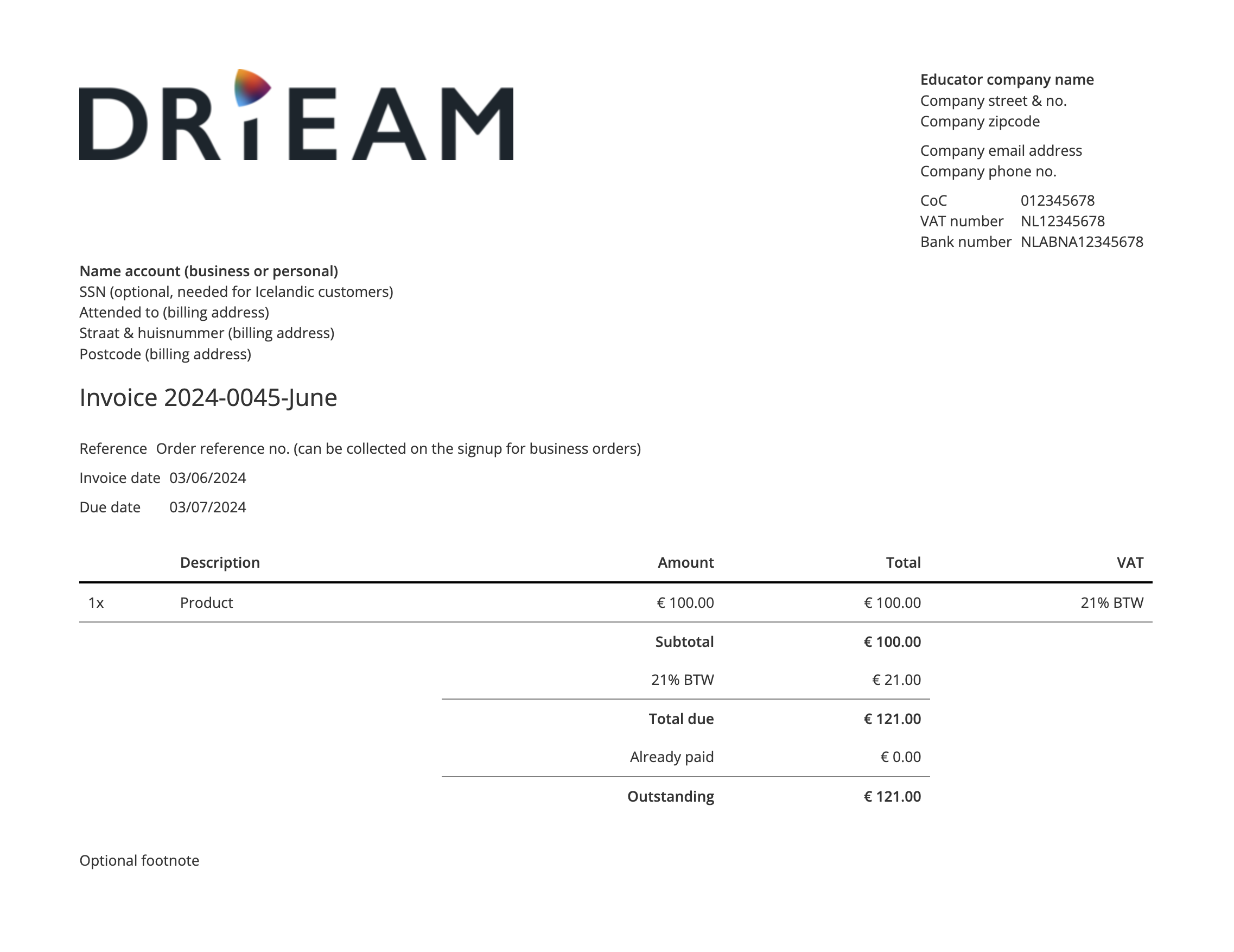
Example invoice
See below an example of how an invoice can look like and what information can be shown on an invoice: