Canvas LMS - integration
Last updated: October 16, 2026
Summary
This article describes how to connect Canvas LMS (Learning Management System) with Eduframe. During the implementation of Eduframe and/or Canvas, the Drieam consultant will support with setting up this integration. But there are also parts that you can set up yourself.
Set up connection Eduframe and Canvas
If you want to set up the connection between Eduframe and Canvas, you can find the information here: 📄 Setting up connection and Single Sign On Eduframe and Canvas.
Note: Setting up the connection is not possible without Drieam involvement and is incorporated in the implementation process.
As part of the connection between Eduframe and Canvas, you can set up a SSO (single sign on). This means that the credentials created for Eduframe will also be used for logging in for Canvas. The set up will be done within the implementation together with a Drieam consultant.
Canvas settings in Eduframe
After setting up the Eduframe/Canvas connection, you can configure the Canvas plugin.
Login as admin in Eduframe.
Go to Settings.
Click on 'Plugins'.
Click on 'Canvas'.
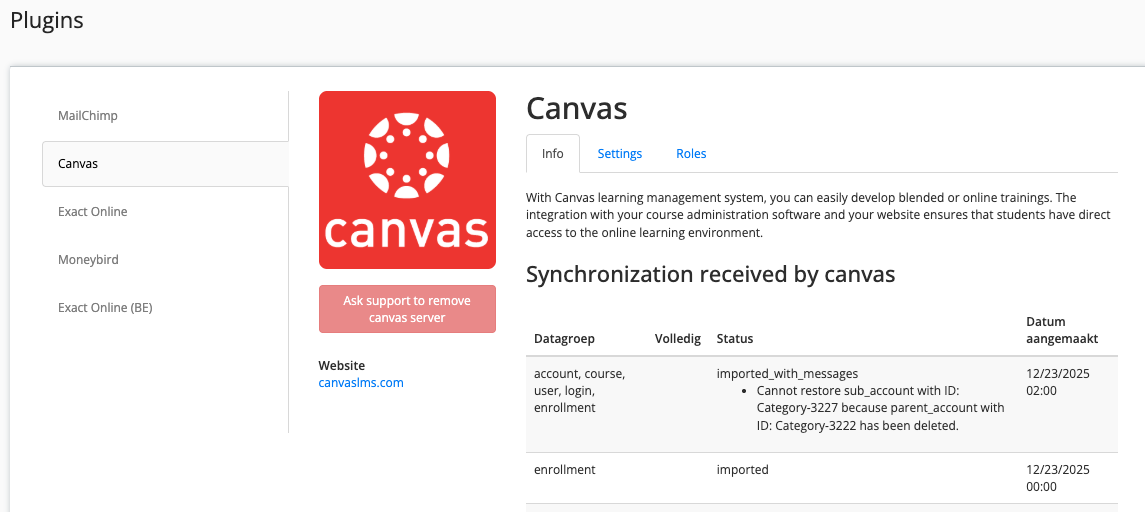
Settings
Course name
Eduframe will push the name of the course template and other things through to Canvas. In the plugin settings tab you can define what will be part of the name of the course edition. You can choose between or additional: startdate (multiple variants), location, variant, course name (course template name).

Checkboxes
There are 5 other options you can enable or disable:
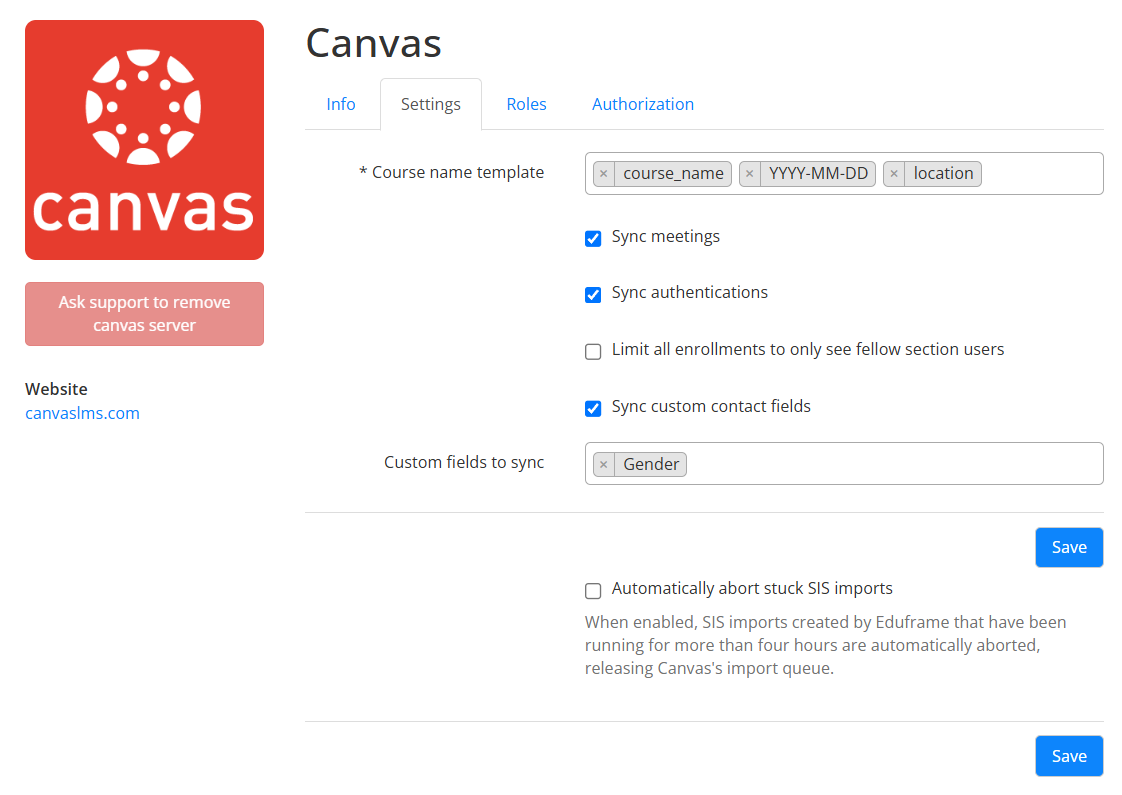
1.Sync meetings: synchronizes Eduframe meetings to Canvas.
Note: Syncing meeting does not include subevents
2. Sync authentications: synchronizes non Eduframe authentications to Canvas (i.e. OpenIDConnect). This enables you to setup non Eduframe SSO methods.
3. Limit all enrollments to only see fellow section users: Limits users to only communicate with users in their own section. This will result in Eduframe only synchronizing users to the main-section, meaning you can make separate sections to limit visibility.
4. Sync custom contact fields: allows selecting one or several custom contact fields for synchronization to Canvas. Custom contact fields from Eduframe can be used for integrations in Canvas. Like PeerConnect or QualtricsLTI.
5. Automatically abort stuck SIS imports: When enabled, SIS imports created by Eduframe that have been running for more than four hours are automatically aborted, releasing Canvas's import queue.
Important! Aborting SIS imports requires the specific scope url:PUT|/api/v1/accounts/:account_id/sis_imports/:id/abort for customers that authenticate using oAuth (verifiable under the Authorization tab).
Read Setting up Eduframe and Canvas LMS connection for details.
Roles
Next to the general information you can also do a hard sync or you can define the course names and configure teacher roles.
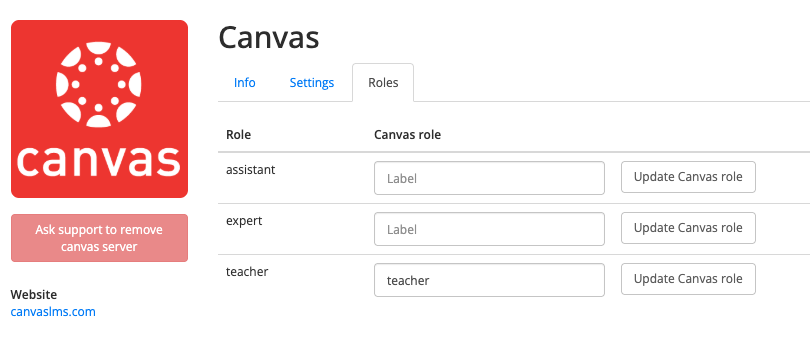
Teacher Role (Default)
In Eduframe you have a standard teacher role. This role is default connected to the teacher role in Canvas. You need to have the 📄 Teacher Rolesfeature activated in your Eduframe environment to be able to use this. If you want to create different teacher roles in Canvas, you can also enable this in Eduframe. See the next part how to set this up.
Teacher Roles
In Eduframe you can create teacher roles. They will have the same permissions, but another name. You can find more about that in this 📄 Teacher Rolesarticle. The Eduframe teacher roles can be connected to custom roles in Canvas. The course roles that you want to fill in here and connect with Eduframe must have the exact same name as in Canvas is registered. You can find this information in Canvas as an admin under Permissions.
When they are filled in and saved, a teacher role in Eduframe is connected to a role in Canvas automatically.
Note: When mapping Eduframe roles to Canvas roles you need to map the Eduframe role to the 'technical Canvas role name'. This applies to the following roles pre-built in Canvas.
Technical Canvas role name | Visible role name in Canvas |
|---|---|
observer | Observer |
ta | TA |
designer | Course Designer |
teacher | Teacher |
Sync information from Eduframe to Canvas
What information will sync from Eduframe to Canvas?
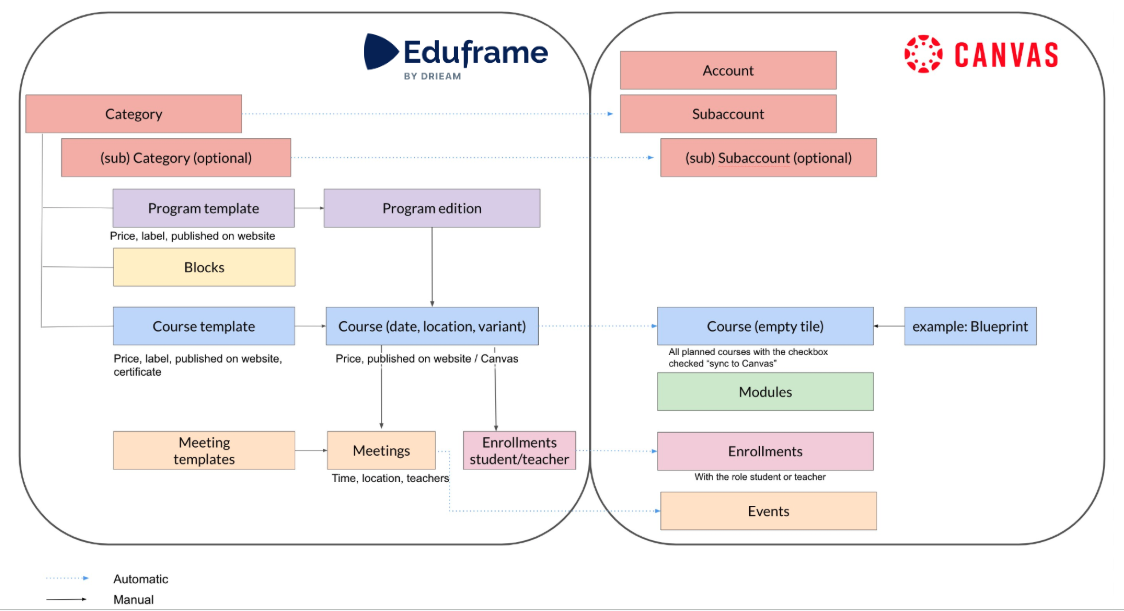
Definitions in Eduframe differ from definitions in Canvas. See details in the table below.
Eduframe | Canvas |
|---|---|
Category | Subaccount |
Subcategory | Sub-subaccount |
Course edition | Course |
Meetings | Meetings |
Enrollments (Teacher/Participants - Students) | Enrollments (Teacher/Participants - Students) |
Also, not everything will be synchronized from Eduframe to Canvas, as shown in the image below. Categories, course editions and meetings will be synchronized from Eduframe to Canvas. Programs and blocks will not be synchronized.
What happens after changes in Eduframe to Canvas?
Eduframe | Canvas | Condition | DIRECT | OVER-NIGHT |
Course | ||||
Create new course edition | New course Canvas
*Canvas Course code will be de code from the course template of Eduframe | Synchronized to Canvas button is enabled in Eduframe | ✅ |
|
Button ‘Synchronized to Canvas' disabled and save course | Course gets status 'deleted' and is not visible in Canvas anymore if there were no content and enrollments yet. | ✅ | ||
Change name course template or code on course template in Eduframe | In Canvas the course name or code will change. | ✅ | ||
Change startdate, location or variant | In Canvas the course name will change. | After saving the course in Eduframe | ✅ | |
Create new meeting | New meeting in course agenda of the canvas course. * Title is name meeting * Date is date meeting * Time is time meeting | * After saving a meeting * After manually click on save a course in the tab 'general' (direct) * Otherwise the meeting will be synced overnight. | ✅ |
|
Change meeting | Change meeting in Canvas course agenda | * After saving a meeting * After manually click on save a course in the tab 'general' (direct) * Otherwise the meeting will be synced overnight | ✅ | |
Participants (students) | ||||
- | All users in Eduframe will be synced to Canvas | Setup sync | ✅ | |
Participant has a confirmed enrollment | Course will be visible in Canvas | Enrollment confirmed | ✅ |
|
Access to Canvas course | * Enrollment confirmed * Access Canvas when startdate is passed * Course is published in Canvas | ✅ |
| |
No more access to Canvas course because the fixed course end date is passed or the flexible course is closed | * End date is passed for access Canvas * Flexible course is closed * Enrollment is concluded in Canvas | ✅ | ||
Enrollment of participant is canceled. | Enrollment in Canvas gets the status 'inactive' and the participant no longer sees the course in Canvas (and Eduframe participant portal). | Enrollment gets status 'canceled' in Eduframe | ✅ |
|
Enrollment of participant is removed | Enrollment in Canvas is canceled and the participant no longer sees the course in Canvas (and Eduframe participant portal) | Enrollments get removed from Eduframe | ✅ | |
Changes to participant data, e.g. name | ✅* | |||
Delete participant | Delete participant from Eduframe | Participant is soft-deleted. For hard-delete, contact Drieam or Instructure support. | ✅ | |
Teachers | ||||
Add teacher at course level in role | Acces to Canvas course | Eduframe teacher role must be linked to the Canvas teacher role (See Plugin Canvas) | ✅ |
|
Delete teacher at course level | No acces to Canvas course |
| ✅ | |
Plan teacher at meeting/ subevent level | Acces to Canvas course | Eduframe teacher role must be linked to the Canvas teacher role (See Plugin Canvas) | ✅ | |
Delete teacher at meeting/ subevent level | No acces to Canvas course | ✅ | ||
Change teacher to active | Access to Canvas courses | Teacher active status is updated | ✅ | |
Change teacher to inactive | No access to Canvas courses | Teacher active status is updated | ✅ | |
Calendar feed | ||||
Synchronization with own agenda (calendar feed) | The feed is updated immediately, but it depends on the calendar application how often the feed data is actually retrieved. For some clients you can set that (Mac) for others (Google) you can't, in the case of Google changes can take up to 24 hours. | ✅ |
Note:
- When you change user data manually in Canvas, Eduframe will overwrite this after the next overnight sync.
- Subevents do not synchronize to Canvas, only meetings do.
Course completion in Canvas to Eduframe
In Eduframe, courses can be completed by the integration between Canvas and Eduframe. When the student completes all module requirements of a course in Canvas, this can be a trigger to Eduframe to complete the course. More details can be found here: 📄 Course completion in Eduframe.
How can you merge duplicate users in Canvas?
Before the Eduframe (and Canvas) implementation you might already have an account in Canvas. After connecting Eduframe to Canvas, there will be a new user coming from Eduframe to Canvas. That would mean that you have two users. You can merge these users in Canvas.
Note:
- Eduframe will still be able to find the user after two users a merged in Canvas. Eduframe finds the user using an SIS ID, when merging users in Canvas the resulting user will have two SIS ID's.
- When you merge users in Eduframe, users will also merge in Canvas. Read more about this in the merge duplicate contacts article.
Which identifier does Eduframe use for users in Canvas?
Eduframe identifies every Contact in Canvas by its Principal ID: the Principal ID is the SIS User ID and SIS Login ID of the Canvas user. A Contact and its Canvas user must therefore always have the same Principal ID. Find out more on the 📄 Principal ID.
What happens in Canvas when I change a Principal ID?
Eduframe updates Canvas in the background, usually within a few minutes:
If no Canvas user with the new Principal ID exists, Eduframe creates one.
If a Canvas user with the old Principal ID exists, Eduframe merges it into the user with the new Principal ID. Enrollments and grades move to the merged user.
When Manage externally is enabled for a Contact, Eduframe no longer creates or updates that user and its logins in Canvas. Use this for users that your own identity provider or student information system already provisions in Canvas. Make sure the Principal ID in Eduframe is equal to the SIS User ID of the Canvas user.
Frequently Asked Questions
Can Eduframe create sections in Canvas courses?
No, in Eduframe there are no sections within a course and therefore can not be synced to Canvas.
Next to that it is possible to use sections in Canvas.
In Canvas there is always one section per course. When Eduframe is creating a course and pushing enrollments to Canvas, this will be in that section (course section). This section have to stay as it is.
If you want to create more sections, see here you possibilities:
Adding manually extra section(s) in Canvas course.
Adding extra section(s) via sis import (csv) in Canvas course.
How can you use Terms in Canvas when Eduframe and Canvas are connected?
Terms (Canvas functionality) are intended to cluster courses chronologically. Terms can only be defined in Canvas on the root account; manually, via SIS imports or API. Terms are something that can be arranged in Canvas. Eduframe pushes the default/standard term through in Canvas courses.
Eduframe will fill in the course start and end date within a Canvas course and therefor makes use of the course dates.
If you want to use Terms in Canvas, this is possible with the following use case: In Canvas you can filter by terms in all course overviews.
There are options to connect other terms as well:
Adjust manually in Canvas.
SIS import.
API calls bulk in Canvas.
Note:
- The participation within course settings in Canvas should stay on Course.
- Changing the participation to 'term' will ALWAYS be synced back to 'course'.
How can I sync grades from Canvas back to Eduframe?
You can sync grades back from Canvas to Eduframe with the GradeSync LTI. More can be found here: 📄 GradeSync LTI - integration.