Eduframe Calendar and iCal
Last updated: August 21, 2026
Summary
The Eduframe Calendar is a central feature that connects your administrative planning with the participant's learning schedule. It serves different purposes depending on whether you are an administrator, a participant or teacher. In this article you will find out how this works.
Eduframe Calendar as a Participant
Once a participant enrolls for a product (course or program), their calendar becomes their primary guide for the education.
Participant Portal Access: Participants can log into their private dashboard to see a personalized calendar containing only the meetings for courses they are enrolled in.
iCal Sync (External Calendars): Participants can sync their Eduframe schedule with their personal calendar apps (like Google Calendar, Outlook, or Apple Calendar) via a unique iCal feed. This ensures they get notifications on their phones for upcoming classes.
LMS Integration: If you use Canvas LMS, any meeting created in Eduframe is automatically synced to the Canvas Calendar, keeping the learning content and the schedule in one place.
More information about the Participant Portal can be found in 📄 Participant Portal.
Eduframe Calendar as a Teacher
Once a teacher is connected to a course/meeting, their calendar becomes their primary guide for the education.
Teacher Portal Access: Teachers can log into their private dashboard to see a personalized calendar containing only the meetings for courses they are enrolled in.
iCal Sync (External Calendars): Participants can sync their Eduframe schedule with their personal calendar apps (like Google Calendar, Outlook, or Apple Calendar) via a unique iCal feed. This ensures they get notifications on their phones for upcoming classes.
LMS Integration: If you use Canvas LMS, any meeting created in Eduframe is automatically synced to the Canvas Calendar, keeping the learning content and the schedule in one place.
More information about the Teacher Portal can be found in 📄 Teacher Portal.
Eduframe Calendar as an Admin
For the back-office team, the calendar is a visual tool for resource management.
Conflict Detection: When scheduling a meeting, Eduframe automatically checks if a teacher or a classroom is already booked for another course, preventing double-bookings.
Meeting Templates: You can create "meeting templates" (e.g., a standard 10-week lecture series) and apply them to new course editions to instantly populate the calendar.
Resource Allocation: You can view the calendar by Location (to see room availability) or by Teacher (to see staff workloads).
Read more about the admin possibilities in 📄 Scheduling.
How to add the Eduframe meetings to a participant's or teacher's own personal calendar?
A teacher/participant can import their Eduframe calendar to, for example a Google Calendar. Once you have subscribed to the calendar feed, you can remove or unsubscribe from the calendar feed at any time.
1. Click on Calendar in the main navigation. Then click on the Calendar feed button.
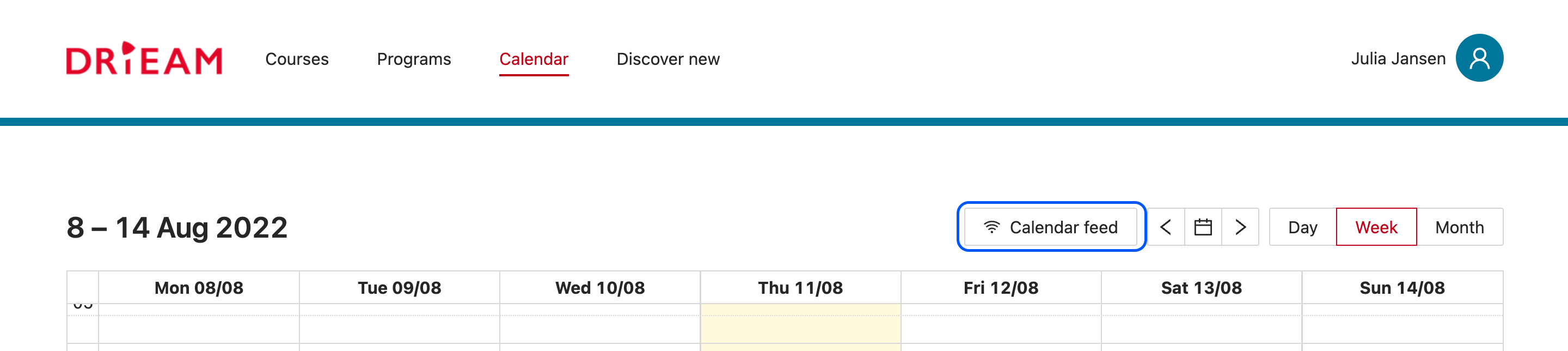
2. Copy the URL by clicking on the button with the copy icon.
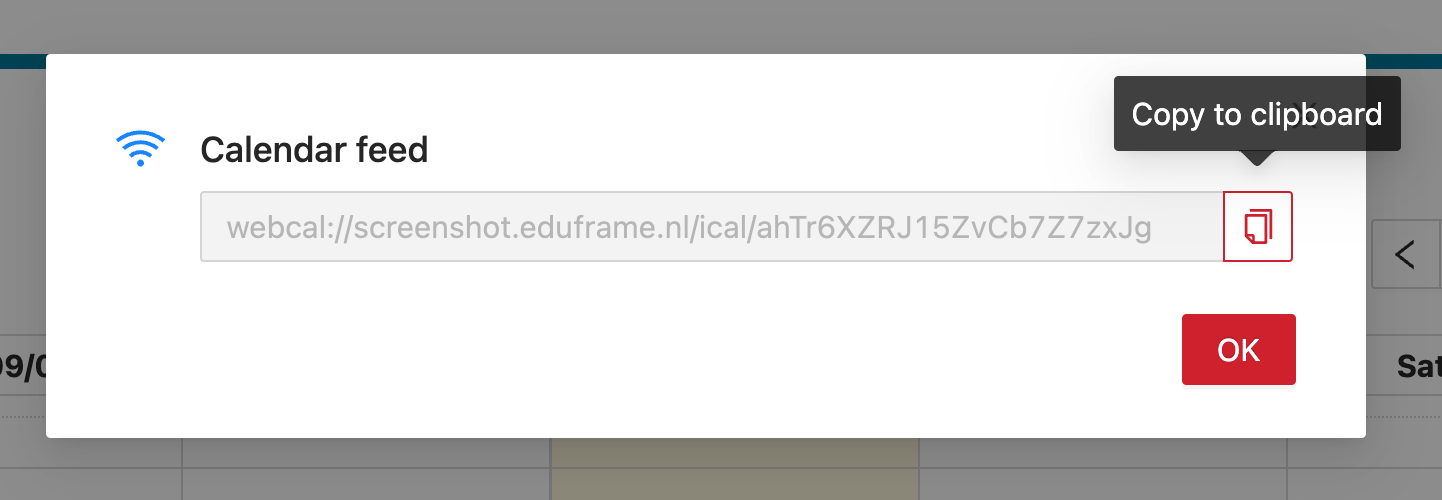
3. Paste this URL into any calendar app that takes iCal feeds (Google calendar, iCal, Outlook, etc.).
Tip: It is also possible to subscribe to the Canvas Calendar feed (which also includes the Eduframe meetings).
More information
For more information on how to do this specifically for Google, Microsoft or Apple Calendar, go to these links:
- Import calendar to Google Calendar
- Import events to Microsoft Calendar (outlook)