Payment Options
Last updated: August 21, 2026
Summary
As an admin, you can configure payment settings in Eduframe. This can be done in the Payment Options button in Settings. Find out more about Payment options in this article.
Payment Options
In the tab 'Payment Options', you can find all payment related settings. You can:
...choose whether you want to automatically confirm/deny orders after a (partial) payment;
...add new payment methods;
...choose whether you want to use down payment or payment in installments.
Partial Payments
Below the header 'Partial Payments', there are three options:
Switched off: No partial payments are used.
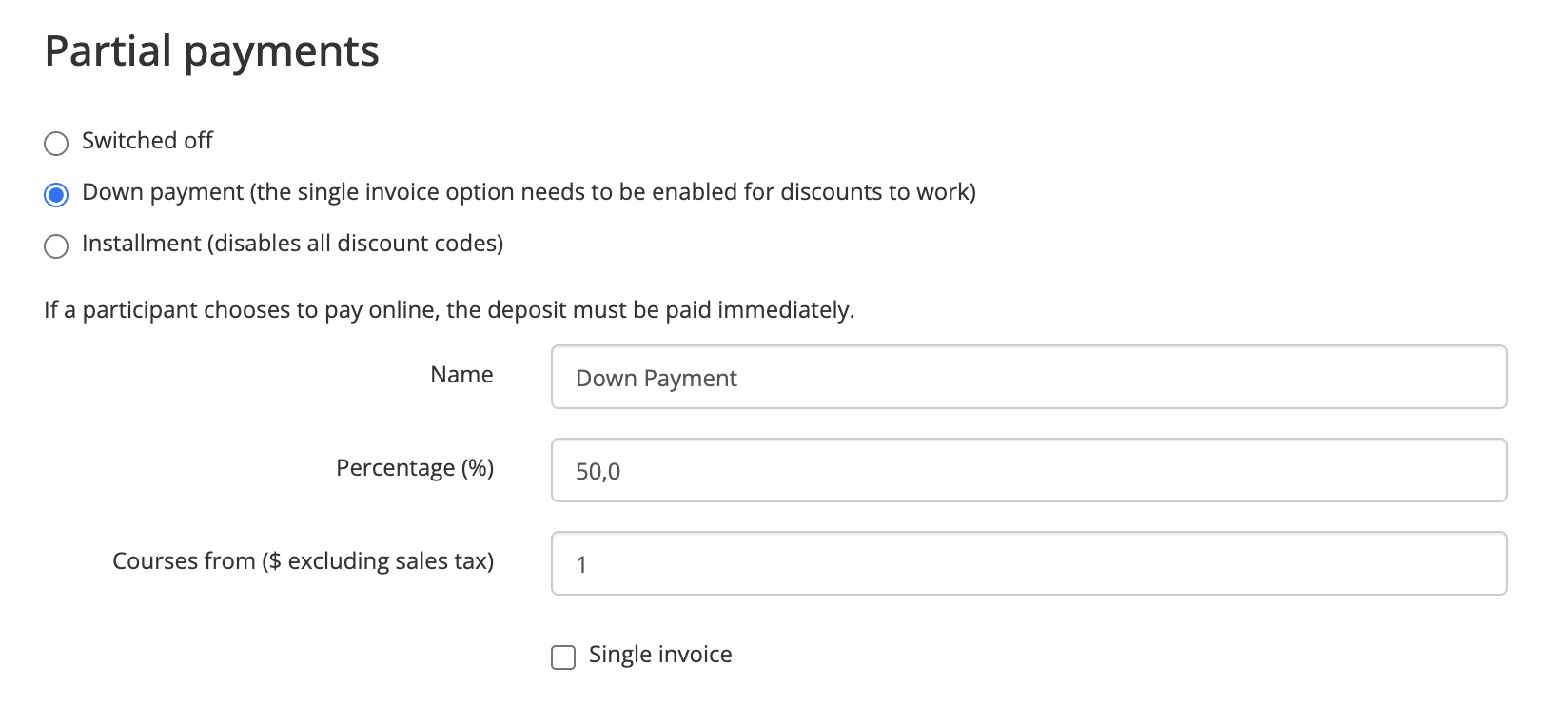
Down payment:
Give the down payment a name, this name will be visible on the signup form.
Choose the percentage of the down payment.
Choose for which courses you would like to add the down payment option. You can specify the price here (excluding VAT). When someone wants to order a course which is below the amount you specified in this field, the option of down payment will not be visible on the signup form.
Choose whether you want Eduframe to create 1 or 2 concept invoices. When you choose for a down payment, it will automatically create two concept invoices. 1 for the down payment, and 1 for the remaining amount. If you don't want this, check the checkbox Single Invoice.
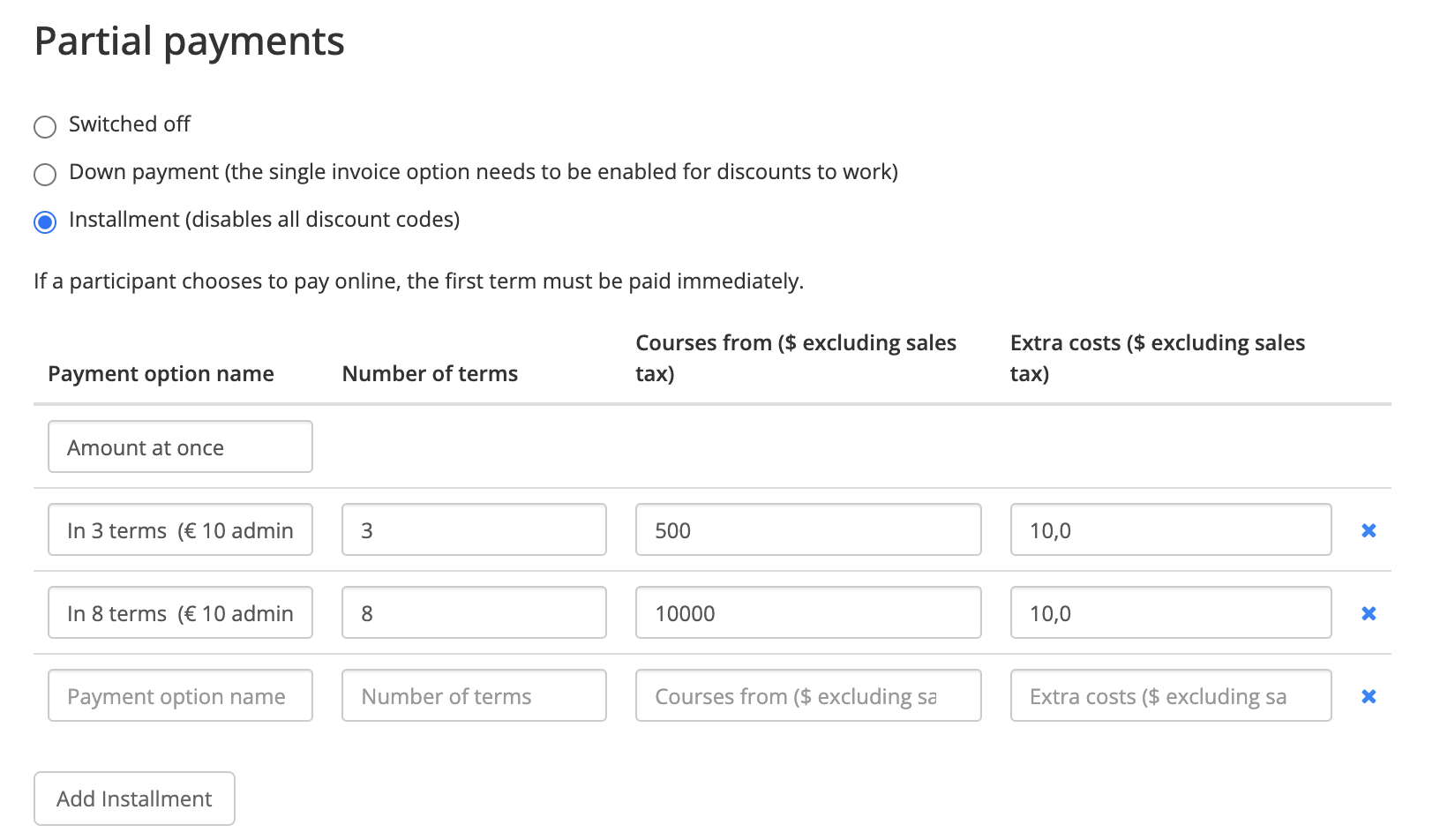
Installment:
Click on Add installment to create your first installment.
First choose a name for the payment option which will be visible on the signup form.
Choose the amount of terms. The amount you choose here will be the amount of invoices that will be created.
Choose for which courses you would like to add the down payment option. You can specify the price here (excluding VAT). When someone wants to order a course which is below the amount you specified in this field, the option of down payment will not be visible on the signup form.
Choose whether you want to add additional costs (excluding VAT) to the total amount when customers choose to pay in installments.
Example: When a customer chooses the option "In 4 terms (€ 3,00 administration fee excl. VAT)" Eduframe will create 4 concept invoices. Within the first concept invoice, the additional costs will be added. The concept invoices can be adjusted before you send the invoices.
Payment Methods
Payment methods is the second tab in the setting 'Payment Options'. Here you can find information on how to create a (new) payment method:
Click on the Add Payment method button.
Give the Payment method a name: this name will be visible on the signup form.
Choose one of the existing Gateways.
Eduframe is included as a gateway by default and makes sure that for every order with a price, an invoice will be created. This invoice can manually be adjusted and sent to participants in order for them to pay for the order they made. With this option, it is still possible to send out payment requests to customer, even if you don't select any other payment method.
Paste the API key.
Choose whether you want to enable this option:
for customers: this means showing the payment method(s) on the signup form
for administrators: this means showing the payment method(s) when creating an order manually as admin in Eduframe.
Note: You can read more about the different payment integrations in the payment provider integrations, e.g. Mollie and Stripe Checkout.