Labels
Last updated: August 21, 2026
Summary
Labels are small, color-coded tags you can add to items in Eduframe — a course, a lead, an order, an organization, a task, and more — so you and your team can spot, group, and find them at a glance.
This article covers what labels are, how to create and manage them, and how labels help visitors search and filter your course catalog on your own website.
What is a label?
A label is a named, colored tag that you can attach to one or more items. When you create a label, you choose:
A name — for example “Online,” “Beginner,” “Certified,” or “Follow up”.
A color — so labels are easy to recognize at a glance in your lists and overviews.
What it applies to — a label always belongs to one type of item, such as courses, leads, orders, organizations, teachers, contacts, or tasks.
Once a label exists, you can attach it to as many items of that type as you like, and any single item can carry several labels at once. A course, for instance, could be labeled both “Online” and “Popular” at the same time.
Labels vs. categories
Labels are often used alongside categories, but they do different jobs:
Category | Label |
|---|---|
One category per course, organized in a hierarchy | As many labels as you like, no hierarchy |
Defines where a course sits in your catalog | Adds extra details on top |
“IT & Security” → “Cybersecurity” | “New,” “Bestseller,” “Evening classes” |
In short: every course belongs to exactly one category, but it can carry any number of labels. Categories are the backbone of your catalog structure; labels add flexible, cross-cutting detail on top of that structure.
Why should I use Labels?
Labels are lightweight — adding or removing one never affects pricing, permissions, or how a course works — so teams use them for all kinds of things. Here are some typical use cases for Labels:
Catalog organization — mark courses as 'Online' or 'In-company' so both your team and your website can tell them apart.
Leads and contacts — label leads as 'Prospect', 'Potential Customer' or 'On Waiting List' to prioritize follow-up.
Day-to-day operations — label tasks or teachers as “Urgent” or “New hire” to keep internal lists easy to scan.
Quick reporting — pull together a list of everything sharing a label (for example, everyone labeled “Trade fair 2026”) without building a full report.
How to configure Labels?
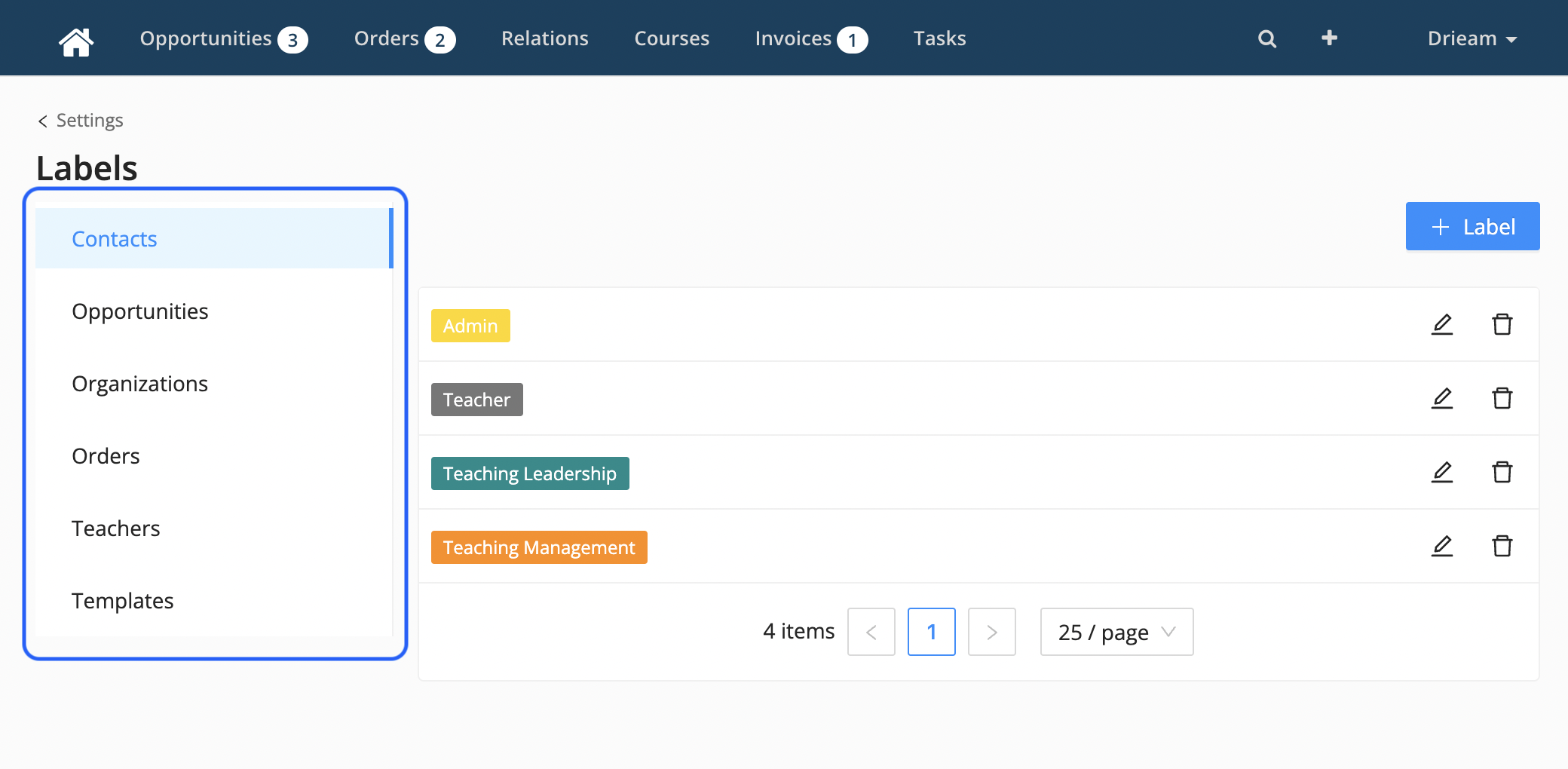
As an admin, you can create, edit or delete labels by following these steps:
Go to Settings > Labels.
Choose a type of item (e.g. Contacts or Teachers) you want to add a label to.
Give it a clear name.
Pick a color for the label.
Click 'Save'.
How to add labels to a course or program?
As an admin, you can now add labels to the items where you added labels. Specifically for courses and programs, you add labels in the following way:
Make sure the label already exists (create it first if it doesn’t).
Open the course or program, go to its Labels section, and select the labels that apply.
How do Labels power search and filtering on your website?
This is the part that matters most if you run a course catalog on your own website that pulls its content from Eduframe.
In short: every label you attach to a course or program in Eduframe becomes information your website can use to let visitors filter and search your catalog.
Here’s how it works in practice:
When you label a course — say, as 'Beginner' or 'Expert' — that label travels along with the course’s information to your website.
Your website (or whoever built and maintains it for you) can then use those labels to build filter options for visitors — things like filter buttons, tags, checkboxes, or dropdown menus.
The result: a visitor browsing your course catalog can filter by label — for example choosing 'Beginner' to quickly narrow down to the courses that suit them, without having to read through your entire catalog.
Tips:
Eduframe doesn’t dictate what the filters look like. It makes your labels available as data; your website decides how to present them — as buttons, a sidebar, dropdown menus, or however best fits your site’s design. If you’re not sure what your website currently offers, that’s a good question for your web developer.
Categories work a bit differently. If you want visitors to browse to one clear, defined part of your catalog (like “Marketing courses”), that’s what categories are for — most website integrations support filtering by category out of the box. Labels are best for the extra, more flexible filters layered on top, like 'Beginner course' or 'Advanced course'.
Keep label names customer-friendly. Since labels can end up visible to visitors as filter options or tags on your site, it’s worth naming and coloring them with your customers in mind, not just your internal team.