Custom Fields
Last updated: August 21, 2026
Summary
In this article, the different ways and types of custom fields that can be added to a contact, organization, order, teacher, product template and edition.
Types of Custom Fields
As an admin, you can manage all your custom fields in 'Settings' > 'Custom Fields'. Custom fields can be related to a contact, organization, order, teacher, product template and edition. See below explanations if you link a custom field to:
A Contact: the custom fields will be visible on the 📄 Signup Forms on top of the default contact fields such as Name and Email Address. The default fields cannot be changed or deleted.
An Organization: the custom field will be visible on the organization part of a signup form.
An Order: the custom field will be visible on order level in Eduframe.
A Teacher: the custom fields will be visible on teacher contact level on top of default fields like Name and Email Address. These default fields cannot be changed or deleted.
A Product Template: the custom fields will be visible on a course or program template as part of the features section. More information can be found in 📄 Products explained: program templates/editions/blocks and course templates/editions.
A Product Edition, the custom fields will be visible on 📄 Course Editions or 📄 Program Editions.
How to add a custom field?
As an admin, you:
First choose whether you want to link the custom field to a contact, organization, order, teacher, product template or edition.
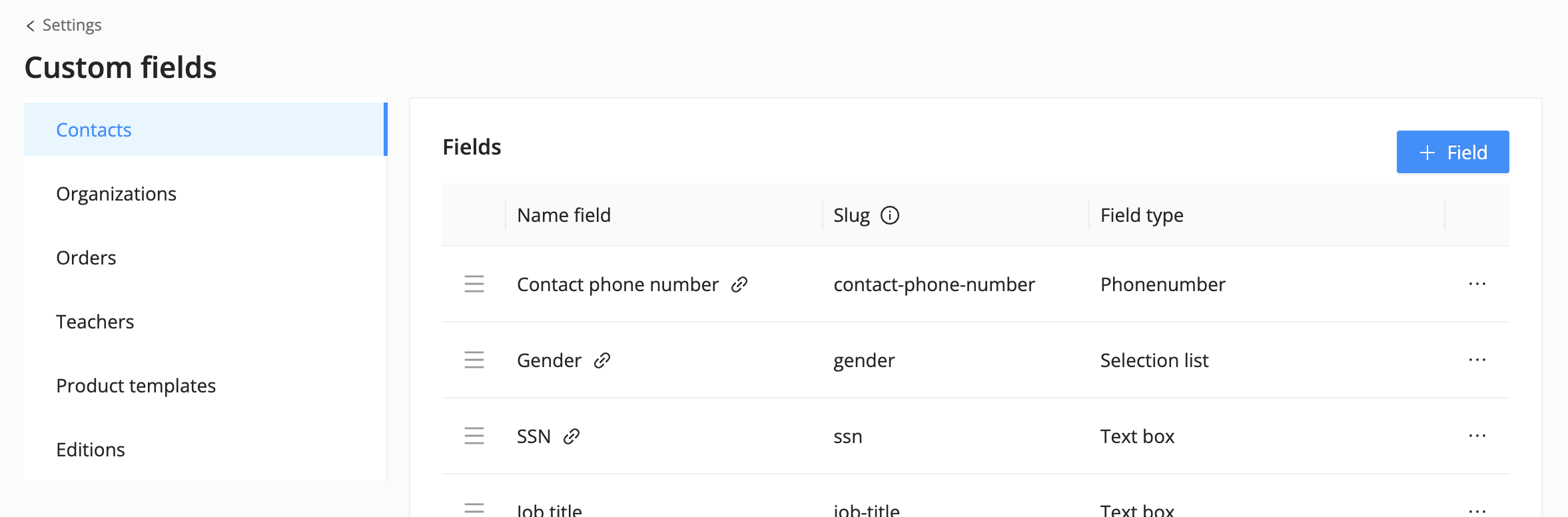
Click on the blue button '+ Field'
Choose a name for the custom field
Notes:
The contact custom fields can be used in the contact registration forms and defined for order contact details (step 2 in signup) and participant details (step 3 in signup). See the following article for more information: 📄 Create Multiple and Different Signup Forms.
The name of a custom field is also used to automatically create a unique slug (URL). The slug cannot be modified after the field is added.
Only for organizations' invoice addresses:
Required on signup: Choose whether you want to make the custom field mandatory on signup (it will not be mandatory when creating an organization in Eduframe).
Show on signup when it is a personal order: Choose whether you want to make the field visible on signup for a personal order.
Show on signup when it is an organization order: Choose whether you want to make the field visible on signup for an organization order.
System field: You can link your custom field to one of the system fields. All system fields unlock different possibilities in Eduframe, which are explained in the ‘Add/edit custom field’ drawer.
Note: A field can only be linked to a system field once. If it is not clickable in the select, it is already used. System field links are available on contact, organization, product template and order custom fields.
When adding a custom field linked to 'Order' the only field configuration allowed is a field linked to system field 'Reference' and field type 'Text box'. Reference is shown for organization orders.
Field type: Select which field type your custom field should be. Note that field-types cannot be adjusted after creation. You can choose between:
Checkbox, e.g. yes or no
Date
Number
Phone number
Selection list where you can select one option
Selection list with multiple options to select
Text box
Text field with multiple lines
VAT number
Country
Selection list options: If you selected a selection list as field type, you can fill the options to select here.
Visibility of contact custom fields
Contact custom fields are always visible for the admin in Eduframe. These fields need to be added to right forms first to be visible for participants on the signup. See also 📄 Create Multiple and Different Signup Forms.
If you want to collect information on the signup form using contact custom fields, but you do not want participants to be able to see this information in the participant and business portal, you go to:
Settings
Participant & business portal
Tab 'Personal information form'.
Here an admin can select the contact custom fields that should be visible in the participant and business portal.
For more information, see 📄 Participant and Business Portal.
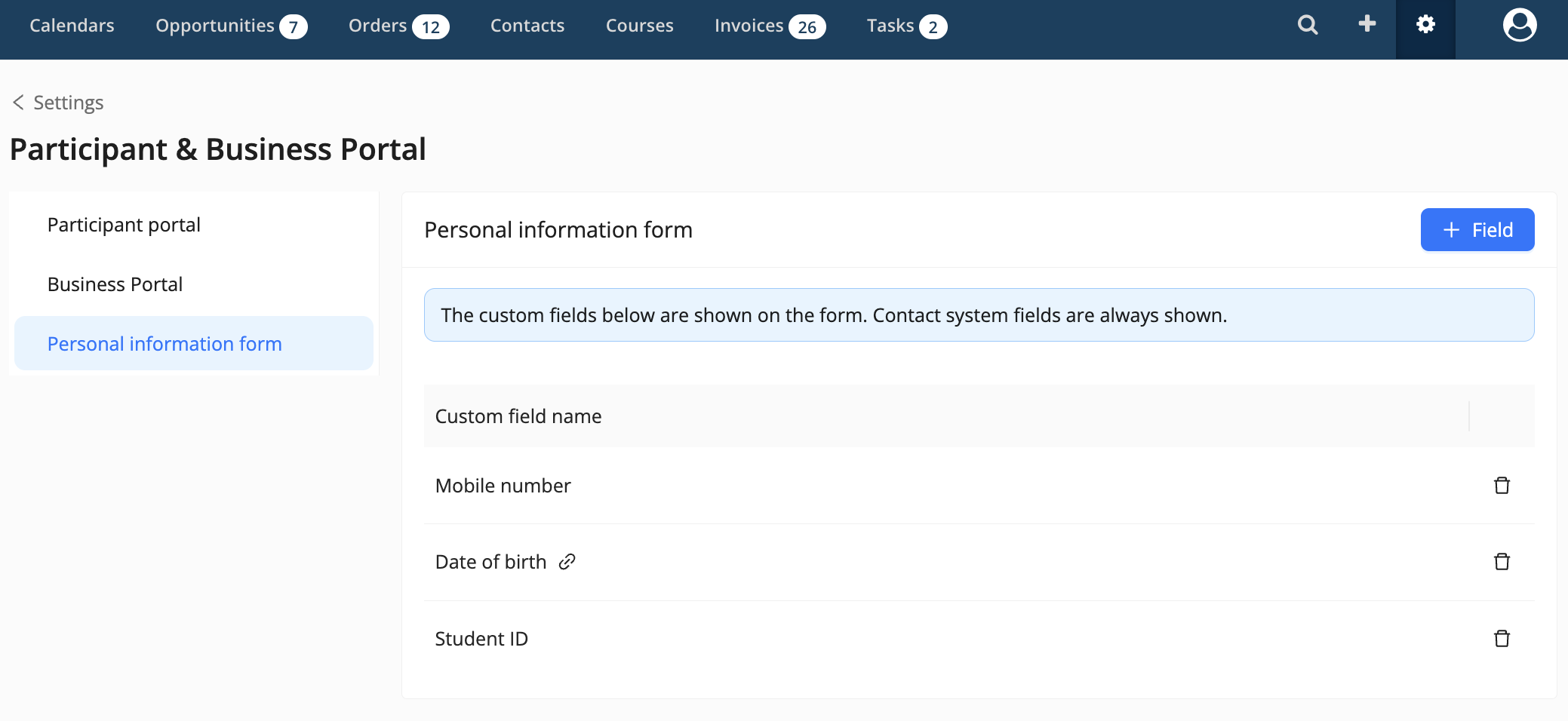
Note: When a custom contact field is not part of a form the field is only hidden from the participants. More information can be found here: 📄 Participant and Business Portal.