Labels
Last updated: November 18, 2026
Summary
Labels are small, color-coded tags you can add to items in Eduframe, such as courses, leads, Orders, Organizations and Tasks, so you and your team can spot, group and find them at a glance. Labels also help visitors search and filter the course catalog on your own website.
What is a Label?
A Label is a named, colored tag that you can attach to one or more items. When you create a Label, you choose:
A name: for example "Online", "Beginner", "Certified" or "Follow up".
A color: so Labels are easy to recognize in your lists and overviews.
What it applies to: a Label always belongs to one type of item, such as courses, leads, Orders, Organizations, Teachers, Contacts or Tasks.
Once a Label exists, you can attach it to as many items of that type as you like, and a single item can carry several Labels at once. A course, for instance, could be labeled both "Online" and "Popular".
What is the difference between Labels and categories?
Labels are often used alongside categories, but they do different jobs:
Category | Label |
|---|---|
One category per course, organized in a hierarchy | As many Labels as you like, no hierarchy |
Defines where a course sits in your catalog | Adds extra details on top |
"IT & Security" > "Cybersecurity" | "New", "Bestseller", "Evening classes" |
In short: every course belongs to exactly one category, but it can carry any number of Labels. Categories are the backbone of your catalog structure; Labels add flexible, cross-cutting details on top of that structure.
Why should I use Labels?
Labels are lightweight: adding or removing one never affects pricing, permissions or how a course works. Typical use cases for Labels:
Catalog organization: mark courses as "Online" or "In-company", so both your team and your website can tell them apart.
Leads and Contacts: label leads as "Prospect", "Potential Customer" or "On Waiting List" to prioritize follow-up.
Day-to-day operations: label Tasks or Teachers as "Urgent" or "New hire" to keep internal lists easy to scan.
Quick reporting: pull together a list of everything sharing a Label (for example, everyone labeled "Trade fair 2026") without building a full report.
How do I configure Labels?
As an Admin, you can create, edit or delete Labels by following these steps:
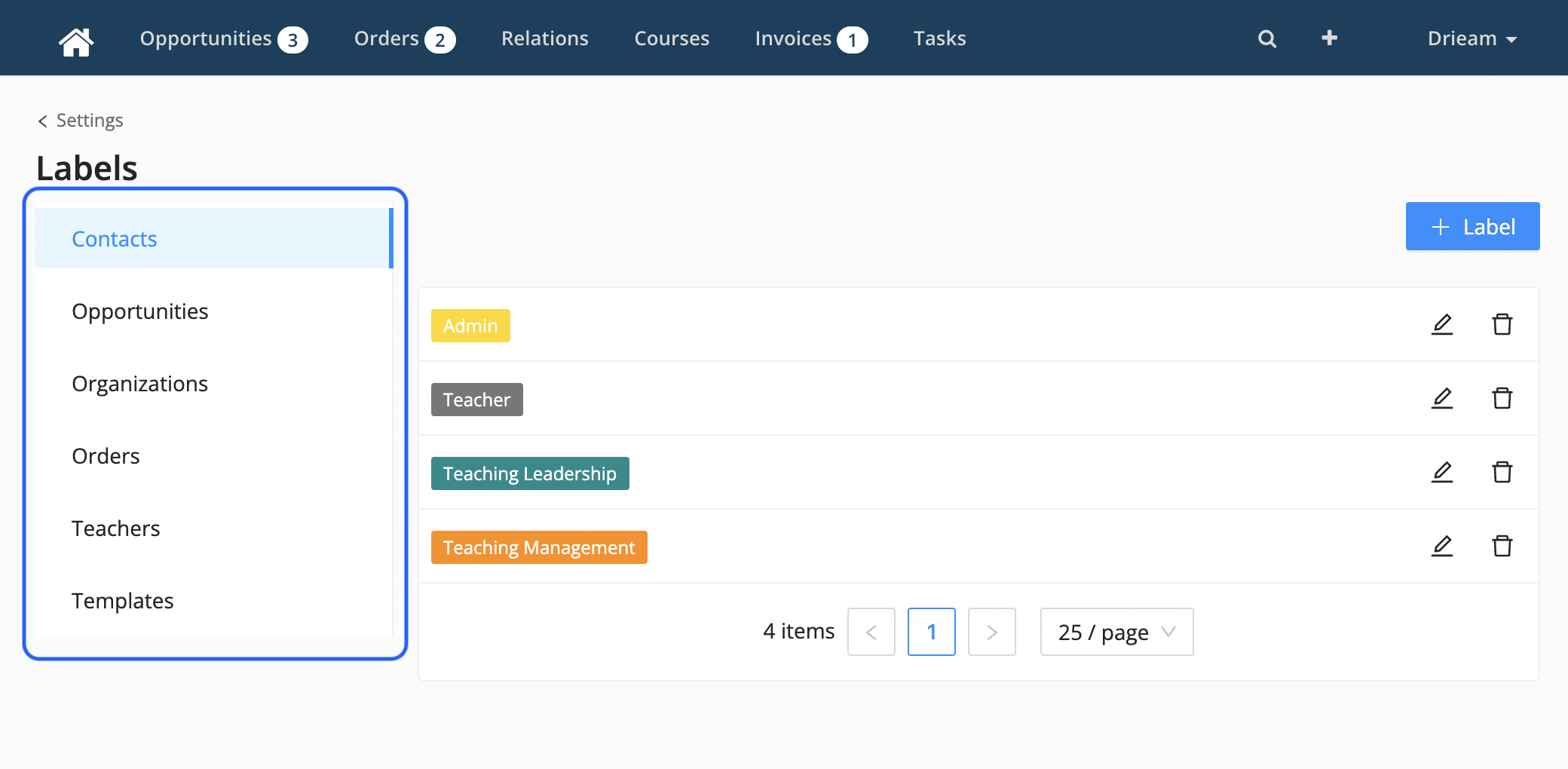
Go to Settings > Labels.
Choose the type of item (e.g. Contacts or Teachers) you want to create a Label for.
Give the Label a clear name.
Pick a color for the Label.
Click Save.
How do I add Labels to a course or program?
As an Admin, you can add Labels to items of the type the Label applies to. For courses and programs:
Make sure the Label already exists (create it first if it doesn't).
Open the course or program, go to its Labels section and select the Labels that apply.
How do Labels power search and filtering on your website?
This matters most if you run a course catalog on your own website that pulls its content from Eduframe. Every Label you attach to a course or program in Eduframe becomes information your website can use to let visitors filter and search your catalog.
How this works in practice:
When you label a course, for example as "Beginner" or "Expert", that Label travels along with the course information to your website.
Your website (or whoever built and maintains it for you) can then use those Labels to build filter options for visitors, such as filter buttons, tags, checkboxes or dropdown menus.
The result: a visitor browsing your course catalog can filter by Label, for example choosing "Beginner" to quickly find the courses that suit them, without having to read through your entire catalog.
Tips:
Eduframe doesn't dictate what the filters look like. It makes your Labels available as data; your website decides how to present them, such as buttons, a sidebar or dropdown menus. If you're not sure what your website currently offers, ask your web developer.
Categories work a bit differently. If you want visitors to browse to one clear, defined part of your catalog (like "Marketing courses"), use categories: most website integrations support filtering by category out of the box. Labels are best for extra, more flexible filters on top, like "Beginner course" or "Advanced course".
Keep Label names customer-friendly. Since Labels can be visible to visitors as filter options or tags on your site, name and color them with your customers in mind, not just your internal team.