Orders
Last updated: November 18, 2026
Summary
The Orders tab in the global navigation is the central place for managing sales and Enrollments in Eduframe. Every Order is linked to one or more Enrollments and is connected to a single Course or Program Edition. You can place Orders for individual Participants, on behalf of an Organization for multiple Participants, and via a Key Contact.
Each Order connects the Participant's Enrollment data with the corresponding Invoices, which you can assign to different accounts if necessary.
What are Orders in Eduframe?
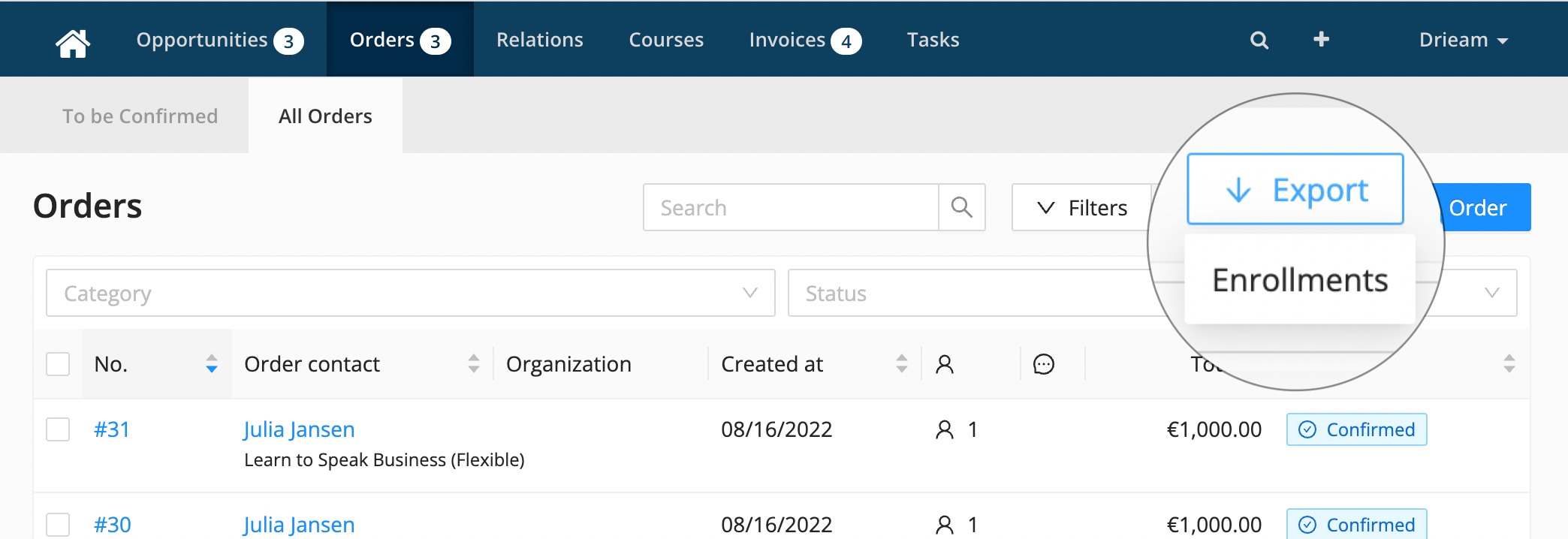
In the submenu within Orders there are two tabs. In the To be confirmed tab, all existing Orders with the status Requested are displayed. The number shown in the menu indicates how many Orders still need to be confirmed. The All orders tab shows a table with all Orders. Here you can export all data concerning Enrollments and Orders to an Excel file.
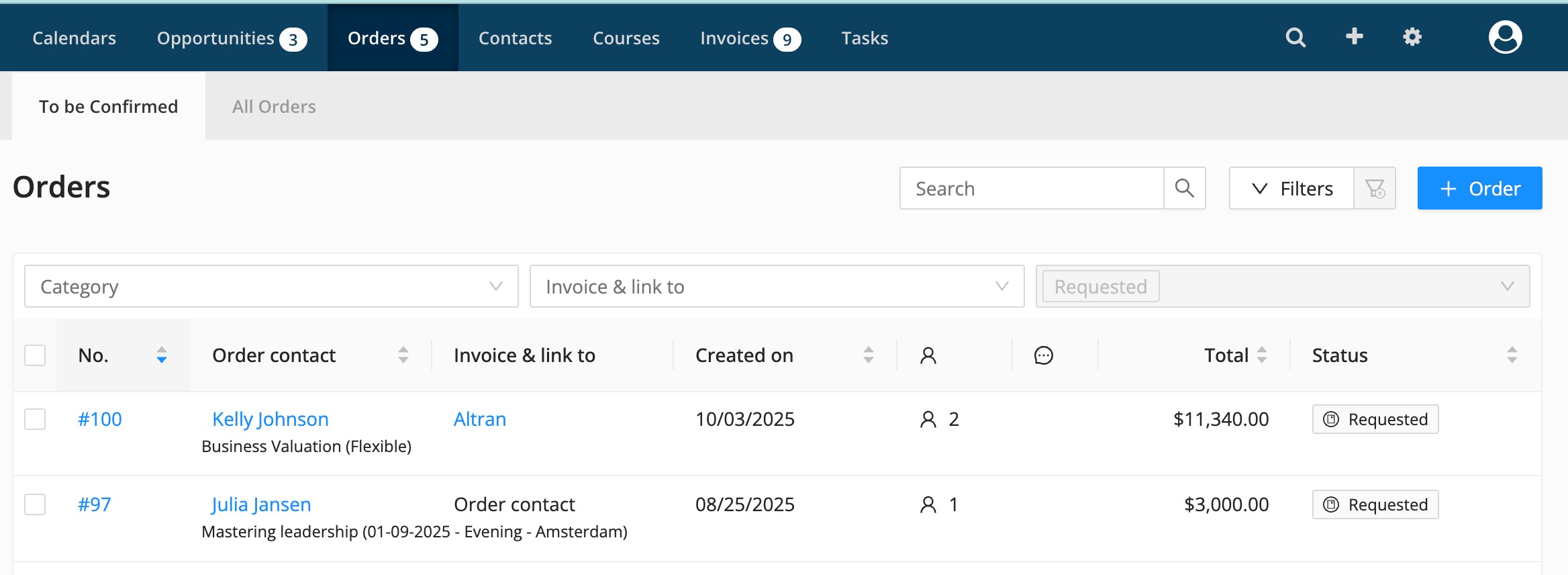
To manage large volumes of Orders, the Orders overview includes several tools to refine your view:
Filtering: You can filter the Order list based on specific criteria, such as Order status, date ranges, or specific courses. This allows you to quickly find the information you need.
Custom exports: You can export your filtered or full list to a CSV file. This generates a detailed report containing all relevant Enrollment and Order data, useful for further analysis or for your accounting software. This action is only possible in the All orders tab.
Search: Use the search bar to find specific Orders by the Participant's name, Order number, or Template name. The search starts automatically after you type at least three characters.
Eduframe distinguishes between two types of Orders:
Personal Order: placed by individual Participants who are responsible for their own registration and payment.
Organization Order: placed on behalf of an Organization. This type allows for bulk Enrollments where the Organization is the billing contact.
How do I create an Order as an Admin?
As an Admin, you can manually enroll multiple Participants in courses and programs directly from the back office. You select the Order type, add Participants, and manage the Order through its statuses.
What are the Order statuses?
Each Order has a status that shows where it is in its lifecycle:
Requested: The Order is a draft. Enrollments are not yet active or official.
Confirmed: The Order is finalized, and Participants are officially enrolled in the course or program.
Canceled: A previously confirmed Order has been revoked, removing the active Enrollments.
Denied: A Requested Order was rejected and never became an active Enrollment, either by an Admin or automatically after all online payments failed.
How do I create a new Order?
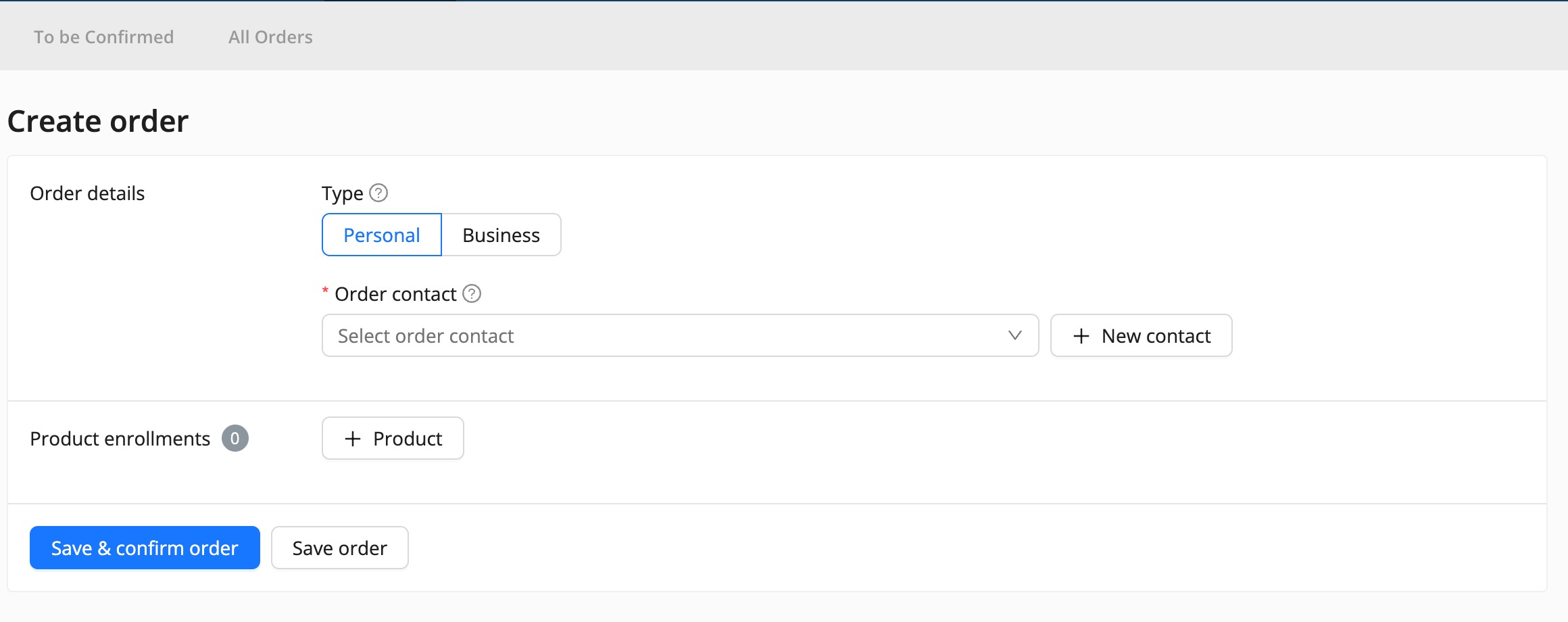
To start, click + Order and follow these steps:
Choose the Order type:
Personal Order: The billing address and financial record are linked directly to the individual being enrolled.
Organization Order: The Order is linked to an Organization rather than an individual.
Select the product and edition: choose the Course Template or Program Template, then select the specific edition. To enroll Participants in past events, turn on the Show completed courses switch.
Add Participants. There are four ways to add Participants to an Order:
Individual selection: Use the Enroll contacts field to select or search for existing Contacts.
Advanced search: Click the Search icon to filter Contacts by specific Labels or select multiple people at once.
Bulk import: Click Add contacts in bulk and paste a list of email addresses (separated by line breaks, spaces, commas, or semicolons). This only works for existing Contacts.
New Contact: Click Add contact to register a new person in Eduframe and add them to the Order immediately.
Save the Order:
Save: Creates a draft with the status Requested. No Enrollment is created yet.
Save and Confirm: Confirms the Order and immediately enrolls the Participant(s) in the course or program.
Note: Invoices are only generated for Orders with a price. If a course is free or the price is set to To be determined, no Concept Invoice is created upon confirmation.
How do I create an Order with a Signup Form?
How do Signup Forms work?
Eduframe can automate the enrollment process by connecting your website to 📄 Signup Forms. This removes the need for manual data entry.
When a Participant (with or without an existing account) completes a Signup Form on your website:
Order creation: An Order is automatically created in Eduframe.
Default status: By default, these Orders have the status Requested. An Admin must review and confirm them to finalize the Enrollment.
Automatic confirmation: To skip manual approval, go to Settings > Payment Options and turn on Automatically confirm enrollments after (partial) payment. Any Order with a (partial) payment is then confirmed automatically.
Automatic denial: In the same place, you can turn on automatic denial. A Requested Order is then denied when it is paid through an online payment provider, all its Invoices are still Concept Invoices, and every payment has failed (including canceled or expired payments). If one payment succeeded or is still pending, the Order stays Requested. Find out more about 📄 Payment Options.
How do I generate Signup Form links?
You can create signup links for entire Templates or specific editions.
Links for Course or Program Templates: use this method if you want Participants to choose from the available editions themselves.
Go to Courses > Templates and select the Template.
Copy the URL from your browser (e.g.
https://xxx.eduframe.nl/admin/courses/xxx).Edit the URL: remove
/adminand add/signupto the end. For example:https://yourdomain.eduframe.nl/courses/google-analytics/signup.
Links for specific editions: use this method to link directly to a specific date and location.
Go to Courses (for Course Editions) or Program Editions.
Select the edition you want to share.
Scroll down to the Show course on signup field.
Click Copy next to the URL to get the direct signup link.
Notes:
Visibility: Make sure the product is set to Visible and that Show active courses on website is turned on in 📄 Account Settings.
Testing: To view the Signup Form as a Participant would, open the link in an incognito or private browser window, or in a browser where you are not logged in as an Admin or Teacher.
How do I create an Order as a Key Contact?
Key Contacts can manage their Organization's training needs directly in the Business Portal. This allows them to enroll multiple employees and manage billing details themselves. Find out more about 📄 Business Portal and Key Contacts.
What can Key Contacts do in the Business Portal?
Once logged in to the Business Portal, Key Contacts have a dashboard to manage their Organization's education:
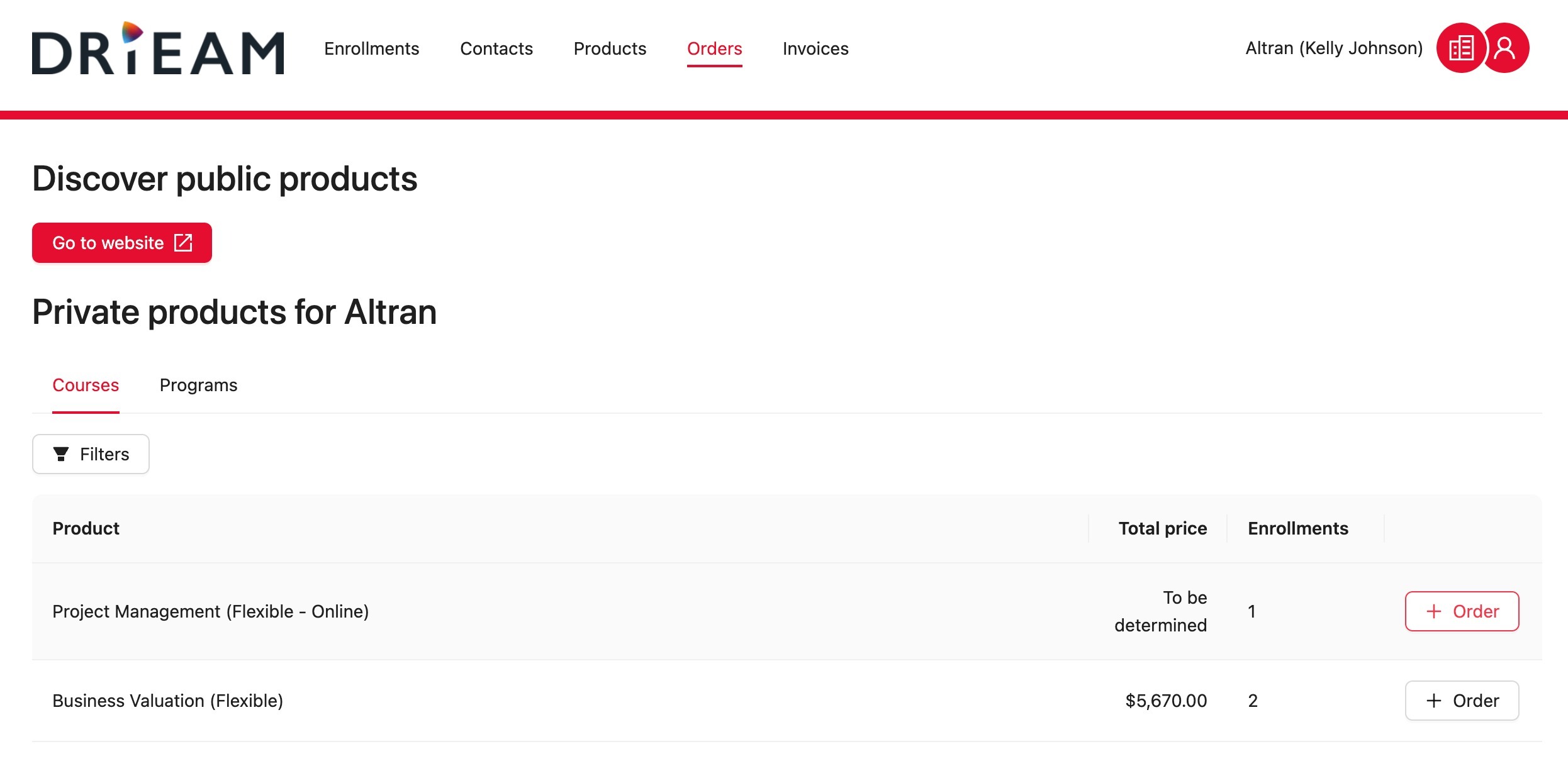
Orders: The Orders tab shows the Private products available for the Organization, as well as public offerings.
Product selection: Key Contacts can switch between Courses and Programs to find the right training for their team.
Pricing: The list shows the total price per product, or indicates if the price is To be determined.
To enroll employees in a private product as a Key Contact:
Browse products: Find the course or program in the Orders tab of the Business Portal.
Start the enrollment: Click + Order next to the product edition you want to purchase.
Select Participants:
Choose existing employees already linked to your Organization.
Add new Participants by entering their details if they are not yet in Eduframe.
Confirm details: Review the number of Enrollments and the total price before submitting.
What are the benefits of Key Contact Orders?
Centralized billing: All Invoices are automatically assigned to the Organization rather than to individual Participants.
Less administration: Key Contacts manage their own staff registrations, which reduces the workload for Admins.
How do I confirm or deny an Order as an Admin?
In the To be confirmed tab, you can process one or more Order requests. This way, you keep control over who enrolls in your courses before Invoices are finalized.
To process multiple Orders at once, select the checkboxes on the left and click Confirm or Cancel/Deny at the top of the list.
Confirming Orders: When you confirm an Order, Eduframe officially registers the Enrollment and prepares the related Invoices.
Canceling or denying Orders: If a request is incorrect or cannot be fulfilled, use Cancel/Deny to remove it from the pending list. Denying an Order, manually or automatically, deletes its Concept Invoices. Open Invoices stay and have to be credited separately.
Note: Both actions (confirm and cancel/deny) can trigger emails. Find out more about 📄 Email Templates & Triggers.