Participant and Business Portal
Last updated: August 20, 2026
Summary
In the Participant and Business Portal settings in Eduframe, you can configure several steps around these two portals. Find out more in this article.
How to configure the Participant Portal
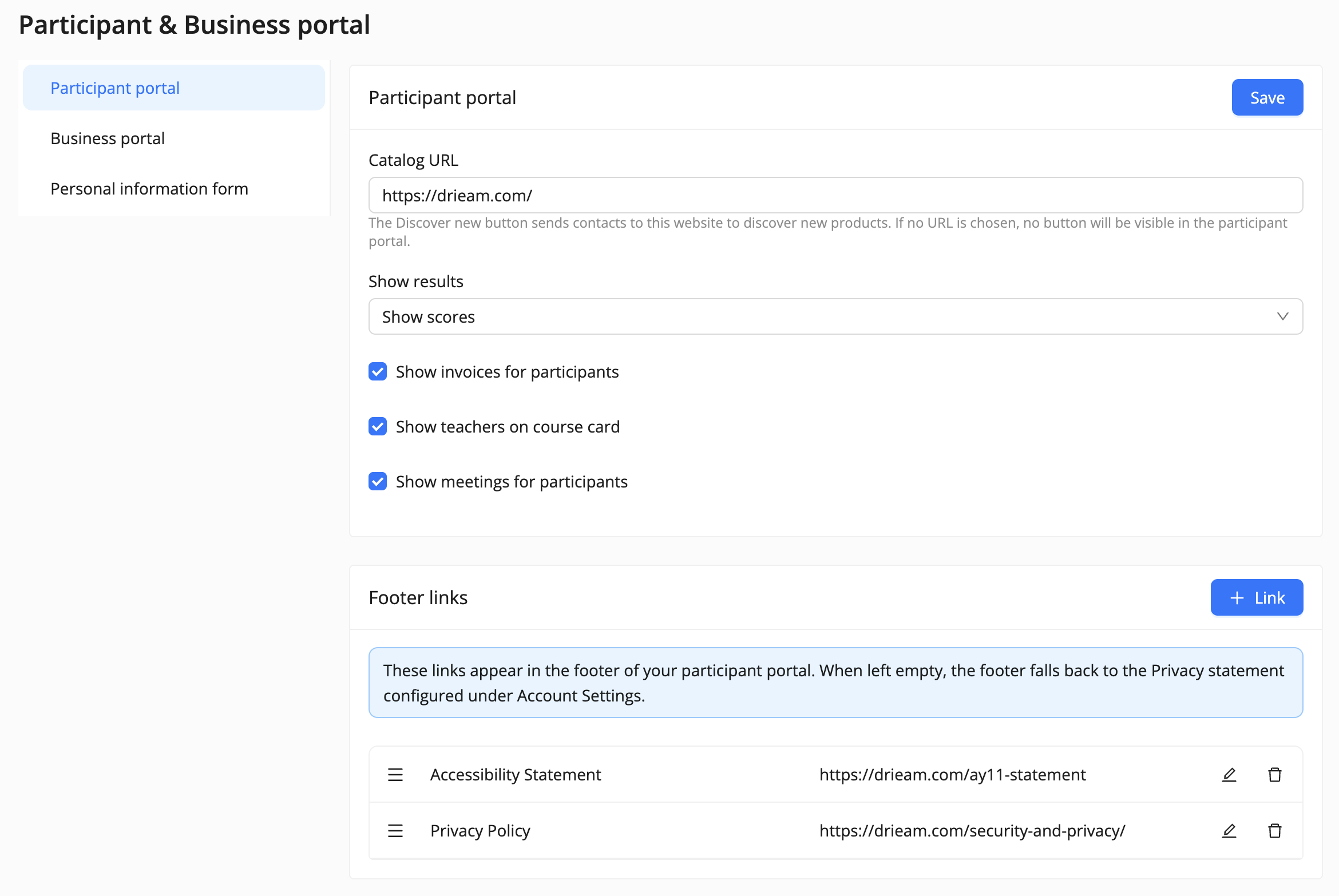
As an admin, if you open the setting 'Participant & Business Portal', you can setup the following in the tab 'Participant portal':
Choose a URL to redirect participants to your product catalog. If participants click the 'Discover new' button in the Participant Portal, they will be forwarded to this URL, which can be your product catalog on your website
Choose to show or hide the invoices for the participant in the Participant Portal
Choose to show or hide the score or grades on the courses/programs
Choose to show or hide teachers on courses
Choose to show or hide meetings in the participant portal
Configure additional footer URLs, e.g. a direct link to your 'terms and conditions'
How to configure the Business Portal
In the Business Portal, key contacts of an organization can see information on the orders that have been placed by their organization, including participants, enrollments and invoices.
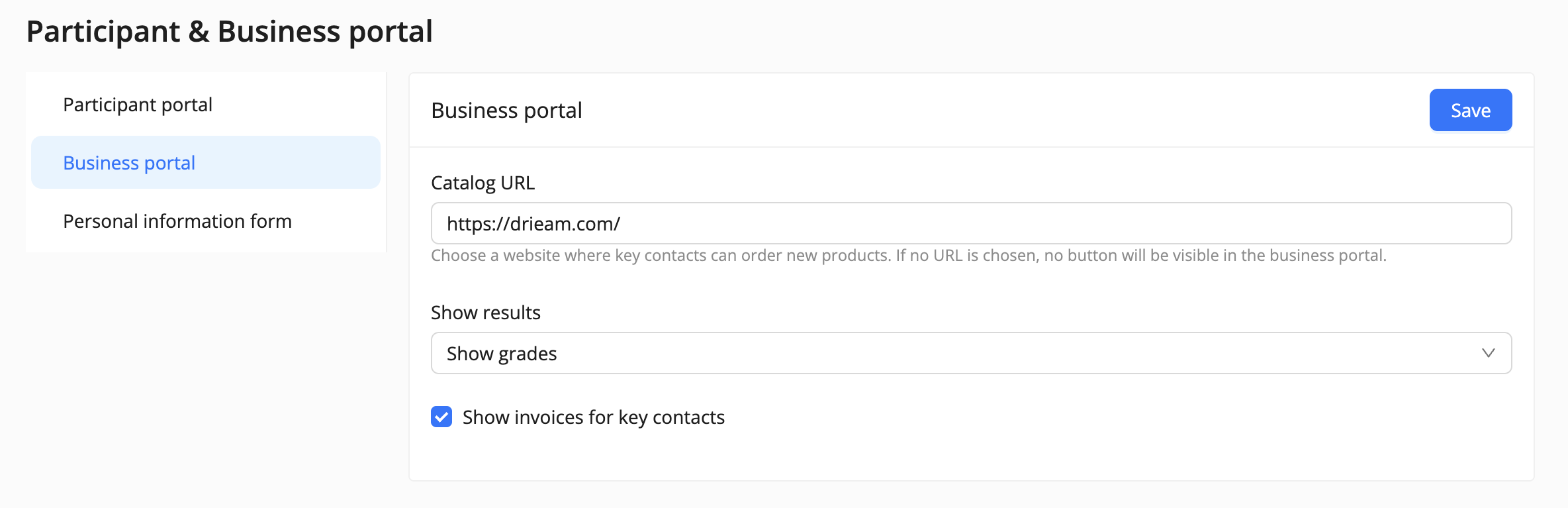
In the Business Portal tab in Settings, you can setup the following:
Choose a URL to redirect key contacts to a catalog with all products
Show or hide the invoices of the organization in the business portal
Configure Personal Information Form
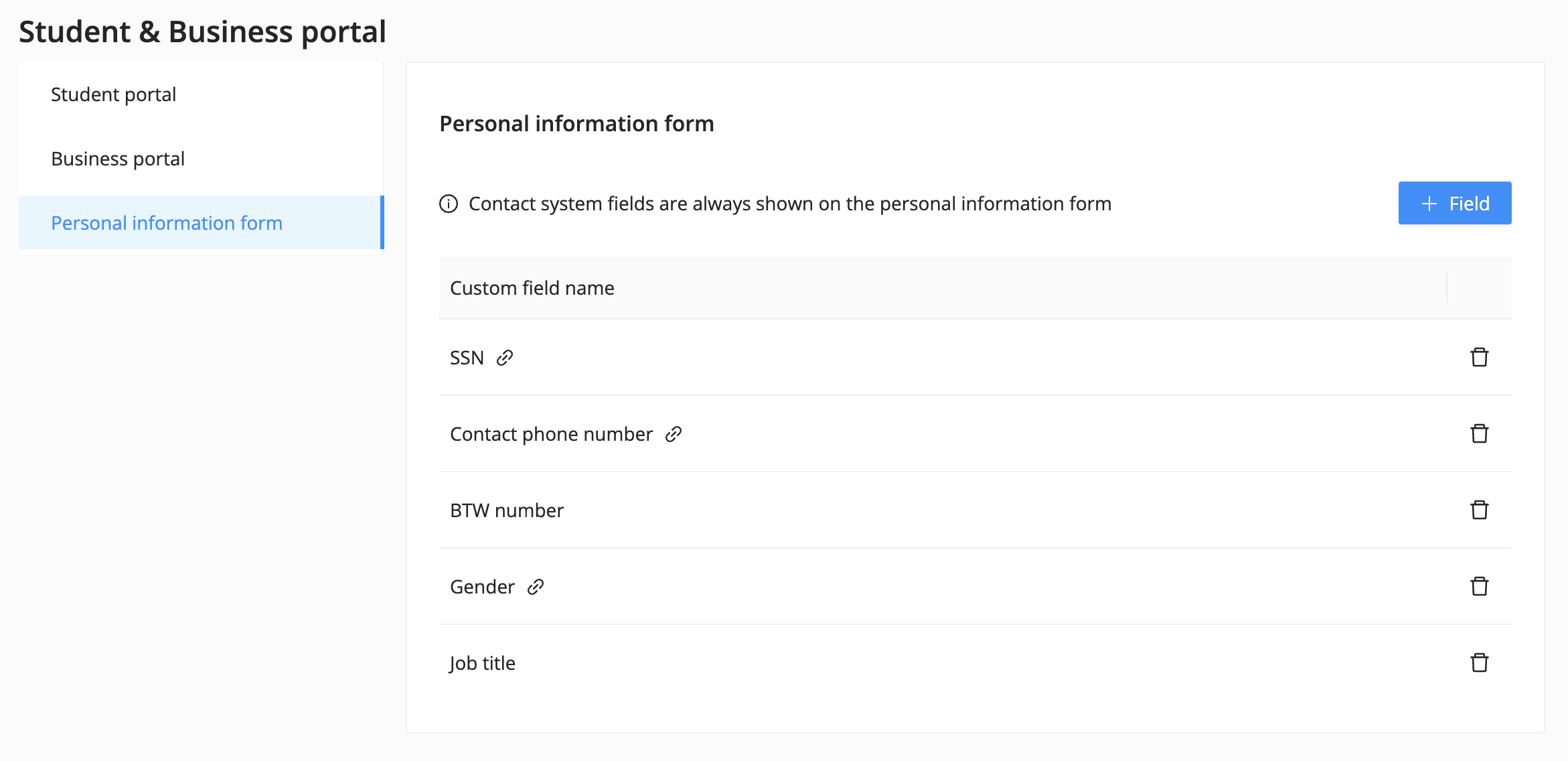
In the portals, a contact can see and edit their own personal information at 'My profile'.
As an admin, you can setup which contact (custom) fields are visible and editable for the contact. The contact system fields (name, e-mail and address) are always visible and cannot be hidden.