Business Portal and Key Contacts
Last updated: July 30, 2026
Summary
In Eduframe (as admin), it is possible to designate one or multiple contacts as the 'key contact' of an organization. The key contact can place new orders for this organization and can see all private products, enrollments, orders and invoice information from this organization in the business portal.
An example of key contact can be the HR of a company. The HR can create new orders for the employees and track progress. This way, employees don't have to place orders for Eduframe courses themselves.
More information about both the Business Portal and Key Contacts can be read in this article.
How is the key contact role assigned?
The key-contact role needs to be manually assigned. As an admin, you:
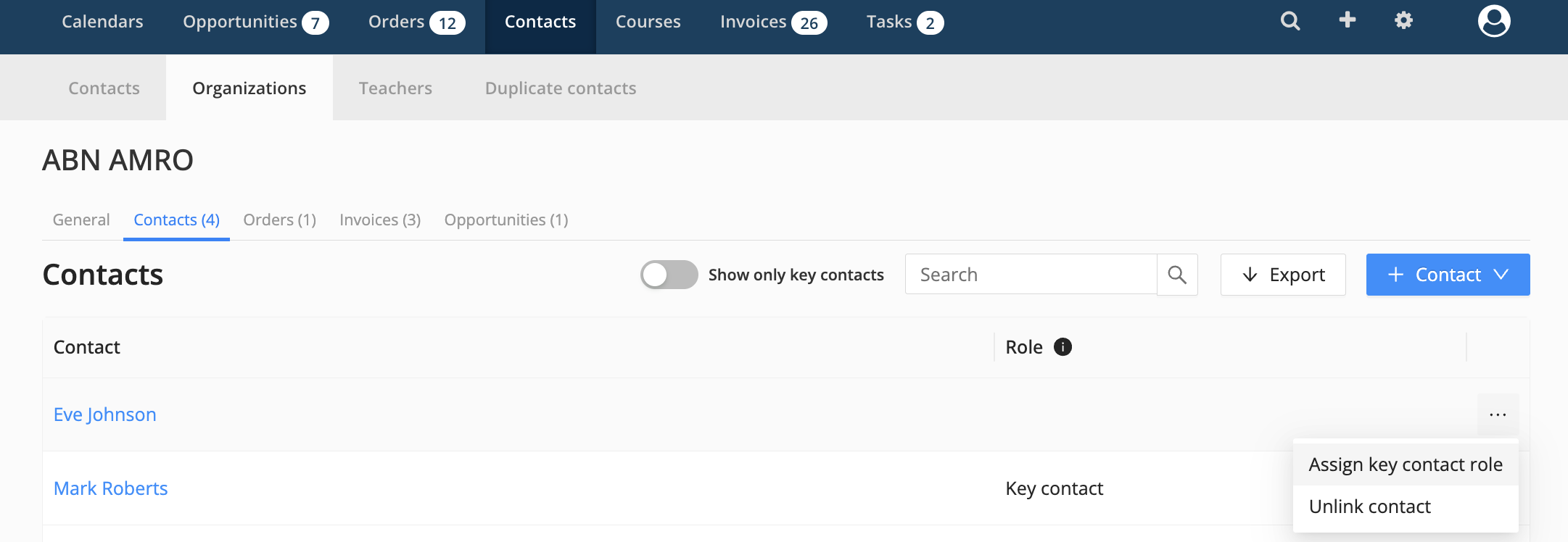
Go to 'Contacts' > 'Organizations'
Click on the organization you want to assign a key contact to
Click on the 'Contacts' tab
Click on the 3 dots icon next to a contact
Click on Assign key contact role. Now that contact has access to the business portal for that organization.
Warning: making a contact 'key contact' for an organization with existing orders and participants gives this contact access to most data related to the organization. See 'What can a key contact see in the business portal?' for more details. Due to the access to additional data we advise to only assign the key contact role when a contact needs this access. And to remove the role when the contact no longer needs it.Warning: Making a contact 'key contact' for an organization with existing orders and participants gives this contact access to most data related to the organization. Due to the access to additional data, we advise to only assign the key contact role when a contact needs this access. And to remove the role when the contact no longer needs it.
The business portal
When logging into Eduframe, key contacts will have the option to open the business portal for the organization they are key contact for. Only key contacts of an organization can access the business portal. See this article if you have multiple roles and want to access the business portal.
What can a key contact see in the business portal?
A key contact only has access to information of enrollments, attendances, orders, invoices and participants that are linked to orders that are placed for the organization they are key contact for. So information that is linked to personal orders or to orders of other organizations isn't visible in the business portal, with one exception that can be found in the article: 📄 Business portal: Partial visibility of other organizations enrollment in the context of a personal program.
A key contact can see the following information in the business portal:
Enrollment information
Product template + edition name
Status
Result
Passed date
Grade
Certificate
Order information
Order number
Product template + edition name
Amount of participants
Total cost
Date placed
Order status
Private products
Invoice information
Invoice number
Reference number
Order number
Total cost
Date
Status
Participant information
Name
Email address
Enrollments
Calendar
Attendance
What settings can I adjust within the business portal?
Check this article: 📄 Participant and Business Portal
How to use your own brand colours in the business portal?
Check the following article: 📄 How to set up your brand identity in Eduframe?
Note: With the introduction of the organization feature, normal contacts of an organization can also order on the organizations behalf. A normal contact of an organization can only order public or 'hidden link' products. For more information, read 📄 B2B Offerings: Selling Private Product Editions.