Teacher Portal
Last updated: July 31, 2026
Summary
Eduframe offers a Teacher Portal for teachers. The teacher portal is a dedicated area of Eduframe where the teachers and instructors linked to your organization can see their own teaching schedule, keep track of who's in their classes, and take attendance — without needing access to the full admin environment. It gives teachers a simple, focused view of exactly what they're teaching and when, so they can come prepared and keep participant records up to date, while your team keeps full control over course setup, enrollments, and billing in the admin side of Eduframe.
Find out more about the Teacher Portal in this article.
How to create a teacher?
A teacher is always a contact and cannot only be a teacher. You can add the teacher role to a contact, and if you create a teacher it will immediately become a contact as well.
You can create teachers in Eduframe one by one or in bulk. If you create teachers one by one, you can do that by creating a new teacher or create a teacher from an existing contact. The third option, as you can see on the image below, is to import teachers in bulk with a CSV.
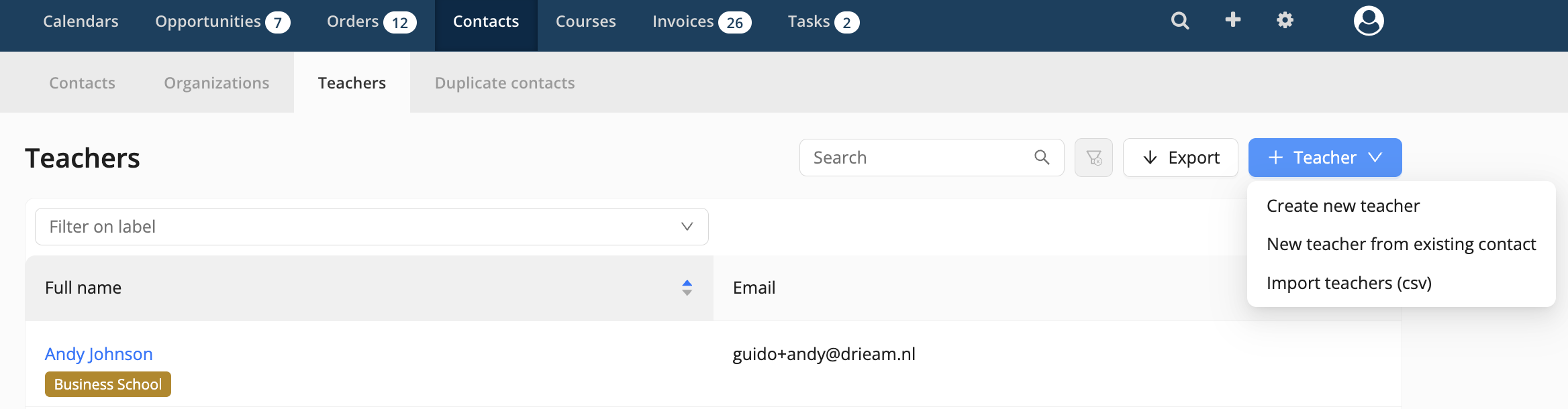
More details on how to create teachers can be found in 📄 How to Create and Import Contacts, Teachers and Organizations.
How to access the teacher portal?
Teachers don't need a separate account or a special invitation process — they log in with the same personal credentials used for any other contact login in Eduframe (or through your organization's single sign-on setup, if you have one configured). What gives someone access to the teacher portal is simply being added as a teacher in Eduframe and linked to a contact record; once that's done, the portal becomes visible to them the next time they log in.
If a teacher is marked as inactive, they immediately lose access to the teacher portal — a useful way to revoke access for someone who's no longer teaching for you, without deleting their history. More information can be found in 📄 How to set a Teacher to Inactive?
How to switch between the teacher and participant portal?
If you are both a participant and a teacher, you can switch between the participant and teacher portal. To switch between these roles, you can click on your name in the top right of Eduframe if you are in the teacher portal, and switch to the participant portal.
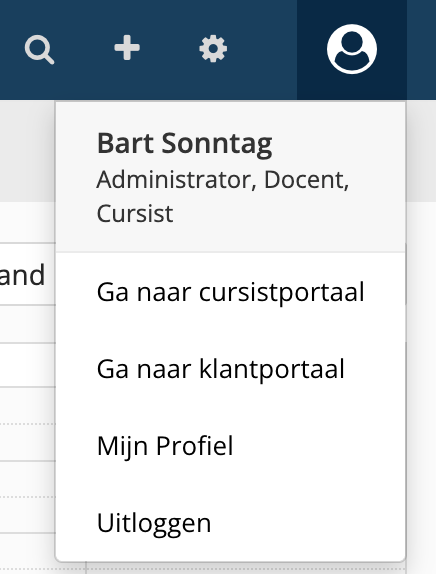
To go back from the participant to the teacher portal, you click on your name in the participant portal and select 'Switch to Eduframe'.
Key features of the Teacher Portal
A personal course overview
Teachers see a clear list of every course edition (planned course) they've been assigned to teach, so they always know what's coming up without having to ask an administrator.
To inform teachers about the meetings they have been assigned to for the coming week, a reminder email can be switched on via Settings > Email templates & triggers > tab 'System' > email under 'Teacher'.

Schedules and calendar
For each course, teachers can open a meetings tab that lists every session, date, and time. There's also a personal calendar view of their full teaching schedule across all courses. Teachers can subscribe to this calendar from their own calendar app - find out more in 📄 Eduframe Calendar and iCal- so their teaching schedule stays in sync automatically.
Course Participants
Every course a teacher is assigned to includes an enrollments tab showing the participants registered for that course edition, giving teachers an at-a-glance view of their class list.
Attendance tracking
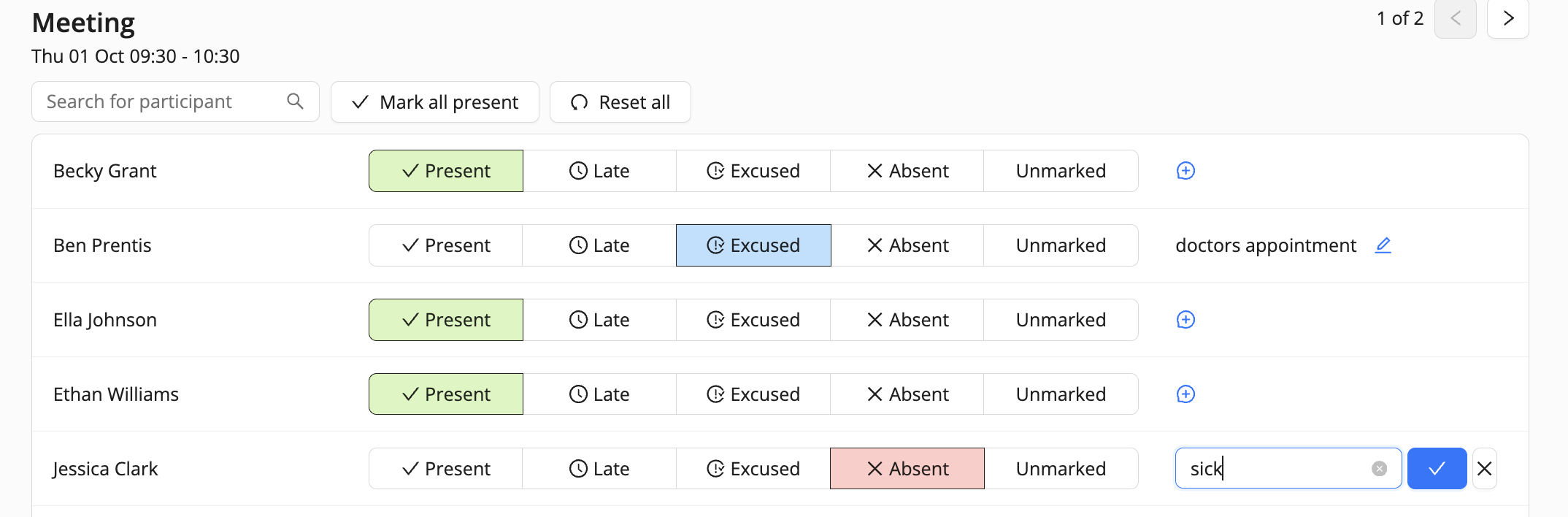
Teachers can mark attendance for each meeting, recording whether a participant attended, was late, was absent, or was absent with leave. To save time, they can mark an entire group present in one click, or reset a meeting's attendance if something needs to be redone. Teachers can also add a comment to an individual participant's attendance record, and export attendance lists for their courses when they need the data outside of Eduframe.
Course materials
If materials have been linked to a course, teachers can view and access them from the portal, so everything they need for a session is in one place.
Teacher confirmations
Teachers can receive meeting confirmation requests when they're proposed for a session, and simply confirm or decline directly in the portal. More information can be found in 📄 Teacher Confirmation.
Note: This is a Premium Feature. If you are interested, contact Support.
Profile settings
Teachers can open their own profile from the portal to review and update their personal details.
Teacher settings for an admin
As an admin, you have several actions to perform on a teacher in Eduframe:
You can email teachers to inform them about a course edition and meeting they are assigned to.
You can add notes to a teacher, e.g. in case the teacher is or is not available.
You can add 📄 Labels to a teacher, e.g. if you want to add a certain qualification to the teacher.
You can add 📄 Custom Fields to a teacher, e.g. if you want to add an employee number to teachers.
When you add a teacher to a meeting, you can see whether a teacher is already booked at the same time and date by the conflict indicator.