Administrators
Last updated: November 18, 2026
Summary
In the Administrators settings, you manage the team members responsible for your organization's back-office operations in Eduframe. This area is for adding and managing colleagues with administrative access, not Teachers.
How do I manage Administrators and roles?
As an Admin, go to Settings > Administrators.
How do I add a new Administrator?
To give a new colleague access to the Eduframe environment:
Click Add Administrator.
Enter the required details and click Save.
The new Administrator automatically receives the Contact created Email Template, so they can set their password and log in.
Note: If the person is already registered in Eduframe, click Assign to an existing contact to give them administrative access without creating a duplicate Contact.
How do I create and customize admin roles?
If you need to limit access or create specific permissions for different team members, you can manage these under Roles & Permissions.
To create a new role: click Add Role, name the role and save it.
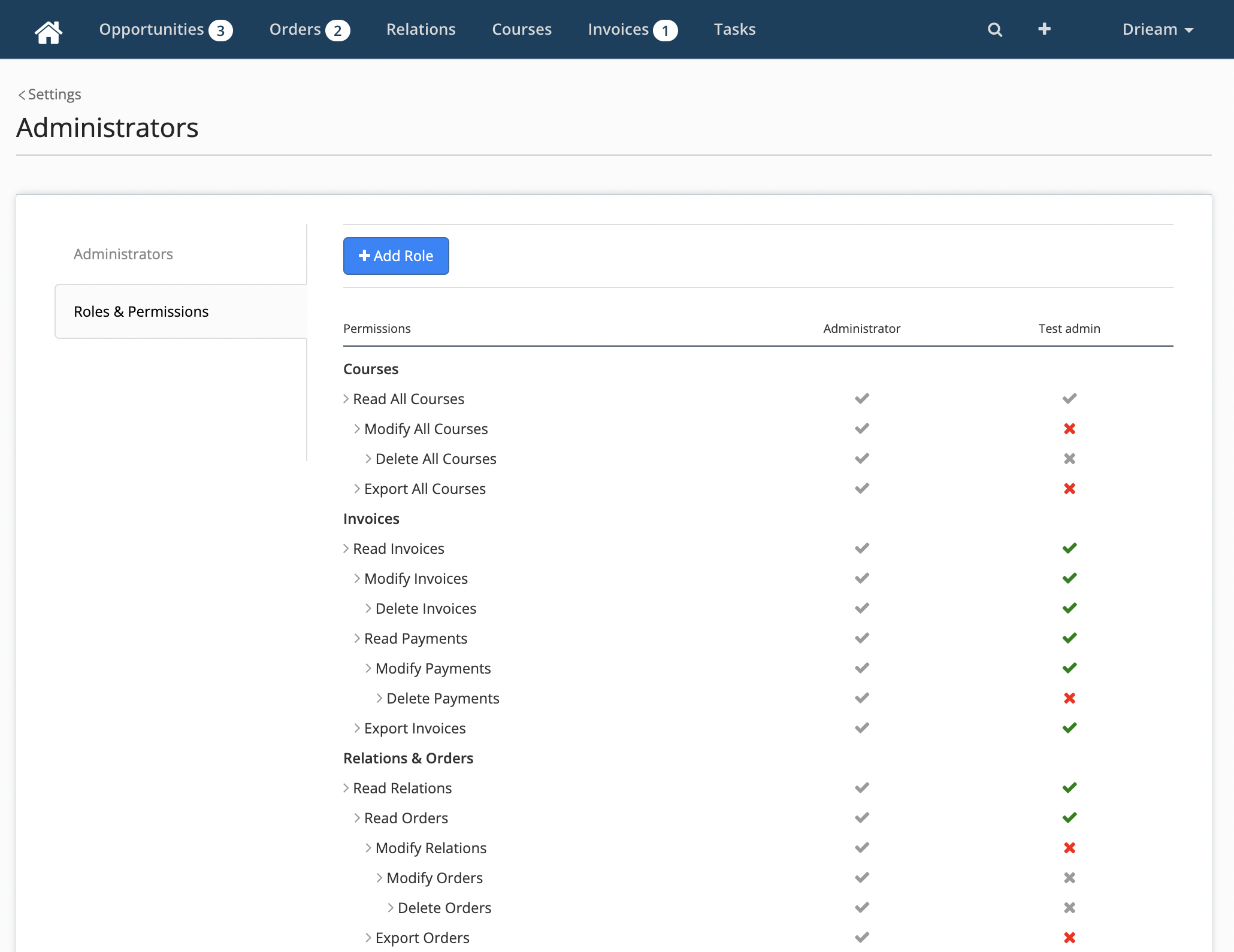
To adjust permissions: click the check mark or cross icon next to each permission to turn access on or off for that role.
Note: The default Administrator role is a system-wide master role. It always keeps all permissions and cannot be modified or deleted.
Below is an example of Administrators and their permissions in Eduframe:
How do permissions work?
Permissions in Eduframe are organized by function and follow a logical hierarchy. A basic permission (like Read) is often required before you can enable more advanced actions (like Modify or Delete).
Core permission types
For most functions, you can turn on the following access levels:
Read: allows the user to view data within the function.
Modify: allows the user to edit existing records.
Delete: allows the user to permanently remove records.
Export: allows the user to download data (e.g. CSV files) for external use.
Function overview
You can customize access for the following categories:
Courses: manage visibility and editing rights for all course content.
Invoices & Payments: control who can view financial documents, track payments and export billing data.
All Contacts & Orders: manage Participant data, authentication, Enrollments and Order processing.
Teachers: manage Teacher profiles and their associated data.
Leads: control who can view or modify potential customer leads via 📄 Opportunities.
Settings: access to organization-wide configuration and Administrator management.
Note: Some permissions are nested. For example, to allow someone to Modify Enrollments, they generally first need the Read Enrollments permission.
How do I change an Administrator's role?
If a team member's responsibilities change, you can update their access by assigning them a different role.
Go to Settings > Administrators.
Find the Administrator you want to update.
Select the new role from the dropdown menu.
Click Save.
Note: Only Administrators with the Manage Administrators permission can add or remove Administrators or change the roles of other team members.
Warning: For security reasons, Administrators cannot change each other's email addresses in Eduframe. If an Administrator's email address needs to be updated, contact Support.