Self-registration (for Program Course Elements)
Last updated: July 31, 2026
Summary
Enrolling a participant in a course in their program would normally require a manual action to be performed by an admin. In order to improve the participant experience and decrease the admin workload, you may want to enable participants to enroll themselves in courses that are part of their program.
How to enable self-enrollment for participants?
Self-enrollment for participants is disabled by default. You can activate this functionality in ‘Settings’ > ‘Programs’ > ‘Enrollments'. Here, you can check the ‘Allow participants to self-enroll in courses that are part of their program’ checkbox. This will activate the self-enrollment functionality for all programs.
How to enroll as participant?
When the self-enrollment is enabled, and the participant opens their program details in the participant portal, they can see an ‘Enroll’ button next to the courses that they are not enrolled in. Clicking this button allows the participant to choose a course edition, and after confirming their choice, they will be enrolled, without having to go through the signup form again.
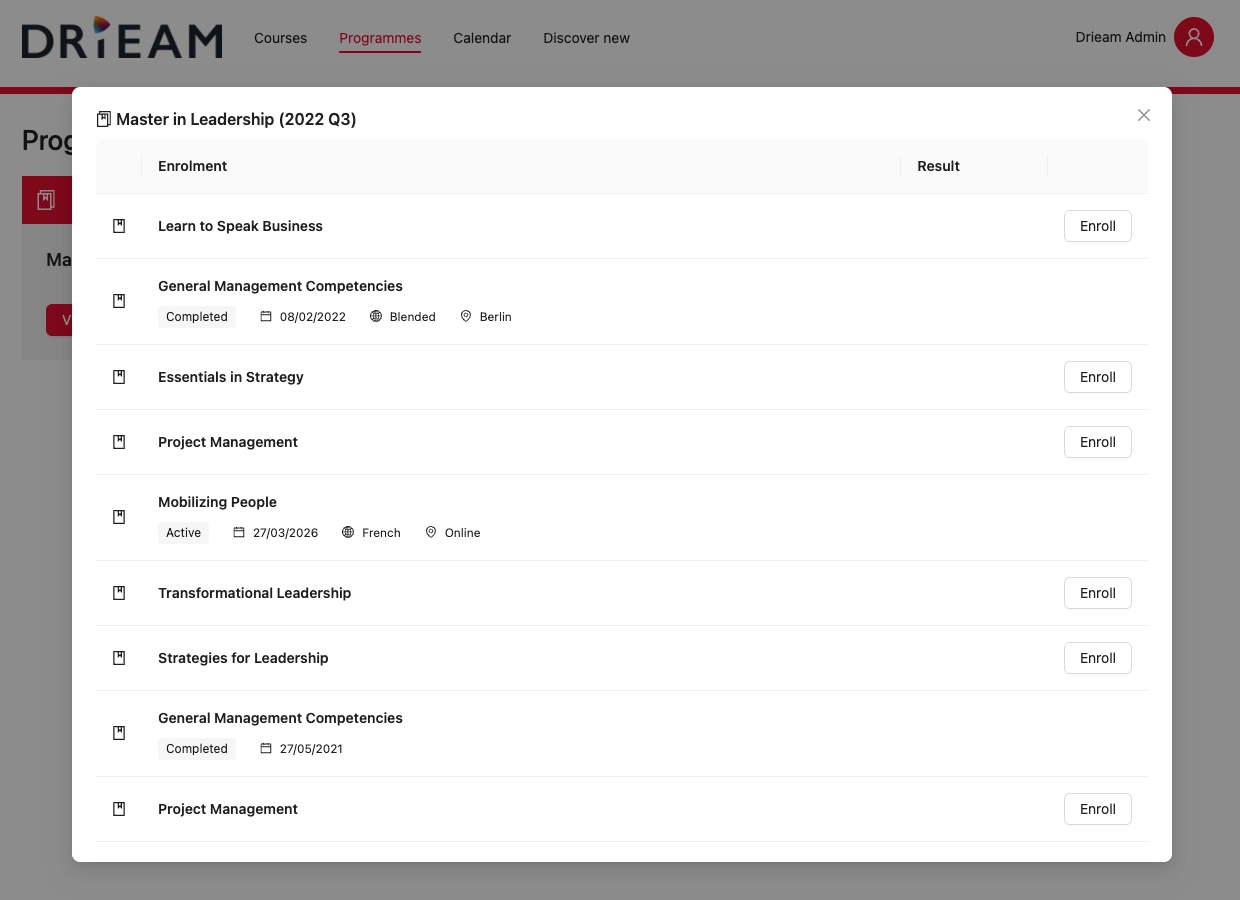
Participants can choose from all course editions that are publicly available on the signup. This excludes course editions that are full, or have their visibility set to ‘Private’ or ‘Admin only’. Participants can still be enrolled in these course editions manually by an admin.
Warning: Participants cannot cancel their enrollment after they have confirmed their choice. If the enrollment should be cancelled, this needs to be done by an admin.
Admin overview of self-enrollments
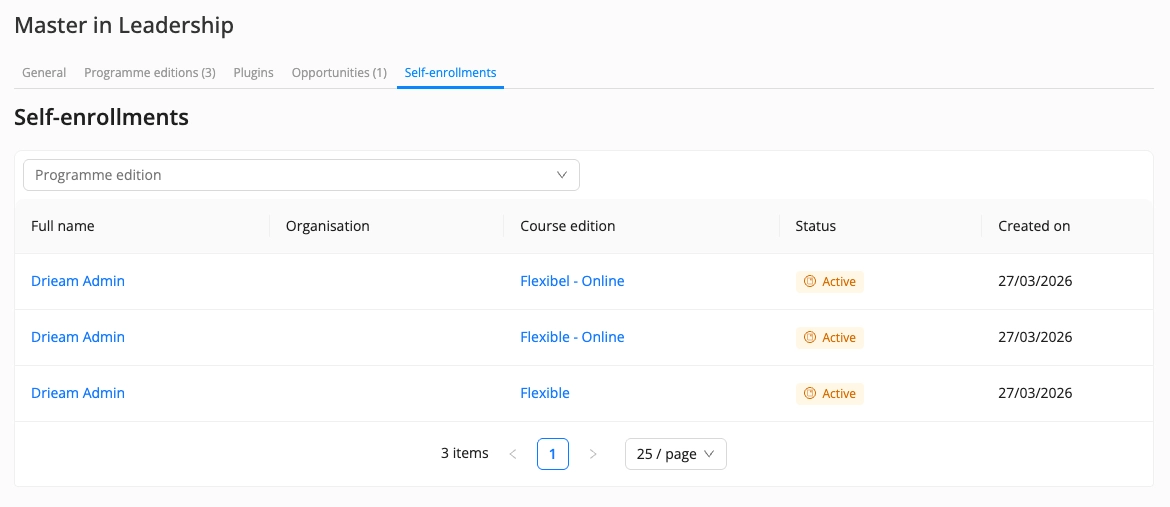
Admins can see an overview of all self-enrollments per program in the ‘Self-enrollments’ tab of the program. The table can be filtered by program edition. Clicking the participant's name will take you to their personal program.