Teacher Availability
Last updated: October 21, 2026
Summary
Scheduling meetings often starts with asking teachers when they are available. The Teacher Availability functionality moves that step into Eduframe; As an admin, you request availability for the meetings in a certain period, teachers indicate in the teacher portal when they are available or unavailable, and you see their answers while assigning teachers to meetings and subevents.
Note that this is a Premium Feature. If you are interested, contact Support.
What is Teacher Availability?
Teacher Availability adds a feedback loop between planners and teachers before teachers are assigned to meetings and subevents:
As an admin (or planner), you request availability for the meetings in a certain period.
As a teacher, you mark yourself available or unavailable, per course location, with an optional comment.
As an admin (or planner), you see each teacher's availability when assigning teachers, and can filter on it.
This is especially useful when you work with part-time, freelance, or guest teachers whose availability changes regularly.
Availability is purely informational for the planner, not a hard requirement. Eduframe never stops you from assigning a teacher who marked themselves unavailable, and a teacher changing their availability never changes meetings they are already planned on.
Who is this for?
Admins / planners: request availability, let teachers know, and use the responses when assigning teachers.
Teachers: indicate when and where they can teach.
What do you need before you start?
Teacher Availability builds on two things you set up while scheduling:
Teacher requirements: teachers are asked for their availability only for meetings and subevents with an open teacher requirement that they match. A teacher matches a requirement when they have all of its labels. A requirement without labels matches every teacher. Once all spots of a requirement are filled, the meeting no longer shows up for teachers who aren't planned on it.
Course location: teachers give their availability per course location, not per room. Eduframe derives the course location of a meeting from its location, or from the course edition if the meeting has no location. You can see it, read-only, in the meeting or subevent drawer.
To request availability, you need the Modify All Courses permission.
How does Teacher Availability work?
If you want to make use of the Teacher Availability, follow the next steps:
1. Request availability (admin/planner)
You request availability for all meetings in a period at once, from the meeting list:
Navigate to Calendars > Meetings (List)
Click Request availability
Choose the Period (at most 365 days)
Optionally, narrow it down:
Department: only meetings of course templates in this department
Course template labels: only meetings of course templates that have all selected labels
Click Send request
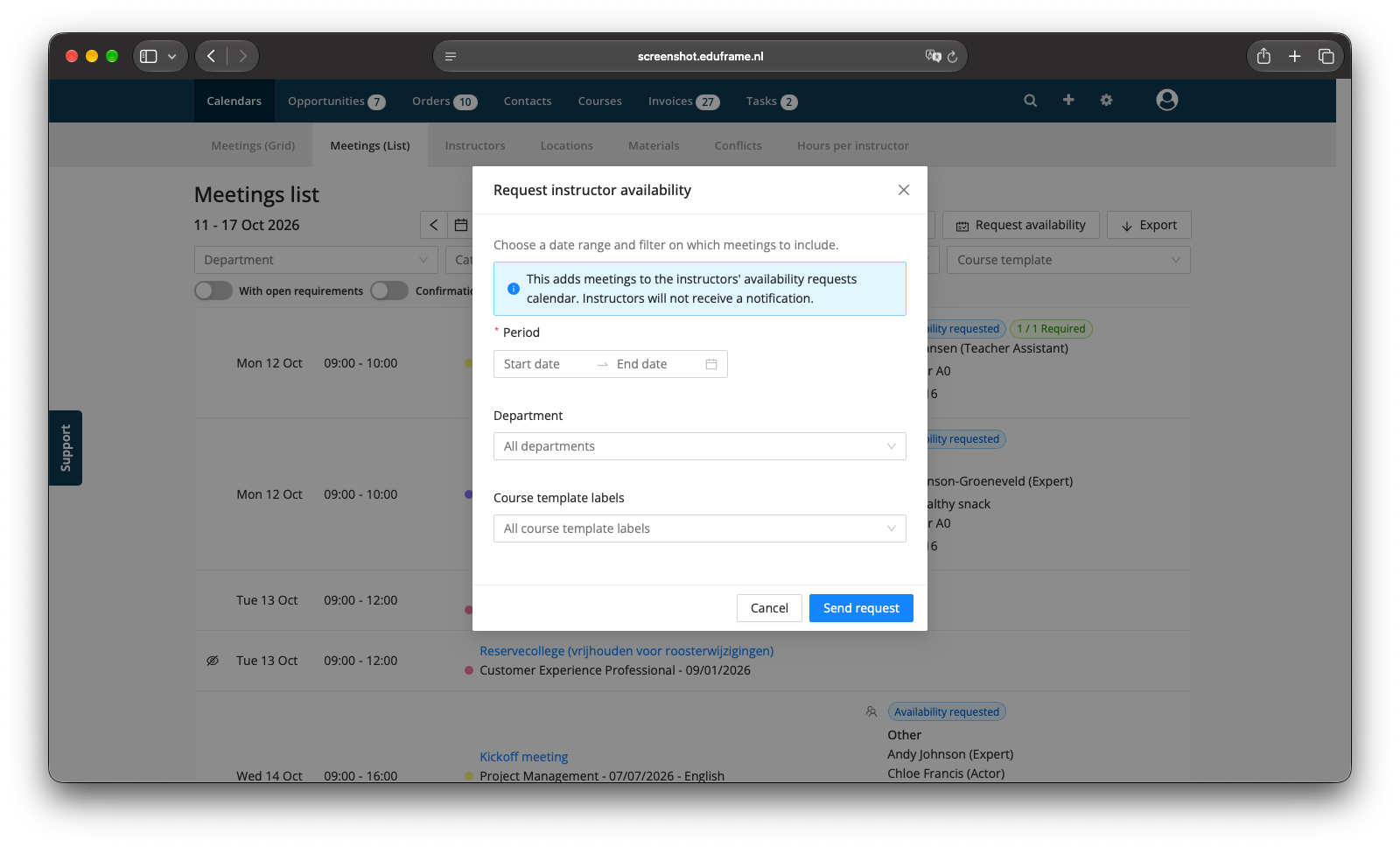
Eduframe now marks every meeting and subevent that starts in the period, including draft meetings. These show a blue Availability requested tag in the meeting list, in the Scheduler tab of the course edition, and in the meeting drawer. Use the Availability not requested filter in the meeting list to find meetings you haven't requested availability for yet.
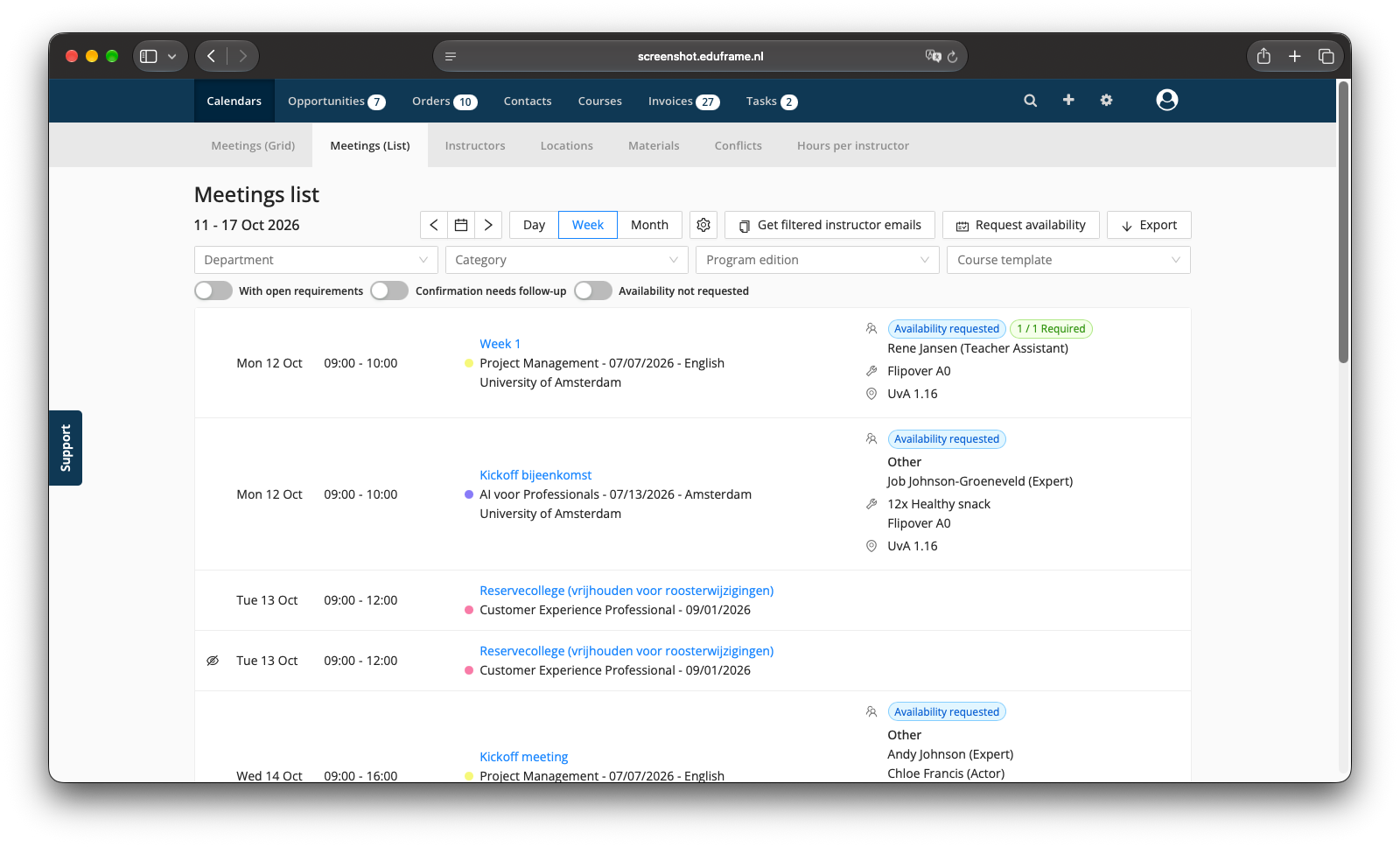
Notes:
A request covers the meetings that exist at that moment. If you add meetings to the period later, request availability again. Meetings that were already requested are skipped, so requesting the same period twice is safe.
Meetings and subevents without a course location are skipped. You'll see a warning with the number skipped. Once you fill in their location, you can request availability again.
2. Let teachers know (admin/planner)
Note: Teachers don't automatically receive an email when you request availability. They can see the number of open requests in the Availability menu item of the teacher portal, but we recommend letting them know so they respond in time. The steps below show how to get their email addresses.
Navigate to Calendars > Meetings (List)
Click Get filtered teacher emails
Choose the same Period, Department, and Course template labels as your request
Click Get email addresses
Eduframe copies the email addresses of teachers matching the open teacher requirements in that period to your clipboard, ready to paste into your email program.
3. Indicate availability (teacher)
Teachers fill in their availability on the Availability page of the teacher portal. It shows a calendar (day, week, or month view) with the meetings and subevents they're asked about, each labeled with the teacher's current response: Available, Partly available, Unavailable, or Not set. Next week with meetings jumps straight to the next week that has open requests.
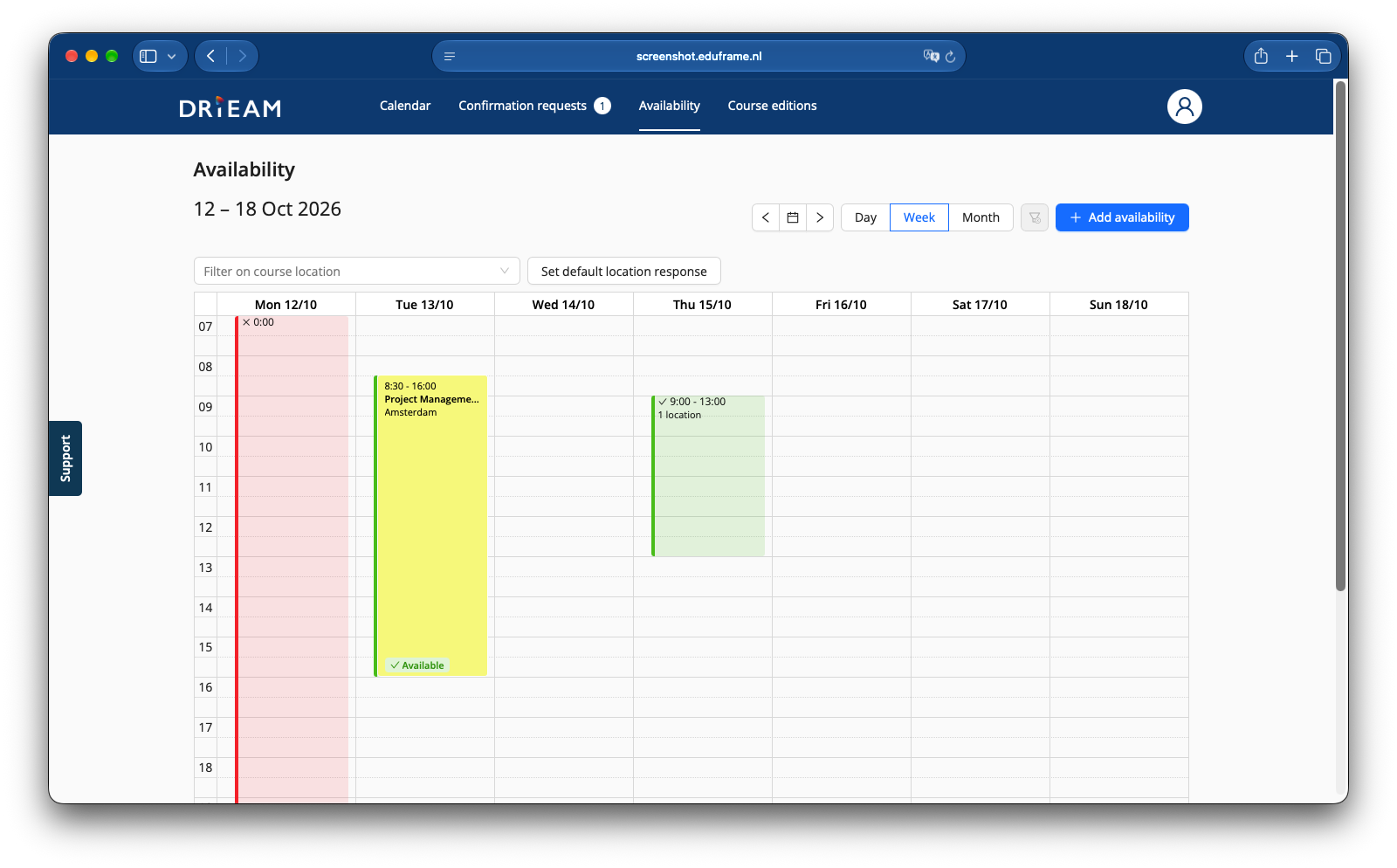
Teachers can indicate their availability in three ways:
From a meeting: click a meeting in the calendar to fill in its time and course location, then set the status. This saves your availability for that time and location, so it also applies to other meetings at the same location in that period.
By selecting time in the calendar: click or drag across cells in the week or day view, then set the status.
For a whole day: click the day's header (for example Mon 12/10) in the week or day view. This selects the full day.
With Add availability: enter a date and time range, for example to mark a full holiday at once.
In the month view you can't select time. Click a day to open it in the day view, or use Add availability for longer periods.
In each case, the teacher chooses:
Status: Available, Unavailable, or Clear to remove what they entered before
Locations: All locations or Specific location(s). When marking themselves available for specific locations, teachers can also tick Mark all other locations unavailable.
Comment (optional): a note for the planner, for example "dentist" or "only mornings"
Availability doesn't have to match meetings: teachers can mark any period, and Eduframe compares it to the meeting times. New entries replace what was entered earlier for the same time and location.
To change or remove availability, click the block in the calendar and update it in the Set availability popover, or select the time again and choose Clear.
With Set default location response, teachers can choose the course locations they usually teach at. These are preselected when they add availability.
Tip: teachers who teach at several locations can filter the calendar with Filter on course location.
4. Use availability when assigning teachers (admin)
When you add teachers to a meeting or subevent, or to several meetings in bulk, the teacher list shows each teacher's availability for that meeting. Next to the status, you see the times the teacher is available that day.
Status | Description |
|---|---|
Available | Available for the whole meeting at its course location |
Partly available | Available for part of the meeting |
Unavailable | Marked unavailable for (part of) the meeting |
Availability unknown | No response |
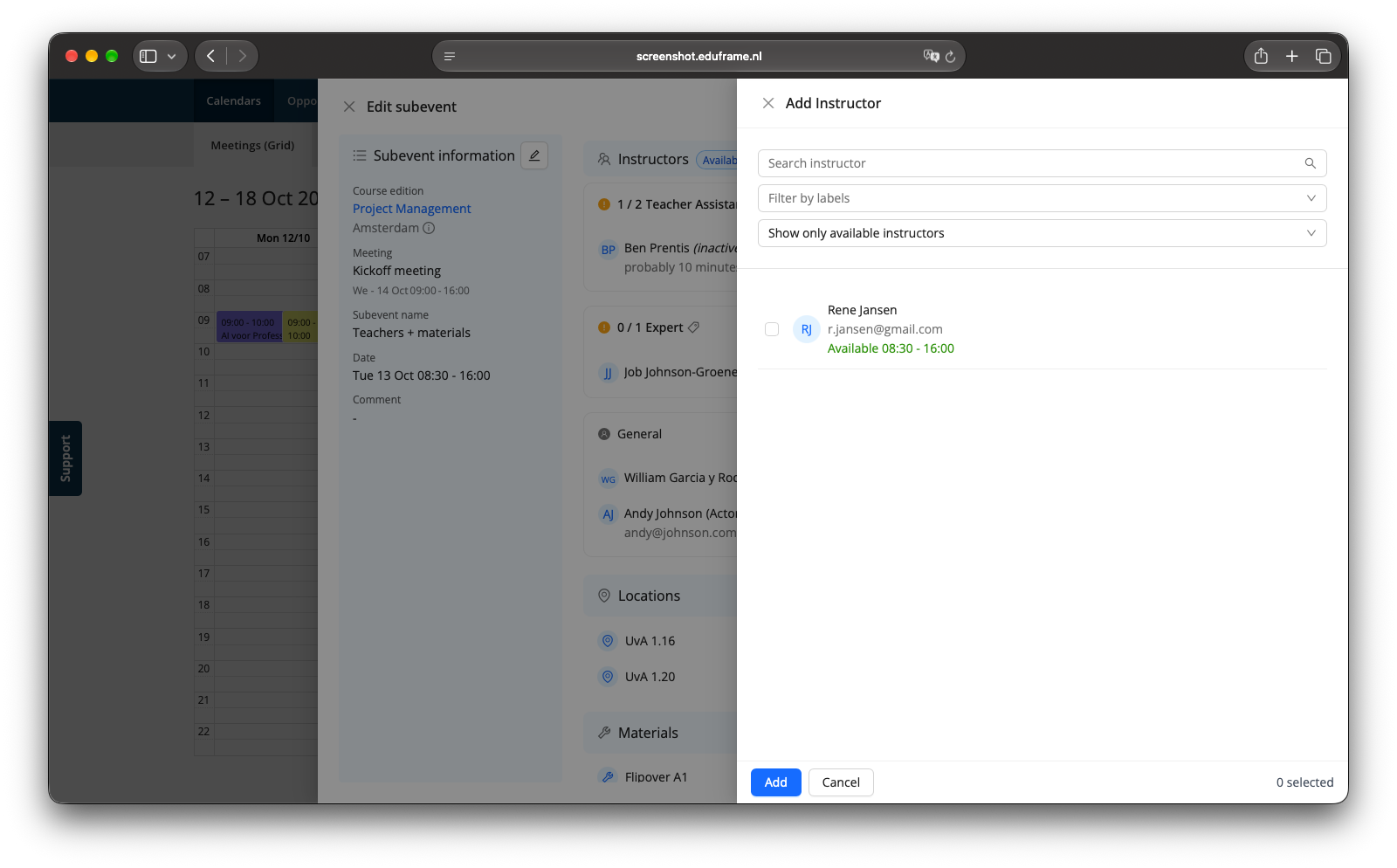
Use the Status filter to choose which teachers to show:
Show available teachers and all with no response (default): hides teachers who marked themselves unavailable for (part of) the meeting
Show only available teachers: only teachers who are available for the whole meeting
Show all teachers: everyone, including teachers who are unavailable or already planned at the same time
Note: the first two options also hide teachers who are already planned on another meeting at the same time.
Once you've assigned teachers, you can ask them to confirm with Teacher Confirmation.
Frequently asked questions
Can I see or edit a teacher's availability calendar?
No. Only the teacher can enter or change their availability. You see their availability per meeting when assigning teachers.
What happens if a teacher changes their availability after I've planned them?
Nothing changes in your planning. The availability status shown when assigning teachers is updated, but the teacher stays planned on the meeting.
I added meetings after requesting availability. Do teachers see them?
Not yet. Request availability again for that period. Meetings that were already requested are skipped.
Why doesn't a teacher see a meeting I requested availability for?
A teacher only sees a requested meeting or subevent when:
it has an open teacher requirement whose labels the teacher has.
it has a course location.
it isn't canceled.
the teacher isn't already planned on it.
Can I get availability through the API?
Yes. The Eduframe API offers a read-only list of availability blocks, with the teacher, course location, period, and status. Comments are not included. See Get all teacher availability blocks in the API documentation.