Custom Fields
Last updated: November 18, 2026
Summary
In this article, the different ways and types of custom fields that can be added to a contact, organization, order, teacher, product template and edition.
Types of Custom Fields
As an admin, you can manage all your custom fields in 'Settings' > 'Custom Fields'. Custom fields can be related to a contact, organization, order, teacher, product template and edition. See below explanations if you link a custom field to:
A Contact: the custom fields will be visible on the 📄 Signup Forms on top of the default contact fields such as Name and Email Address. The default fields cannot be changed or deleted.
An Organization: the custom field will be visible on the organization part of a signup form.
An Order: the custom field will be visible on order level in Eduframe.
A Teacher: the custom fields will be visible on teacher contact level on top of default fields like Name and Email Address. These default fields cannot be changed or deleted.
A Product Template: the custom fields will be visible on a course or program template as part of the features section. More information can be found in 📄 Products explained: program templates/editions/blocks and course templates/editions.
A Product Edition, the custom fields will be visible on 📄 Course Editions or 📄 Program Editions.
How to add a custom field?
As an admin, you:
First choose whether you want to link the custom field to a contact, organization, order, teacher, product template or edition.
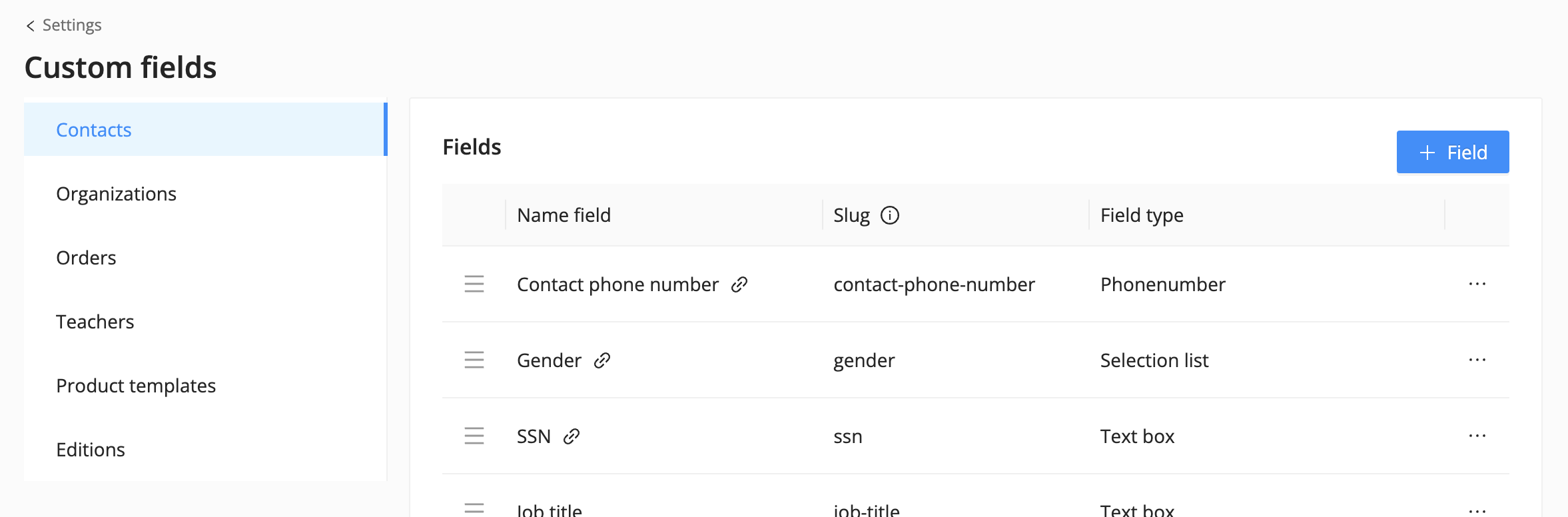
Click on the blue button '+ Field'
Choose a name for the custom field
Notes:
The contact custom fields can be used in the contact registration forms and defined for order contact details (step 2 in signup) and participant details (step 3 in signup). See the following article for more information: 📄 Create Multiple and Different Signup Forms.
The name of a custom field is also used to automatically create a unique slug (URL). The slug cannot be modified after the field is added.
Only for organizations' invoice addresses:
Required on signup: Choose whether you want to make the custom field mandatory on signup (it will not be mandatory when creating an organization in Eduframe).
Show on signup when it is a personal order: Choose whether you want to make the field visible on signup for a personal order.
Show on signup when it is an organization order: Choose whether you want to make the field visible on signup for an organization order.
System field: You can link your custom field to one of the system fields. All system fields unlock different possibilities in Eduframe, which are explained in the ‘Add/edit custom field’ drawer.
Note: A field can only be linked to a system field once. If it is not clickable in the select, it is already used. System field links are available on contact, organization, product template and order custom fields.
When adding a custom field linked to 'Order' the only field configuration allowed is a field linked to system field 'Reference' and field type 'Text box'. Reference is shown for organization orders.
Field type: Select which field type your custom field should be. Note that field-types cannot be adjusted after creation. You can choose between:
Checkbox, e.g. yes or no
Date
Number
Phone number
Selection list where you can select one option
Selection list with multiple options to select
Text box
Text field with multiple lines
VAT number
Country
Selection list options: If you selected a selection list as field type, you can fill the options to select here.
Visibility of contact custom fields
Contact custom fields are always visible for the admin in Eduframe. These fields need to be added to right forms first to be visible for participants on the signup. See also 📄 Create Multiple and Different Signup Forms.
If you want to collect information on the signup form using contact custom fields, but you do not want participants to be able to see this information in the participant and business portal, you go to:
Settings
Participant & business portal
Tab 'Personal information form'.
Here an admin can select the contact custom fields that should be visible in the participant and business portal.
For more information, see 📄 Participant and Business Portal.
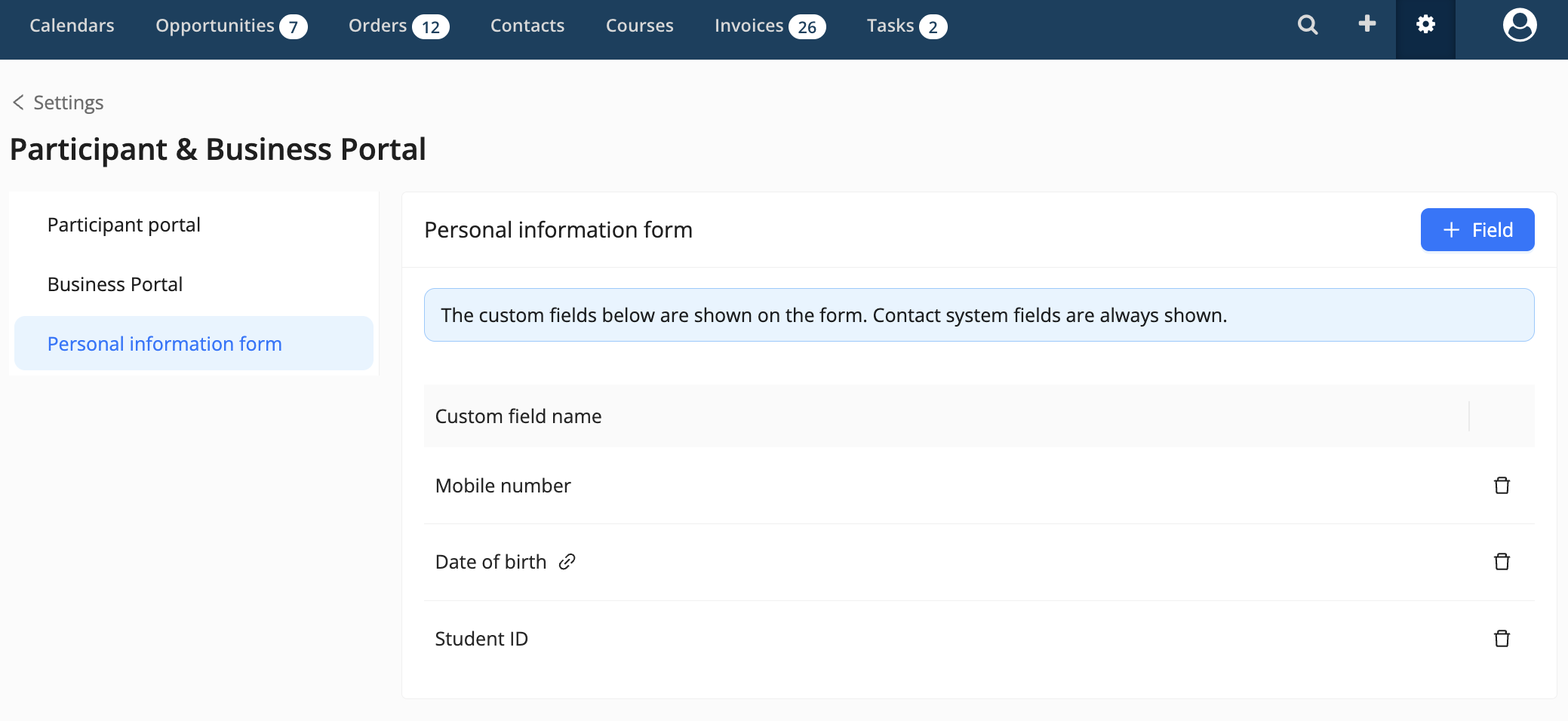
Note: When a custom contact field is not part of a form the field is only hidden from the participants. More information can be found here: 📄 Participant and Business Portal.
Sensitive Custom Fields for Contacts
Sensitive Custom Fields let Admins store confidential information on a Contact. The values of these fields are stored encrypted and are hidden everywhere else in Eduframe.
Note: Sensitive Custom Fields are a beta feature. To enable them for your organization, contact Support.
As an Admin, go to Settings > Custom fields and open the Sensitive fields section for Contacts. From there, you can:
Add a field: enter a title and choose a field type. For selection lists, you can manage the options afterwards.
Edit a field: change the title of an existing field.
Edit options: for selection list fields, add, rename, enable or disable, reorder, and remove options.
Reorder or remove fields: drag fields to change their order, or delete a field you no longer need.
Note: You can’t change the field type after you create a Sensitive Custom Field. Eduframe generates the Slug from the title, and you can’t change the Slug either. This works the same as for other Custom Fields.
View and Edit the values on a Contact
When at least one Sensitive Custom Field exists, a Sensitive data tab appears on the Contact. It is only available to Admins whose role has the permission to manage sensitive data.
Reveal a value: values are hidden by default. Click Reveal next to a field to see or change its value. Revealing is logged and lasts until you leave or reload the page.
Change a value: edit the revealed field(s) and click Save. Only the fields you changed are saved. Clear a field to remove its stored value. If one value is invalid, nothing is saved and the error is shown below that field.
Hide a value again: click Hide. If you changed the value, Eduframe asks whether to discard the change or keep editing.
After a successful save, all fields are hidden again.
When you merge duplicate Contacts, Eduframe discards the Sensitive Custom Field values of the Contact that is merged away. Only the values of the primary Contact are kept.When you , the sensitive field values of the contact that is merged away are discarded.