How to Merge Duplicate Contacts?
Last updated: November 17, 2026
Summary
The Duplicate Contact Indicator in Eduframe helps prevent the same Contact from being stored in Eduframe twice. It is still possible to have two Contacts with the same name in Eduframe.
How do I set up the Duplicate Contact Indicator?
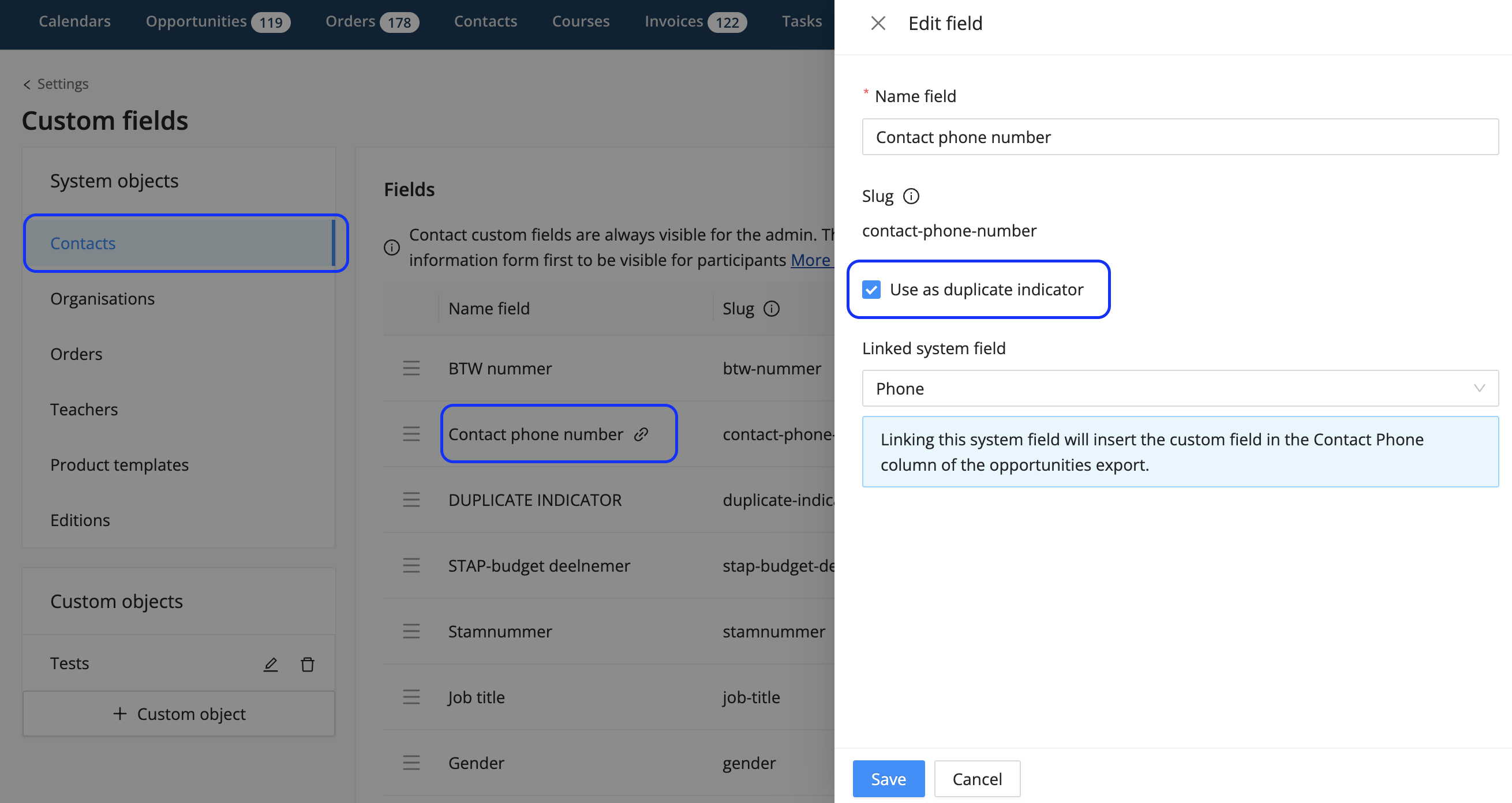
As an Admin, you can choose which Contact Custom Field(s) you set as a duplicate indicator in Eduframe. To do this, follow these steps:
Go to Settings > Custom Fields > Contacts tab (see 📄 Custom Fields).
Click Edit field via the three-dot icon on the right of a Custom Field.
Check the Use as duplicate indicator checkbox.
Save the Custom Field.
Notes:
The Email address field cannot be set as duplicate indicator. If a Contact creates an account with an email address that already exists, an error notification appears. It is not possible to create two accounts with the same email address.
The First name and Last name fields cannot be set as duplicate indicators. Especially for customers who have a lot of Contacts in Eduframe, more Contacts may have the same name. Therefore we excluded names from the duplicate indicator.
Where can I find duplicate Contacts?
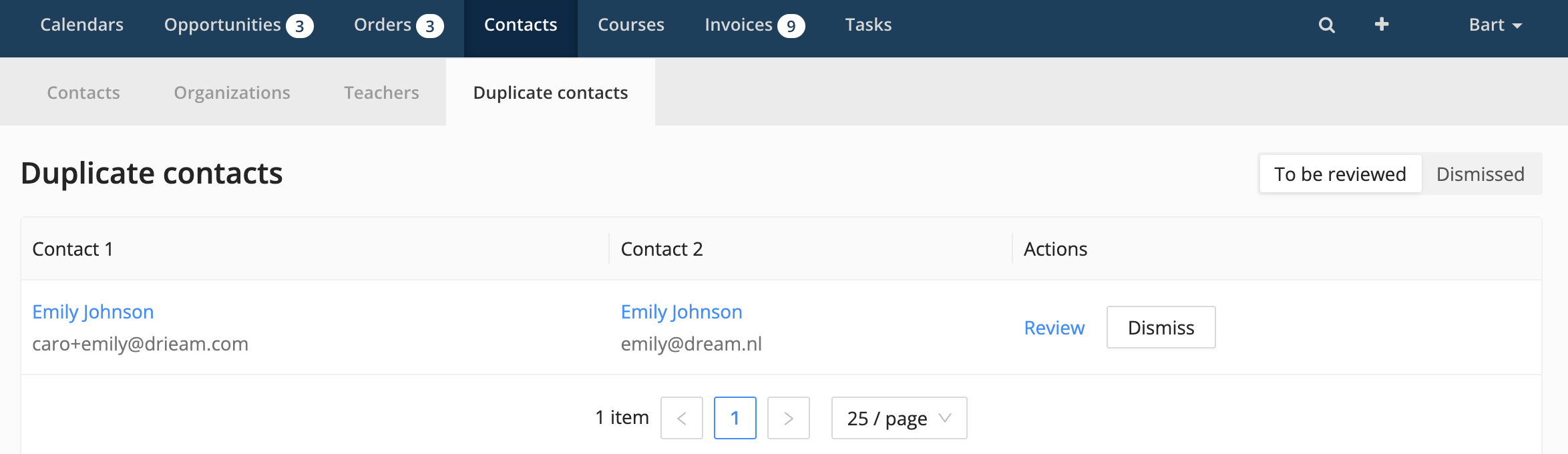
Duplicate contacts tab
All Contacts that share the same value in the selected Custom Field (e.g. phone number) appear under Contacts > Duplicate contacts.
From there, you can either review and merge the duplicates or dismiss them if they are not actual duplicates.
On the Contact
On the Contact itself, a warning shows that it might be a duplicate of another Contact. If you dismiss the duplicate warning here, the duplicate is also dismissed from the Duplicate contacts tab.

Note: Conflicts are managed per conflict, not per field, Contact or value. Ignoring a conflict does not resolve other existing and future conflicts of this Contact.
How do I merge detected duplicate Contacts?
If a duplicate Contact is detected, it shows up in the Duplicate contacts view.
To merge Contacts:
Go to Contacts > Duplicate contacts.
Click Review. This opens a new view to merge Contacts.
Check the information of both Contacts.
Make sure the Contact you want to keep is the Primary contact.
You can switch the Primary and Secondary contact with the icon in the middle.
Click Merge.
Note: When merging a Contact, all linked Organizations, Enrollments, Orders and Opportunities are added to the primary Contact. The general contact information of the primary Contact is kept.
How do I merge Contacts that are not detected as duplicates?
As an Admin, you can also manually merge two Contacts:
Go to Contacts > Contacts and click the Contact you want to merge.
Click Merge Contacts. This opens a new view.
Choose your secondary Contact by selecting it in the dropdown.
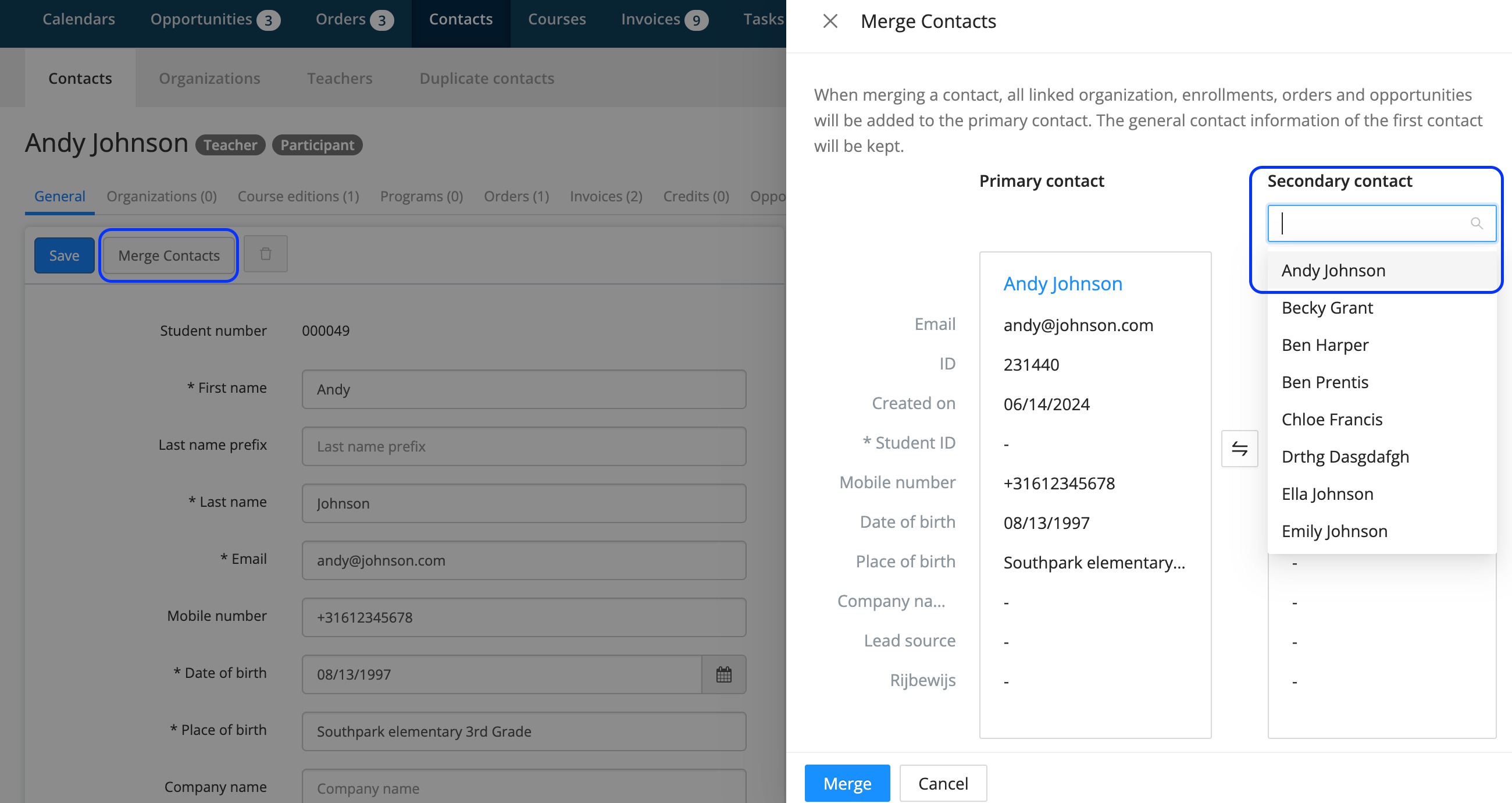
Check the information of both Contacts.
Make sure the Contact you want to keep is the Primary contact.
You can switch the Primary and Secondary contact with the switch icon in the middle.
Click Merge.
Note: When merging a Participant and a Teacher account for the same person, use the Teacher account as the primary Contact and merge the Participant into that Teacher account.
How do I find information from the deleted Contact?
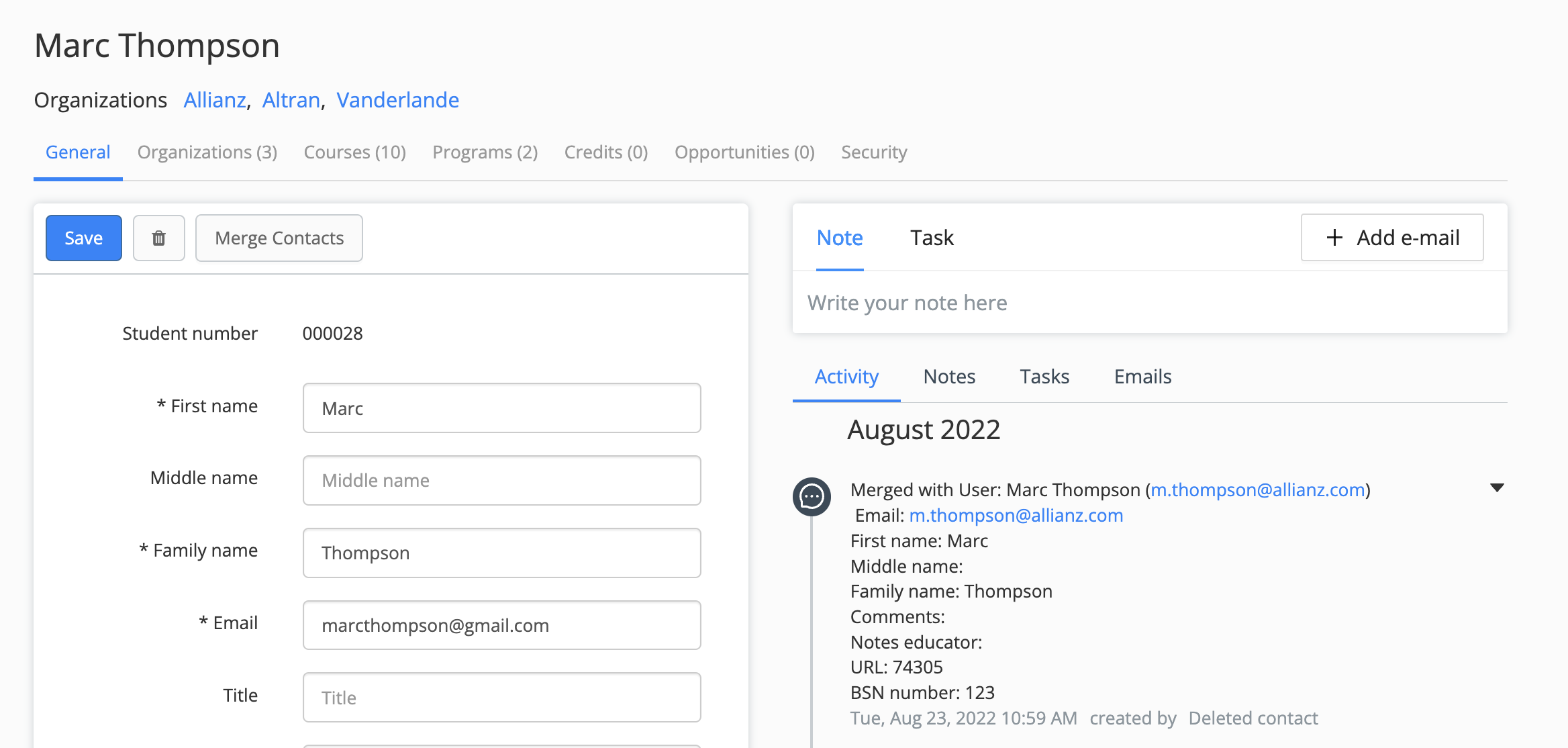
Each time two Contacts are merged, the information of the deleted Contact can still be found on the Timeline of the merged (primary) Contact.
How do I view and merge dismissed duplicate Contacts?
To view dismissed duplicates, open the Duplicate contacts tab and click Dismissed. On this tab you can see all previously dismissed duplicates, and you can still merge them if needed.