Teacher Confirmation
Last updated: October 21, 2026
Summary
The Teacher Confirmation feature helps you verify whether planned teachers will actually attend their meetings. Instead of tracking confirmations via email or spreadsheets, Eduframe lets teachers confirm or decline, and admins monitor and manage confirmation status.
Note that this is a Premium Feature. If you are interested, contact Support.
What is Teacher Confirmation?
Teacher Confirmation adds a confirmation lifecycle to planned teachers on a meeting:
admins can request a response,
teachers can confirm or decline,
admins can see the status and take action if needed.
This is especially useful when teachers are part-time, freelance, or guest lecturers, and you need certainty that they will show up.
Teacher Confirmation works best after planning. To find out who can teach before you plan, use 📄 Teacher Availability.
Who is this for?
Admins / planners: request confirmation, monitor responses, and intervene when needed.
Teachers: confirm or decline meetings they are planned for.
How does Teacher Confirmation work?
A planned teacher can have one of these statuses:
Pending (response requested, waiting for the teacher)
Confirmed
Declined
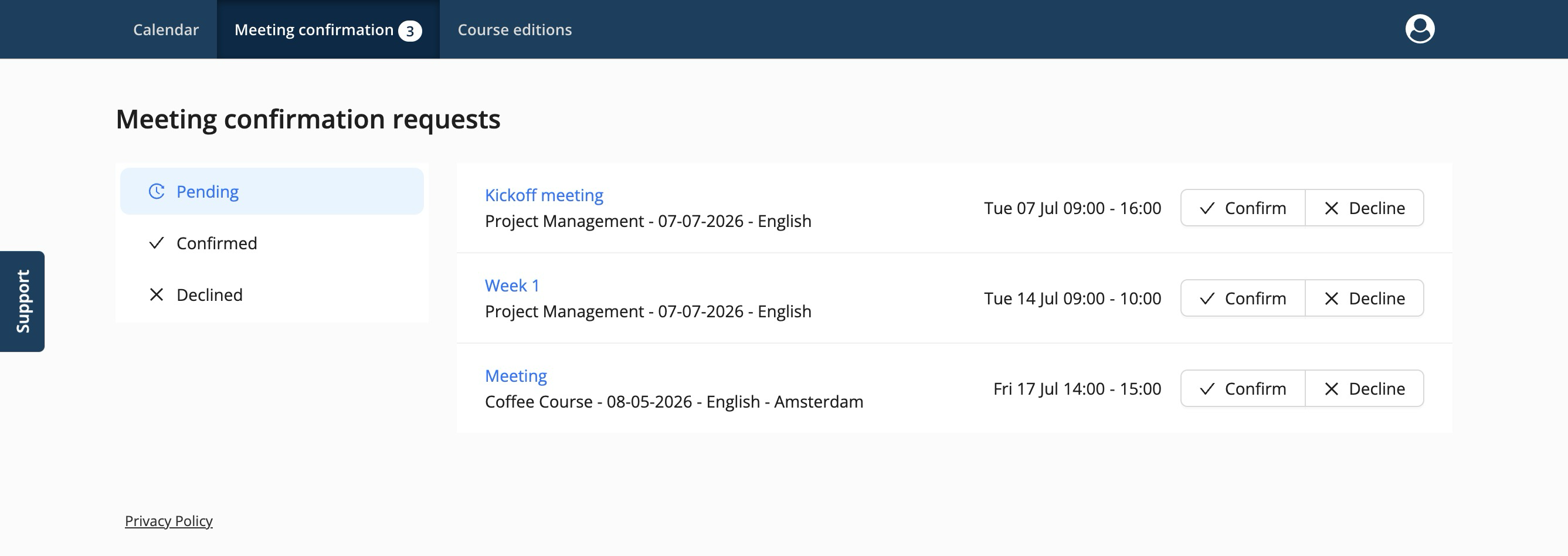
Teachers can see their requests in the portal and filter on their status (example below).
1. Request confirmation (admin)
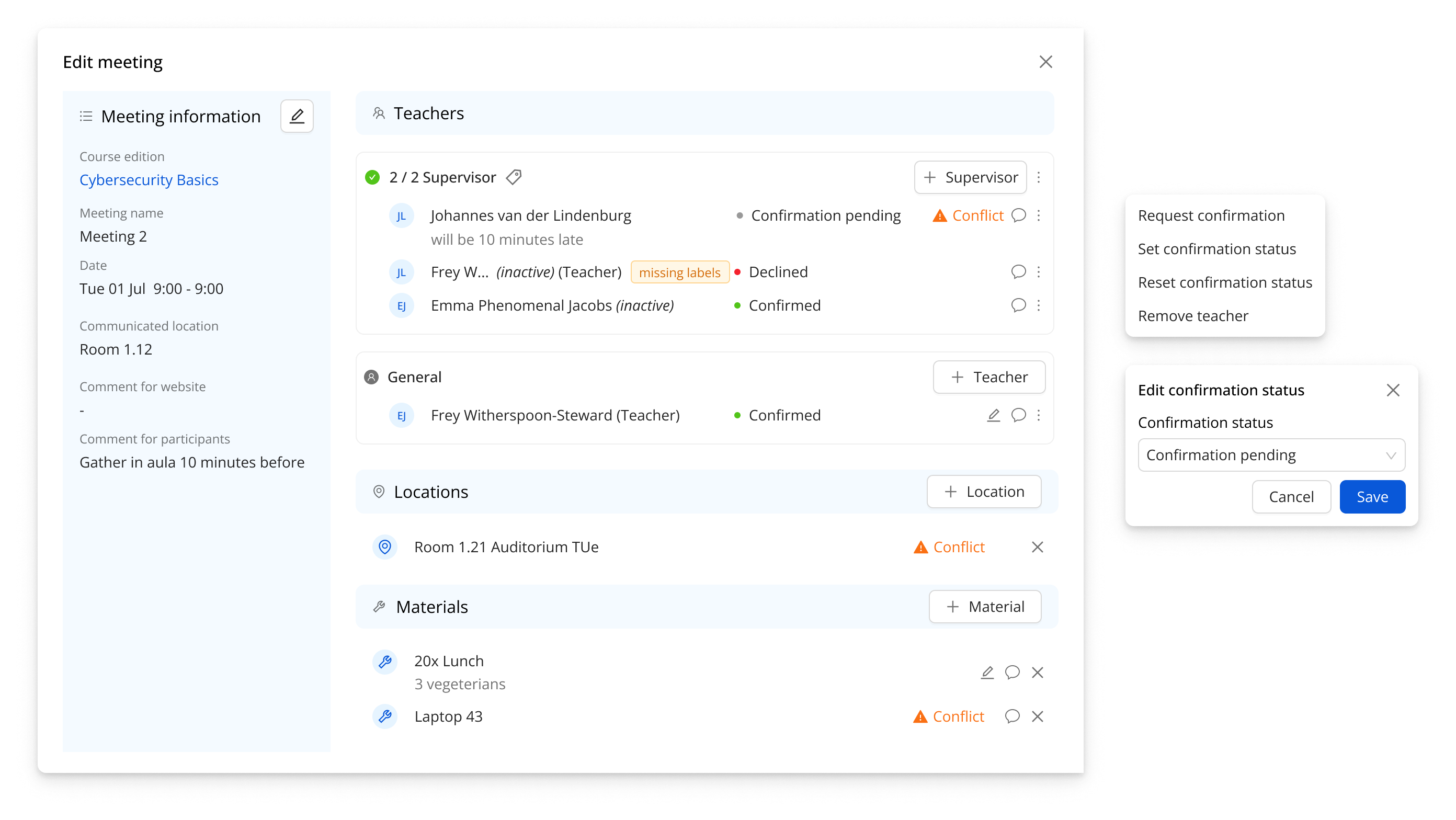
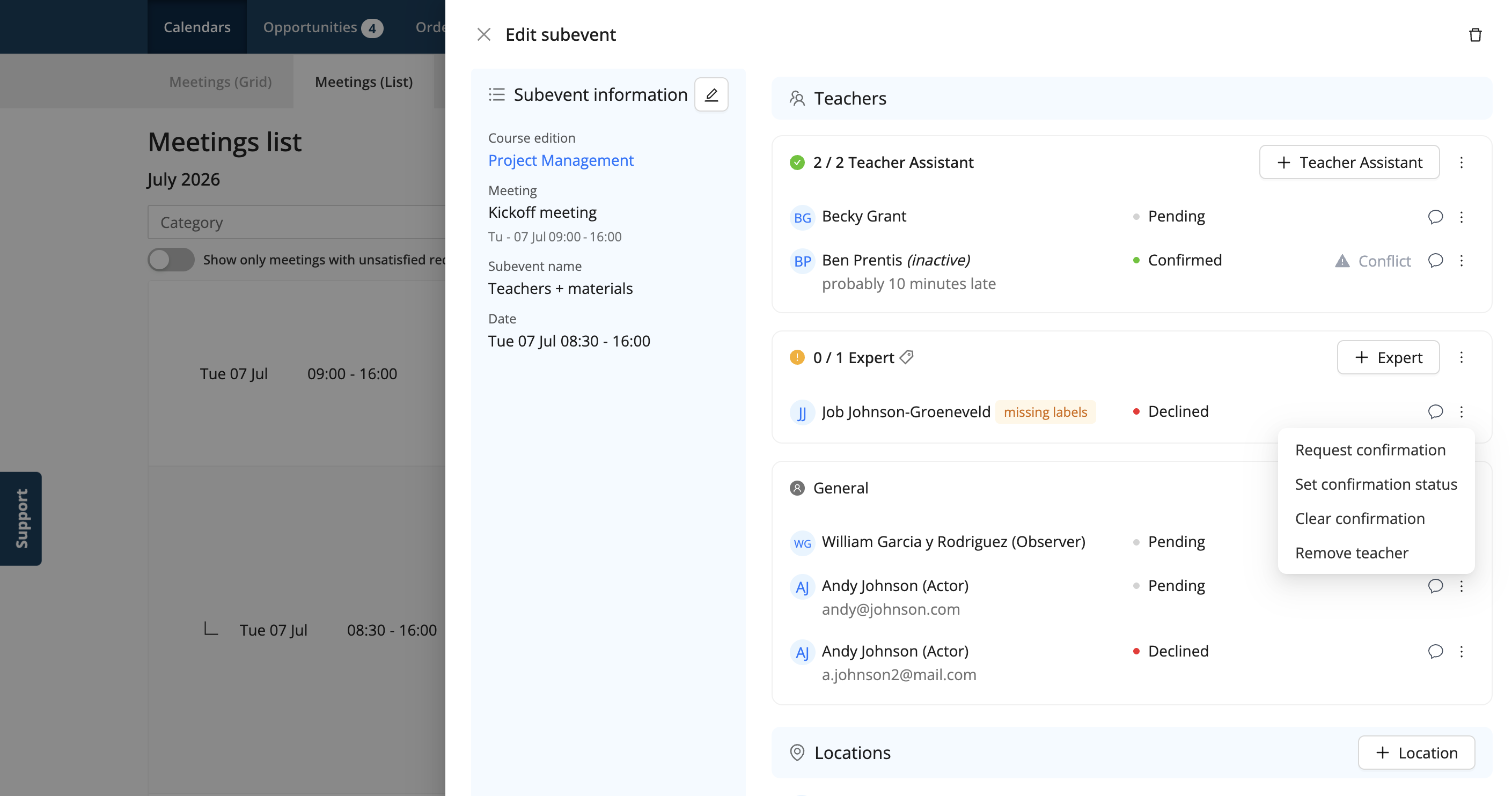
Confirmation can be requested per teacher, from the meeting or subevent drawer.
Open a meeting or subevent (Edit meeting)
Go to Teachers
For the teacher you want to request confirmation from, open the ⋮ (actions) menu
Click Request confirmation
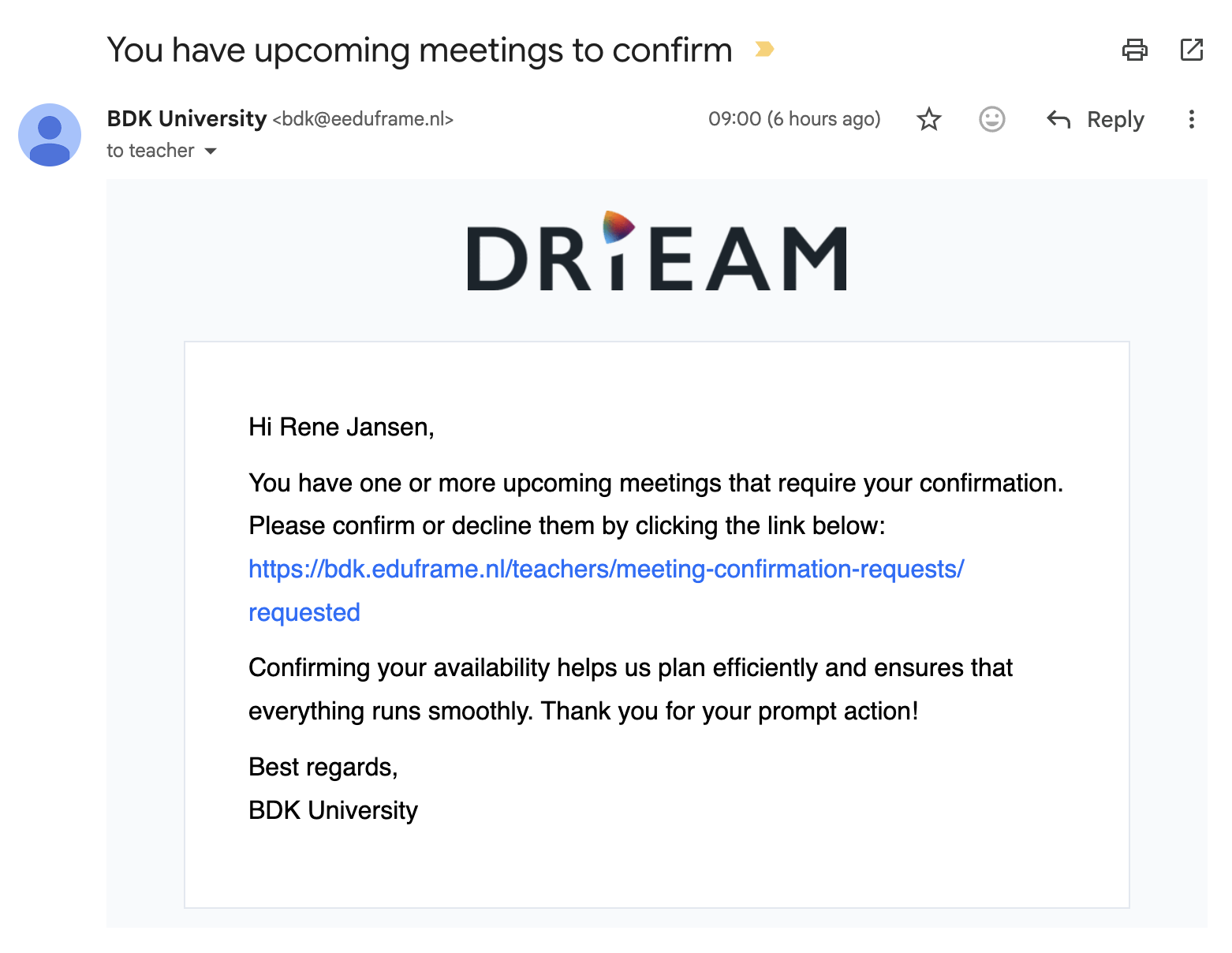
After requesting confirmation, the teacher’s status becomes Confirmation pending and the teacher will see the meeting under their confirmation requests in the teacher portal and receive an email asking for their response. The content of this e-mail can be edited in Settings -> E-mail templates & triggers -> Teacher confirmation.
Example (meeting drawer actions and statuses):
Or request confirmations in bulk for multiple selected meetings at once (including their subevents). To request confirmations in bulk:
Open the relevant course edition in the scheduler
Select multiple meetings
If a meeting contains planning events/subevents, these are selected as well
Choose Request confirmations
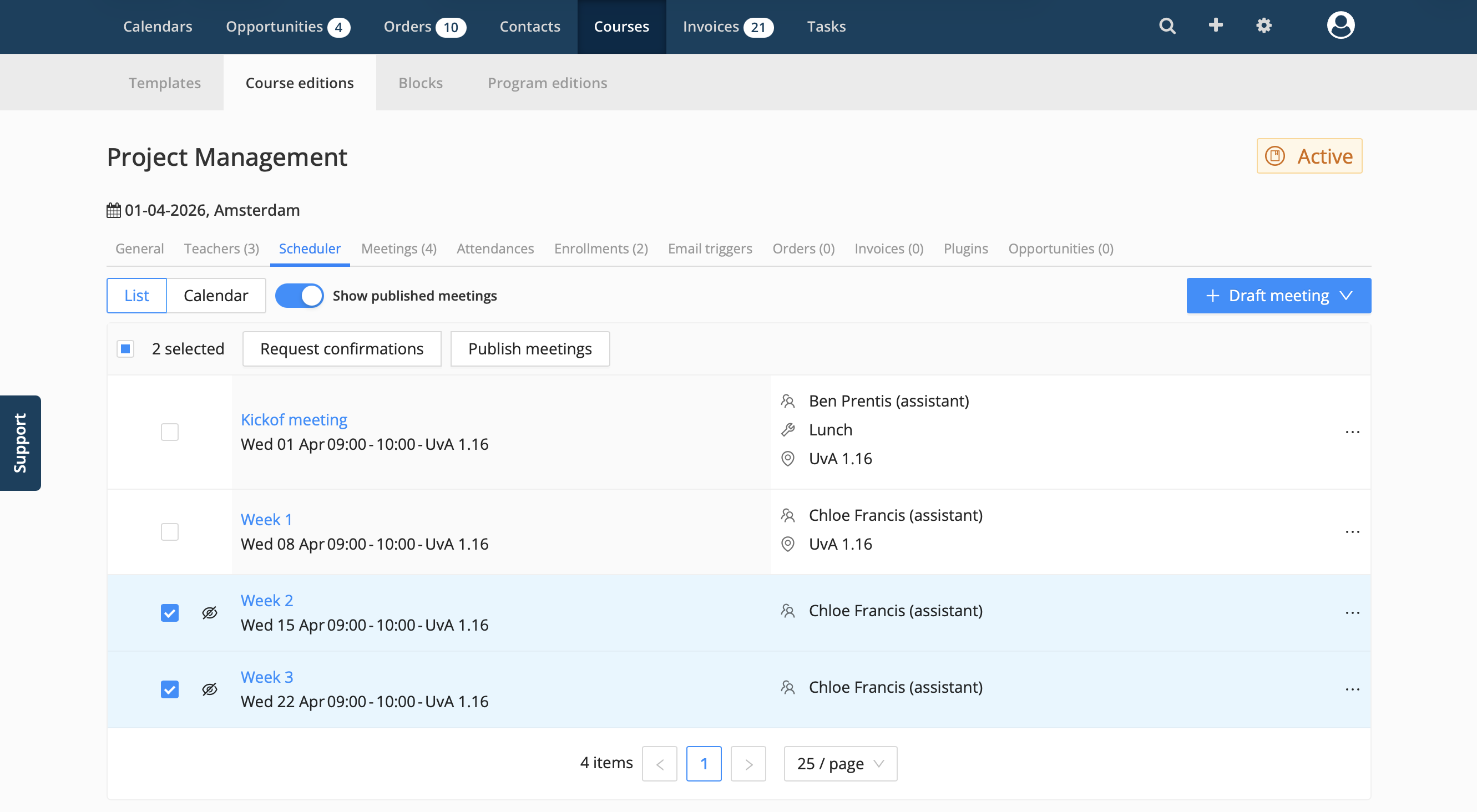
Note: Teachers with an existing confirmation status — confirmed, declined, or pending — are skipped by default, so existing statuses are not overwritten.
2. Confirm or decline (teacher)
Teachers can respond to meeting confirmation requests in the teacher portal:
Open Meeting confirmation.
Find the meeting.
Click:
Confirm to accept the planning, or
Decline if they cannot attend.
After responding, the request will move from Pending to Confirmed or Declined.
3. Monitor, change, or clear a confirmation (admin)
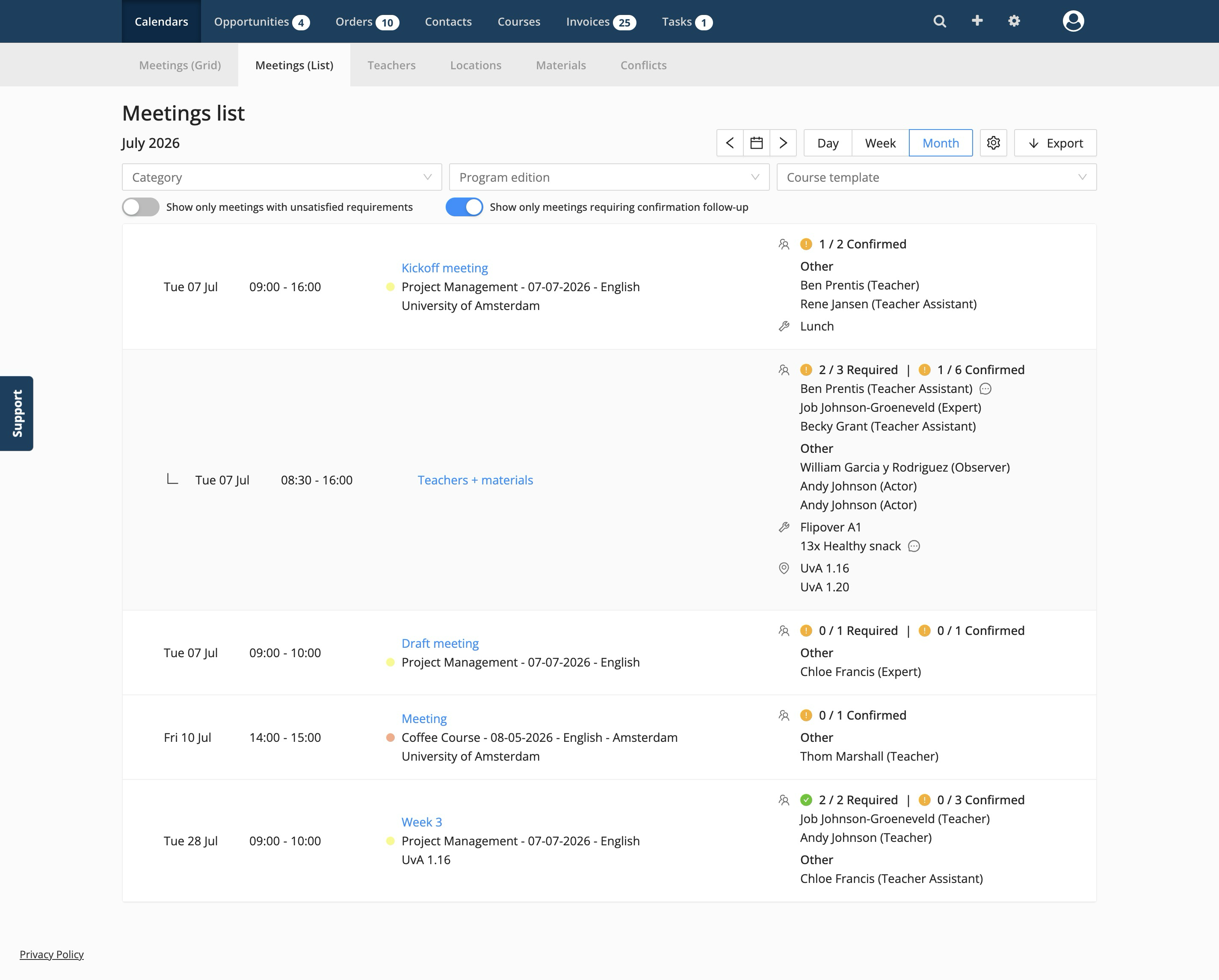
Monitor status while scheduling
Admins can monitor confirmation status while scheduling, so they can:
quickly spot declined teachers and plan a replacement;
see which meetings still require confirmation in the meeting list;
use Show only meetings requiring confirmation follow-up to show only meetings or sub-events with pending or denied teacher confirmations.
Course edition scheduler
If you are working within a specific course edition, you can quickly check the status of all its meetings as well:
Navigate to the Course edition
Go to the Scheduler tab
Review the status icon in the last column of each meeting or subevent row:
Green checkmark: All teachers for this meeting confirmed
Orange exclamation mark: There are still open or denied confirmations
Note: Alongside teacher confirmations, 📄 Meeting and Teacher Requirementscan be visible in the same views. These do not affect each other: teacher requirements and teacher confirmations are tracked separately.
How to change status manually (admin)
Sometimes a teacher confirms outside Eduframe (e.g. via phone/email), or you want to correct a status.
From the ⋮ menu in the meeting drawer (per teacher), choose Set confirmation status and set the correct status.
How to reset status (admin)
If meeting details change and you need a fresh confirmation or just want to remove it, use Clear confirmation status from the same ⋮ menu.
4. Configure email notifications
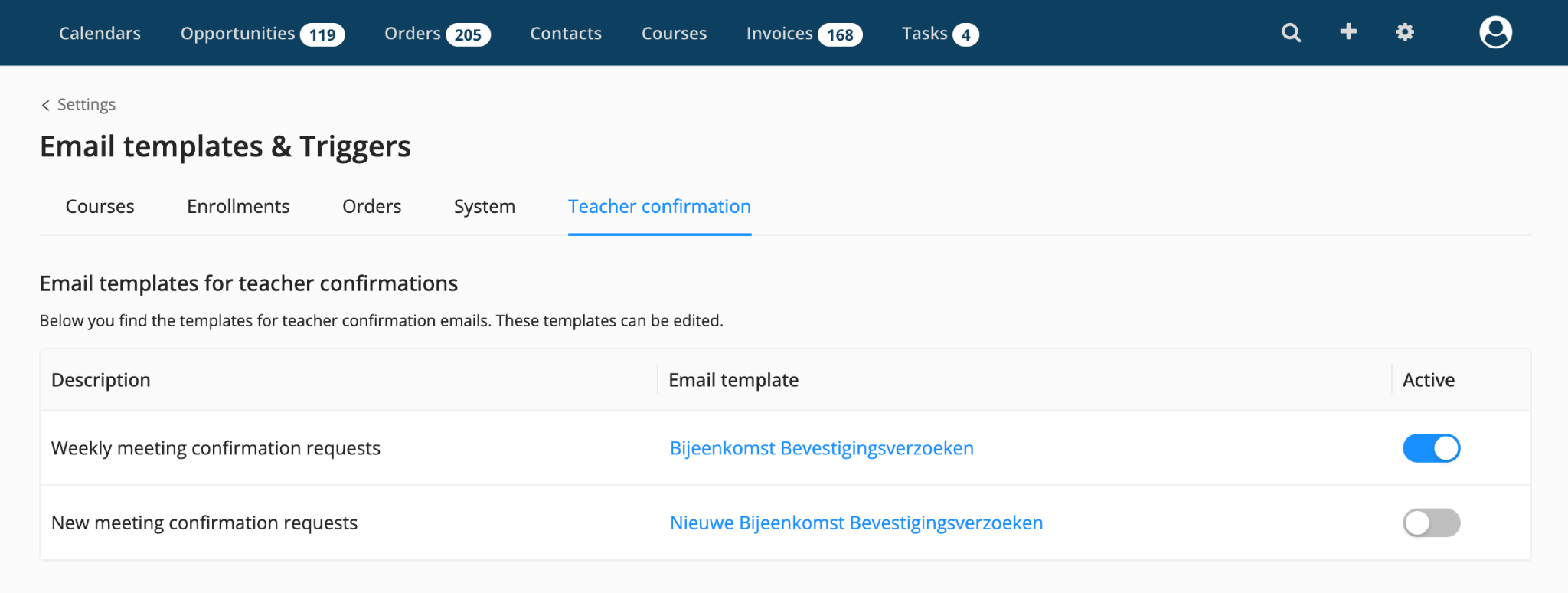
Navigate to Settings → Email templates & Triggers → Teacher confirmation.
Here you can:
Enable or disable each notification separately using the Active toggle
Edit the email content per notification type
Customize both subject and body to match your organization’s communication style
Available notifications
Type | Description |
|---|---|
Weekly meeting confirmation requests | Sends a weekly overview of all pending teacher confirmation requests for batch follow-up |
New meeting confirmation requests | Sends near real-time emails (approx. every 5 minutes) for newly created requests to enable fast responses |
Both notifications can be enabled independently or used together, depending on the desired workflow (batch processing vs. immediate notification).