How to hide the native Eduframe Login When Using Single Sign-On (SSO)
Last updated: September 18, 2026
Summary
As an Educator, you can hide the native Eduframe email/password login form once you've set up at least one single sign-on (SSO) provider, so your users only see the login option(s) meant for them. This article explains when the native login disappears, how it behaves with one SSO provider versus several, and how this setting relates to provider position.
What this setting does
The Hide the native Eduframe login form setting is a per-Educator login page option that removes the email/password login form once at least one SSO provider (such as Azure Active Directory, Google, or SURFconext) is configured, so users aren't shown a login method they're not supposed to use.
This is useful if you only want your users signing in through your organization's own identity provider(s), for example Azure Active Directory, Google, or SURFconext. It means the login page shows exactly the option(s) they should use, without an extra email/password form to explain or ignore.
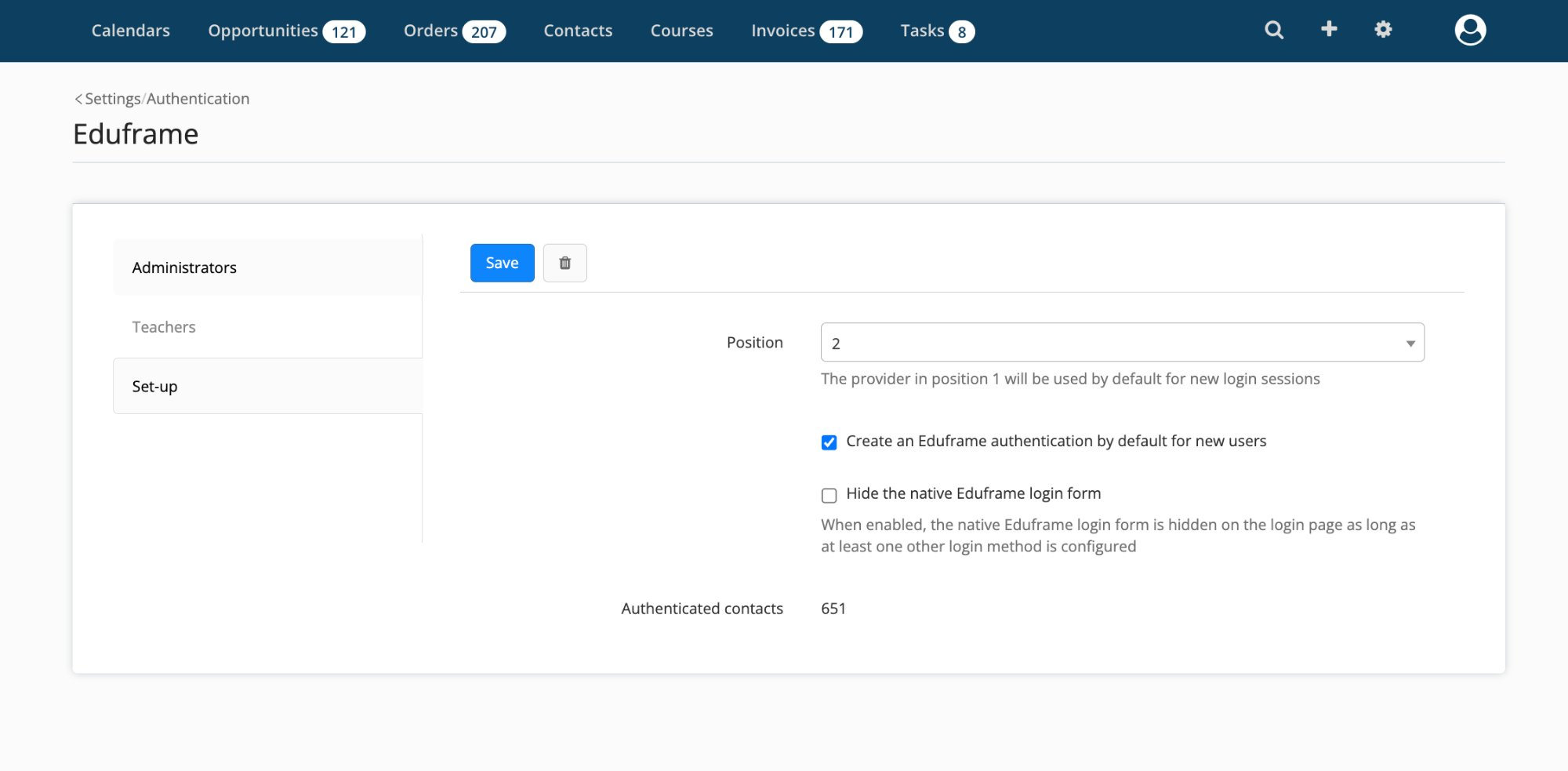
As an Educator, enable the setting
Go to Settings > Authentication > Set-up.
Under Eduframe, check Hide the native Eduframe login form. "When enabled, the native Eduframe login form is hidden on the login page as long as at least one other login method is configured."
Click Save.
How it behaves depending on how many SSO providers you have
Situation | What users see |
|---|---|
Setting off (default) | The native Eduframe login form, plus a button for every configured SSO provider. |
Setting on, no SSO provider configured | The native Eduframe login form (Eduframe never hides your only way to log in). |
Setting on, exactly one SSO provider configured | Users are redirected straight to that SSO provider, with no login chooser screen at all. |
Setting on, multiple SSO providers configured | A login page listing only the SSO provider buttons, with no email/password form. |
Note: Eduframe will never hide the native login form if it would leave an Educator with no way to sign in. If you remove your last SSO provider while this setting is enabled, the native login form reappears automatically.
How does this relates to provider position?
The Position field determines which provider users are sent to first when there's a choice to make. When Hide the native Eduframe login form is enabled and you have exactly one SSO provider configured, users skip the login page entirely and go straight to that provider. As soon as more than one SSO provider is configured, users instead land on the login page and choose between the available SSO buttons. Position no longer sends them straight to one provider automatically in that case.
Note: If your users see the native Eduframe login form even though you've set up SSO, check that Hide the native Eduframe login form is enabled. That setting is what controls whether the form is shown, not the Position field on its own.
Related articles
More information on SSO can be found here