How to Set Up an Email?
Last updated: September 21, 2026
Summary
There are different ways to set up an email:
As an admin, you can set up an email on the Tmeline of a Course or Program Edition, Opportunity, Contact, Organization, teacher, Order or Invoice.
As an admin, you can set up an email in the Email templates & Triggers settings.
In this article, you will find more information on how to set up an email and some explanation on the different fields when setting up an email.
How to set up an email?
When creating an email different fields need to be populated:
Name: You only have to fill in this field if you create an email template in the 'Email templates & Triggers' settings. This is the name of the Email template that you will see as an admin. Receivers of the email will not see this name.
From: Here you can fill in an email address or use a tag (by clicking on the tag button next to the From field).
To and BCC field: see next sub-chapter for a more extended explanation.
Subject: This is the subject of the email. Receivers will see this subject in their email. It is possible to use tags here by clicking on the tag icon next to the field.
Message: Here you write the message you want to email to the receiver. Here tags, images and links can be used. More information about tags in emails can be found in 📄 Tags in Emails.
TO vs BCC field
If you don't want receivers to see each others email addresses, it depends on the page where you send an email from whether you should add a receiver tag (e.g. all participants) in the To field or BCC field:
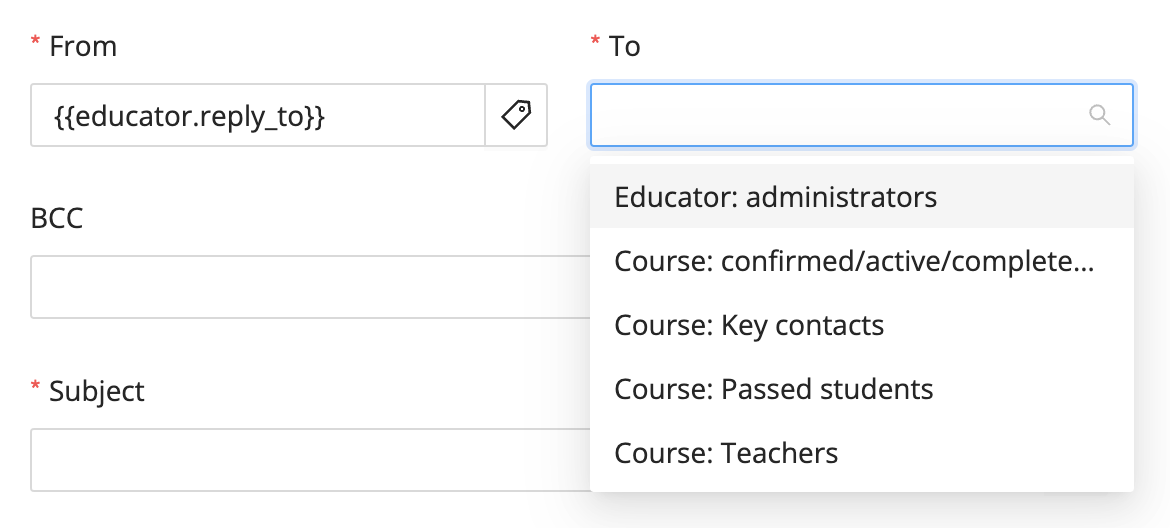
Use the To field if you create an email in a course edition or if you create an email template (in Settings - Email templates & triggers - Courses): you choose one of the tag options that are listed. Email addresses will be invisible for all recipients of the email; each of the receivers in the To field will receive a separate email. As a result of that, if you add receivers in the BCC field here, they will receive an email for each of the receivers in the To field. This can be a lot, so be careful with using the BCC field in a course edition or email template. You can also recognize these emails because the From and To field are next to each other, as in the screenshot below.
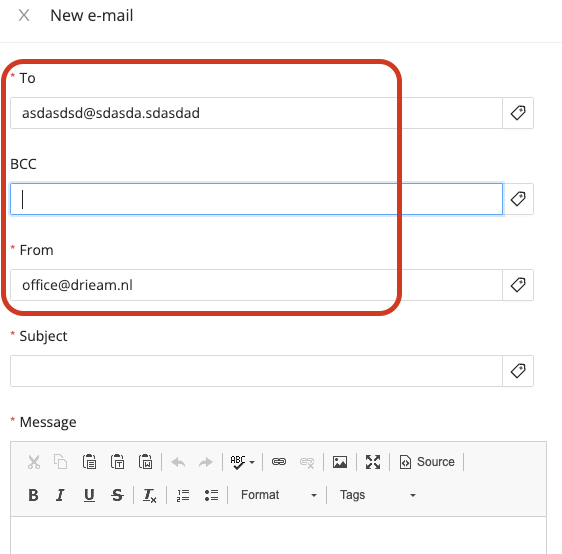
Use the BCC field if you create an email from all other locations in Eduframe and you want to use a tag, e.g. if you create an email on a contact or order level, or from the 'resend' button. If you don't want to use a tag at one of these locations, you can also add all separate email addresses to the To field. You can also recognize these emails because the To, BCC and From fields are below each other, as in the screenshot below.
Note: Emails sent to Course: Teachers are only sent to teacher planned ón the course. Teachers who are only planned on meetings are not included.