How to Set Up your Brand Identity in Eduframe?
Last updated: August 31, 2026
Summary
Eduframe makes it possible to customize the look and feel of the application by using your own brand colors, logo and background image. The following parts of Eduframe can be changed:
📄 Participant Portal (for participants/students)
📄 Business Portal and Key Contacts (for key contacts)
📄 Signup Forms(for participants/students and key contacts)
Login screen (for admins, participants/students, key contacts and teachers).
How to setup your brand identity?
As an admin, you go to 'Settings' > 📄 Account Settings.
Here you can choose your:
Primary color (use a hex code): choose a color to highlight elements
Secondary color (use a hex code): Choose a more neutral color
Next, you go to 'Settings' > 📄 Company Informationand upload (png or jpg) your:
Logo
Background image of the login page
Note: The optimal size of the background image depends on your users: do you have a lot of mobile phone users or desktop users?
In general we advice an image that is not too wide and not too high, to suit both desktop and mobile phone users.
The image should be around 1920*1280 and preferably be < 500KB to enable fast loading.
Example of a brand identity: How do the changes look?
Below, you find an example of what we adjusted in the settings and how the results look.
We used these settings:
Primary color:

Secondary color:

Logo:

Background image:
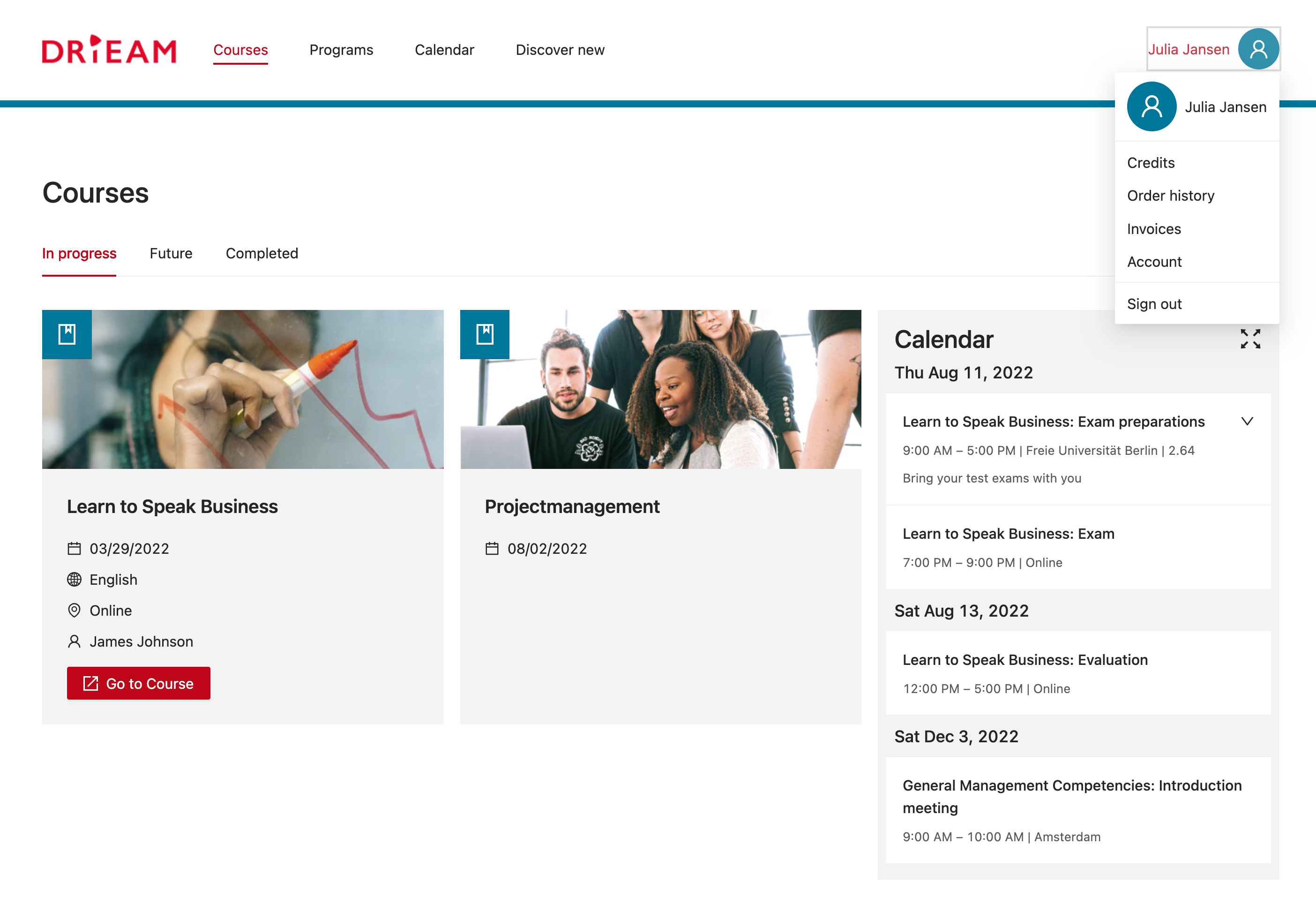
This results in the following design / brand identity in the participant portal:
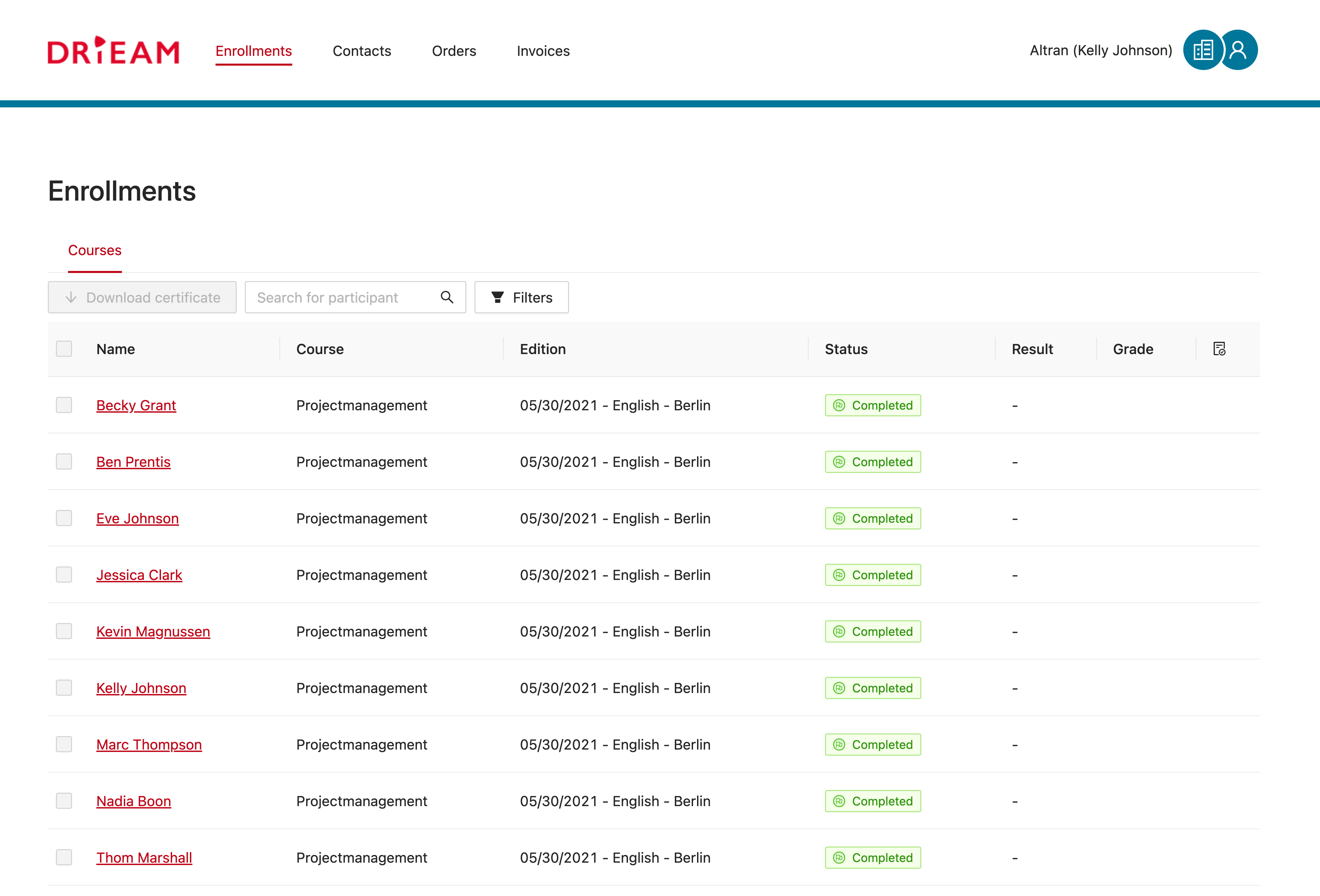
And the business portal will look like this:
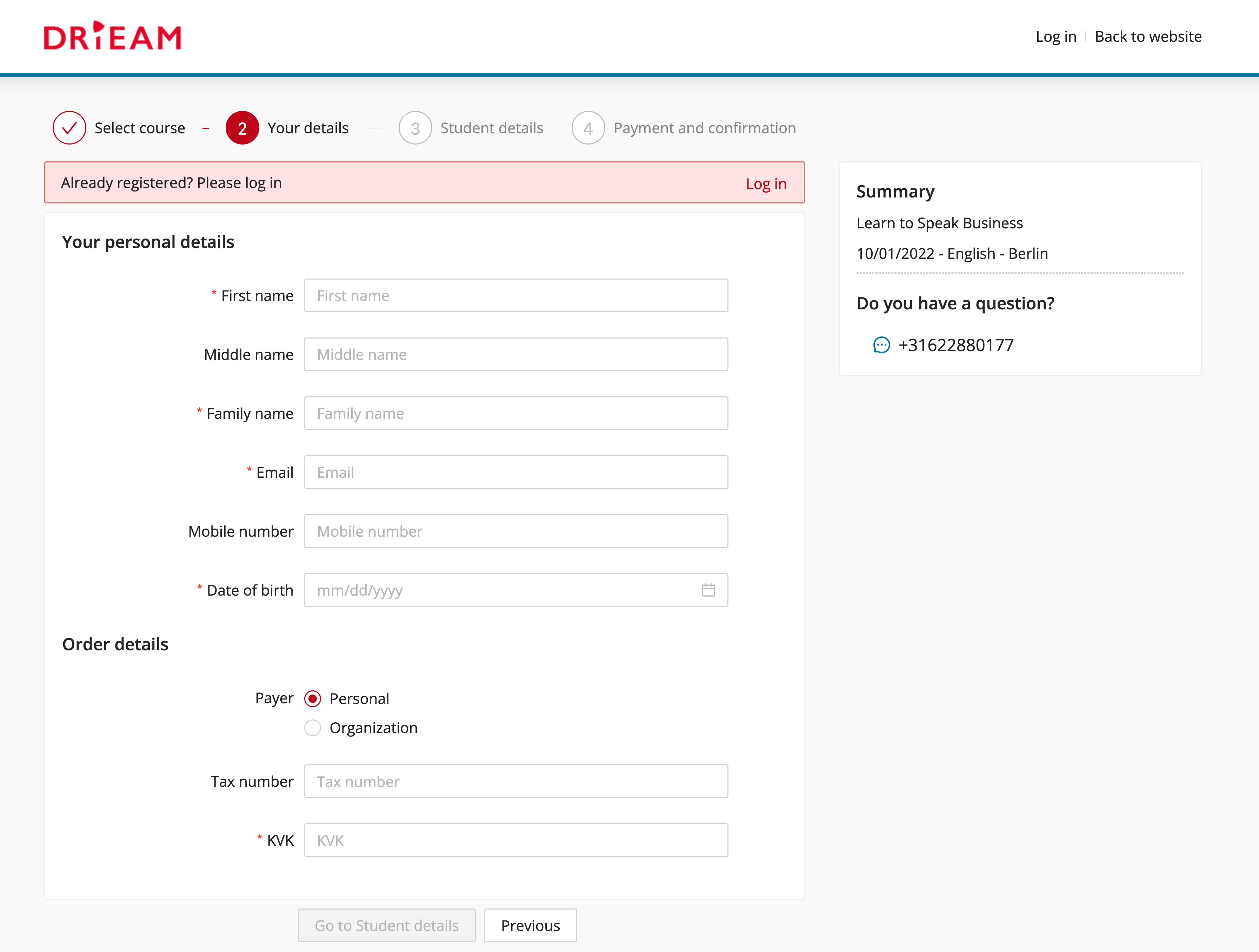
Your signup form will look like this:
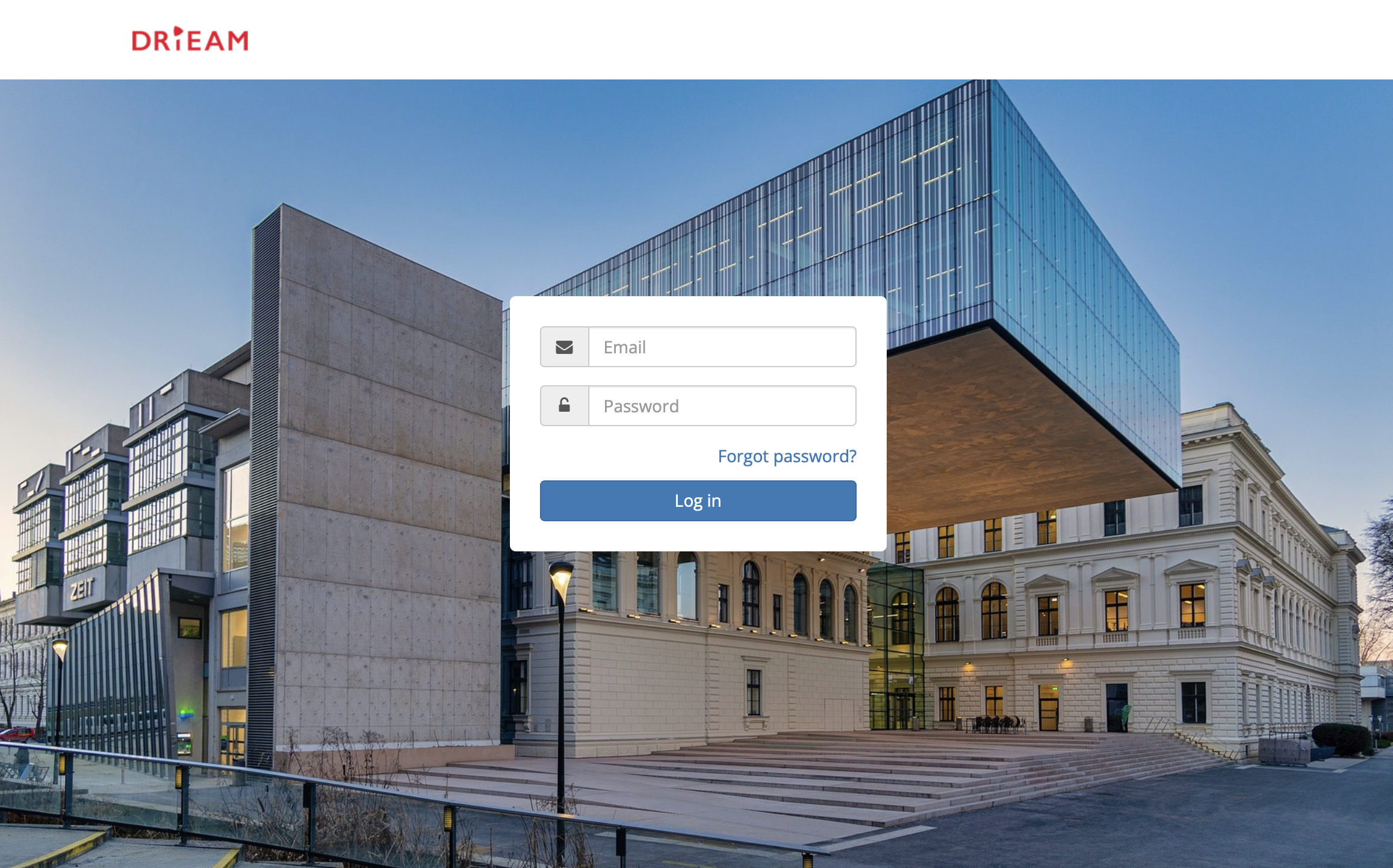
And finally, the Eduframe login screen looks like this: