How to Communicate in Multiple Languages (to Participants)?
Last updated: September 1, 2026
Summary
There are different options when it comes to setting up multiple languages in Eduframe. Find out more about the possibilities in this article.
How to enable multiple language communication on courses?
In Eduframe there are two ways of setting up your courses for multi language communication.
Option 1: Create two course templates
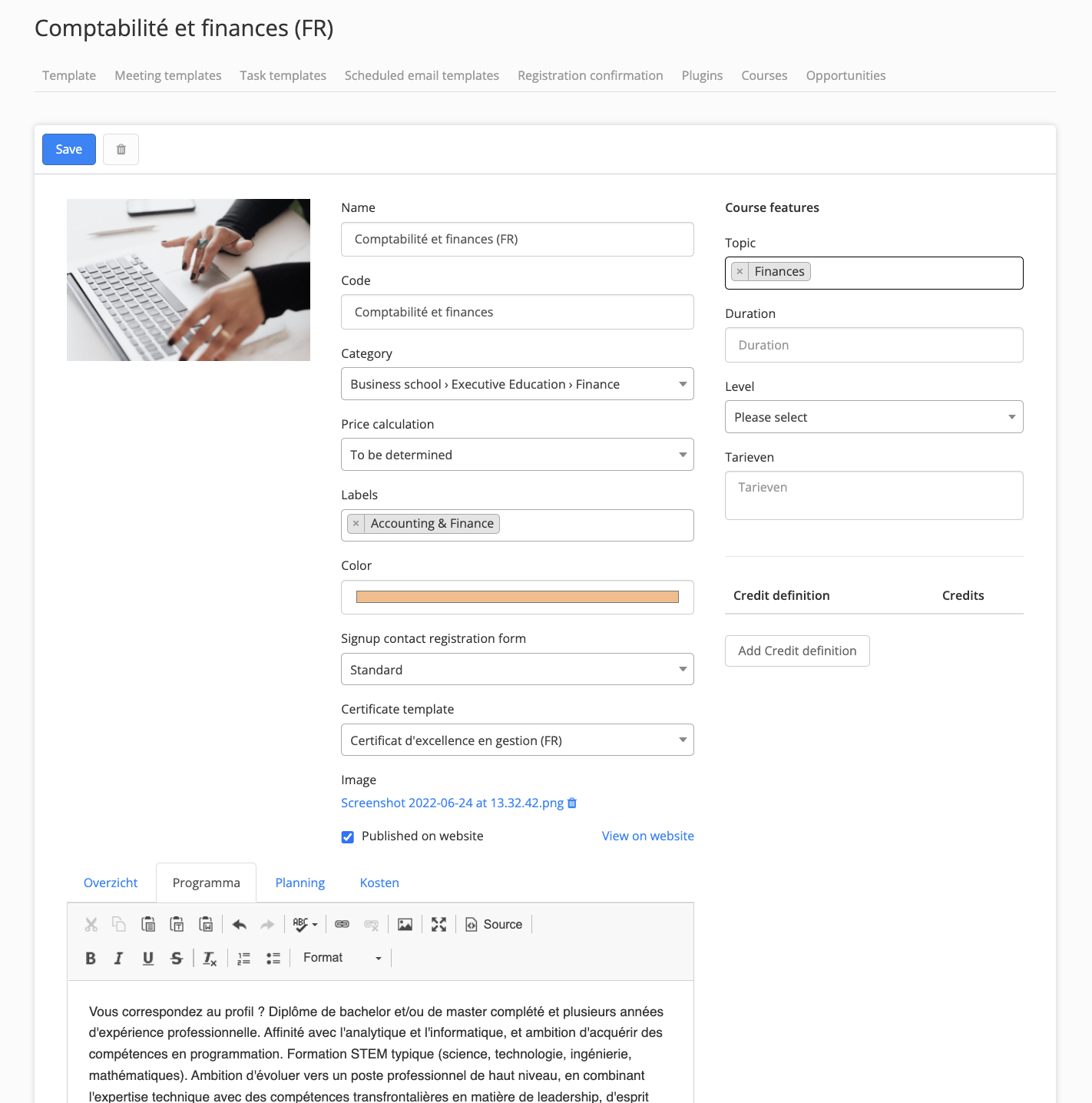
With this option, as an admin, you create two course templates, e.g. one course template in English, one course template in French:

Per course template, you can communicate the following elements in a specific language:
Course features
Course tabs
Advantages:
Each course template can have a different name.
Each course template can have a different course information to show on the website.
Each course template can have a different Certificate template.
Enrollment emails can be chosen per course edition.
Disadvantages:
It's not possible to combine participants from both course templates in the same course in Canvas.
It's more work to keep 2 course templates up to date.
Option 2: Create one course template with two editions
If you choose this option, as an admin, you create one course template with two editions, e.g. one course edition in English and one course edition in French. The language can be communicated with the 'variant' functionality in Eduframe, which can be added on course edition level.

Advantages:
Enrollment emails can be chosen per course edition.
It's less work to keep 1 course template up to date.
Disadvantages:
Course template name can only be written in one language.
Course information can only be written in one language (for the website).
Scheduled email templates can only be written in one language.
1 certificate template should be chosen (1 language).
It's not possible to combine participants from both course templates in the same course in Canvas.
How to change the participant portal language per contact?
Eduframe offers the possibility to choose a language for the participant portal per contact. As default the language of the educator is chosen.
To change the language of the participant portal for a specific contact:
As an admin, click on the Contacts tab in the menu.
Open the relevant contact (participant, teacher, etc).
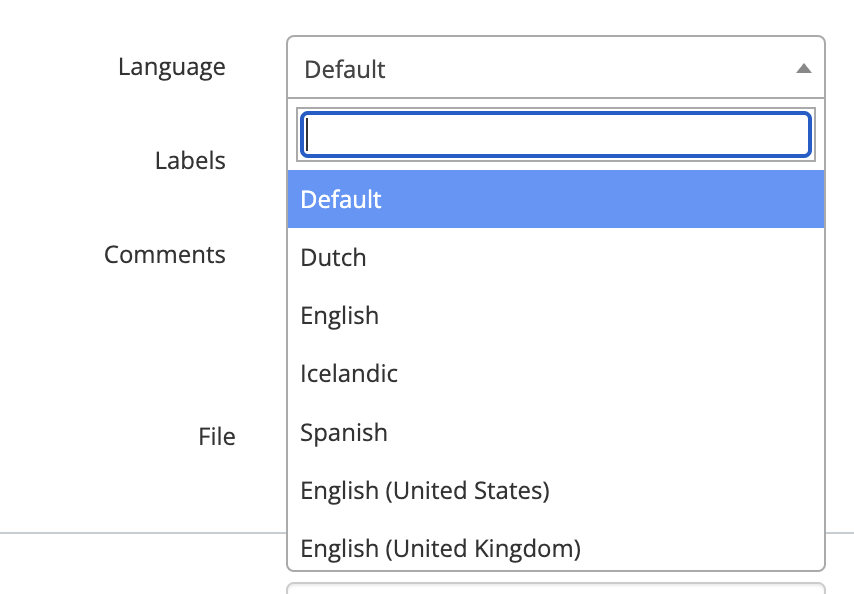
Scroll down until you see the 'Language' field.
Choose any of the possible languages for this specific contact.
Note: More information about the Participant Portal can be found 📄 Participant Portal.
How to create enrollment emails in different languages?
In Eduframe it's possible to create different enrollment emails templates and to choose which enrollment email template you want to use per course edition.
How to create different enrollment email templates?
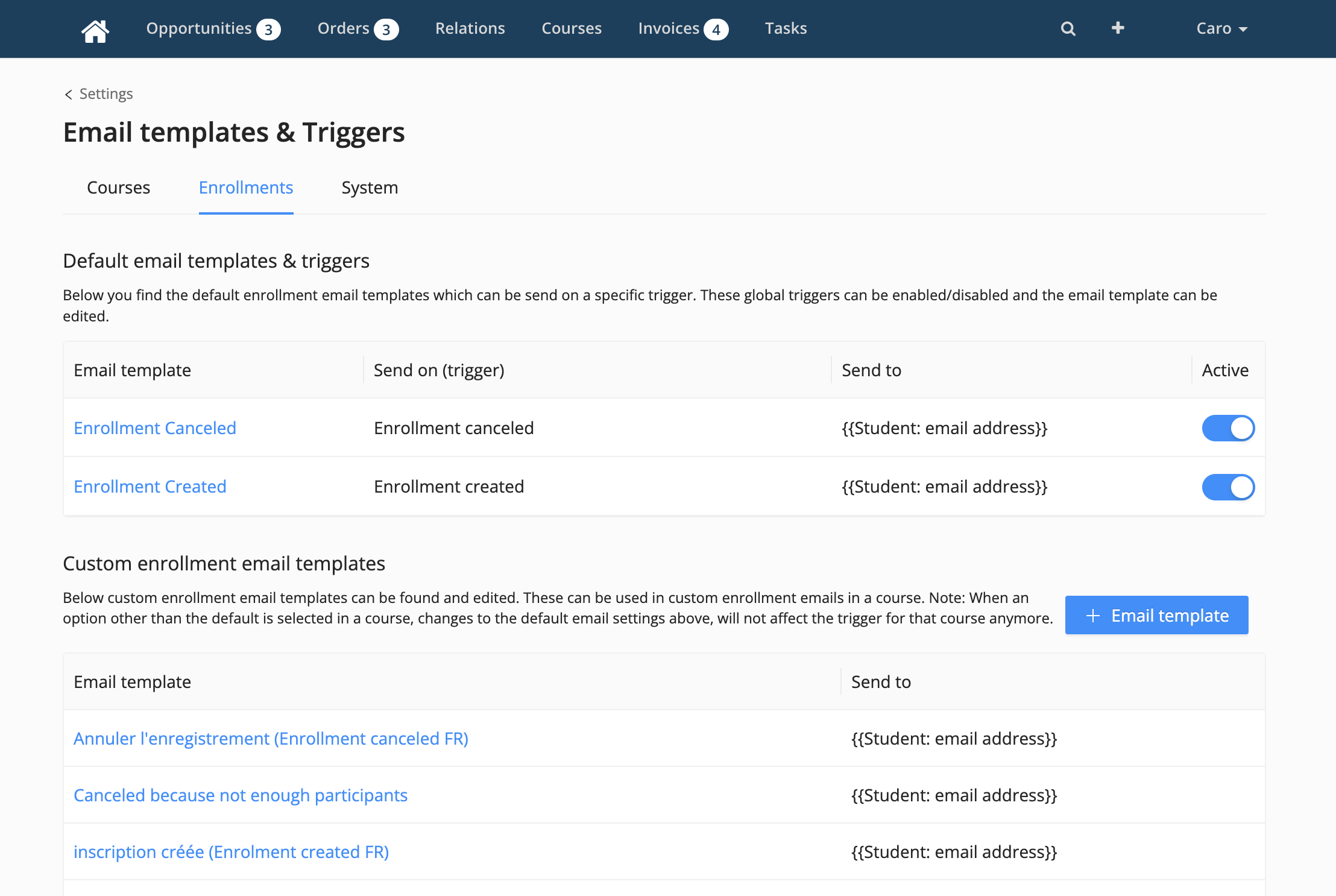
If you want to create different enrollment email templates, as an admin, you go to 'Settings' > 'Email templates & triggers' > tab 'Enrollments'. Here you click on '+ Email template' in the custom Enrollment email template section and you create email templates in different languages. See an example in the image below:
How to choose a different enrollment email template per course editions?
To create different enrollment email templates per couse edition, as an admin, you go to:
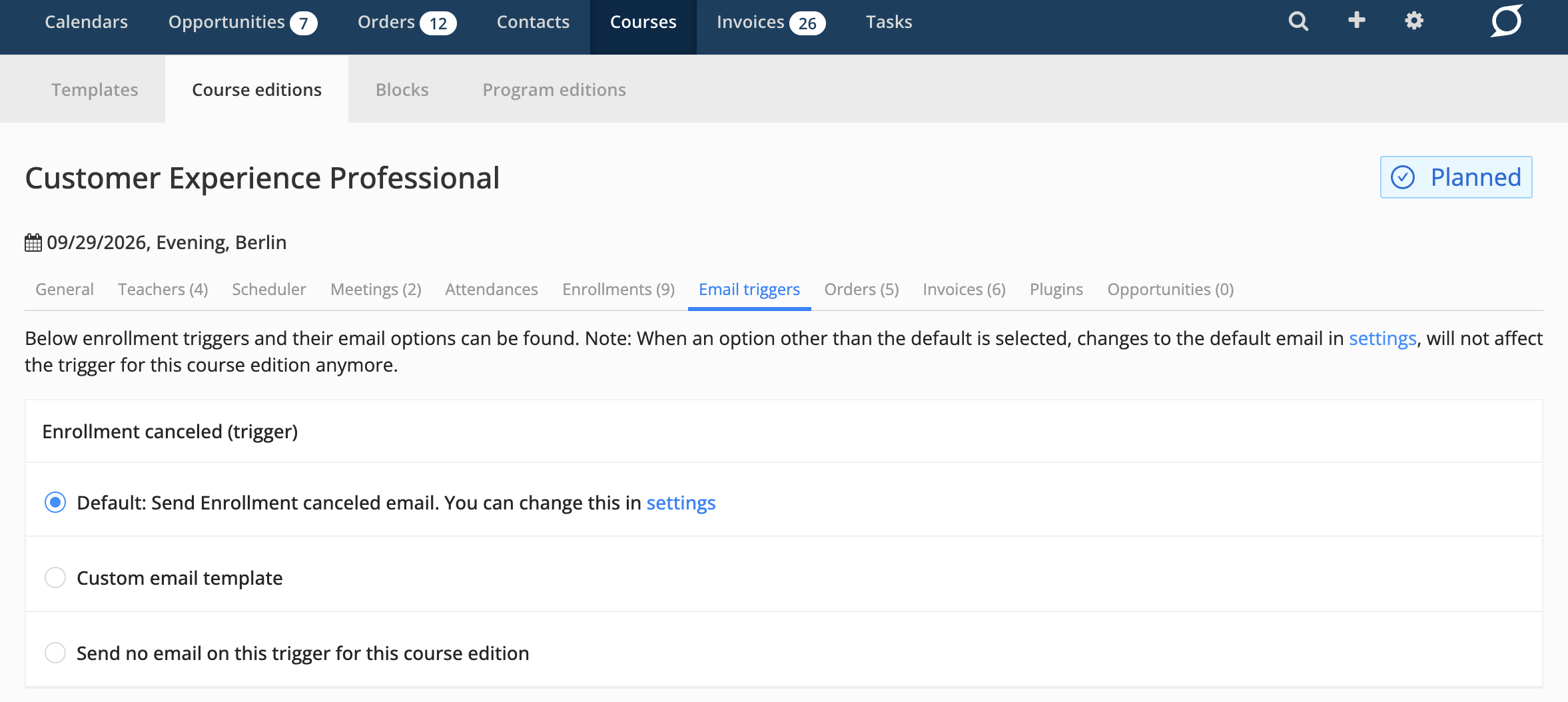
a specific course edition.
click on the 'Email triggers' tab. Here you click on the 'custom email template' option for both triggers ('enrollment canceled' and 'enrollment created').
This will open a new view in which you can choose the right enrollment email template, in this case an email template in another language.
From now on, all enrollments of this course edition will receive the chosen enrollment emails instead of the default (English) one.
Note: It's only possible to choose which email templates you want to use per course edition, not per course template.
How to display course information on my website in different languages?
By creating two different course templates for the same course (e.g. one in English and one in French for example), it's possible to communicate course information in different languages on the website.
Language support in signup
By default, the language shown on the signup page is equal to the educator's configured language.
If there is a need to open the signup in a different language, you can add a locale query parameter to the signup URL shown on your website. This way you can, for example, automatically open the signup in a different language from an international course on your website.
In the example below, the default language of the educator (Dutch) will be overridden by English (United States):
https://educator.eduframe.nl/courses/automata/signup?catalog_variant_id=386783&locale=en-usWhich languages are supported on the signup?
The following languages are covered on the signup forms:
en-gben-usisnl
Logged-in users
If a user is already logged in, their personal language preference will always take precedence. In this case, the locale query parameter is ignored, and the signup page will be displayed in the user's configured language.
Fallback behavior
If an invalid locale is provided, the system will fall back to the language configured on the educator
Scheduled email templates in different languages
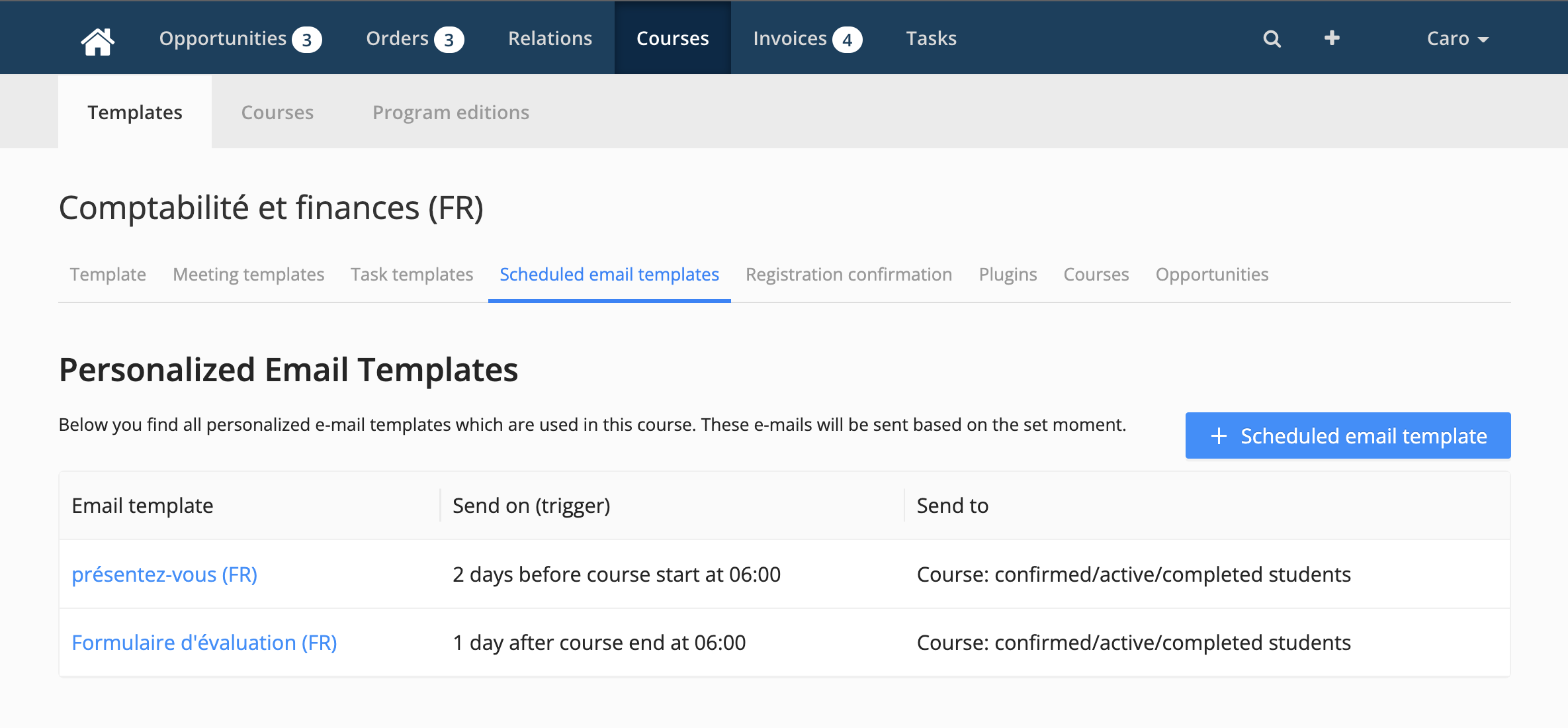
If you created two different course templates (e.g. one in English and one in French) for the same course, it's possible to schedule email templates in one language to the participants.
How to create a certificate in different languages?
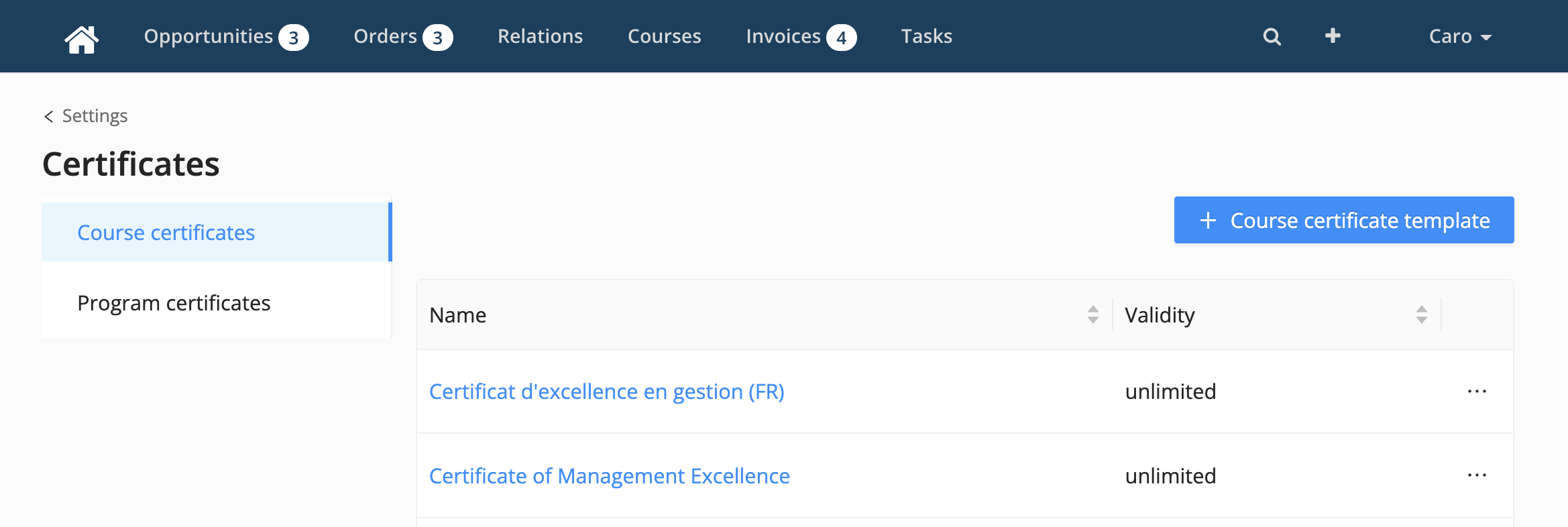
If you created two different course templates (e.g. one in English and one in French) for the same course, it's possible to award a certificate in the right language to the participants.
As an admin:
Create two different Certificate templates in 'Settings' > 'Certificates' > 'Course certificates', one in English and one in French
Go to the course templates
For the English course template, select the English Certificate template
For the French course template, select the French Certificate template
How do I change the language preference for a course in Canvas?
If you want to change the language in Canvas, you can find more information here.