How to Merge Duplicate Contacts?
Last updated: August 31, 2026
Summary
The Duplicate Contact Indicator in Eduframe avoids that the same contact will be stored in Eduframe twice. It is still possible to have two contacts with the same name in Eduframe. Find out more below about this feature.
How to set up Duplicate Contact Indicator?
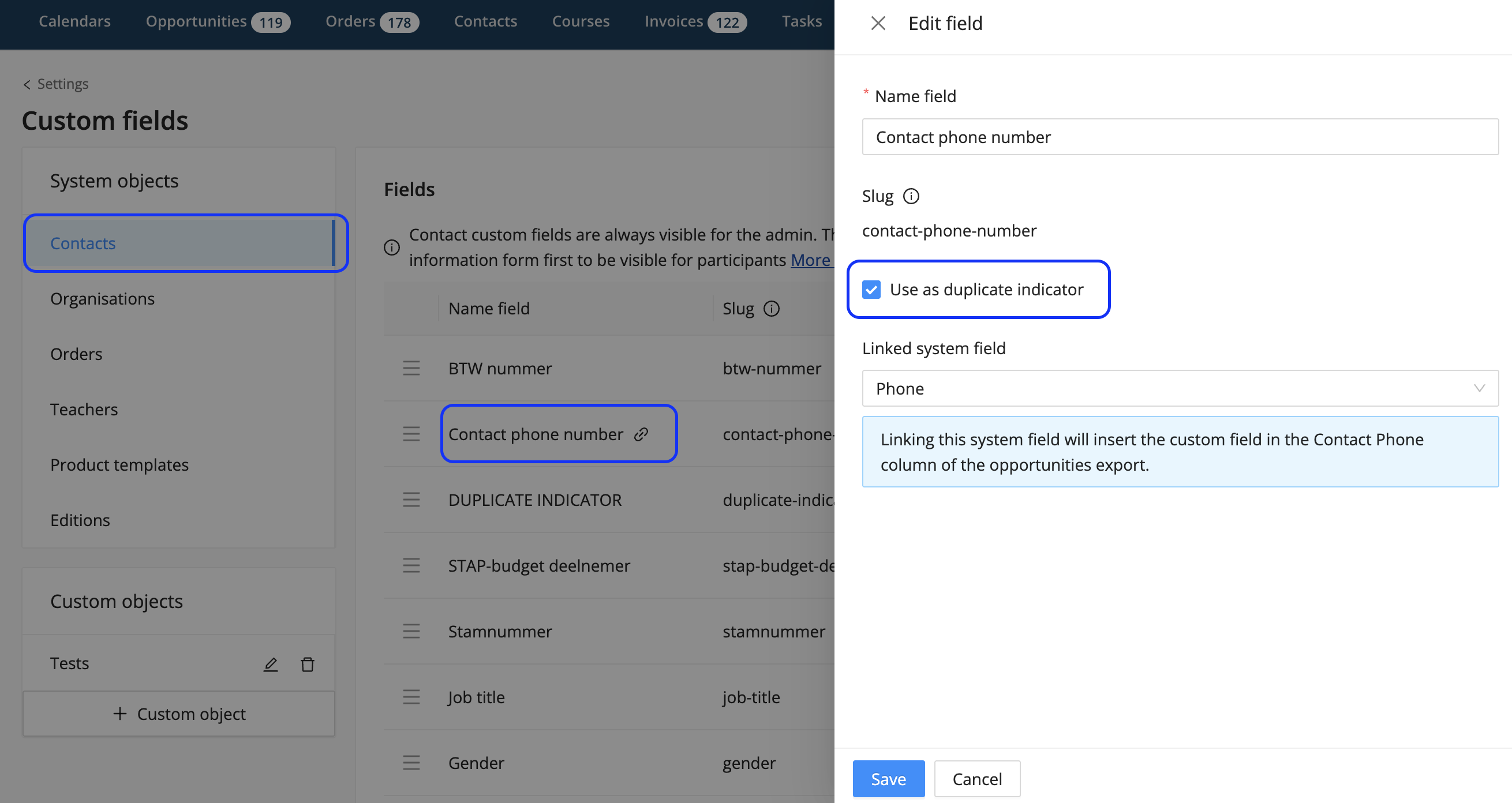
As an admin, you can choose which contact custom field(s) you set as a duplicate indicator in Eduframe. To do this, follow these steps:
Go to Settings > 📄 Custom Fields> tab 'Contacts'.
Click on 'Edit field' via the 3 dots icon on the right of a custom field.
Tick the 'Use as duplicate indicator' checkbox.
Save the custom field.
Notes:
The email address field is not a duplicate indicator. If a contact creates an account with an already existing email address, an error notification will appear. It is not possible to create 2 accounts with the same email address.
The First and Last name fields are also not duplicate indicators. Especially for customers who have a lot of contacts in Eduframe, it is possible that more contacts have the same name. Therefor we excluded name from the duplicate indicator.
Where to find Duplicate Contacts?
Duplicate Contacts tab
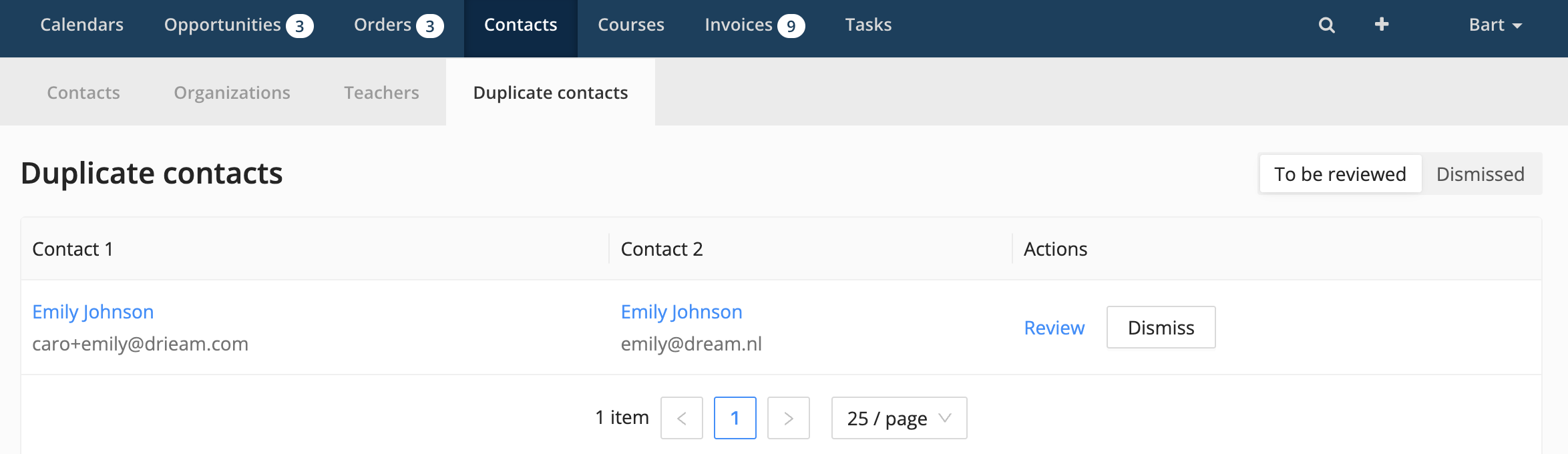
All contacts that share the same value in the selected custom field (e.g., Contact phone number) will now appear under the 'Duplicate contacts' tab.
To review them, go to the Contacts tab, then open the Duplicate contacts tab.
From there, you can choose to either review and merge the duplicates or dismiss them if they are not actual duplicates.
On Contact Level
On the contact itself, a warning will be shown that it might be a duplicate with another contact. If you dismiss the duplicate contact warning from here, the duplicate will be dismissed from the 'Duplicate contacts' tab as well.

Note: Conflicts are managed per conflict. Not per field/contact/value. Ignoring a conflict will not resolve other existing and future conflicts of this contact.
How to merge detected duplicate contacts?
If a duplicate contact is detected, it shows up in the duplicate contacts view.
To merge contacts:
Click Contacts > Duplicate contacts.
Click on the Review button. This opens a new view to merge contacts.
Check the information of both contacts.
Make sure the contact that you want to keep has to be the Primary contact.
You can switch the Primary and Secondary contact with the icon in the middle.
Click on merge.
Note: When merging a contact, all linked organization, enrollments, orders and opportunities wil be added to the primary contact. The general contact information of the primary contact will be kept.
How to merge contacts which are not detected as duplicate?
As an admin, you can also manually merge two contacts:
Go to Contacts > Contacts and click on the contact you want to merge.
Click on the 'Merge Contacts' button (which will open a new view).
Choose your secondary contact by selecting the contact in the dropdown.
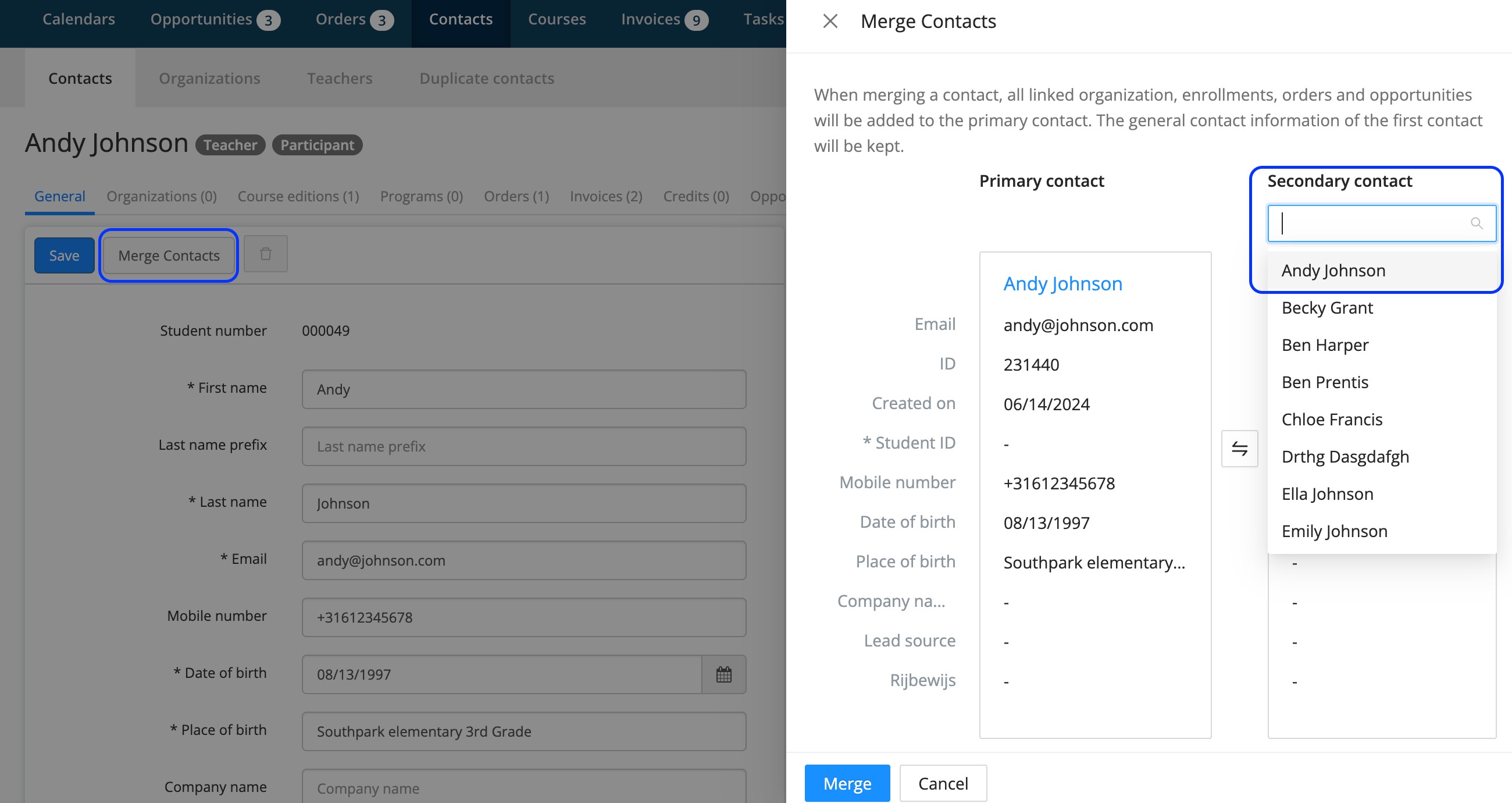
Check the information of both contacts.
Make sure the contact that you want to keep has to be the Primary contact.
You can switch the Primary and Secondary contact with the icon in the middle.
Click on Merge.
Note: When merging a participant and a teacher account for the same person, use the teacher account as the primary contact, and merge the participant into that teacher account.
How to find information from the deleted contact?
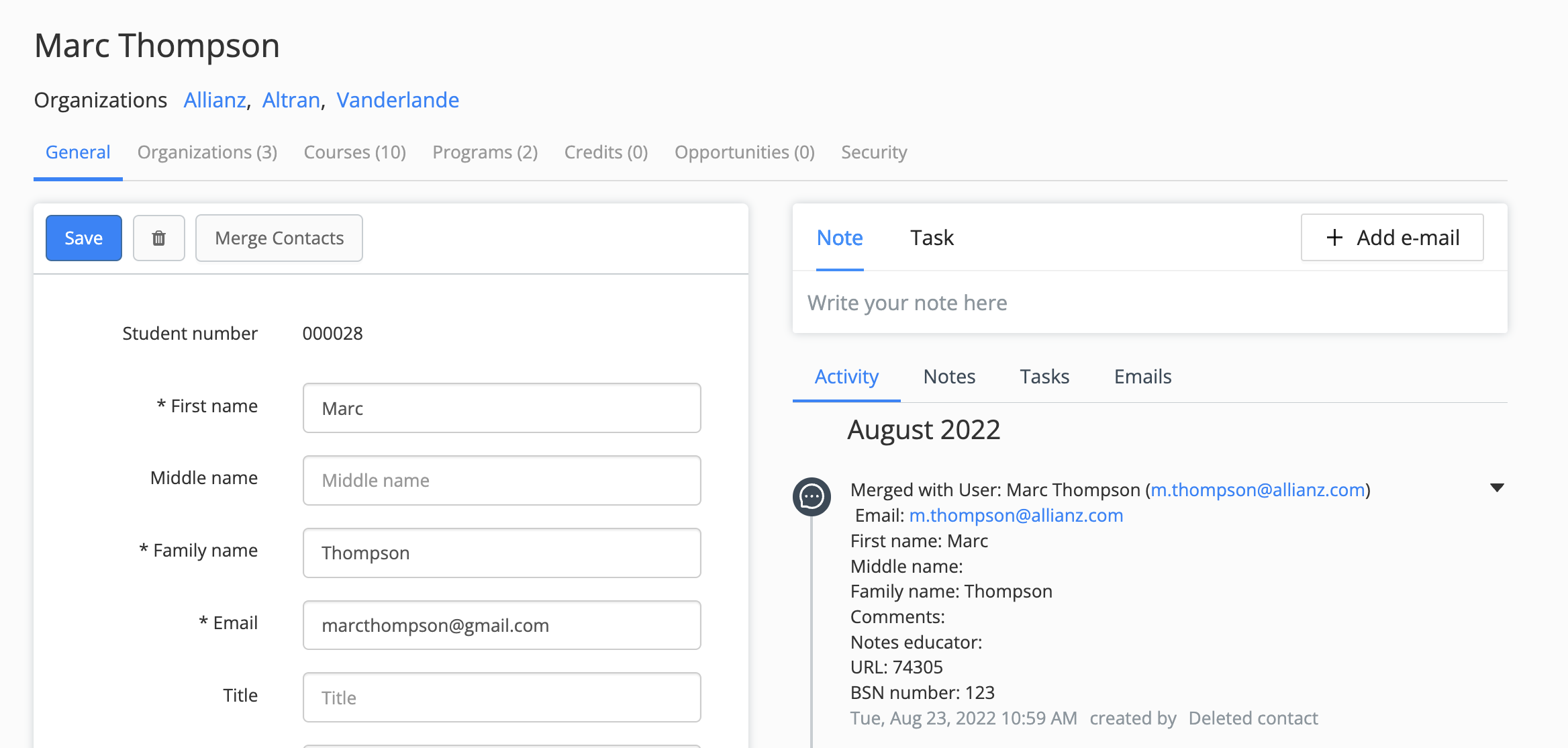
Each time two contacts are merged, the information of the deleted contact can still be found on the timeline of the merged (primary) contact.
How to view and merge dismissed duplicate contacts?
To view dismissed duplicates, open the duplicate users tab and click 'Dismissed'. On this tab you can see all previously dismissed duplicates, and can still merge them if needed.