Scheduling
Last updated: October 21, 2026
Summary
Face-to-face, blended, or online meetings/lectures are important tools to support learning.
Eduframe facilitates this using its meetings functionality. Eduframe offers several functionalities to make it easy to schedule your meetings. This article explains how scheduling works in Eduframe and how you can put Eduframe's functionalities to best use.
This article covers the high-level scheduling process (not details like differences between meetings and subevents).
Warning:
This article refers to several premium features. Contact support in case you are interested:
Conflicts
Draft meetings
Teacher meeting reminder
1. How to prepare the scheduling process? (creating meeting templates)
Course editions of the same course template often have similar meetings but at different times and dates. To minimize administrative work, we recommend setting up meeting templates within the course template. These templates allow you to quickly generate meetings for new course editions.
For each meeting you can record the amount and types of teacher you need later, without specifying the specific teachers themselves using our 📄 Meeting and Teacher Requirements functionality.
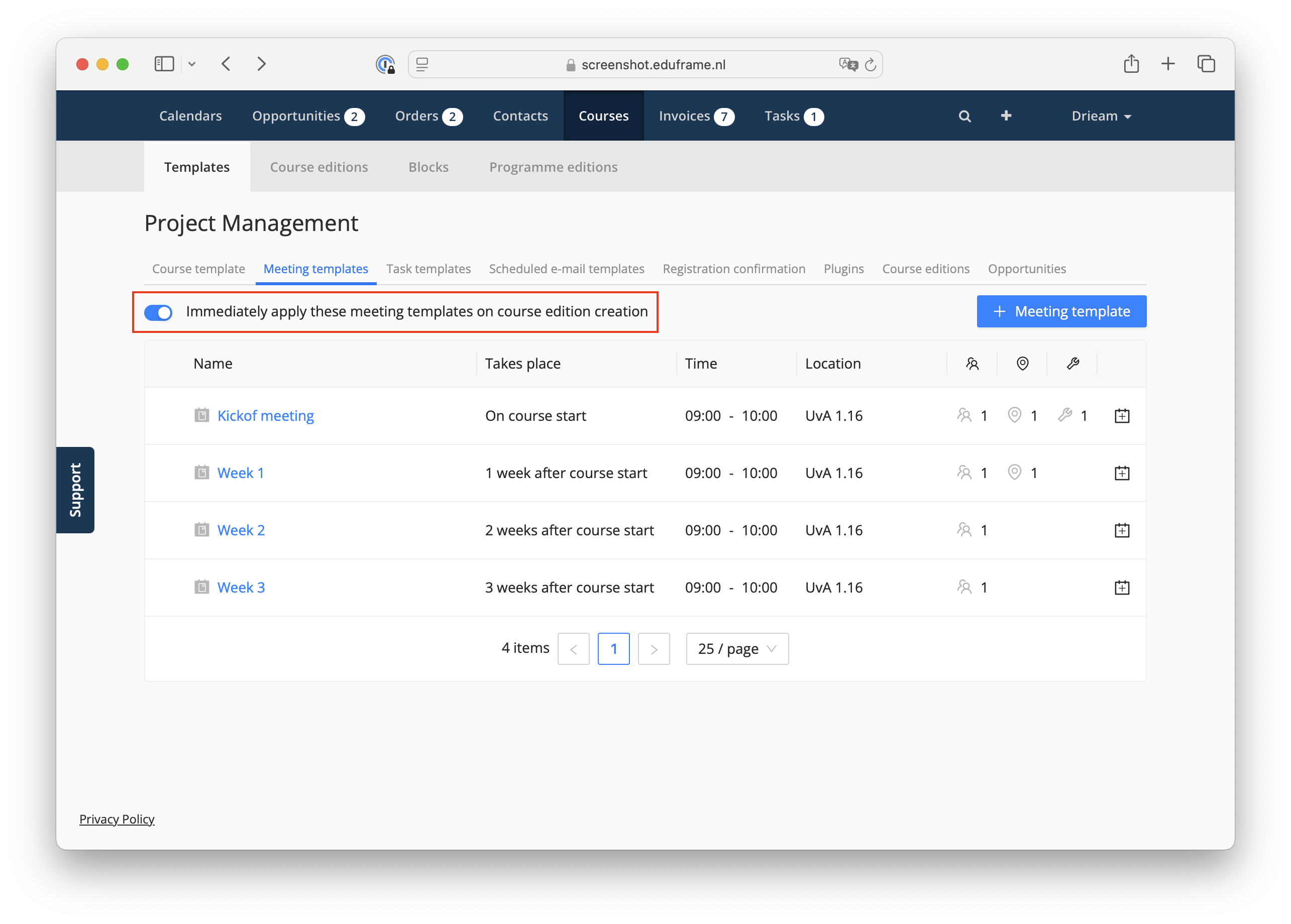
In the 'Meeting templates' tab of the course template, you can choose to have meetings created automatically upon course edition creation or you can manually add them when needed (see screenshot below).
For more details on meetings, see 📄 Meetings and Meeting Templates.
Reasons to apply meeting templates immediately upon course creation (and switch on the toggle in the image below):
No adjustments are needed to the created meetings.
You expect to finalize the meetings before participants are enrolled in the course.
Reason to delay applying meeting templates (and switch off the toggle in below image):
Participants may be enrolled before you have finalized all the meetings of the course.
You want to work with draft meetings (see chapter 3 in this article) that should not be published yet.
2. Planning a course edition
After defining meeting templates on the course template, you can create a 📄 Course Editions.
Depending on your choice (whether to immediately apply meeting templates), meetings will either be created automatically or not.
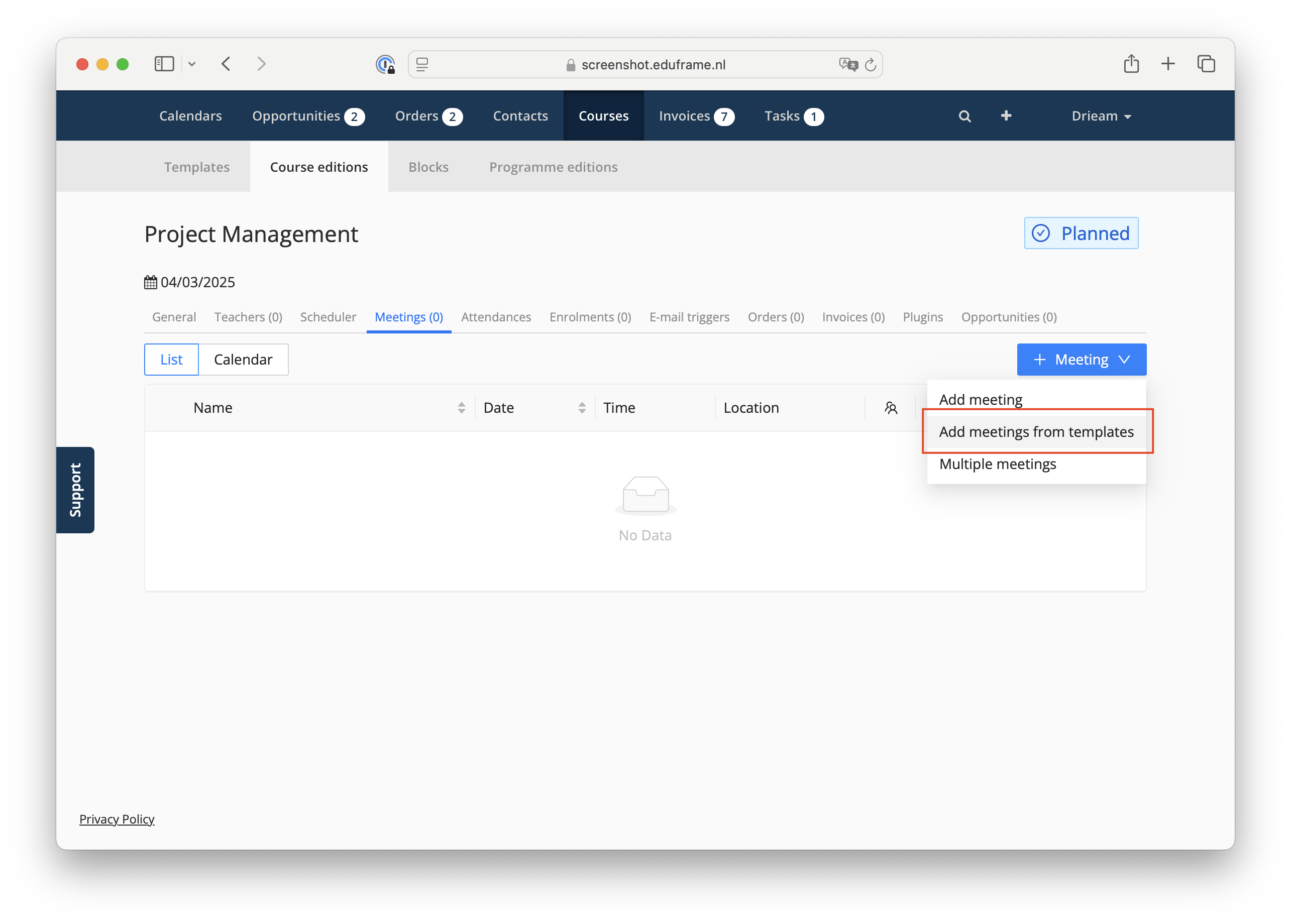
If you chose not to apply them immediately, you can still use the meeting templates later by clicking the following button:
Notes:
The Unnaplied / Applied filter in the Add draft meetings from templates drawer does not track if applied meeting templates are renamed/removed after applying them.
You can manually create meetings that are not linked to a meeting template whenever needed. Use the first option in the + Meeting dropdown button above.
3. Optional: Use draft meetings for complex scheduling needs
If you need time to finalize your meeting schedule before making it visible to teachers, participants and key-contacts, you can create meetings as drafts.
Draft meetings are only visible to admins but still create planning conflicts like regular meetings, allowing you to reserve resources before publishing. This can be useful for:
Resolving scheduling conflicts before publishing.
Getting confirmation from teachers before publishing the meetings, using our 📄 Teacher Confirmationfunctionality.
Asking teachers when they are available before assigning them, using our 📄 Teacher Availabilityfunctionality.
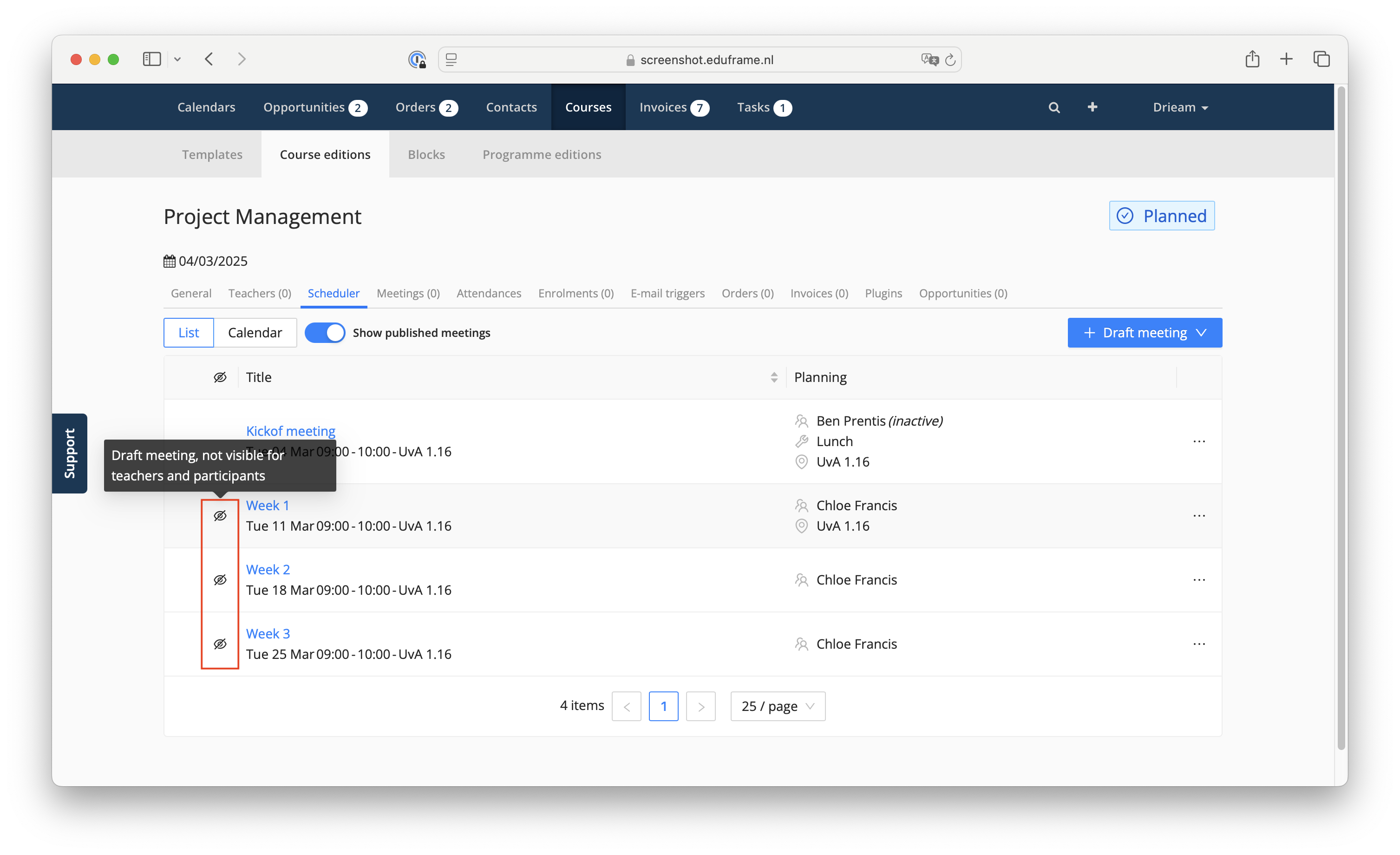
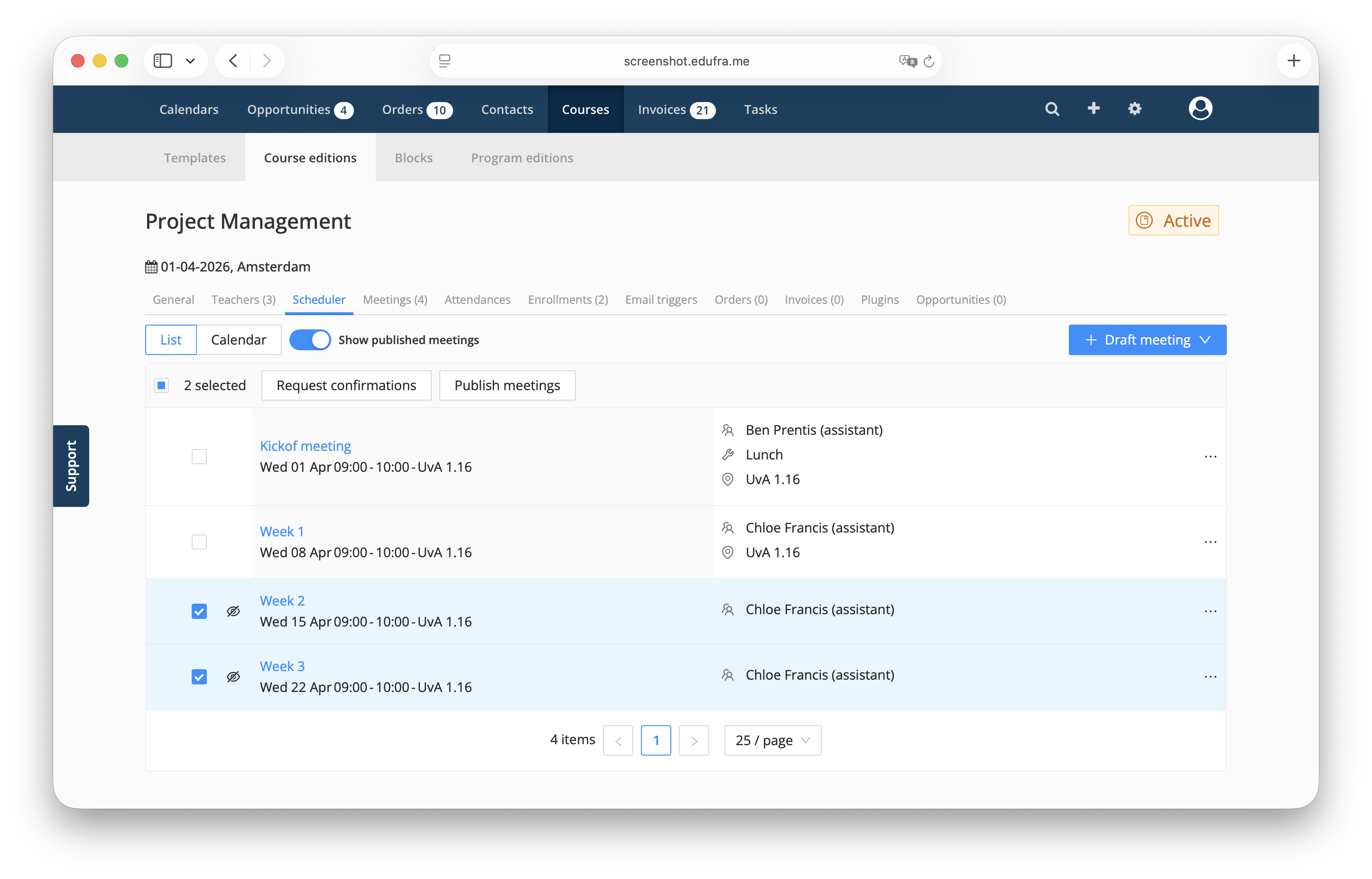
Just like with regular meetings, you can use Meeting Templates to create Draft Meetings. Draft meetings can be created from the Scheduler tab of the course edition. They appear in all admin meeting lists and calendars, identifiable by the eye icon and, in the calendars, the white background.
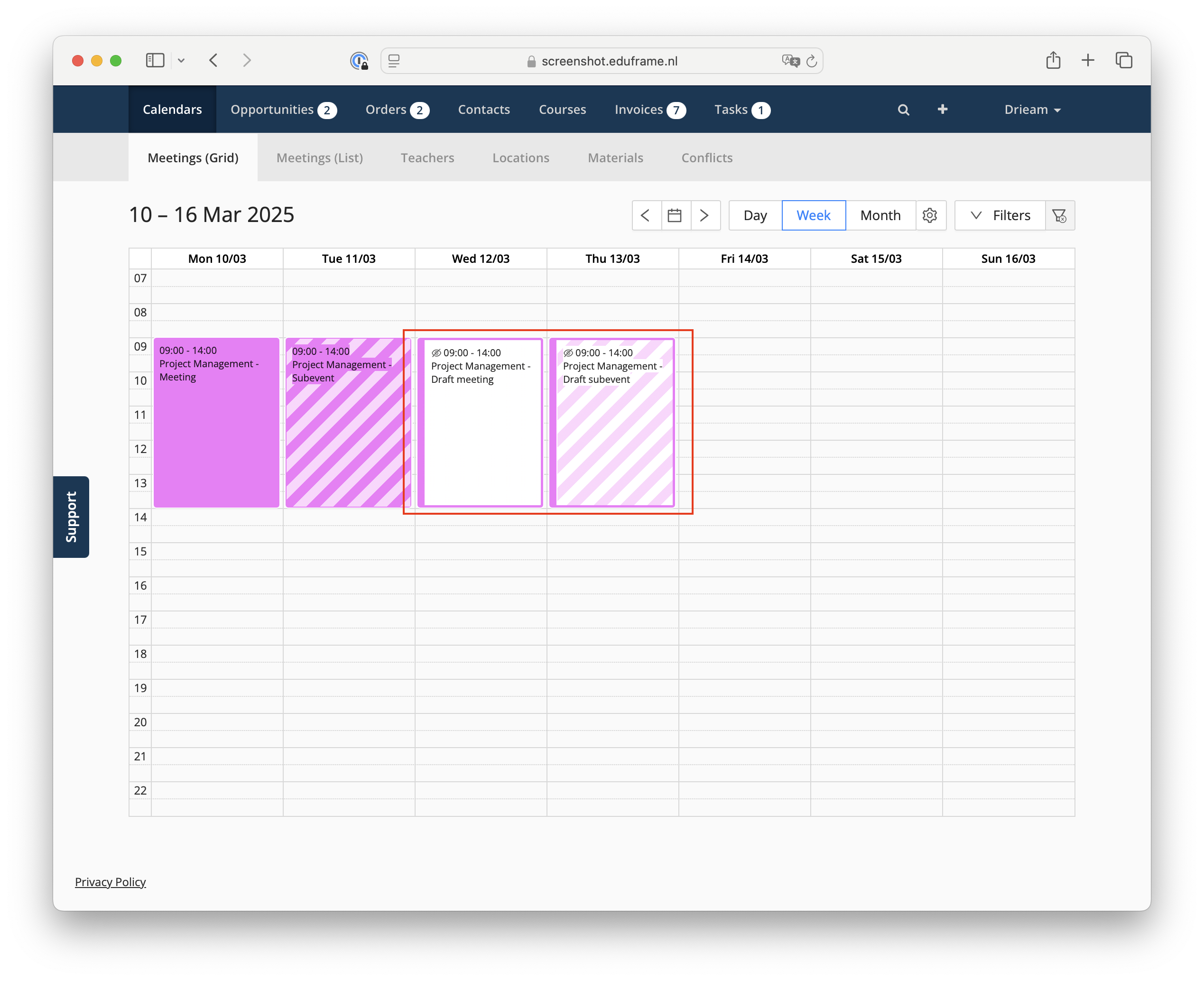
To review your schedule and catch conflicts before publishing, use the Locations, Materials and Teachers calendars, or open Conflicts (all under Calendars in the global navigation). Eduframe's conflict detection flags double-booked resources in the Meeting drawer and in Conflicts, so you can resolve them before you publish. Find out more in Duplicate Bookings and Conflicts.
Once a draft meeting is finalized, click Publish after opening the meeting or use the bulk action on the table in the Course Edition to make the meeting(s) and their subevent(s) visible to Teachers, Participants and Key-contacts.
After publishing a meeting, you can still change it.
4. Optional: Collect teacher availability before assigning teachers
Do you work with teachers whose availability changes from term to term? Instead of collecting it by email, ask them in Eduframe:
Make sure your meetings have teacher requirements. Teachers are asked about meetings with an open requirement they match.
Navigate to Calendars > Meetings (List) and click Request availability. Choose the period and, optionally, a department or course template labels.
Teachers don't receive an email, so let them know. Get filtered teacher emails copies the addresses of the matching teachers.
Teachers indicate their availability in the teacher portal.
When you add teachers to a meeting, you see who is available. By default, the teacher list shows available teachers and teachers without a response.
Then assign teachers and, if you like, ask them to confirm using 📄 Teacher Confirmation.
Find out more in 📄 Teacher Availability
5. Optional: scheduling meetings for a program edition
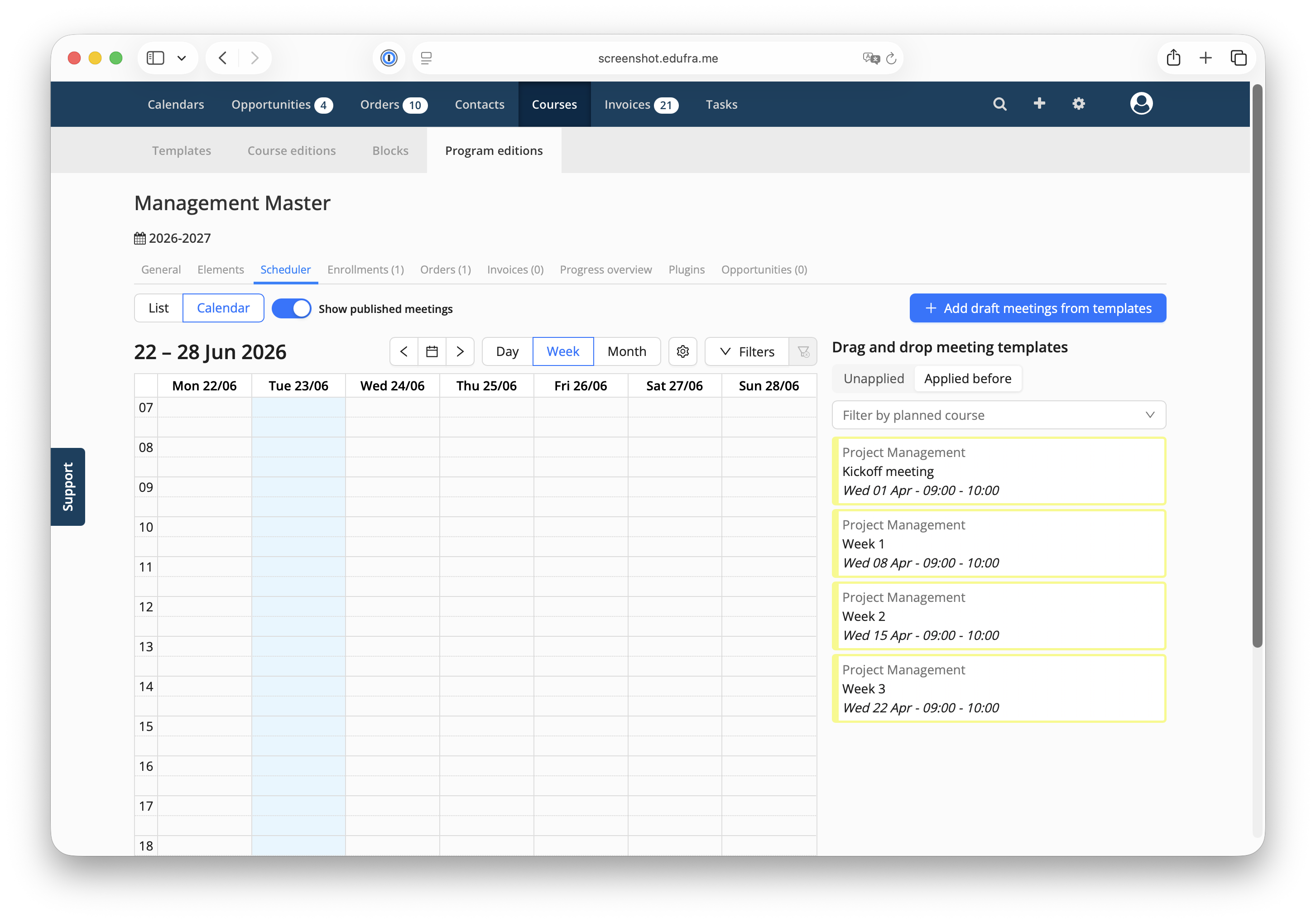
If you manage programs made up of multiple course editions, you can apply meeting templates across the program directly from the Program Edition scheduler. This makes it easy to plan draft meetings for any course edition within the program without having to navigate into each course edition individually.
To add draft meetings from templates within a program edition:
Open the Program Edition and go to the Scheduler tab.
Open the Calendar view:
Drag and drop meeting templates from the program course elements from the right on the desired date.
Alternatively use the drawer:
Click + Add draft meetings from templates.
Choose the course and meeting templates you want to apply.
Review the selected templates and click Create x meetings to create them as draft meetings.
Notes:
Meetings created this way are always created as draft meetings. Publish them when the schedule is finalized.
You can also drag and drop meeting templates on the course calendar.
6. Scheduling complete?
Based on your choices above, your course edition now has its meetings scheduled for at least the first few weeks. You can publish the course on your website or business portal, or start enrolling participants manually.
For longer-running courses, you can schedule additional meetings on the go as needed, using the draft meetings functionality.
7. Notifying participants and teachers about the schedule
We recommend using Eduframe’s email functionality to inform participants, key contacts, and teachers that they can find their scheduled (published) meetings in their portals. If you use Canvas, published meetings will also be available there.
Additionally:
Participants and teachers can add the meetings to their personal calendar, using the 📄 Eduframe Calendar and iCal.
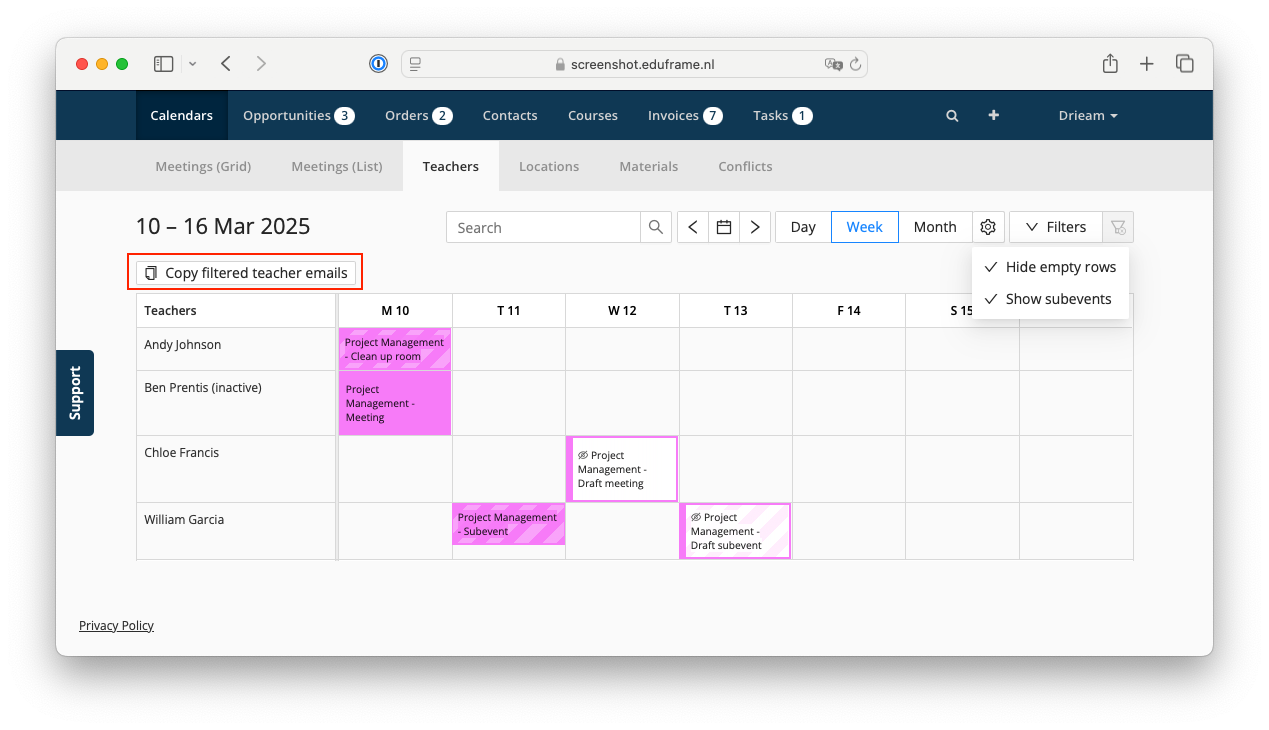
You can contact teachers scheduled for a specific day, week, or month by copying their email addresses:
8. How to inform teachers about upcoming meetings?
Want to remind teachers of their upcoming meetings? Eduframe has you covered! The Teacher Meeting(s) Reminder system email, when enabled, automatically sends a weekly reminder every Monday morning to all teachers scheduled for meetings or subevents in the week after. Set this up in Settings > E-mail templates & triggers > System.