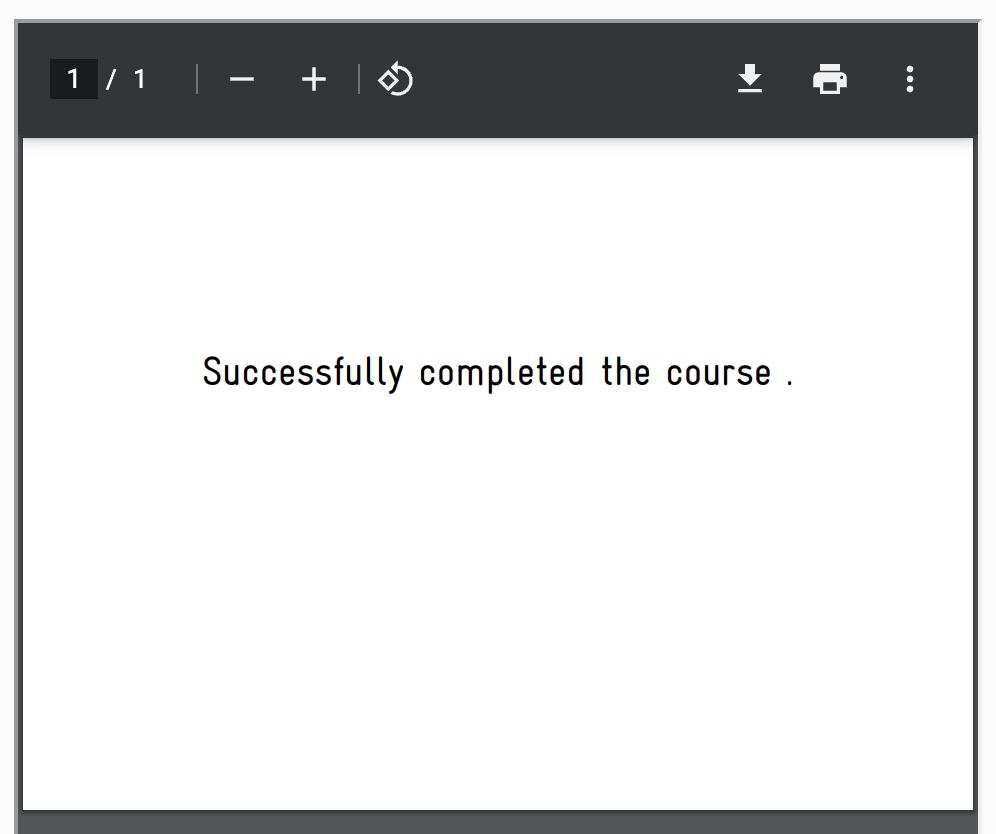
How to Adjust the Font of Certificates?
Last updated: August 31, 2026
Summary
You can adjust the font of your certificates in Eduframe yourself. Open Sans is used as default font for the certificate templates. However, in this article, we describe how to change the default font to the font of your choice.
Step 1: Download font file
First, you need the OTF or TTF file of the font you want to use.
Step 2: Download Base64 Encode version using a web font generator
Use a web font generator like Font Squirrel to create a base64 encoded version of the font which we need for the certificate template.
Upload the OTF or TTF file of your font.
Choose for the 'Expert' option.
Choose only 'TrueType' as font formats.
Choose under the headline 'CSS' for the 'Base64 Encode' option.
Check the agreement 'Yes, the fonts I'm uploading are legally eligible for web embedding.'
Download your kit (ZIP file).



Step 3: Download Base64 Encode version using a web font generator
Extract the downloaded ZIP file.
Open the 'stylesheet.css' file in a browser.
Copy the code.
It should look like this:
@font-face {
    font-family: 'gravur_condensedregular';
    src: url(data:font/truetype;charset=utf-8;base64,AAEAAAAQAQAABAAARkZUTXqfikhiwehkdwopwehoikjhkJHKJJJKKSAAABJKBAjkhAABBjkbAaakh
[Very long code which is removed in this example]
CK7EDRnYrRLAMIEW6AAd//wACK7EDRnYrRLANIEW6AAjkJdkhKKKHdKJhdjkAAA==) format('truetype');
    font-weight: normal;
    font-style: normal;
}
Step 4: Paste the code in the certificate template in Eduframe
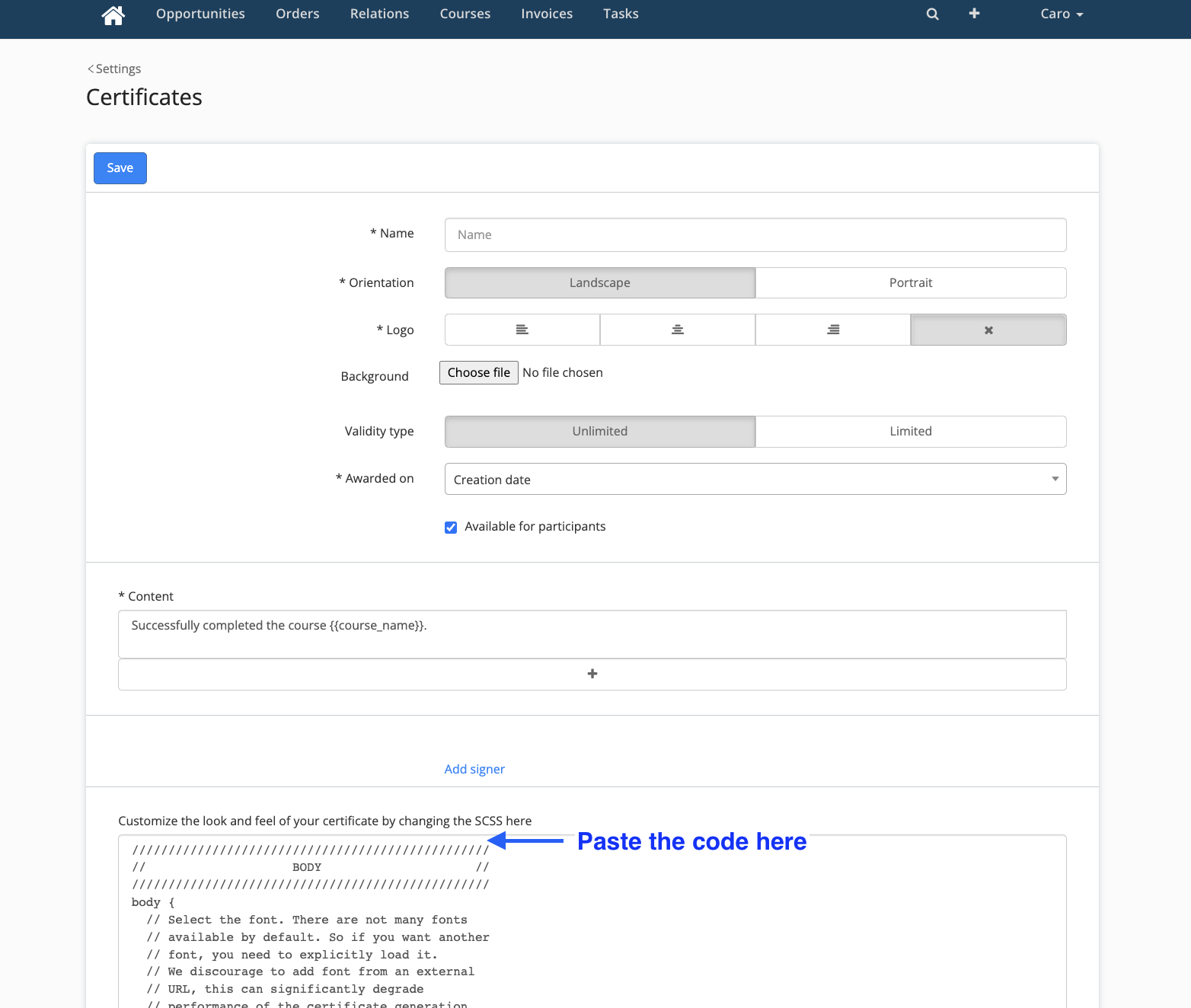
Go to Eduframe > Settings > Certificates and open or create a new certificate.
Scroll down to the 'Customize the look and feel of your certificate by changing the SCSS here' section.
Paste the code on top above the 'Body' section.
Step 5: Adjust the code
Go to the second line where you see the name of the font titled as 'Font-family'.
Remove the quotation marks of the name. ('GravurCondensedregular' to GravurCondensedregular).
Remove 'format('truetype')' at the end of the code.
Within the 'Body' section go to 'font-family'. Change the default font name 'sans-serif' to the same font name you used in the second line (marked with blue in the example below).
Save the certificate template, now the font should be changed to the desired font in the preview.
It should look like this:
@font-face {
    font-family: gravur-condensedregular;
    src: url(data:font/truetype;charset=utf-8;base64,AAEAAAAQAQAABAAARkZUTXqfDkQAAAEMAAAAHEdERUYAJwDuAAABKAAAAB5PUy8ytmtEkQAAAUgAA
[Very long code which is removed in this example]
ABAAACK7EDRnYrRLAIIEWyCdkCK7EDRnYrRLAMIEW6AAd//wACK7EDRYrRLANIEW6AAwCSAACK7wFCsAAA==);
    font-weight: normal;
    font-style: normal;
}
/////////////////////////////////////////////////
//                    BODY                     //
/////////////////////////////////////////////////
body {
  // Select the font. There are not many fonts
  // available by default. So if you want another
  // font, you need to explicitly load it.
  // We discourage to add font from an external
  // URL, this can significantly degrade
  // performance of the certificate generation
  // and might not be supported in the future.
  // Instead, add the base64 encoded version to
  // this stylesheet like so:
  //
  //     @font-face {
  //       font-family: My Cool Font;
  //       src: url(data:font/truetype;charset=utf-8;base64,<BASE64 VERSION HERE>);
  //       font-weight: normal;
  //       font-style: normal;
  //     }
  //
  // You can then select that font family here:
  font-family: gravur-condensedregular;